🡠 Back


How to use an AI Blast
Reading time
2 min
AI
October 27, 2026
afrus.ai
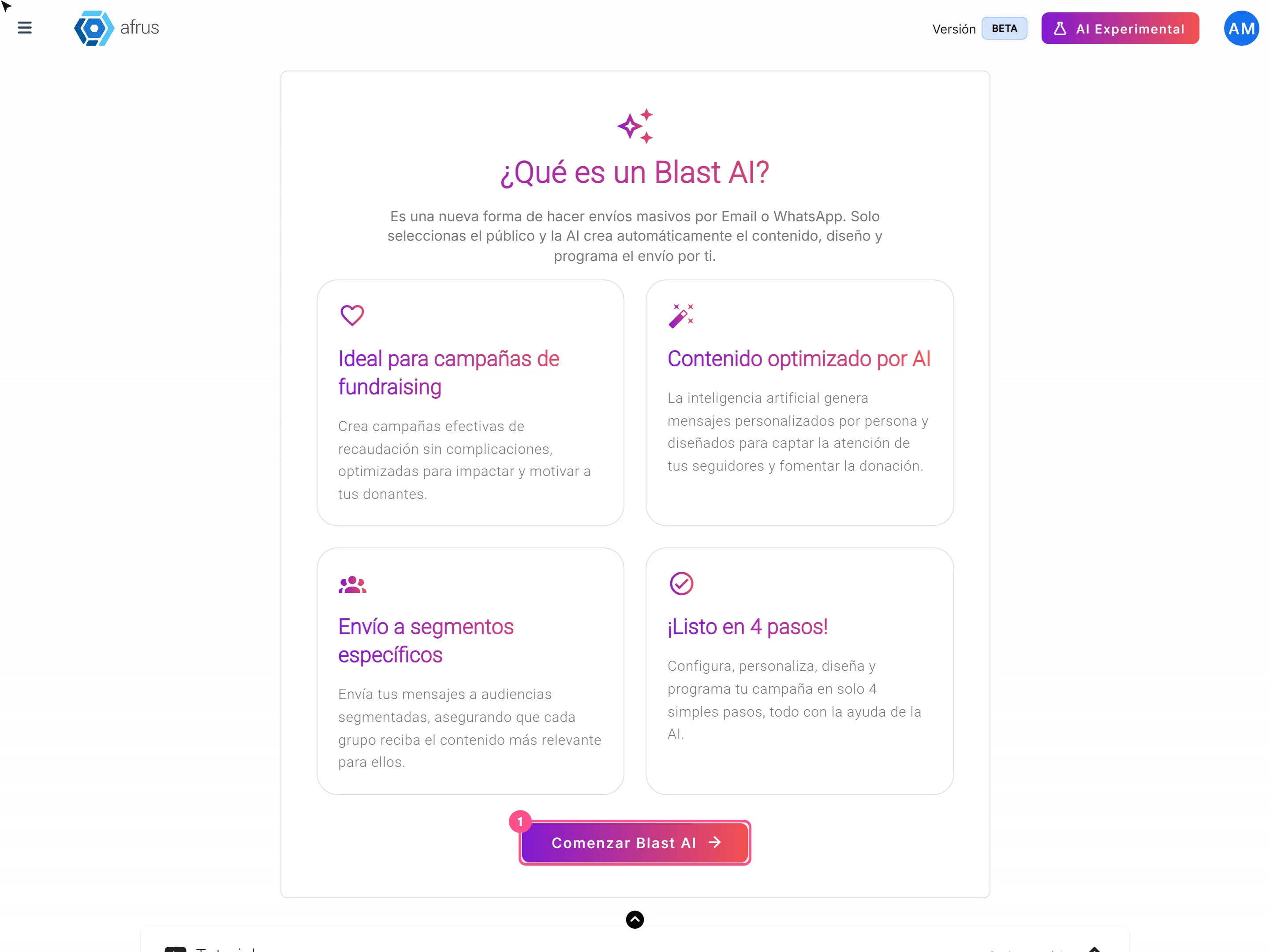
Learn how to create and send an AI Blast in AFRUS, step by step: audience, design, message and send date.
In this article
Labels are shown as they appear in the Spanish version of the console.
Before you start
- Turn on AFRUS AI. In the Business profile (profile menu), create your profile and click "Enviar AI" (Send to AI).
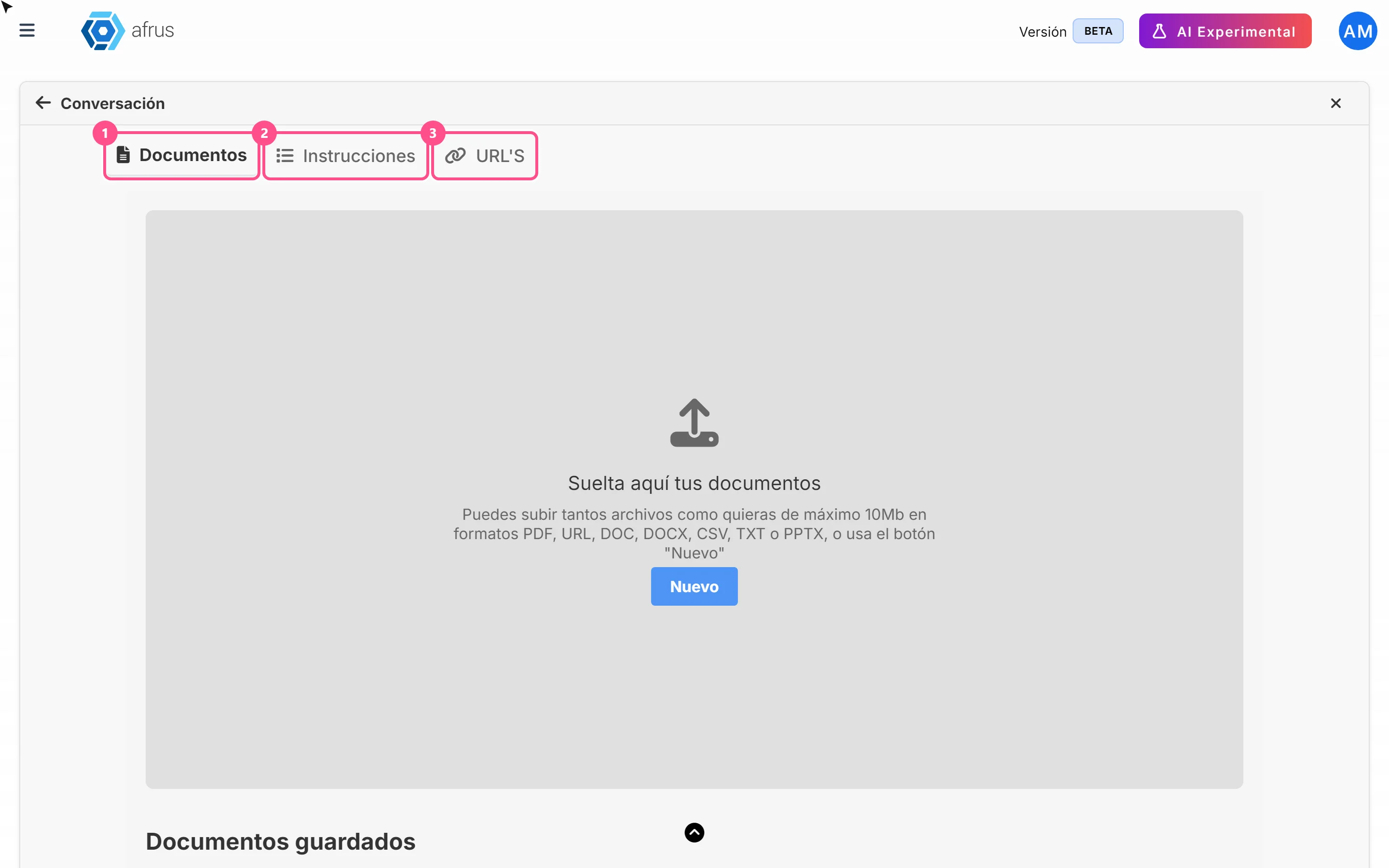
- Upload information in AI > Entrenamiento [AI RAG]. That's what the AI uses to write.
- Have your sending email account and credits ready, just like for a regular Blast.
- Create your signature in AI > Firmas de usuarios. Without a signature you can't send with AI.
Step by step
- Start. Go to AI > Blast de AI and click "Comenzar Blast AI" (Start AI Blast).
- Set it up. Type the Nombre del blast (name), choose the Objetivo del blast (goal) and, in Enviar a (Send to), a predefined segment or a tag. Fill in the sender and click "Continuar" (Continue).
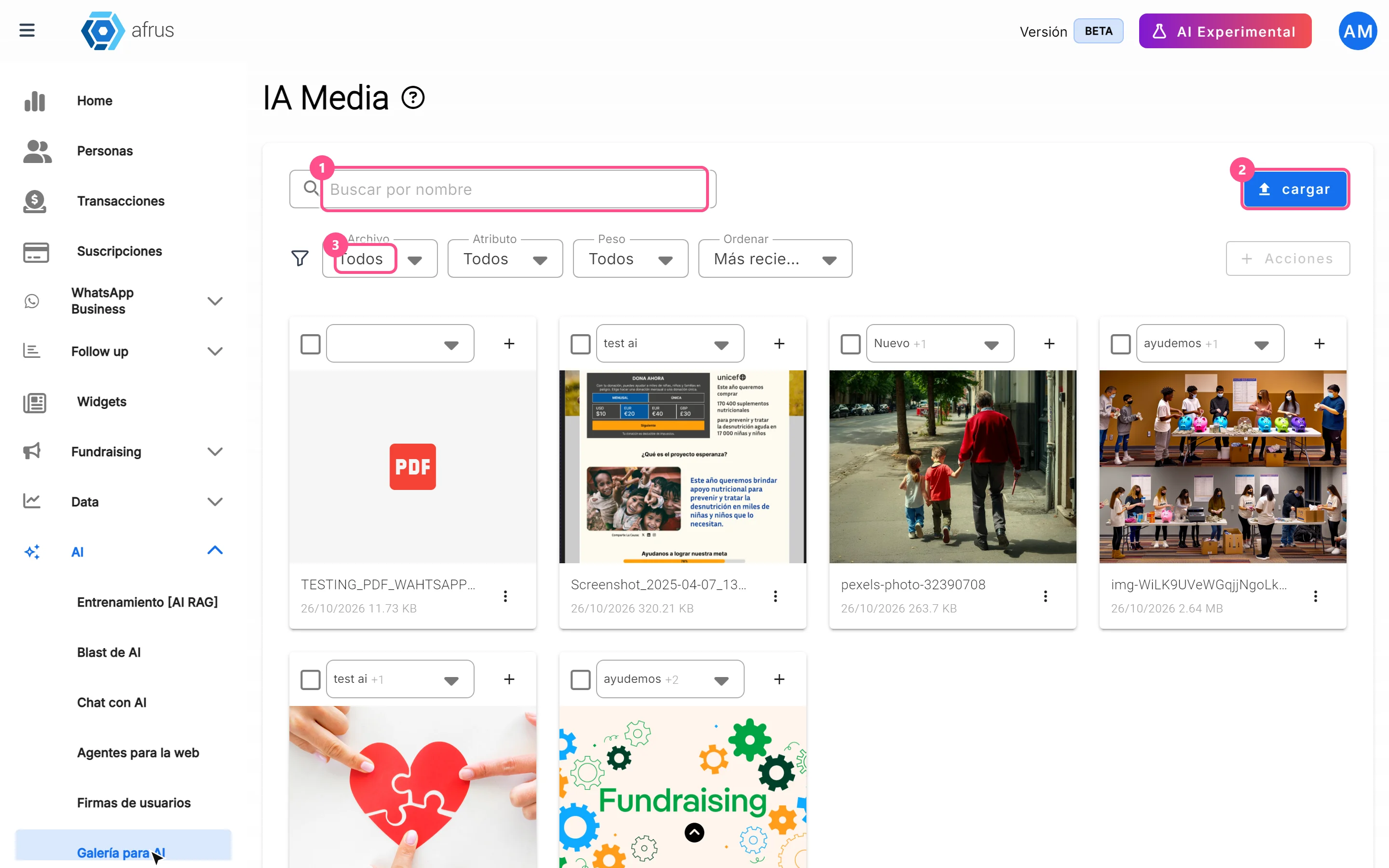
- Choose the design. Correo de texto (plain email) or Plantillas AI Email (with design and images from your Galería para AI).
- Write the message. Paste the link in URL del Call to Action and tell the AI what to say in Prompt (Mensaje o Instrucciones).
- Schedule and send. If you want, send yourself a test. Choose "Enviar ahora" (Send now) or a date and time, check the summary and click "Finalizar" (Finish).
You'll see "Blast IA enviado con éxito" (AI Blast sent successfully). Results appear in Interacciones > Blast, with the AI label.
Frequently asked questions
Can I see the final text before sending?
No. The test shows the design, but the AI writes each person's text at the moment of sending.
What time does it go out if I schedule it?
According to your computer's time, even though the screen shows Bogotá time. If you're in another time zone, adjust the time.
Can I send it by WhatsApp?
For now, email only.
Which template is my email sent with?
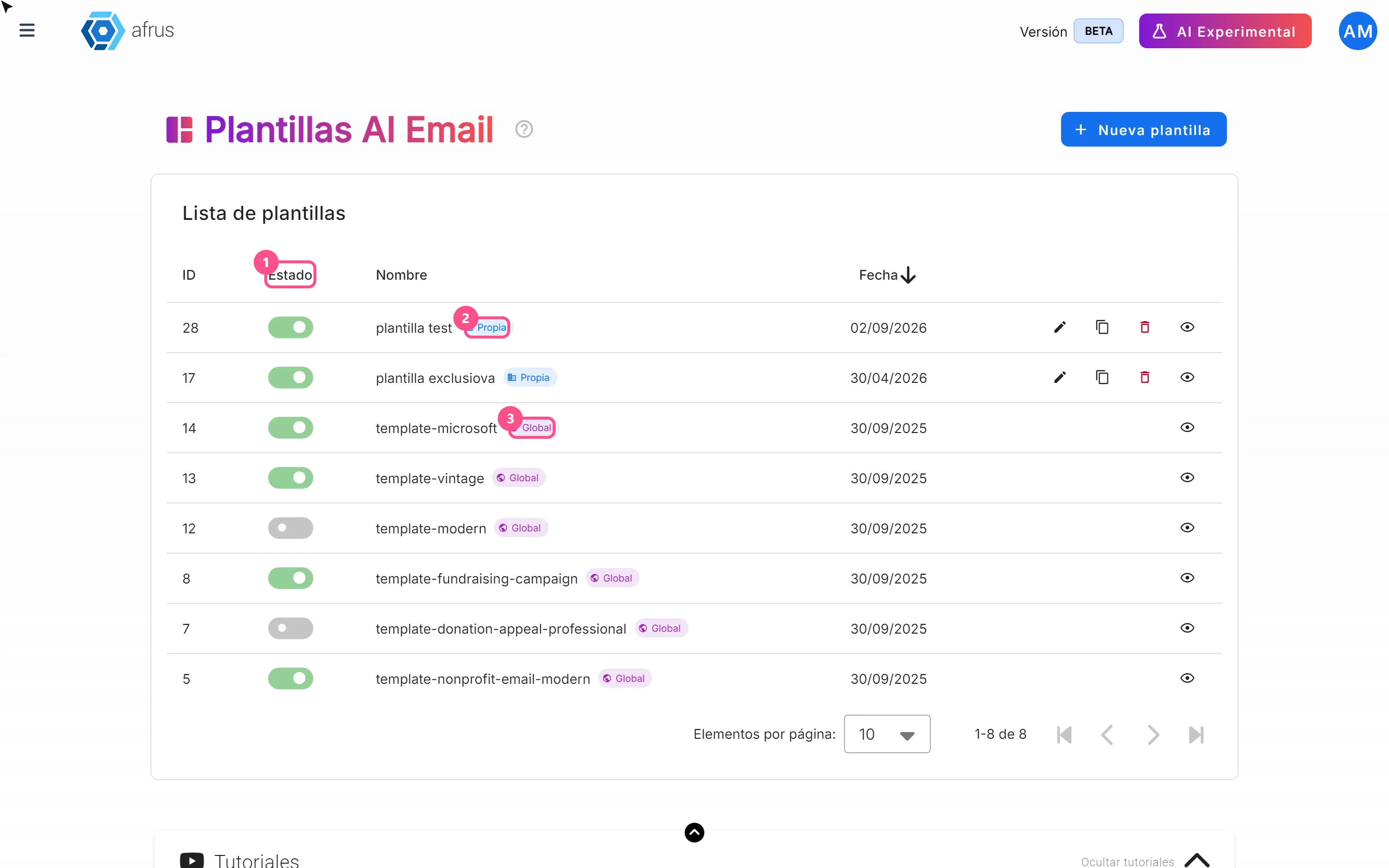
With one of the templates you have enabled in AI > Plantillas AI Email.
Need help? Talk to the afrus team
In this article
✕
Related Tutorials
AI
October 27, 2026
What AI Training (Entrenamiento [AI RAG]) is
Learn what AI Training is: the place where you give AFRUS AI your organization's information.
afrus.ai
AI
October 27, 2026
How to see what you uploaded to AI Training
Learn how to review the documents, instructions and web pages you uploaded to AFRUS AI Training.
afrus.ai
AI
October 27, 2026
What the AI gallery is for
Learn what the AI gallery is for: putting your photos in AI emails and choosing which images each one uses.
afrus.ai
AI
October 27, 2026
What AI email templates are for
Learn what AI email templates are for: giving AI emails your style and deciding which designs are used.
afrus.ai