🡠 Back


How to use Website Agents
Reading time
1 min
AI
October 27, 2026
afrus.ai
Learn how to create an AI agent in AFRUS, install it on your website and review the conversations.
In this article
Labels are shown as they appear in the Spanish version of the console.
Before you start
- Turn on AFRUS AI. In the Business profile (profile menu), create your profile and click "Enviar AI" (Send to AI).
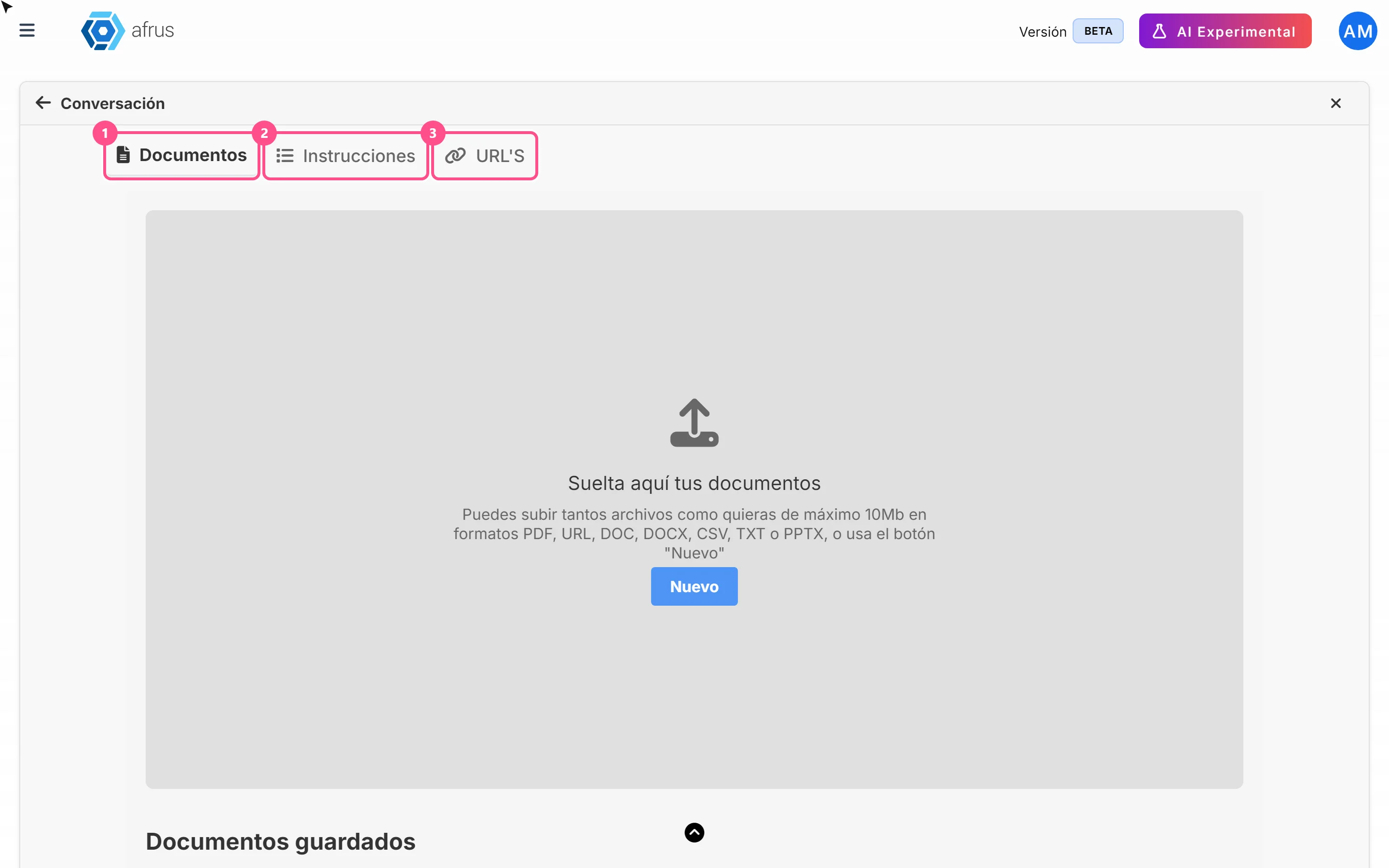
- Upload at least one document in AI > Entrenamiento [AI RAG]. Without documents, the agent can't be saved.
Step by step
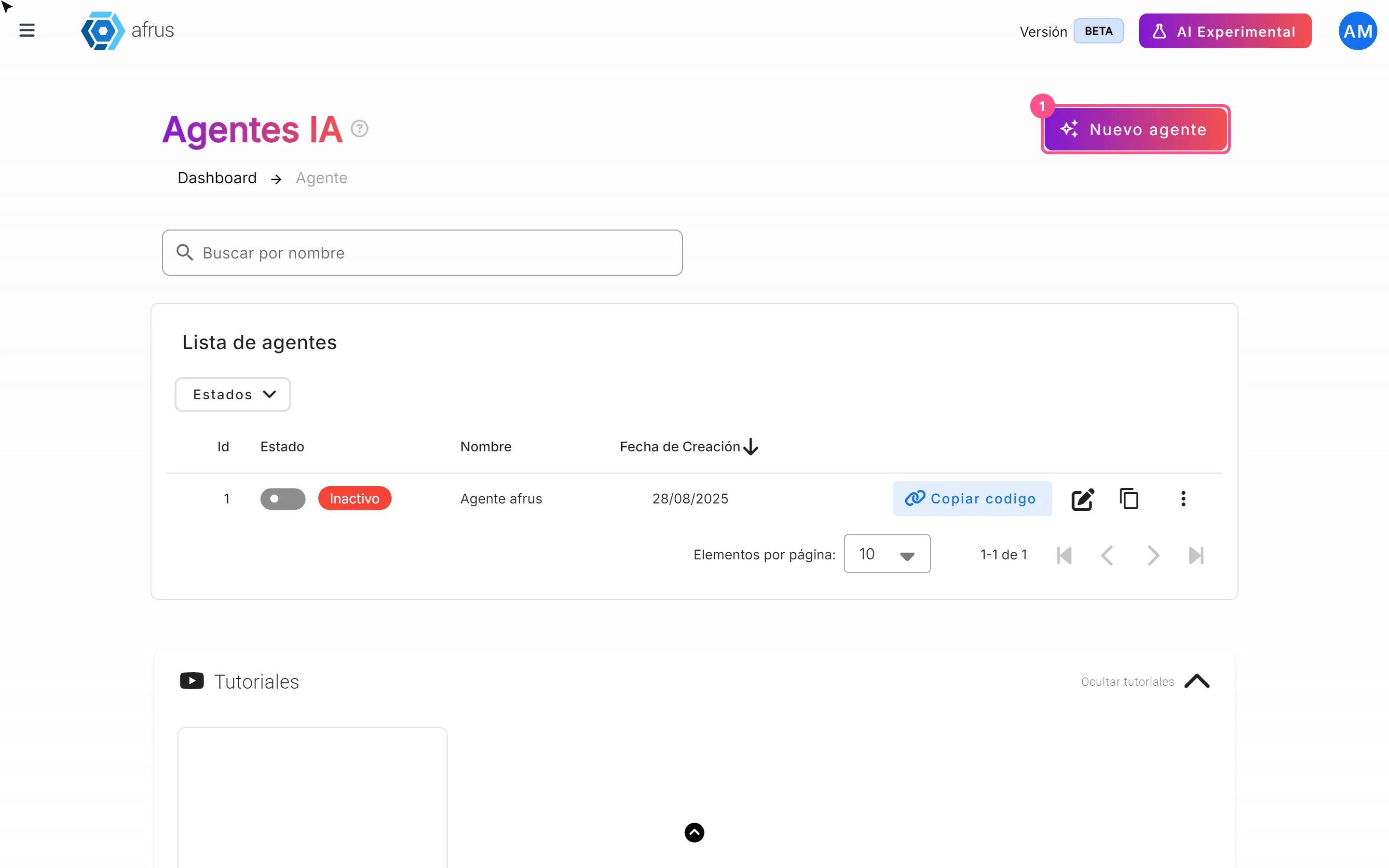
- Create the agent. In AI > Agentes para la web, click "Nuevo agente" (New agent).
- Fill it in. Type the name, the button text and link (for example, your donation form), a short description of your organization and the instructions for the agent.
- Save. Leave Activar configuración (Activate setup) on and click "Guardar" (Save).
- Copy the code. In the list, click "Copiar codigo" (Copy code) on the agent's row.
- Paste it on your site. Give it to whoever manages your website.
Frequently asked questions
What happens with people who use the chat?
They leave their name and email. If they weren't in your database, AFRUS creates them as a new person.
Where do I see the conversations?
Today they have no menu button: with your session open, type console.afrus.app/iachat-conversations-index in your browser.
How do I pause it?
Turn it off with the Estado (Status) switch. Deleting it is permanent.
Need help? Talk to the afrus team
In this article
✕
Related Tutorials
AI
October 27, 2026
What AI Training (Entrenamiento [AI RAG]) is
Learn what AI Training is: the place where you give AFRUS AI your organization's information.
afrus.ai
AI
October 27, 2026
How to see what you uploaded to AI Training
Learn how to review the documents, instructions and web pages you uploaded to AFRUS AI Training.
afrus.ai
AI
October 27, 2026
What the AI gallery is for
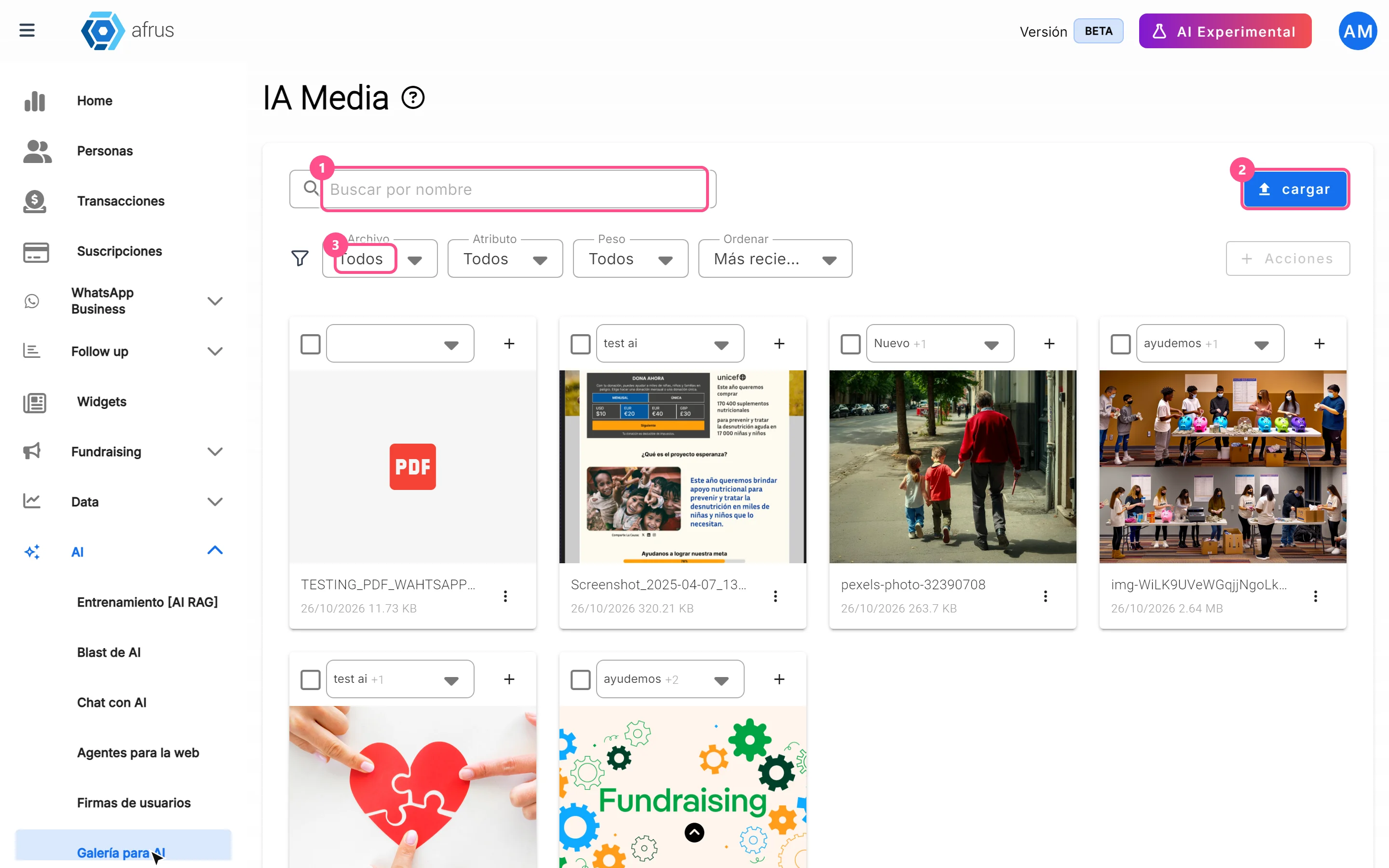
Learn what the AI gallery is for: putting your photos in AI emails and choosing which images each one uses.
afrus.ai
AI
October 27, 2026
What AI email templates are for
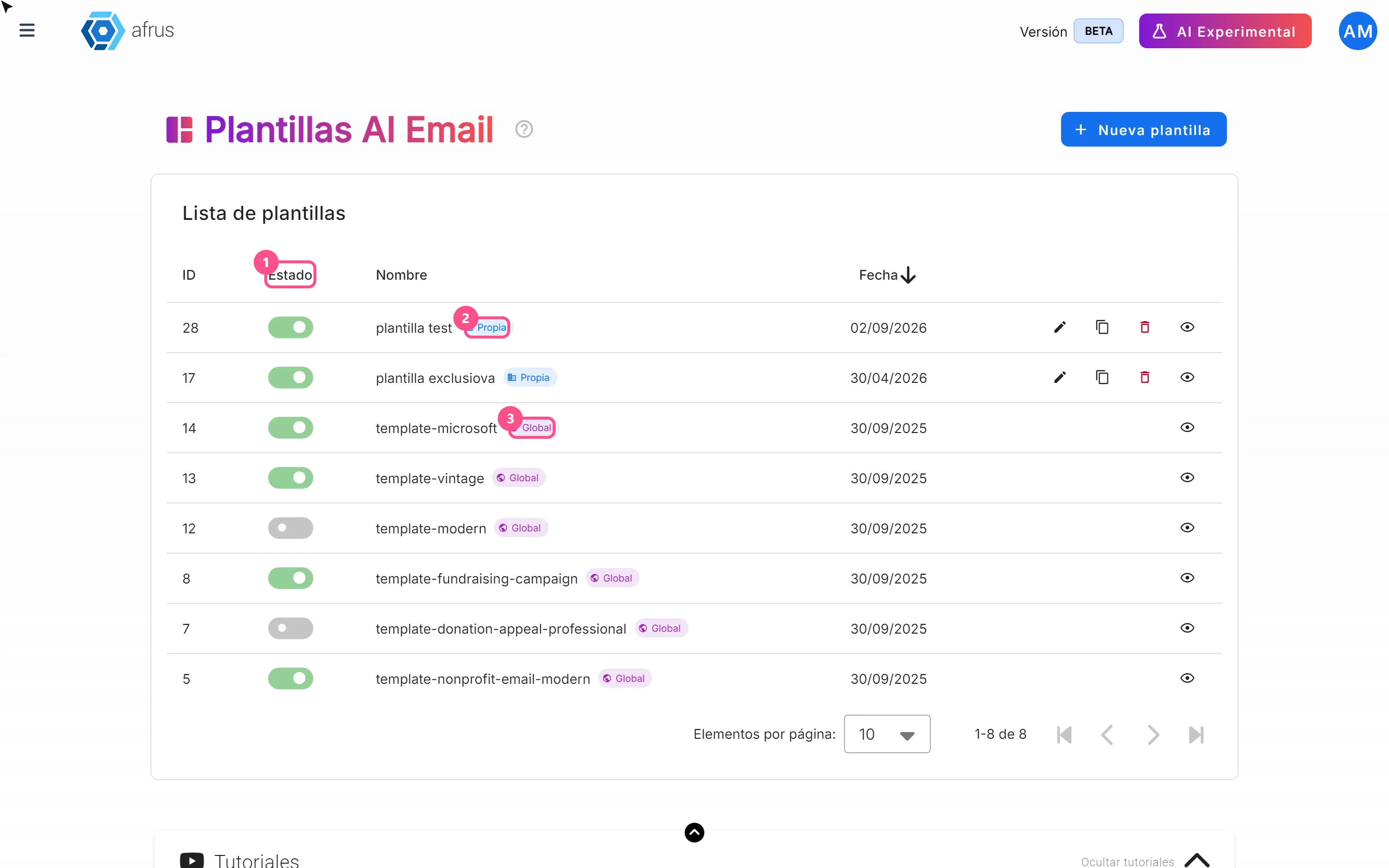
Learn what AI email templates are for: giving AI emails your style and deciding which designs are used.
afrus.ai