🡠 Back


How to turn Cover Your Cost on or off
Reading time
2 min
Settings
October 27, 2026
afrus.ai
Learn how to turn on Cover Your Cost in your gateways so donors can cover the fee and your organization receives the full amount.
In this article
With Cover Your Cost, the donor can pay a little more to cover the gateway fee. This way your organization receives the full donation amount. Labels are shown as they appear in the Spanish version of the console.
Before you start
- AFRUS has to turn on Cover Your Cost for your organization. If you don't see the Cover Your Cost section when you open a gateway, write to us to activate it.
Step by step
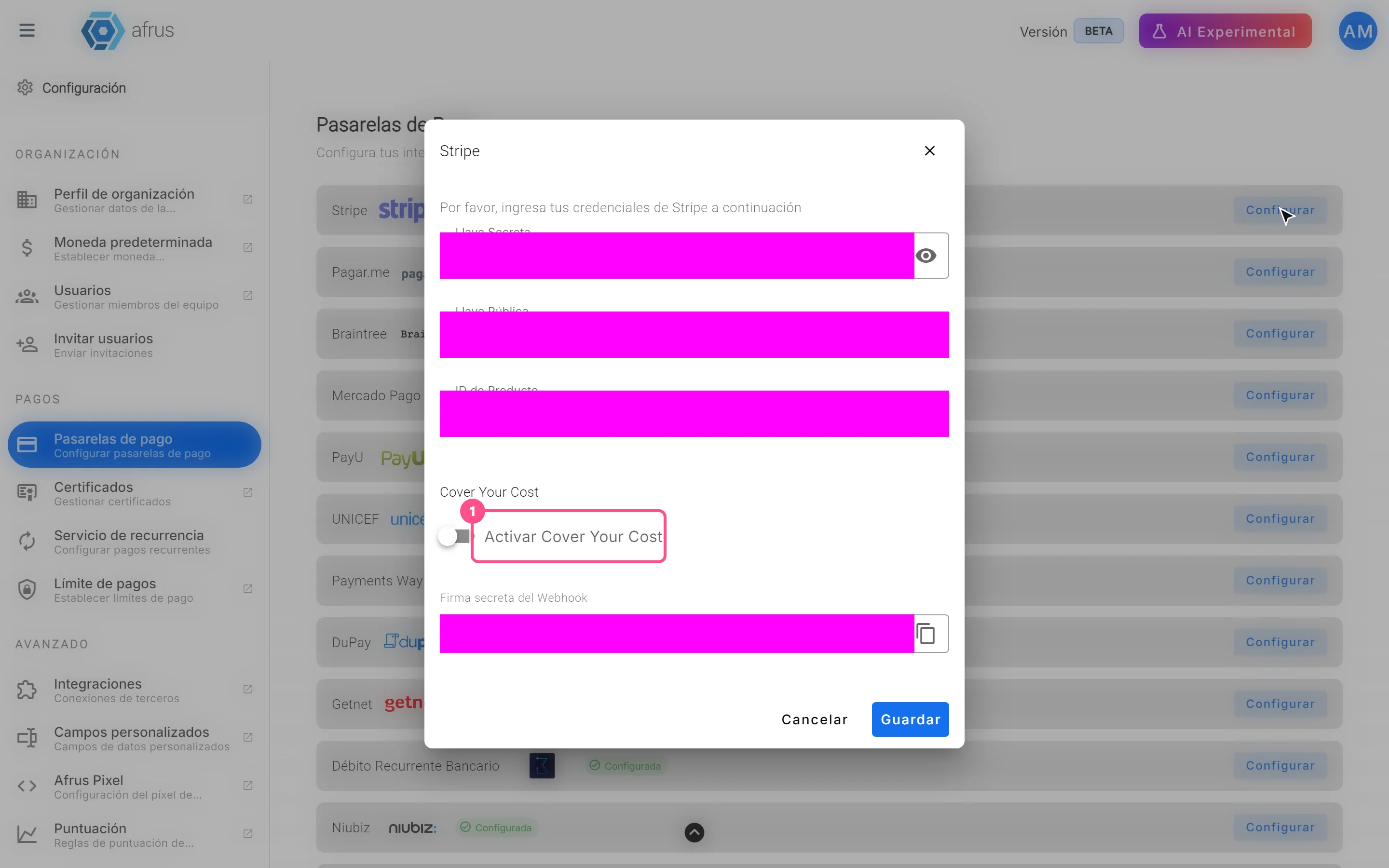
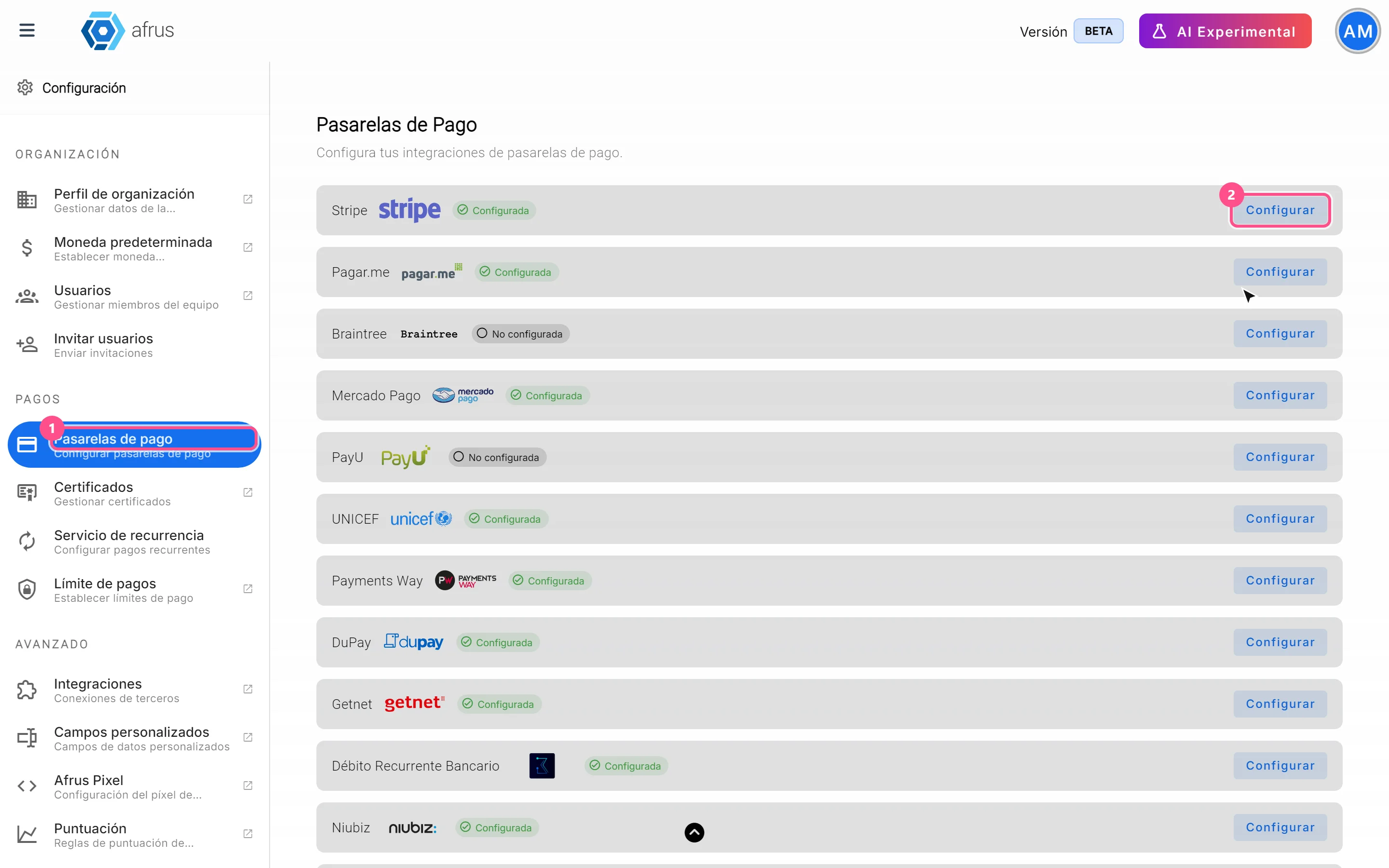
- Open the gateway. Go to Ajustes de Organización > Pasarelas de pago (Organization settings > Payment gateways) and open the gateway where you want to offer it.
- Turn it on. In the Cover Your Cost section, turn on Activar Cover Your Cost.
- Enter the gateway fee. In Comisión de pasarela (%) (Gateway fee %), enter the percentage that gateway charges you (minimum 0.01). The Comisión AFRUS (%) (AFRUS fee %) is shown for reference only.
- Choose how the donor sees it. With Preseleccionar la opción para el donante (Preselect the option for the donor) on, they see it already on and can remove it. Off, they turn it on if they want.
- Save. Save the gateway and repeat in each gateway where you want to offer it.
When you finish, a donor paying with that gateway sees the card "Cubrir el 100% los costos de donación" (Cover 100% of the donation costs) in the last step of the form, with their base donation, the approximate cost and the total.
Frequently asked questions
How do I turn it off?
Open the gateway, turn off Activar Cover Your Cost and save. You can turn it on and off whenever you want.
Is it turned on in the form?
No. It is set up per gateway, not per form.
Is there a limit?
The gateway fee plus the AFRUS fee must add up to less than 80%.
Need help? Talk to the afrus team
In this article
✕
Related Tutorials
Settings
October 27, 2026
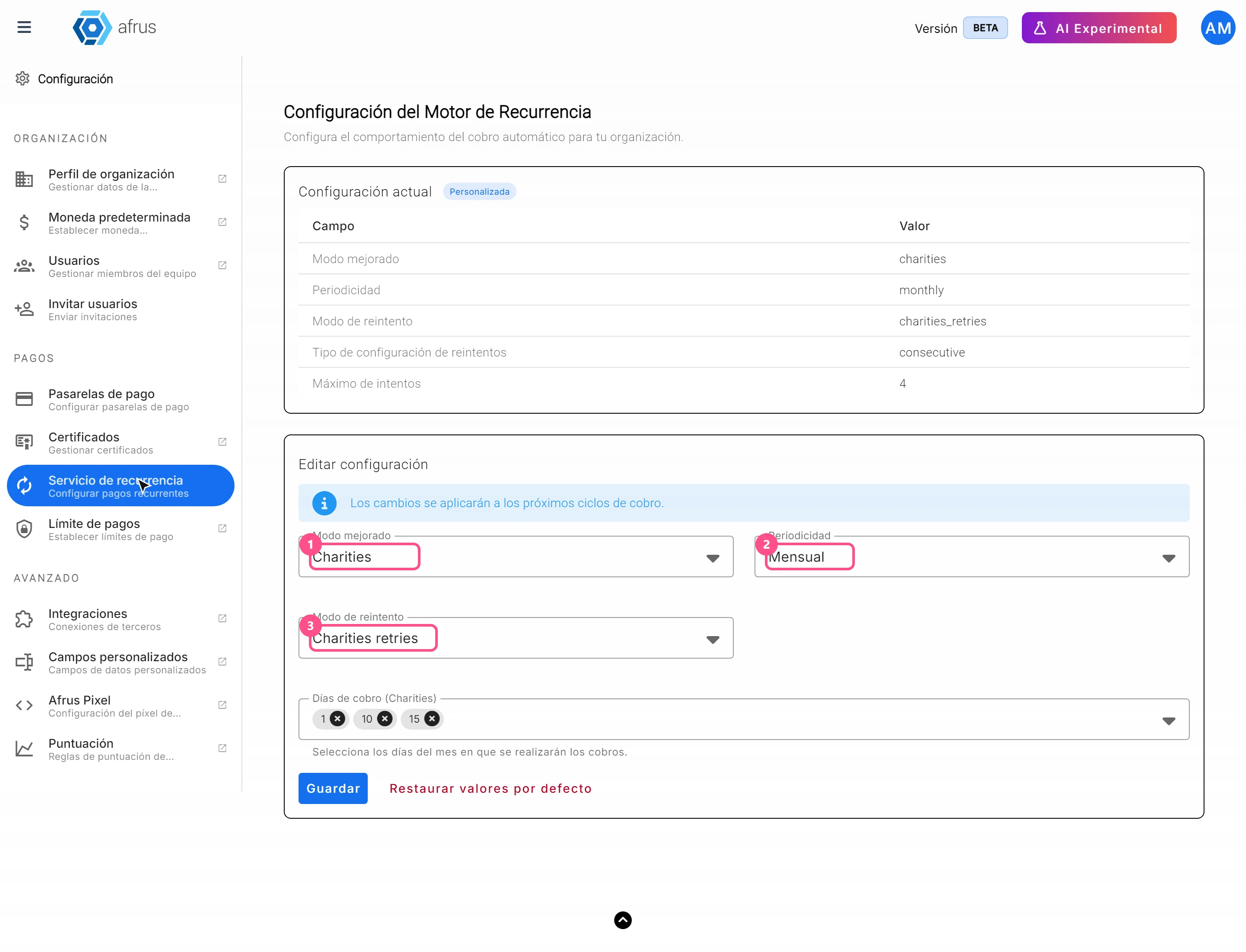
How to set up the Recurrence service
Learn how to set the frequency, charge days and retries of your recurring donations in AFRUS.
afrus.ai
Settings
October 27, 2026
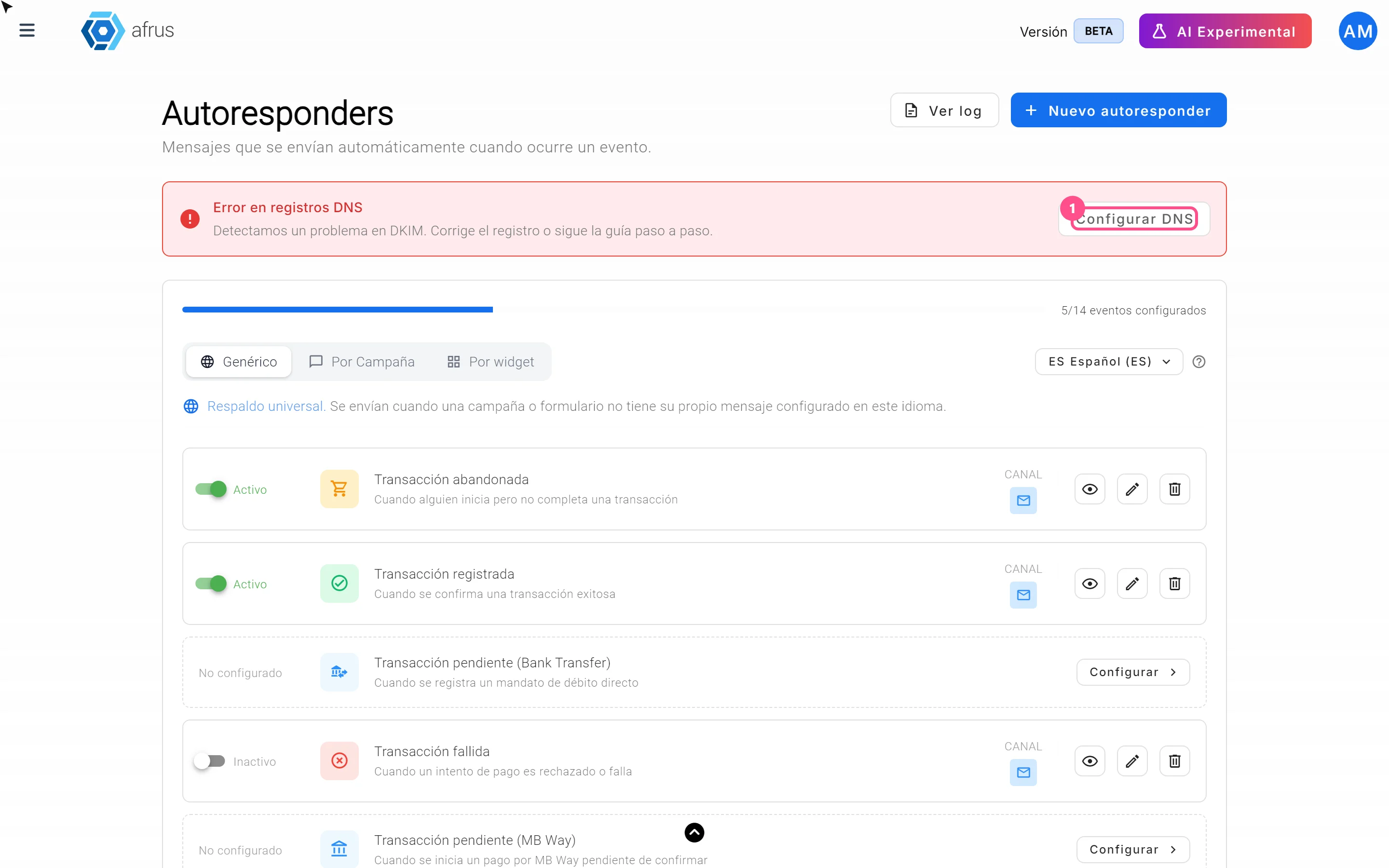
What onboarding automation is
Learn what setting up your email domain in AFRUS means and how to know if it's ready.
afrus.ai
Settings
October 27, 2026
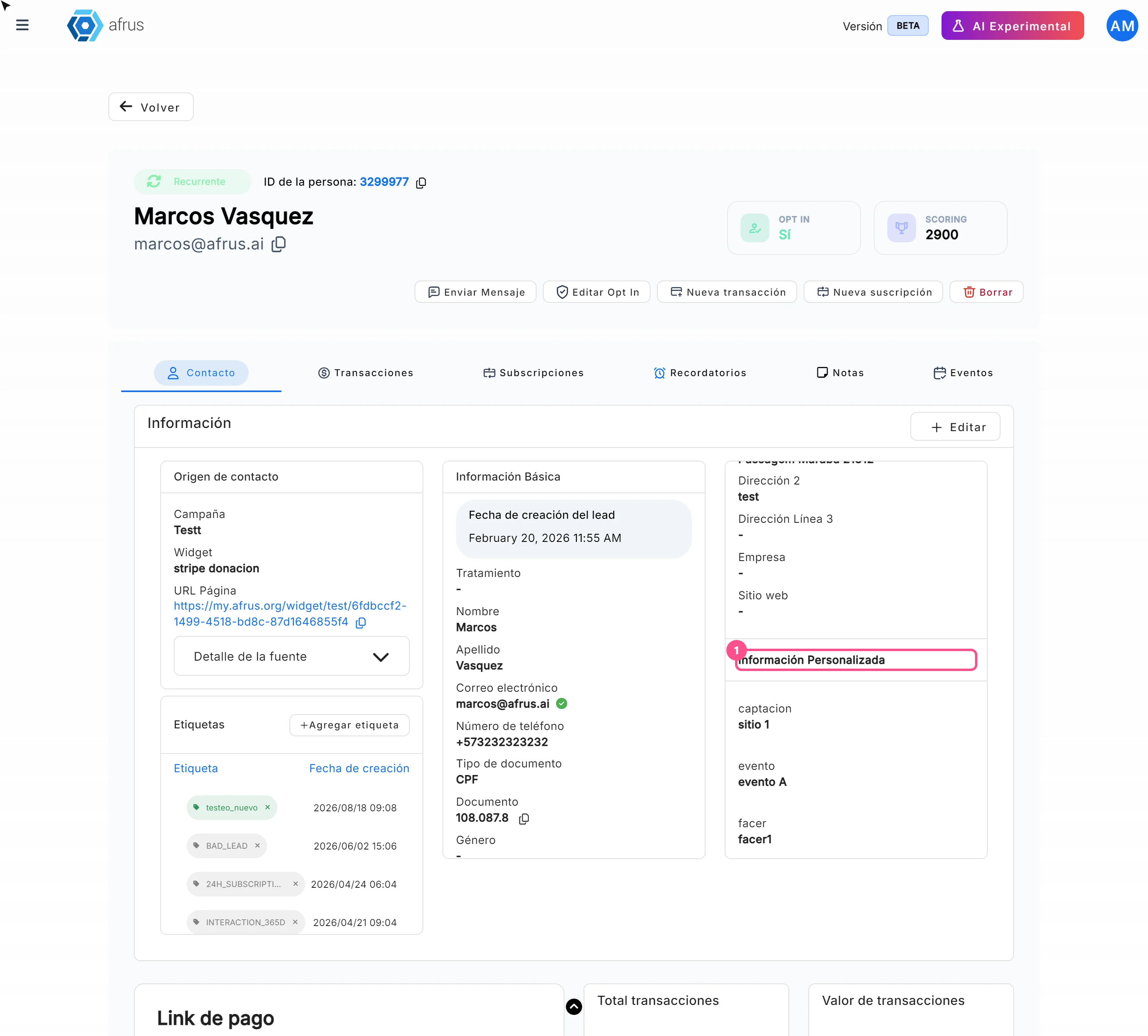
Where to see custom fields
Learn where to see custom fields: in the person's profile, in the people download and in your emails.
afrus.ai
Settings
October 27, 2026
What payment gateways are
Learn what a payment gateway is in AFRUS and where your organization's gateways are set up.
afrus.ai