🡠 Back


Peer to peer guide
Reading time
12 min
Peer to peer
October 28, 2026
afrus.ai
Complete guide to Peer to peer: every step with its screenshots and the frequently asked questions.
In this article
After reading this guide you will know what peer-to-peer fundraising is on AFRUS, what it is for, how to change its images, what a supporter goes through after signing up, and how to review, approve and measure your fundraisers' pages.
Module: Peer to peer · Menu: Fundraising > Peer to peer fundraisers · Audience: fundraising and community teams
About the labels in this guide: buttons, fields and menus are written exactly as they appear in the Spanish version of the console, with an English explanation where it helps.
What Peer to peer is
Peer to peer lets your supporters create their own fundraising page for one of your organization's campaigns. We call each supporter who creates a page a fundraiser.
Each page has its own goal, message and donation form. Your organization reviews these pages from the console and decides whether to approve, reject or end them.
What it is for
- Multiplying a campaign's reach. Each supporter shares their personal page with their own community.
- Seeing who is fundraising in a single list. You know who created a page, what status it is in and what its goal is.
- Controlling what gets published. You approve, reject or end your fundraisers' pages.
- Attributing each donation to its fundraiser. The donation is linked to the page it came from, and that page shows how much it has raised against its goal.
Before you start: turn on Peer to peer in your campaign
Everything else depends on this step.
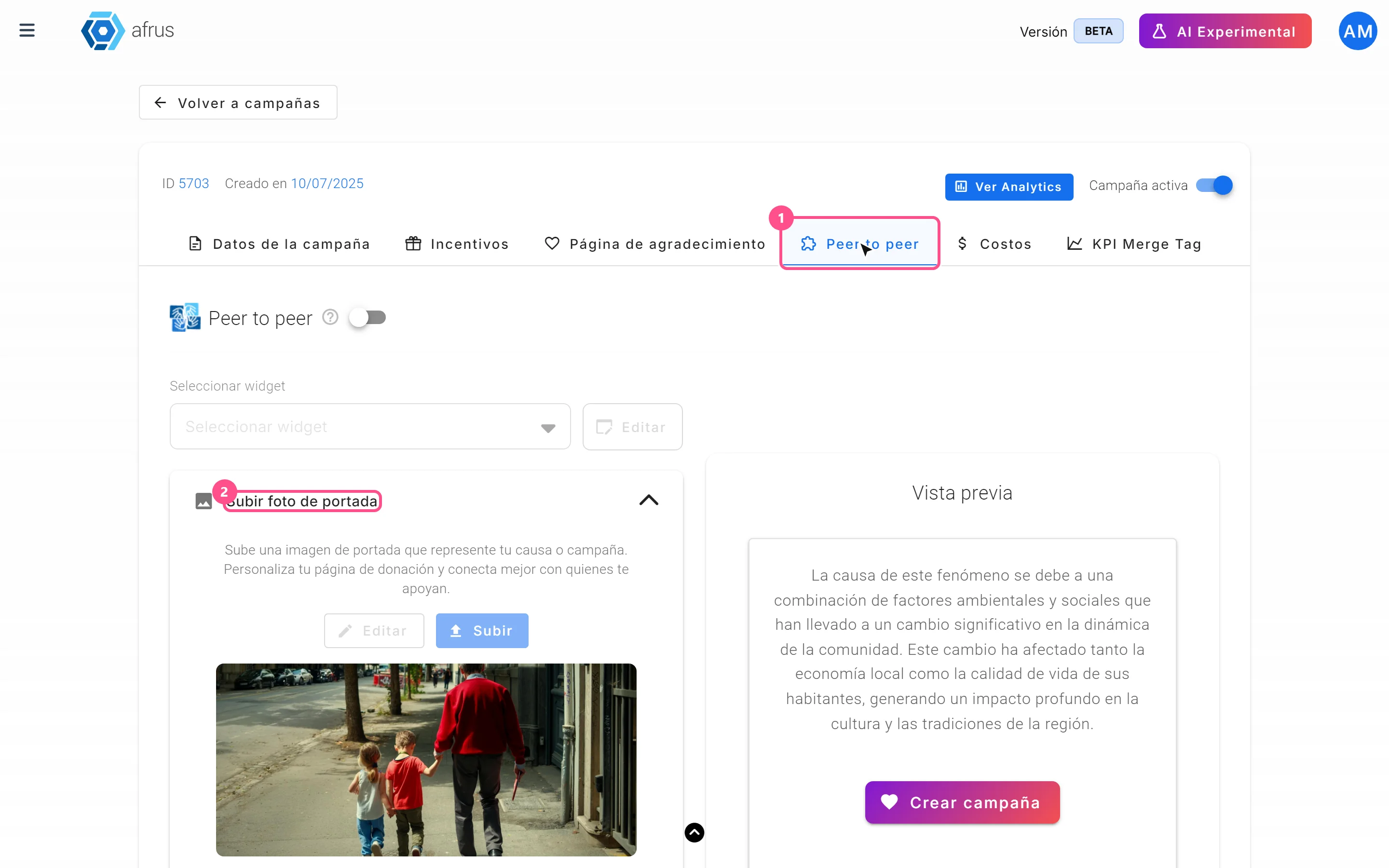
- Open the campaign. Go to Fundraising > Campañas, open the campaign and go to the Peer to peer tab.
- Turn on the switch. It is next to the "Peer to peer" title. You will see the message "Peer to Peer activado" (Peer to Peer enabled).
- Choose the donation widget. In Seleccionar widget (Select widget), choose the widget that will appear on your fundraisers' pages. This way donors on every page give through the form you choose.
- Upload both images. Follow "How to change the cover images". While one is missing you will see Configuración requerida (Setup required): "Para el correcto funcionamiento del módulo peer to peer, asegúrate de subir ambas imágenes." (For the peer to peer module to work properly, make sure you upload both images.)
When you finish, every donation widget linked to that campaign shows a "Crea tu campaña" (Create your campaign) button below the form. That button takes your supporters to the fundraiser sign-up page. Its text and color (gradient, dark or light) can be customized in the widget settings.
Important: if a widget has several peer to peer campaigns, the button uses the first one.
Step by step
How to change the cover images
There are two sets of images: the campaign's, which you set from the console, and each fundraiser's own, which they set in their page editor.
Important: images are locked into a fundraiser's page the moment they click "Publicar" (Publish). If you change the campaign images later, pages already published are not updated, and a fundraiser cannot edit their page once published. So it's best to have the images ready before promoting the campaign.
Part 1 — Campaign images (you set them)
Peer to peer must be turned on in the campaign: with the switch off, the image buttons are disabled.
- Open the Peer to peer tab. In Fundraising > Campañas, open the campaign and go to the Peer to peer tab.
- Choose which image to change. In Subir foto de portada (Upload cover photo — the first image in the top carousel of each page) or Subir foto de campaña (Upload campaign photo — the secondary image further down the page), click "Subir" (Upload) to choose a new file, or "Editar" (Edit) to re-crop the current image. "Editar" only appears if there is already an image.
- Crop the image. In the cropper you can choose the Relación de aspecto (Aspect ratio) — 9:16 (Vertical), 1:1 (Cuadrado) (square), 4:3 (Estándar) (standard) or 16:9 (Panorámico) (widescreen) — and use "Rotar a la derecha" (Rotate right).
- Save twice. Click "Guardar" (Save). The first time it switches to the desktop preview (16:9); check it and click "Guardar" again to upload the image.
When you finish you will see "Foto de portada actualizada" (Cover photo updated) or "Foto de campaña actualizada" (Campaign photo updated). You can check the result with "Vista previa" (Preview).
Formats and sizes: jpg, jpeg, png, gif and webp files up to 5 MB are accepted. The screen recommends at least 1440 × 530 pixels. If the file is over 5 MB or is not a valid image, you will see "Error al actualizar la foto de portada" (or "…la foto de campaña") — error updating the photo. If a campaign is missing either image, the fundraiser's page shows a generic one.
Can it be undone? You can upload another image at any time, but the change only reaches pages published afterwards.
Part 2 — Fundraiser images (they set them)
Each fundraiser does this in the editor that opens after signing up:
- Change their cover image. In Imagen de portada (Cover image), click "Reemplazar" (Replace). It is the second image in the top carousel. Recommended size: 1080 × 1920 px, under 500 KB.
- Change their profile photo. In Foto de perfil (Profile photo), click "Seleccionar archivo" (Choose file). It is the photo shown next to their name. Recommended size: 1080 × 1080 px, under 500 KB.
Important: the "Editar" button on the fundraiser's cover image does nothing for now. To change the image, the fundraiser should use "Reemplazar".
What happens after a supporter fills in the form
There are two different forms: the sign-up form, filled in by someone who wants to become a fundraiser, and the donation form, filled in by someone donating on a fundraiser's page.
Part 1 — A supporter signs up as a fundraiser
- They fill in the sign-up form. From the widget's "Crea tu campaña" button they reach the sign-up page and fill in Nombre * (first name), Apellido * (last name), Correo electrónico * (email), Teléfono * (phone), País * (country) and Objetivo de recaudación (en USD) (fundraising goal in USD). They tick Acepto términos y condiciones (I accept the terms and conditions) and click "INICIAR MI CAMPAÑA SOLIDARIA" (or "CREAR CAMPAÑA") — start my campaign.
- Their page is created as Pending. It appears immediately in your list under Fundraising > Peer to peer fundraisers and counts in Solicitudes pendientes (Pending requests). If they leave the goal empty, their goal is the campaign's goal. If that email already has a page in that campaign, they see "Ya tienes un diseño para esta campaña" (You already have a design for this campaign) with an "Iniciar sesión" (Log in) button.
- They design their page. The editor opens. Their message is pre-filled with AI-generated text, which they can regenerate with "✨ Generar mi historia con IA" (Generate my story with AI); if no AI text is configured, a default message is used. They can upload their images, write their Mensaje (message) and add a video in Agrega un video (Opcional) (Add a video, optional) → "Insertar" (Insert).
- They publish. When they click "Publicar":
- their page is generated, with an address like
web.afrus.org/peer-to-peer-campaign<number>; - your organization's contact email receives an email with the subject "Tu campana ha sido creada de forma exitosa" (Your campaign has been created successfully), with the campaign name, the fundraiser's name, the date and the page number;
- the fundraiser sees "¡Campaña creada exitosamente!": "Tu campaña será aprobada por la organización y te enviarán un correo cuando quede lista para que inicies a empoderar a tu comunidad." (Your campaign will be approved by the organization, and you will get an email when it is ready.)
- their page is generated, with an address like
- They wait for approval. While the page is Pending, if they try to log in to their dashboard they see "Tu campaña está en revisión, te notificaremos cuando sea aprobada" (Your campaign is under review; we'll let you know when it's approved).
- They get the answer by email. When you approve or reject their page, the fundraiser receives "Tu campaña fue aceptada" (accepted) or "Tu campaña fue rechazada" (rejected) — always in Spanish.
- They log in to their dashboard. Once approved, they log in to their Mis campañas (My campaigns) dashboard with their email and phone. They receive a 6-digit verification code by email, which expires after 10 minutes.
Important: if a supporter signs up but never clicks "Publicar", the request still appears in your list as Pendiente, but with no page ("Ver página" opens nothing), and your organization does not receive the notification email.
Part 2 — Someone donates on a fundraiser's page
- The donor fills in the widget. The fundraiser's page includes the donation widget you chose in the Peer to peer tab. It works like any donation.
- The donation is attributed to the fundraiser. It is linked to that fundraiser's page and to the campaign.
- It adds to the page total. When the donation succeeds, it adds to the Total recaudado (Total raised) shown on the fundraiser's public page.
- Thank-you page. After donating, the donor sees the thank-you or redirect page set up in the widget.
How to see who is doing Peer to peer, approve a fundraiser and know how much they have raised
Part 1 — See who is fundraising
- Open the dashboard. Go to Fundraising > Peer to peer fundraisers.
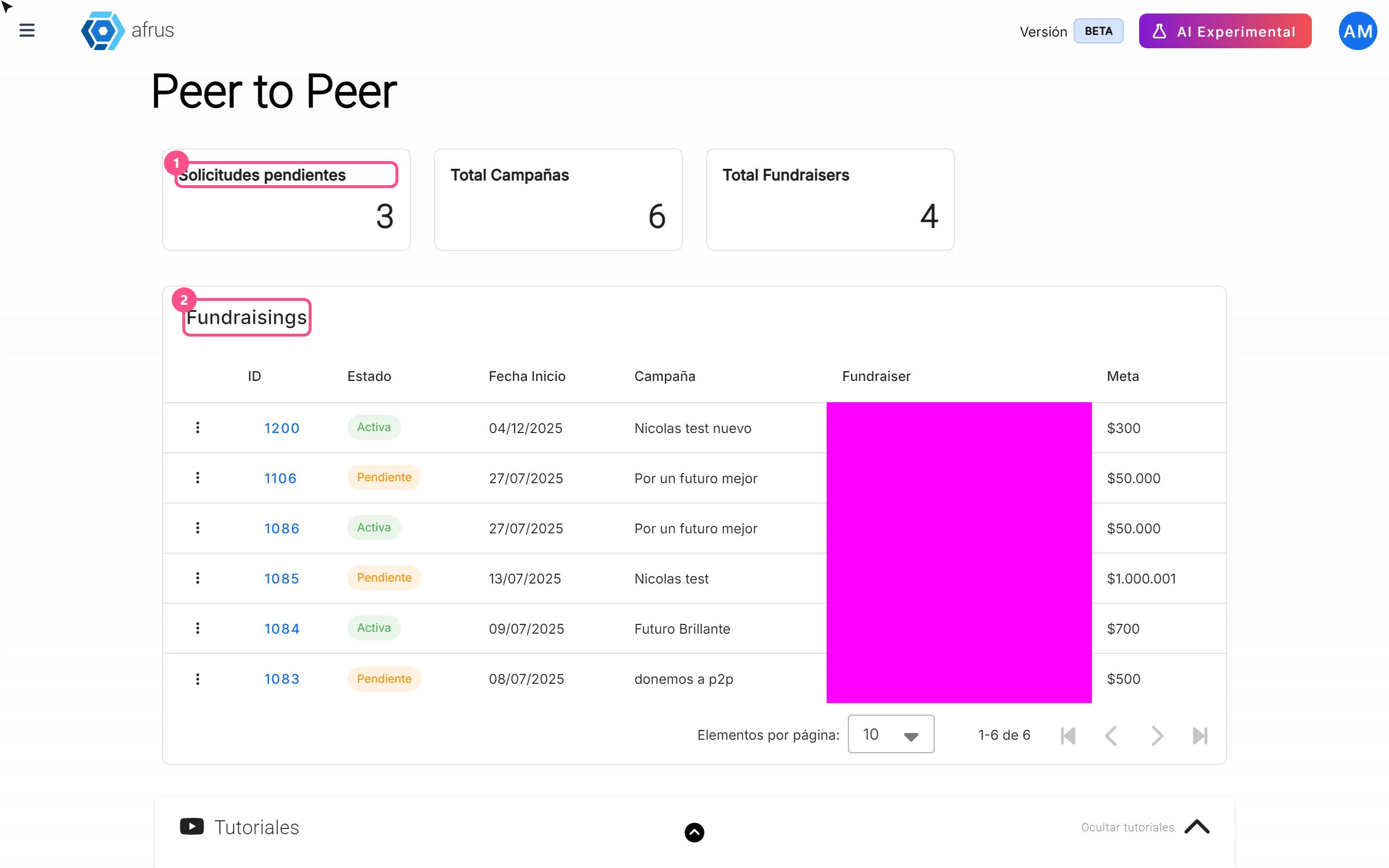
- Read the cards. Solicitudes pendientes counts pages awaiting approval; Total Campañas, all pages in the list in any status; Total Fundraisers, how many different people have pages.
- Check the Fundraisings table. It is sorted newest first. You can sort it by ID, Campaña and Meta.
| Column | What it shows |
|---|---|
| Three-dot menu | "Ver detalle" (View details) and "Ver página" (View page — opens the public page in a new tab) |
| ID | Fundraiser page number; clicking it opens the details |
| Estado (Status) | Activa (Active), Rechazada (Rejected), Pendiente (Pending) or Finalizada (Ended) |
| Fecha Inicio (Start date) | Your campaign's creation date, not the date the fundraiser signed up |
| Campaña (Campaign) | Public name of the campaign |
| Fundraiser | Fundraiser's first name, last name and email, or Sin usuario asignado (No user assigned) |
| Meta (Goal) | The page's goal |
- Open a fundraiser's details. In the three-dot menu, choose "Ver detalle" (or click the ID). At the top you'll see the page address, with buttons to copy it and to "Ver página". Información básica (Basic information) shows the sign-up date (Fecha creación de la campaña), Nombre, Apellido, Correo electrónico and Número de teléfono. Origen de contacto (Contact source) shows Campaña, Widget, URL página and Detalle de la fuente (Source detail).
Part 2 — Approve (or reject) a fundraiser
Every new page starts as Pendiente and needs your approval: there is no automatic approval.
Open the page's details. From the list, three-dot menu → "Ver detalle". Before deciding, you can review the content with "Ver página".
Choose what to do. The buttons depend on the status:
- Pendiente: "Aprobar campaña" (Approve), "Rechazar campaña" (Reject) and "Finalizar campaña" (End).
- Rechazada: "Aprobar campaña" and "Finalizar campaña".
- Activa: only "Finalizar campaña".
- Finalizada: no buttons.
Approve. Click "Aprobar campaña". It acts immediately, without confirmation, and you'll see "Campaña aprobada con éxito" (Campaign approved successfully). The page becomes Activa and the fundraiser receives the email "Tu campaña fue aceptada"; from then on they can log in to their dashboard.
If after approving you see an error instead of the details, go back to the list: the status may already be Activa even though the screen shows the error.
Or reject / end. "Rechazar campaña" and "Finalizar campaña" ask for confirmation: "Esta acción eliminará la landing de la campaña y no podrá volver a accederse a la URL. ¿Deseas continuar?" (This will delete the campaign page and its URL will no longer work. Continue?). Rejecting sets the status to Rechazada and the fundraiser receives "Tu campaña fue rechazada". Ending sets it to Finalizada and no email is sent.
Can it be undone? Approving cannot go back to Pending: an active page can only be ended. Rejecting and ending are permanent for the page: its address stops working. Even if you later click "Aprobar campaña" on a rejected page, the status changes to Activa but the page is not published again.
Part 3 — Know how much each fundraiser has raised
- Open the fundraiser's public page. In the list, three-dot menu → "Ver página". The top block shows Total recaudado (Total raised), the goal and the percentage reached.
- It only adds successful donations to that campaign made from that page; it doesn't count attempts, pending, failed or deleted donations.
- It is shown in your organization's currency.
- It is calculated when the page is opened or reloaded: if you have it open, reload it to see the current figure.
Important: for now, the Total recaudado block in the console details always shows $0, whether or not there are donations, and the list shows no amounts. To see how much a fundraiser has raised, use "Ver página". The same happens in the fundraiser's dashboard (Mis campañas): its cards show 0 and $0, so it's best to tell them to check their own public page.
Campaign total: the Peer to peer module has no total that adds up all pages. Donations made on fundraiser pages are campaign donations, so they count in the campaign's overall figures in Fundraising > Campañas.
Fundraiser page statuses
| Status in your console | How the fundraiser sees it | What it means | What you can do |
|---|---|---|---|
| Pendiente (Pending) | En espera (Waiting) | Just signed up; needs your approval | Approve, reject or end |
| Activa (Active) | Activa | Approved by your organization | End |
| Rechazada (Rejected) | Not shown | Rejected; its published page was deleted | End |
| Finalizada (Ended) | Finalizada | Closed by your organization; its published page was deleted | Nothing |
Frequently asked questions
Do I have to approve every page?
Yes. Every new page starts as Pendiente and there is no automatic approval.
How do I get the sign-up link to send to my supporters?
Today it is reached through the "Crea tu campaña" button on the campaign's donation widgets.
Can a fundraiser change their page after publishing it?
No. Their dashboard has no option to edit a published page.
Do fundraiser donations count toward my campaign?
Yes. They are campaign donations and count in its overall figures.
How long is the code to log in to the fundraiser dashboard valid?
10 minutes.
Last updated: 2026-10-27
Need help? Talk to the afrus team
In this article
✕
Related Tutorials

Peer to peer
October 27, 2026
What Peer to peer is
Learn what Peer to peer is on AFRUS: fundraising pages your supporters create for your organization's campaigns.
afrus.ai
Peer to peer
October 27, 2026
What Peer to peer is for
Learn what Peer to peer is for: multiplying your campaigns' reach with your supporters' personal pages.
afrus.ai
Peer to peer
October 27, 2026
How to change the Peer to peer cover images
Learn how to change the Peer to peer cover photo and campaign photo, and which images each fundraiser can change.
afrus.ai
Peer to peer
October 27, 2026
What happens after signing up for Peer to peer
Learn what a supporter goes through after filling in the Peer to peer form, and what happens when someone donates on their page.
afrus.ai