🡠 Back


How to change my landing page's styles in Experiences AI
Reading time
1 min
Experiences AI
October 27, 2026
afrus.ai
Learn how to change your Experiences AI page's colors with Recolor and how to show or hide its sections.
In this article
Labels are shown as they appear in the Spanish version of the console.
Step by step
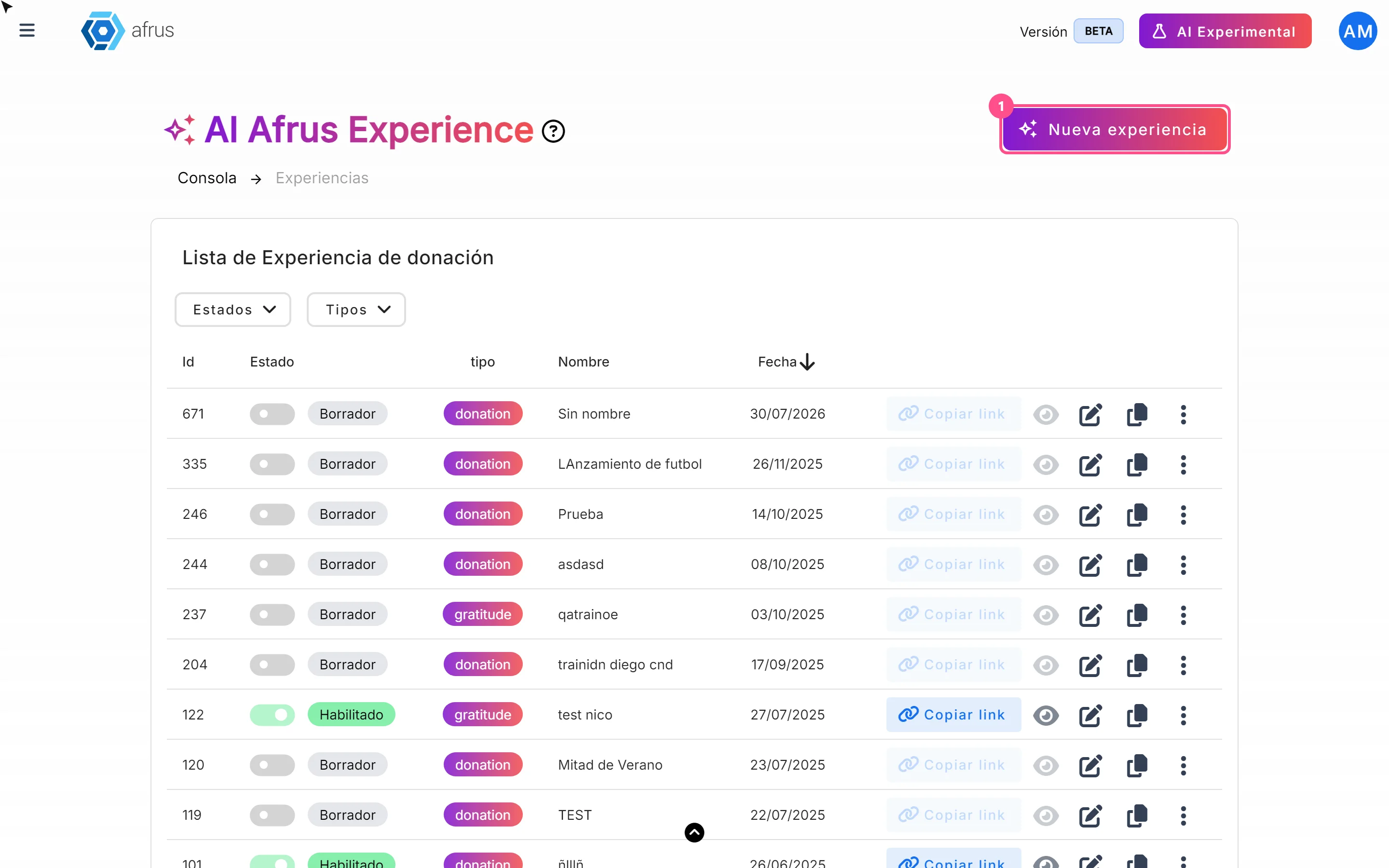
- Open the editor. In Fundraising > Experiences AI, click the experience's pencil icon.
- Choose a base color. In the top bar, click "Recolor", choose a color and click "Aplicar" (Apply). The AI creates a full palette (primary, secondary, accent and text) and applies it. It is saved right away.
- Show or hide sections (Donation only). Use the Compartir (Share) and Meta de recaudación (Fundraising goal) switches and click "Actualizar" (Update).
- Check mobile and desktop. Use the phone and monitor icons in the preview.
- Publish. Click "Publicar" (Publish) to take the changes to the public page.
Frequently asked questions
Can I change the font or a specific color?
No. The editor has no controls for fonts, font sizes or individual colors: you can change the whole palette with "Recolor" or switch templates.
Need help? Talk to the afrus team
In this article
✕
Related Tutorials
Experiences AI
October 27, 2026
What Experiences AI is
Learn what Experiences AI is: the AFRUS tool that uses AI to create donation and thank-you pages ready to publish.
afrus.ai
Experiences AI
October 27, 2026
What Experiences AI is for
Learn what Experiences AI is for: a donation page in minutes, thanking your donors and sharing with a link or QR code.
afrus.ai
Experiences AI
October 27, 2026
How to create a landing page with AI
Learn how to use Experiences AI to create a donation or thank-you page written by artificial intelligence, and publish it.
afrus.ai
Experiences AI
October 27, 2026
How to change my landing page's template in Experiences AI
Learn how to change your Experiences AI page's design with one click, without losing the texts you already have.
afrus.ai