🡠 Back


How to create a landing page with AI
Reading time
2 min
Experiences AI
October 27, 2026
afrus.ai
Learn how to use Experiences AI to create a donation or thank-you page written by artificial intelligence, and publish it.
In this article
With Experiences AI you answer three questions and the AI writes your page's texts. Labels are shown as they appear in the Spanish version of the console.
Before you start
- Activate AFRUS AI: complete your Business profile and click "Enviar AI" (Send to AI) in its last step.
- Have a donation widget created if you're making a Donación (Donation) page.
Step by step
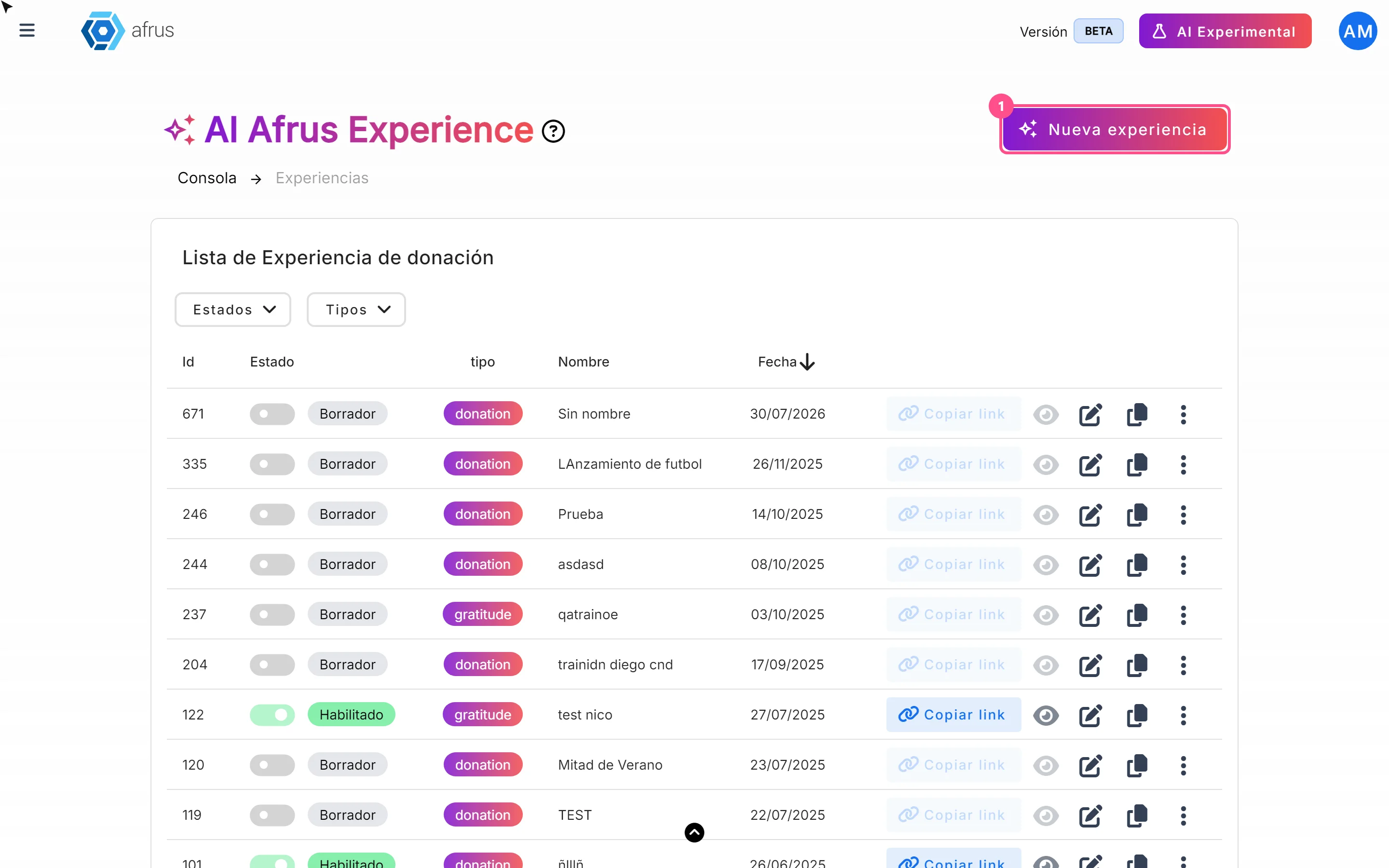
- Create the experience. Go to Fundraising > Experiences AI and click "Nueva experiencia" (New experience).
- Choose the goal. In the Objetivo (Goal) tab, choose Donación or Agradecimiento (Thank you).
- Set the name and address. In Configuracion (Settings), type the Nombre de la experiencia (name), choose the domain and type the path (lowercase letters a to z only: no numbers, hyphens, spaces or accents). Click "Continuar" (Continue).
- Answer the 3 questions. In Instrucciones (Instructions), answer each question and move on with "Siguiente pregunta" (Next question). You can click "Mejorar respuesta" (Improve answer) so the AI rewrites it.
- Choose the widget (Donation only). In Widget, choose your donation widget in Seleccionar Widget de donación.
- Finish. Click "Finalizar" (Finish) and wait while the AI writes the texts. Don't close or leave the page until the editor opens.
- Review and publish. In the Personaliza tu experiencia (Customize your experience) editor, review the texts and click "Publicar" (Publish).
When you finish, your page is online at the address shown in URL de tu web: and the experience changes to Habilitado (Enabled). Until you publish, it stays as Borrador (Draft).
Frequently asked questions
How do I edit the texts later?
In the list, click the pencil icon, click a text in the preview, edit it and click "Actualizar" (Update) — or use "Editar con IA" (Edit with AI). Then click "Publicar".
How long does it take?
It depends on the AI service at that moment; there is no fixed time.
Need help? Talk to the afrus team
In this article
✕
Related Tutorials

Experiences AI
October 27, 2026
What Experiences AI is
Learn what Experiences AI is: the AFRUS tool that uses AI to create donation and thank-you pages ready to publish.
afrus.ai
Experiences AI
October 27, 2026
What Experiences AI is for
Learn what Experiences AI is for: a donation page in minutes, thanking your donors and sharing with a link or QR code.
afrus.ai
Experiences AI
October 27, 2026
How to change my landing page's template in Experiences AI
Learn how to change your Experiences AI page's design with one click, without losing the texts you already have.
afrus.ai
Experiences AI
October 27, 2026
How to change my landing page's styles in Experiences AI
Learn how to change your Experiences AI page's colors with Recolor and how to show or hide its sections.
afrus.ai