🡠 Back


Tickets guide
Reading time
6 min
Tickets
October 28, 2026
afrus.ai
Complete guide to Tickets: every step with its screenshots and the frequently asked questions.
In this article
After reading this guide you will know what raffle Tickets are in AFRUS, how to sell them with a product widget and how to send each buyer their numbers in the autoresponder.
Module: Tickets · Menu: Fundraising > Tickets · Audience: fundraising, events and communications teams
About the labels in this guide: buttons, fields and menus are written exactly as they appear in the Spanish version of the console, with an English explanation where it helps.
What Tickets are
A Ticket is a raffle with a range of numbers, for example from 1 to 500. When you link it to a product widget, each buyer receives one consecutive ticket number for every unit they buy.
What it is for
- Selling raffle numbers online. You sell them from a widget, with a price per ticket.
- Assigning numbers automatically. Each buyer receives their numbers, and you can show them on the thank-you page and in the autoresponder.
- Knowing who bought each number. You see the person, transaction, widget and country of each ticket, so you can hold the draw and contact the winner.
How often it updates
- Numbers are assigned instantly, at the moment the purchase is recorded in the widget.
- Screens show the data when you open them. The Tickets generados por transacción (Tickets generated per transaction) list and the Productos y tickets (Products and tickets) section of the widget dashboard read the data when you open the screen or change a filter. There is no process to wait for.
- They don't refresh on their own. To see new purchases, reload the screen or search again.
Step by step
How to create a product widget
To sell tickets you need two things: the raffle (the Ticket, with its number range) and a widget with the Producto (Product) goal that sells it.
Part 1 — Create the raffle
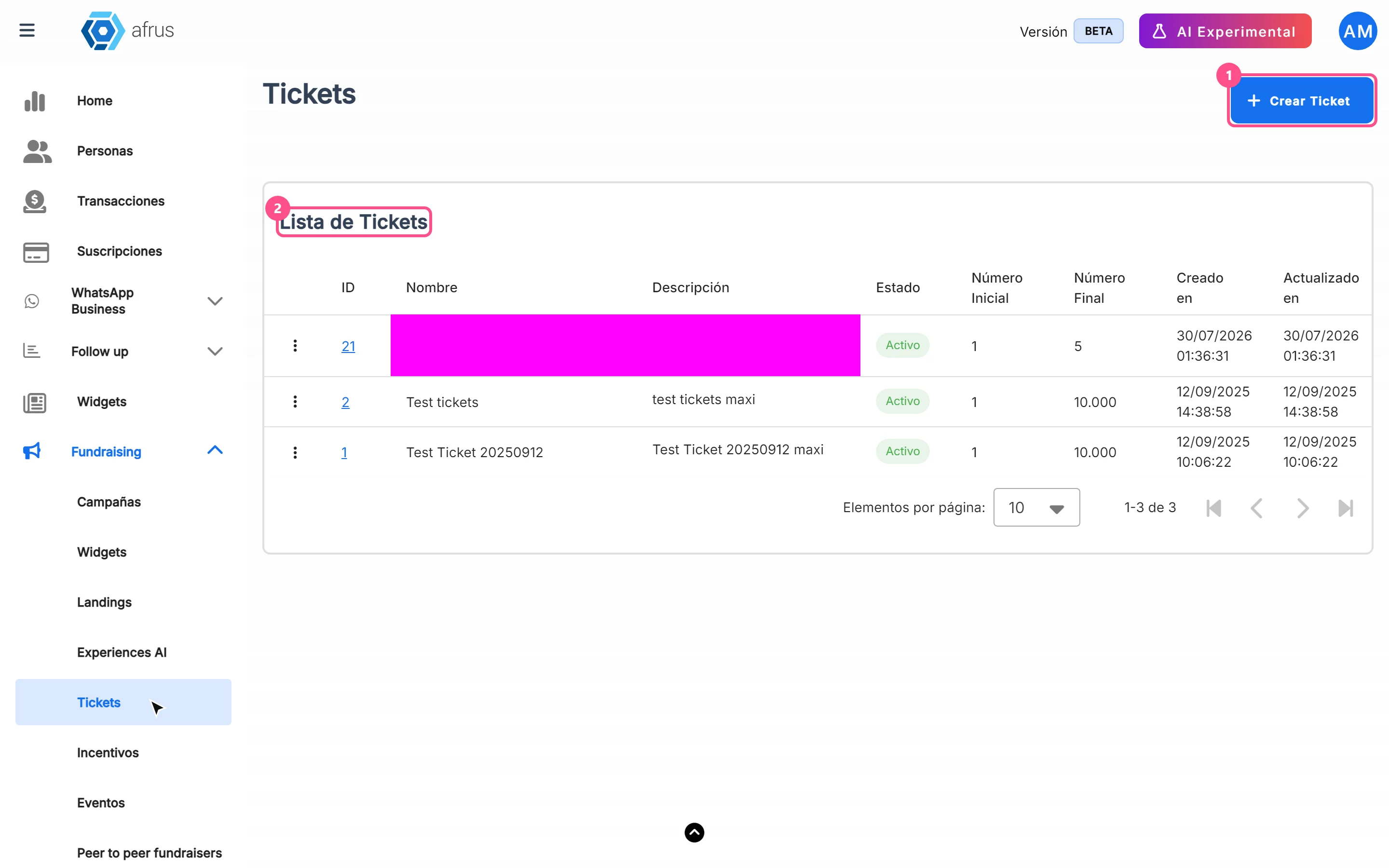
Open Tickets. Go to Fundraising > Tickets and click "Crear Ticket" (Create Ticket).
Name it. Fill in Nombre (Name, at least 3 characters).
Important: to be able to add the raffle to a widget, the name must not exceed 25 characters and the description 80.
Write a description. Fill in Descripción (Description, up to 500 characters). Although the screen doesn't mark it as required, if you leave it empty you'll see "Error al crear ticket" (Error creating ticket).
Choose the status. In Estado (Status), leave Activo (Active) — it's the default option.
Set the range. In Rango (Range), enter Número Inicial (Start number, at least 1) and Número Final (End number), which must be greater than the start number. The first buyer receives the start number.
Create the raffle. Click "Crear Ticket". You'll see "Ticket creado exitosamente" (Ticket created successfully) and the raffle will appear in the Lista de Tickets (Ticket list) with its ID.
Part 2 — Create the widget that sells it
Create a new widget. Go to Fundraising > Widgets and click "Nuevo widget" (New widget). The widget editor opens in a new tab.
Choose the Product goal. In Objetivo (Goal), choose Producto. Only widgets with this goal assign ticket numbers.
Add the product. Add the Producto block and click "Agregar Producto" (Add product). In Tipo de Producto (Product type), choose Ticket.
Choose the raffle. In Seleccionar Ticket (Select ticket), choose your raffle. The Nombre del producto (product name), Descripción del producto (product description), Límite Inicial (start limit), Límite Final (end limit) and Stock del producto (product stock) are filled in automatically and can't be edited.
Set the price. Type the Precio del producto (product price): it's the price of each ticket. Numbers only. The screen doesn't require it, so check that you set it.
Confirm the product. Click "Agregar Producto". You'll see "¡Producto agregado satisfactoriamente!" (Product added successfully).
Save and publish the widget. Do it as with any other widget.
When you finish, donors choose how many tickets they want in the widget. On the final page they see one card per ticket, with Cantidad (Quantity), Precio unitario (Unit price) and the label "Ticket <number>".
Important: each widget accepts only one raffle, and regular products can't be mixed with tickets in the same block ("No se pueden mezclar tipos de productos").
How to include the ticket number and the number of tickets bought in my autoresponder
Before you start: you need a transaction autoresponder (email or WhatsApp) that is sent for purchases made in your product widget with a ticket.
Open your autoresponder editor. Go to Interacciones > Autoresponders and open the autoresponder.
Open the merge tag map. Open Merge tags (Mapa de merge tags) and find the Merge Tags de Rifas (Raffle merge tags) category. Clicking a card copies the merge tag.
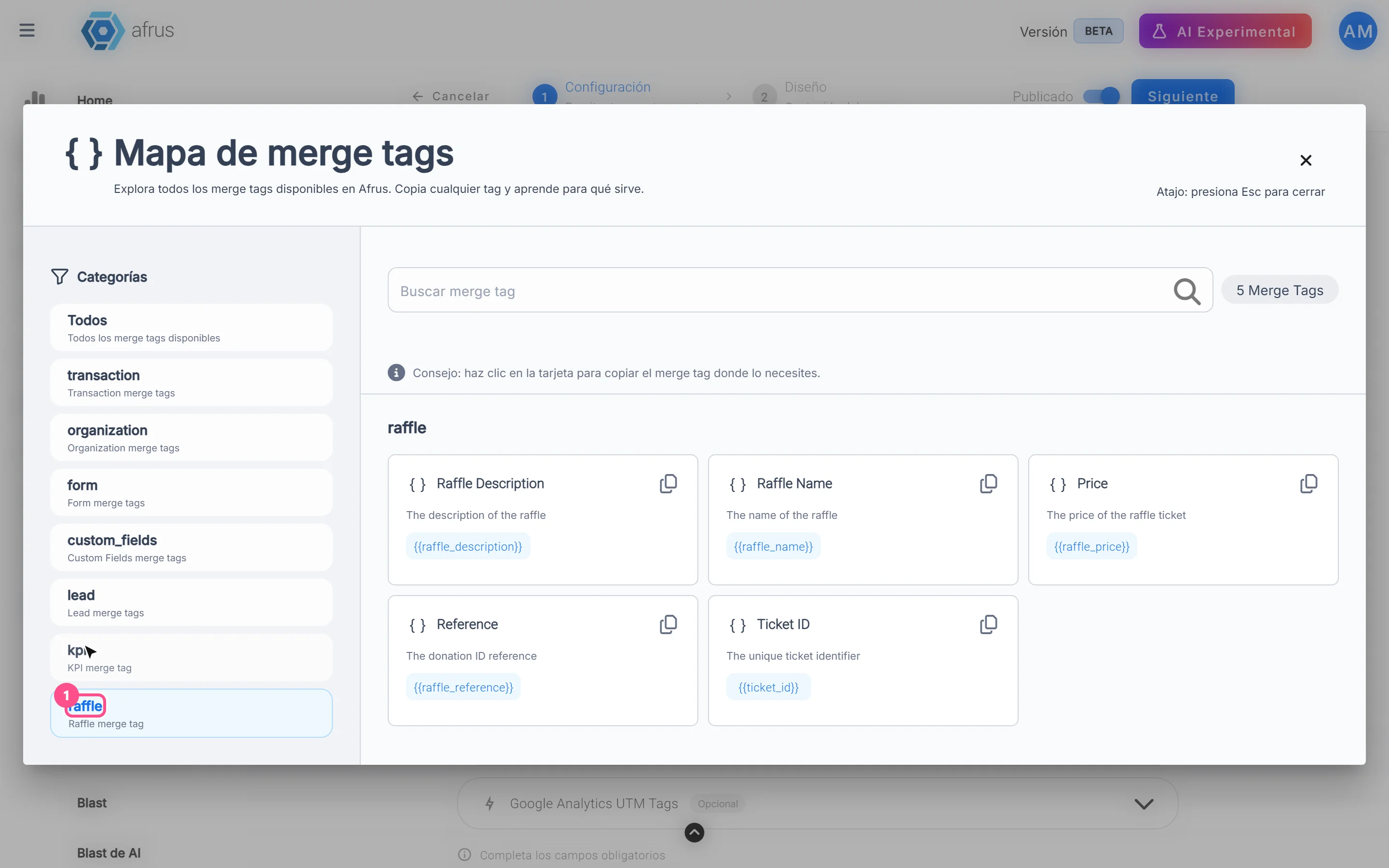
Paste the merge tags into your text. Write them exactly like this:
Merge tag Name in the map What it shows {{ticket_id}}Ticket ID All ticket numbers from that purchase, separated by commas (e.g. 0042, 0043, 0044){{raffle_name}}Raffle Name Raffle name {{raffle_description}}Raffle Description Raffle description {{raffle_price}}Price Price of one ticket {{raffle_reference}}Reference Transaction number (donation ID) Show the quantity with the numbers. There is no quantity merge tag. Since one number is generated per ticket bought, the quantity equals how many numbers appear in
{{ticket_id}}. For example: "Your numbers for the {{raffle_name}} raffle are: {{ticket_id}}".
When the email or WhatsApp is sent, each merge tag is replaced with that purchase's data. You can use the same merge tags on the thank-you page.
Important: the map also shows "Número de Ticket" and "Fecha de Sorteo" (draw date), but they don't match any real raffle merge tag. Use only the ones in the table.
How to see who bought each number
- Open the raffle. In Fundraising > Tickets, click the raffle's ID. Tickets generados por transacción opens.
- Adjust the dates. By default it shows from the start of the month to today.
- Filter if needed. In Buscar por (Search by), choose ID de Lead (Lead ID), ID de Donación (Donation ID), Email de Lead (Lead email), Nombre de Ticket (Ticket name) or Descripción de Ticket (Ticket description), type the value and press Enter.
You'll see one row per number, with ID de Ticket (Ticket ID), Nombre, Precio, ID de Donación, ID de Lead, Cantidad (always 1), Nombre de Widget and Código de País (country code).
Data and statuses
| Data | What it means |
|---|---|
| Activo / Inactivo (Active / Inactive) | Just a label. An Inactivo raffle that is already in a published widget keeps selling |
| ID de Ticket | Assigned number, padded with leading zeros to the length of the end number (with end number 500, 42 shows as 042) |
| Cantidad | Always 1 per row: each ticket bought is one row |
| Tickets vendidos (Tickets sold, widget dashboard) | Tickets sold in successful purchases in the period |
Frequently asked questions
Is there a merge tag with the number of tickets bought?
No. Use {{ticket_id}}, which lists all the numbers from the purchase.
Can I put two raffles in the same widget?
No. Each widget accepts only one raffle.
Last updated: 2026-10-27
Need help? Talk to the afrus team
In this article
✕
Related Tutorials

Tickets
October 27, 2026
What Tickets are
Learn what Tickets are in AFRUS: raffles with a number range that you sell from a widget and that are assigned to each buyer.
afrus.ai
Tickets
October 27, 2026
What Tickets are for
Learn what Tickets are for: selling raffle numbers online, assigning them automatically and knowing who bought each one.
afrus.ai
Tickets
October 27, 2026
How often Tickets update
Learn when raffle numbers are assigned and when the Tickets screens update in AFRUS.
afrus.ai
Tickets
October 28, 2026
How to create a product widget to sell tickets
Learn how to create a raffle in Tickets and a product widget that sells its numbers with a price per ticket.
afrus.ai