🡠 Back


Website Agents guide (Agentes para la web)
Reading time
4 min
AI
October 28, 2026
afrus.ai
Complete guide to Website Agents guide (Agentes para la web): every step with its screenshots and the frequently asked questions.
In this article
With this guide you will be able to create an AI chat for your website that answers your visitors with your organization's information.
Module: AI · Menu: AI > Agentes para la web · Audience: communications and fundraising teams, and whoever manages the website
About the labels in this guide: buttons, fields and menus are written as they appear in the Spanish version of the console, with an English explanation where it helps.
What Website Agents are
An agent is an AI chat you install on your own website. The visitor leaves their name and email and talks with an assistant that answers with the information your organization uploaded to AFRUS.
What they are for
- Answering visitors' questions at any time. For example, what your organization does or how to donate.
- Leading them to act. The chat shows a button that goes wherever you want, like your donation form.
- Adding contacts to your database. Whoever chats is registered as a person in AFRUS.
- Learning what people ask. You can review the conversations and their summary later.
Before you start
- Turn on AFRUS AI from the Business profile (profile menu): create your profile and click "Enviar AI" (Send to AI).
- Upload at least one document in AI > Entrenamiento [AI RAG]. Without documents, the agent can't be saved.
- Have whoever manages your website at hand, to paste the chat code.
Step by step
How to use Website Agents
Part 1 — Create the agent
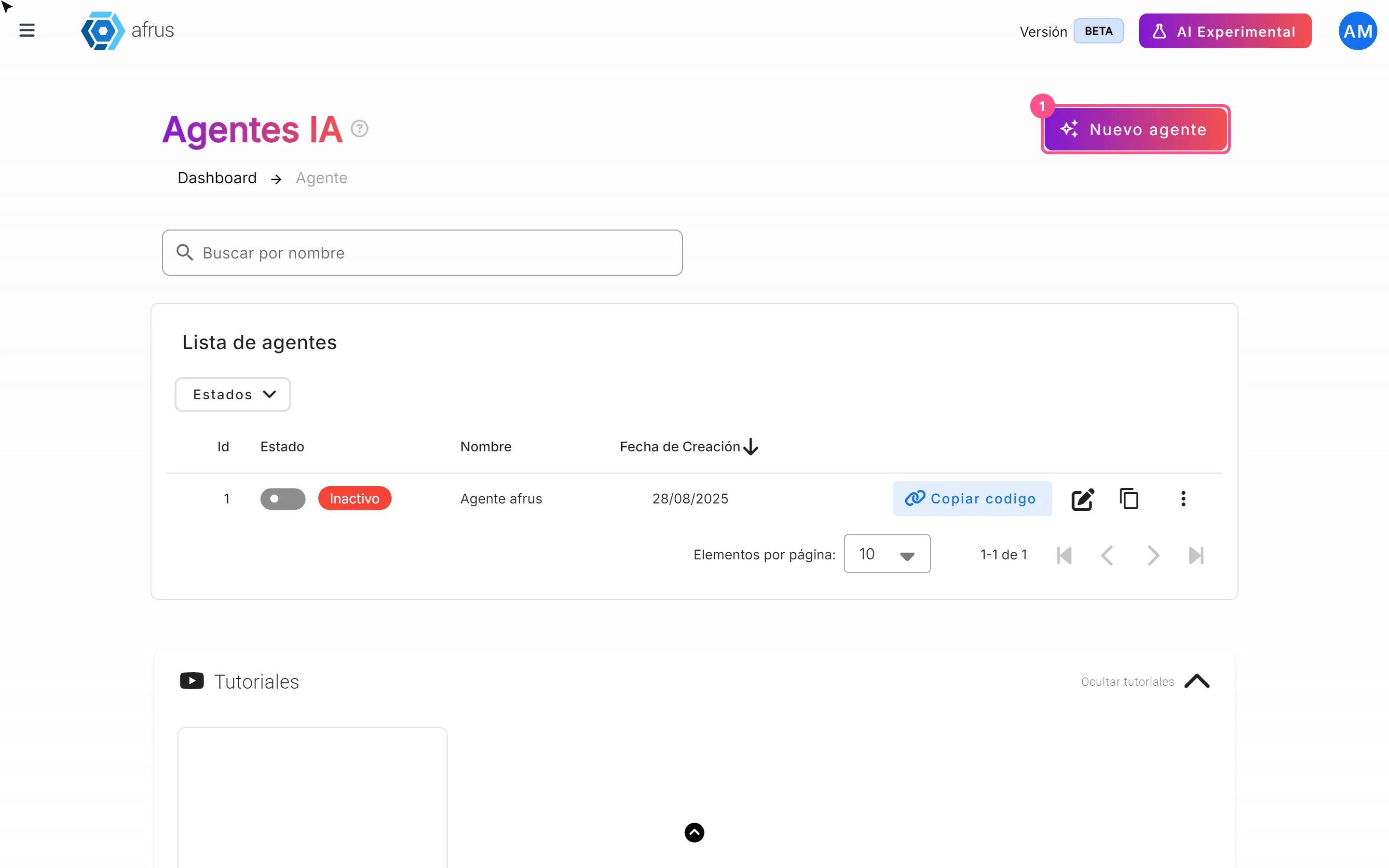
Create a new agent. Go to AI > Agentes para la web and click "Nuevo agente" (New agent).
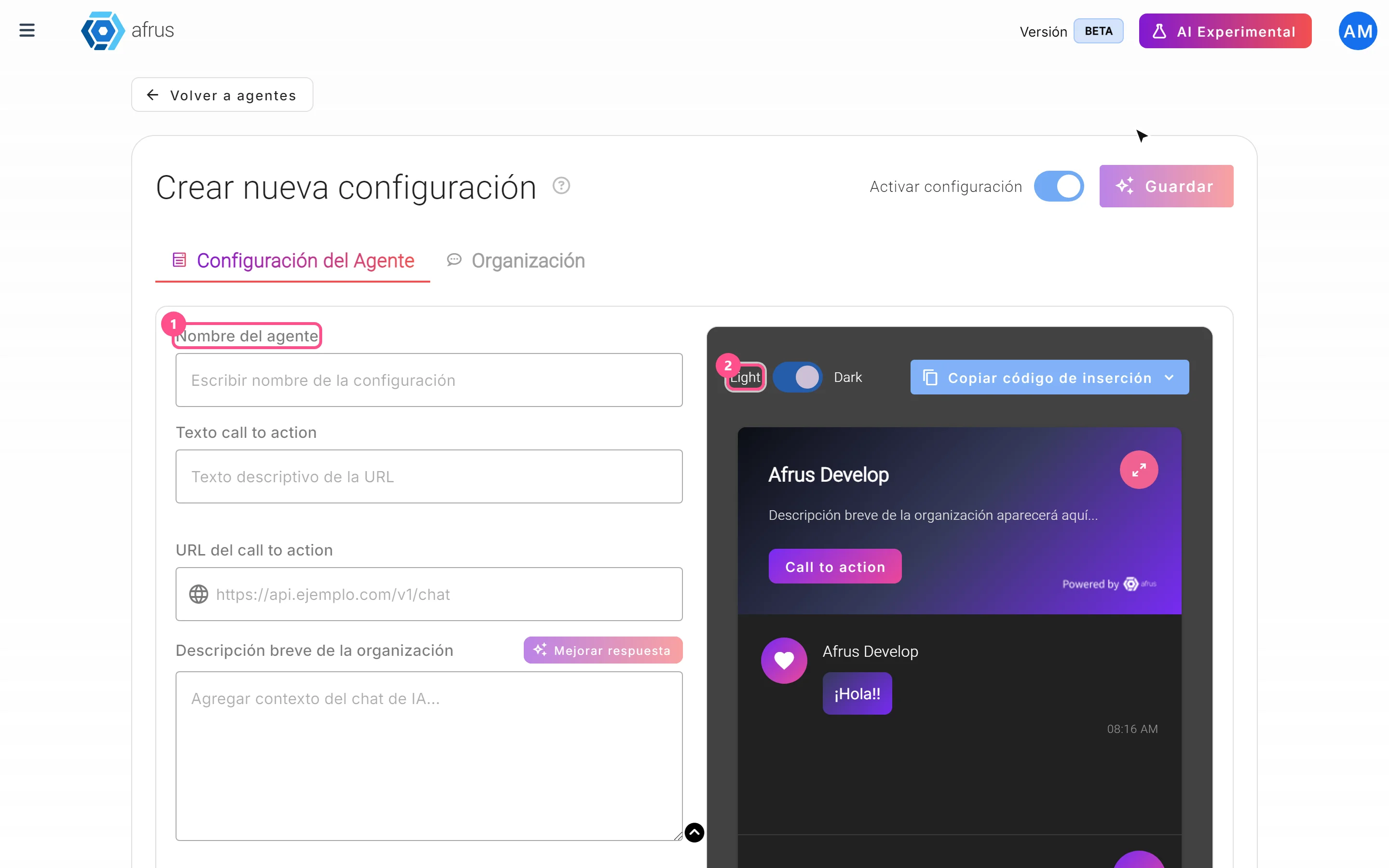
Fill in the setup. On the Configuración del Agente (Agent setup) tab, fill in:
- Nombre del agente (agent name, required).
- Texto call to action: the button text, for example "Donate here" (up to 20 characters).
- URL del call to action: where the button goes, for example your donation form (required).
- Descripción breve de la organización (short description of the organization, required, up to 200 characters).
- Comportamiento del agente (agent behavior): Cerrado (Closed) or Abierto (Open).
- Instrucciones para el agente IA (instructions for the AI agent, required): how you want it to talk and what it should prioritize.
Important: even if the screen lets you save with Texto call to action empty, AFRUS rejects it. Always write a button text.
Improve the texts (optional). "Mejorar respuesta" (Improve answer), next to the description or the instructions, rewrites your text with AI.
Check how it looks. On the right you have a preview in light or dark mode (Light / Dark). On the Organización tab you'll see the Resumen de la organización (organization summary), which AFRUS builds automatically from your documents.
Save. Leave Activar configuración (Activate setup) on and click "Guardar" (Save). The button becomes active when the required fields are filled in. You'll see "Configuración creada correctamente" (Setup created successfully).
Part 2 — Install it on your website
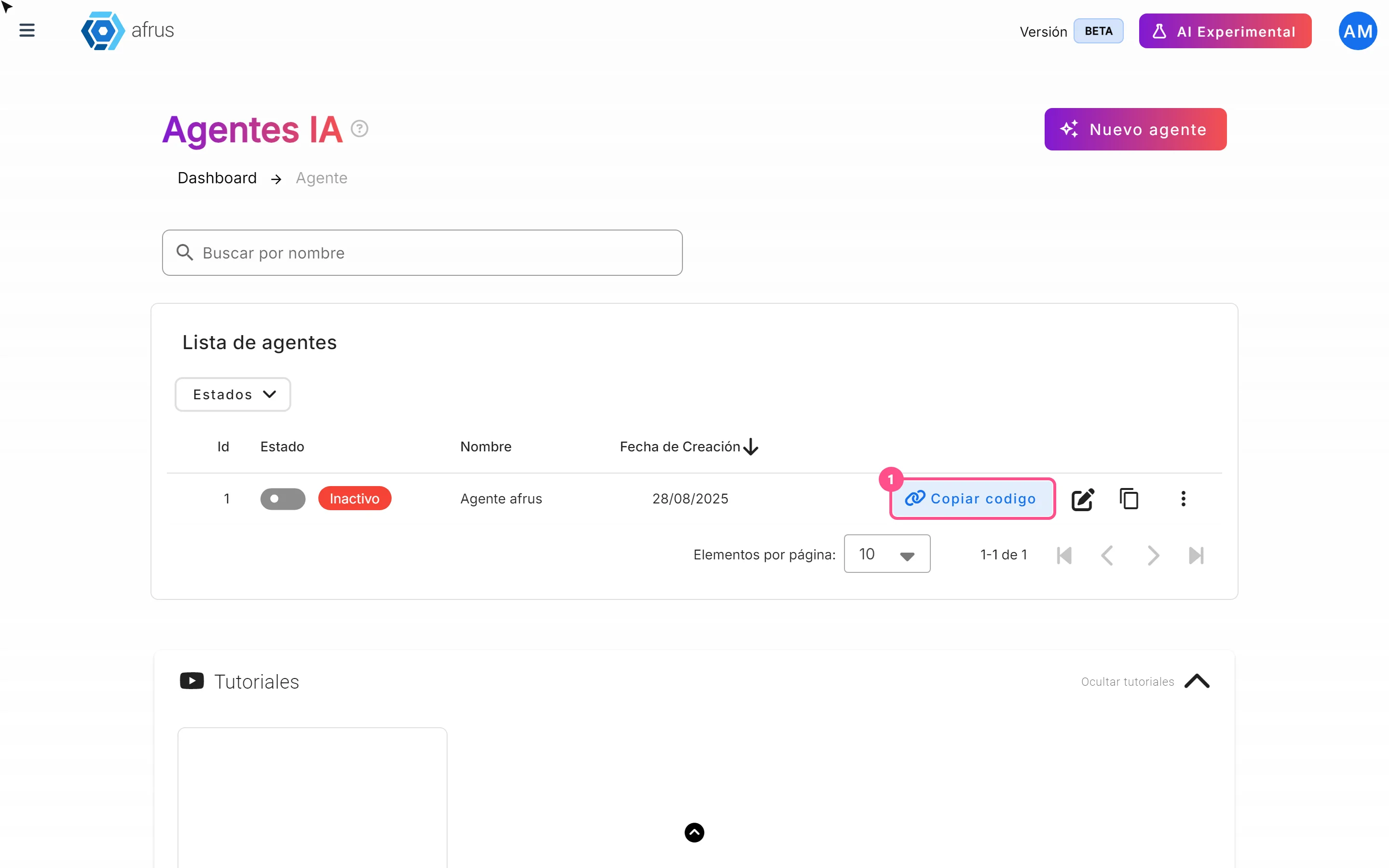
Copy the code. In the agents list, click "Copiar codigo" (Copy code) on the agent's row. You'll see "Código copiado al portapapeles" (Code copied to clipboard). You also find it when editing the agent, in "Copiar código de inserción" (Copy embed code).
Paste it on your site. Give the code to whoever manages your website so they paste it on the site. From then on, the chat appears to your visitors.
Part 3 — Manage your agents
- Turn on or off: use the Estado (Status) switch on the row.
- Duplicate: the "Duplicar configuración" (Duplicate setup) icon creates an inactive copy. The copy doesn't bring the behavior or the color theme: check them before turning it on.
- Delete: in the three-dot menu, choose "Eliminar" (Delete) and confirm.
Can it be undone? No. Deleting an agent is permanent. If you only want to pause it, turn it off with the Estado switch.
What happens when someone uses the chat
- The visitor types their name and email (required) and, if they want, their phone.
- If their email is already in your database, AFRUS recognizes them. If not, it creates them as a new person (as a sign-up, not as a donor).
- The AI answers with your documents and instructions from Entrenamiento [AI RAG] and with the information in your Business profile (description, "Sobre nosotros"/About us and FAQs).
- Each answer can take between 30 seconds and 2 minutes.
How to see the conversations
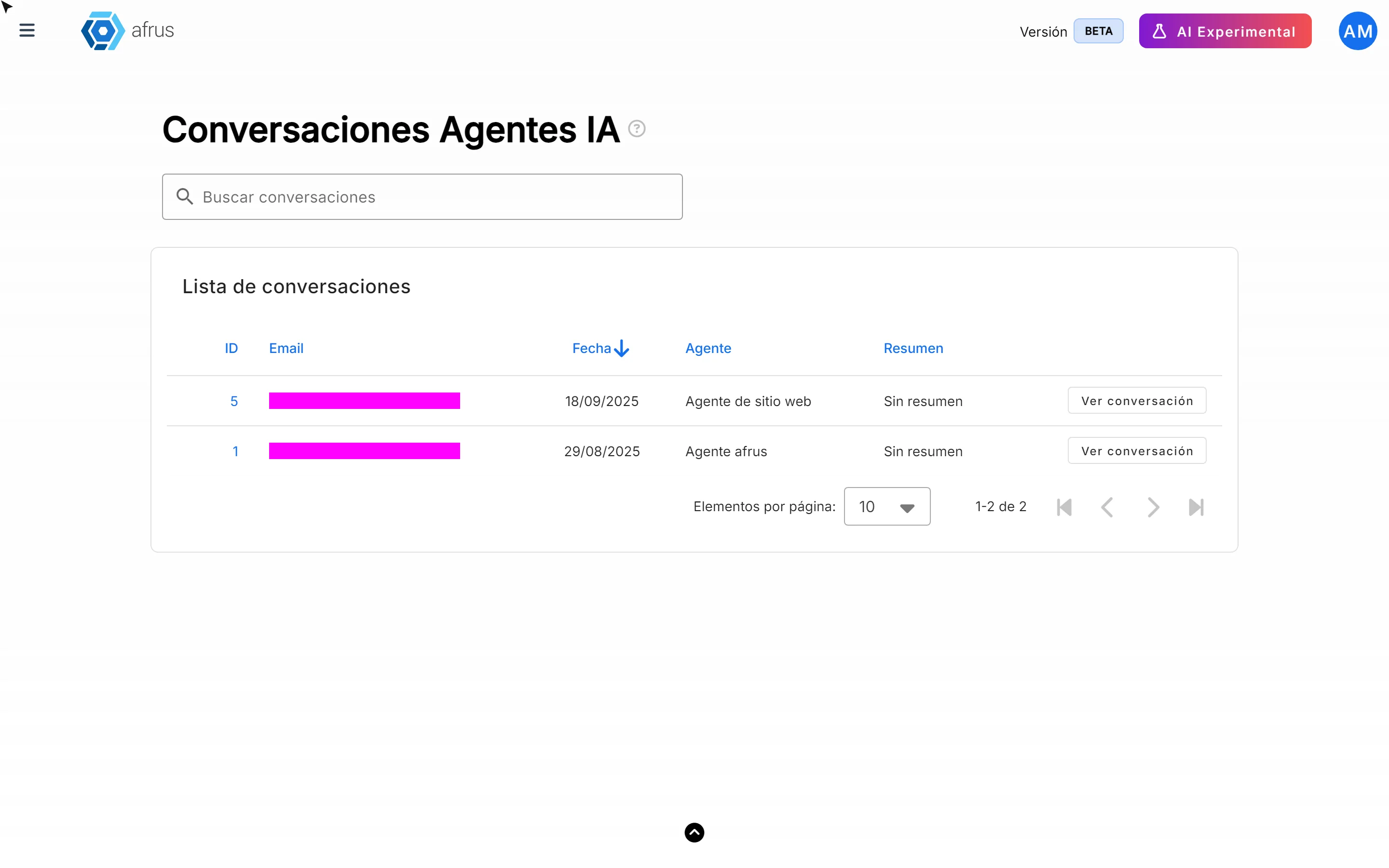
Today conversations don't have a menu button. To see them, type this address in your browser with your AFRUS session open: console.afrus.app/iachat-conversations-index.
There you'll see each conversation with the email, date, agent and a summary. "Ver conversación" (View conversation) opens all the messages and the visitor's contact details.
Frequently asked questions
What does the visitor see if I turn the agent off?
Nothing: the chat simply disappears from your site.
Can the same person have several conversations?
No. Each person has one conversation per agent.
Last updated: 2026-10-27
Need help? Talk to the afrus team
In this article
✕
Related Tutorials
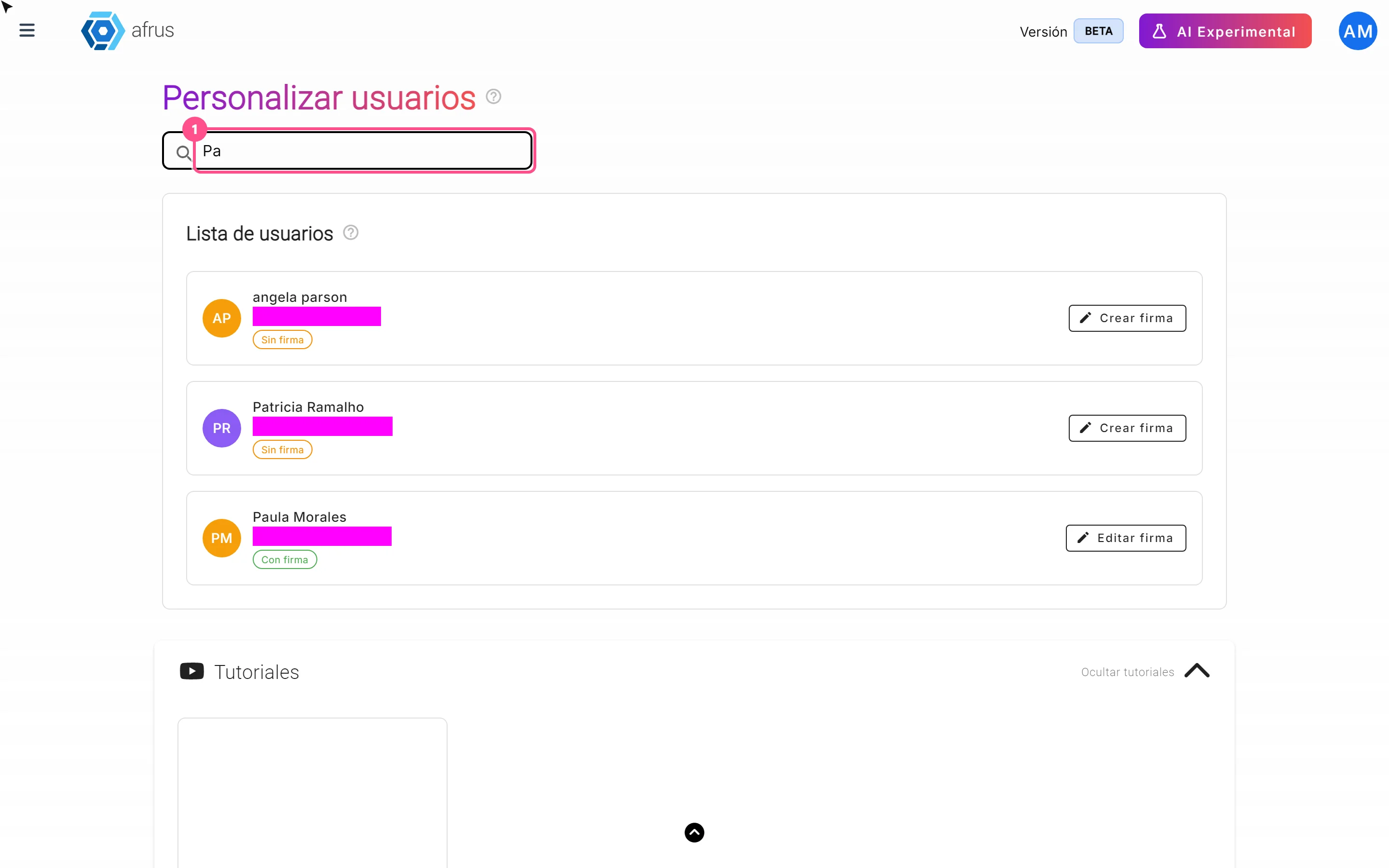
AI
October 28, 2026
User signatures guide
Complete guide to User signatures: every step with its screenshots and the frequently asked questions.
afrus.ai
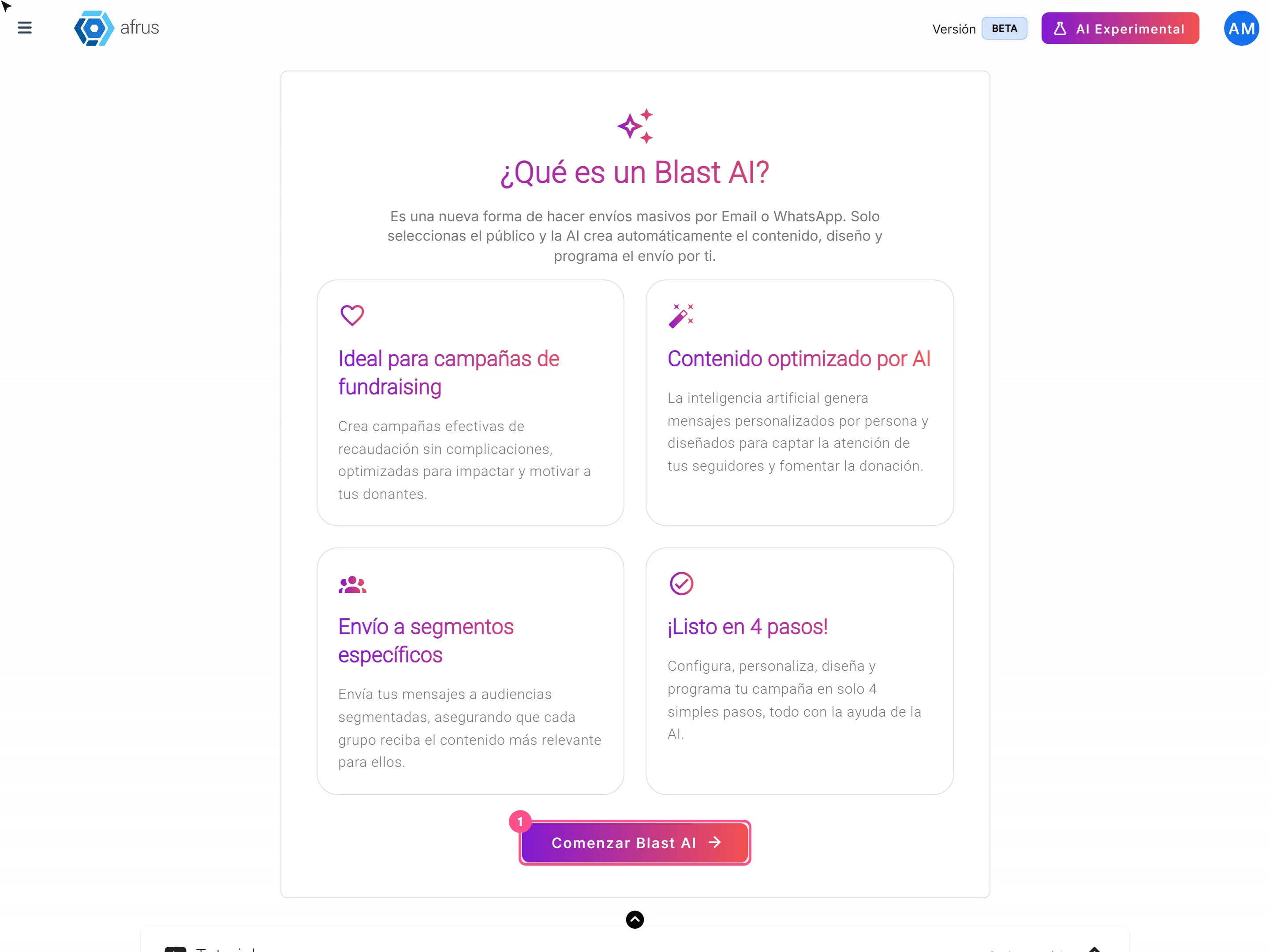
AI
October 28, 2026
AI Blast guide (Blast de AI)
Complete guide to AI Blast guide (Blast de AI): every step with its screenshots and the frequently asked questions.
afrus.ai
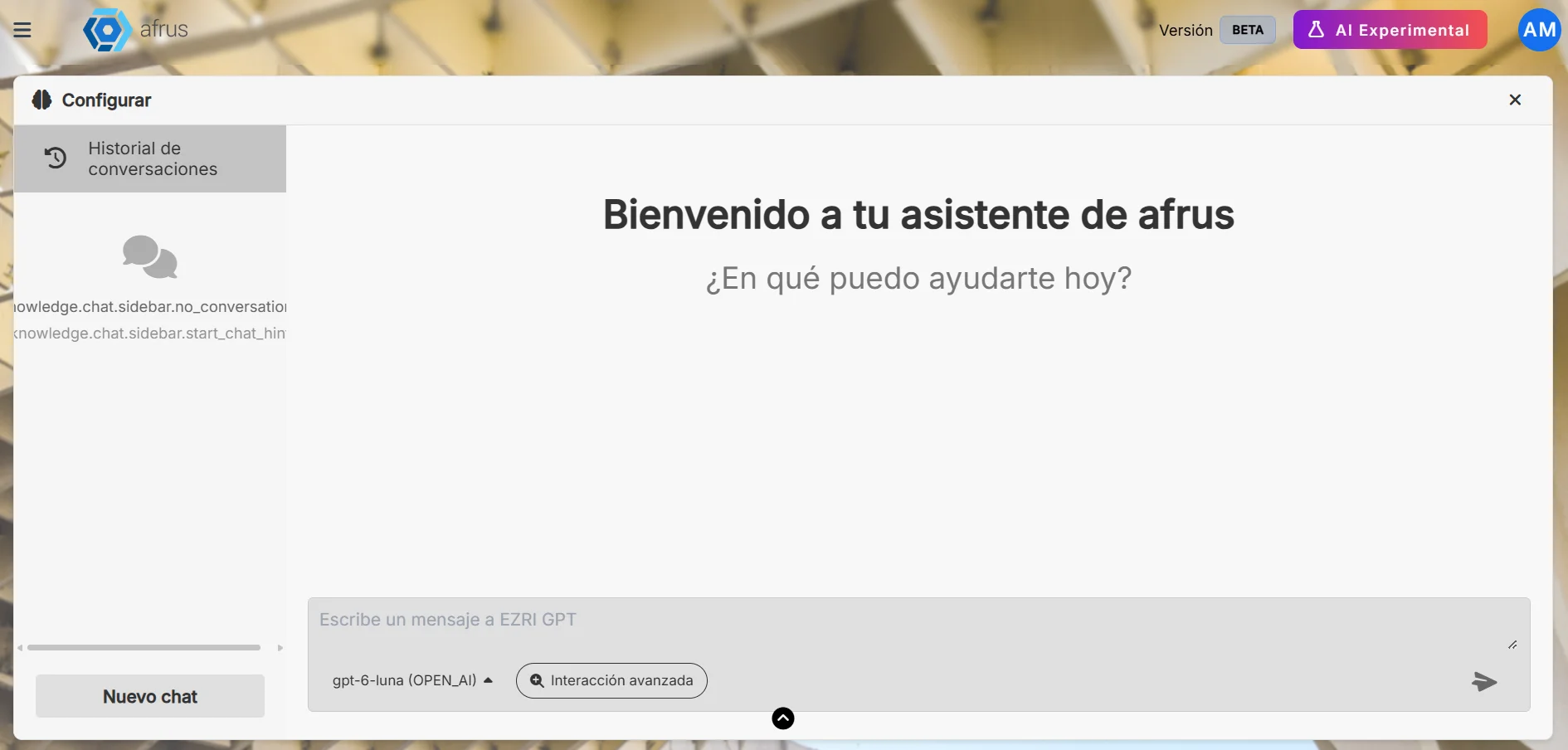
AI
October 28, 2026
AI Chat guide (Chat con AI)
Complete guide to AI Chat guide (Chat con AI): every step with its screenshots and the frequently asked questions.
afrus.ai
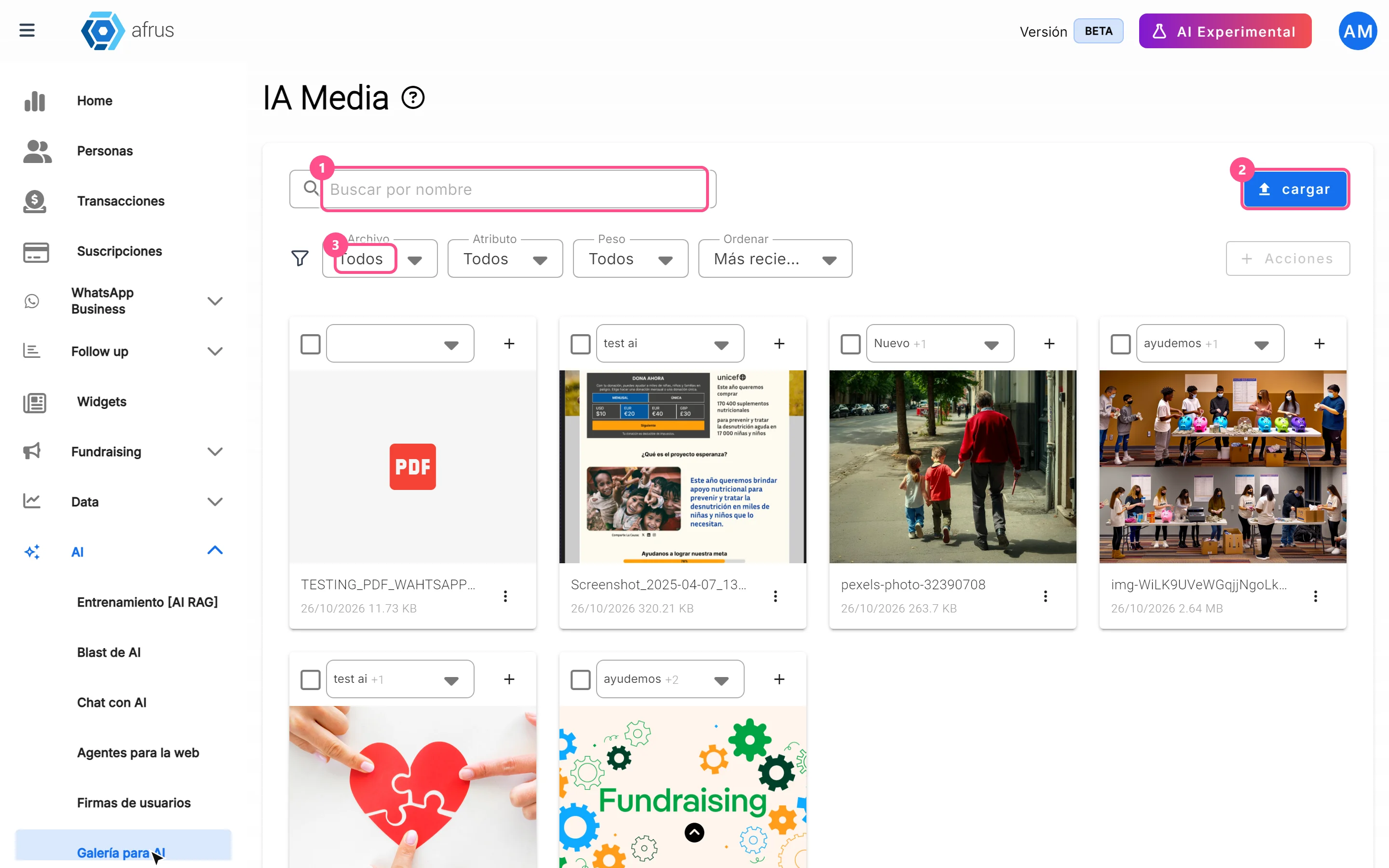
AI
October 28, 2026
AI gallery guide
Complete guide to AI gallery: every step with its screenshots and the frequently asked questions.
afrus.ai