🡠 Back


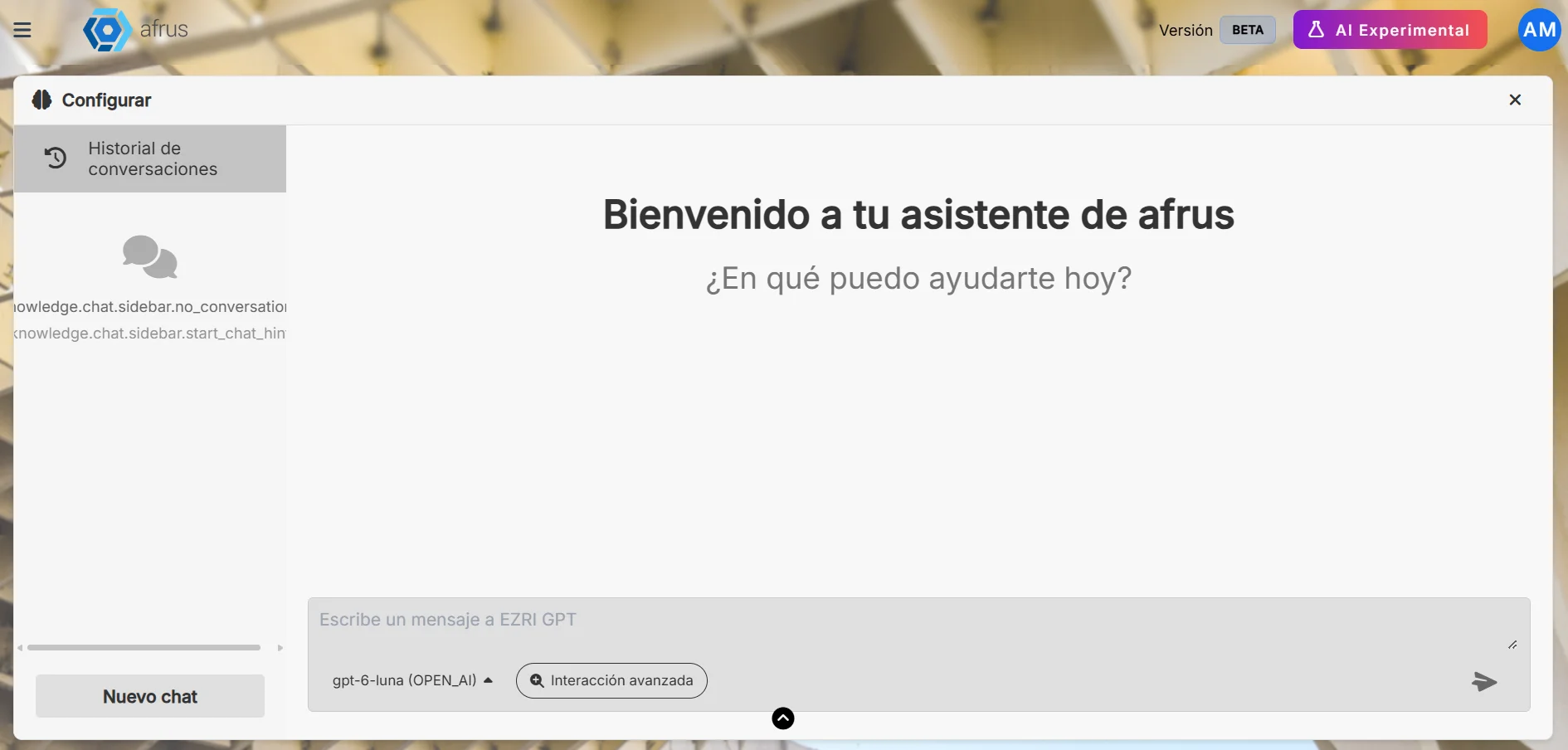
AI Chat guide (Chat con AI)
Reading time
3 min
AI
October 28, 2026
afrus.ai
Complete guide to AI Chat guide (Chat con AI): every step with its screenshots and the frequently asked questions.
In this article
With this guide you will be able to use AFRUS's AI assistant to ask for ideas, texts and answers about your organization.
Module: AI · Menu: AI > Chat con AI · Audience: the whole organization team
About the labels in this guide: buttons, fields and menus are written as they appear in the Spanish version of the console, with an English explanation where it helps.
What AI Chat is
It is an artificial intelligence assistant, chat style, for your organization's team. You write a question or a request and it answers.
It answers with the information your organization uploaded in AI > Entrenamiento [AI RAG]: your documents, your web pages and your instructions.
What it is for
- Getting fundraising ideas. For example, a campaign plan.
- Writing texts faster. Donation emails, landing page texts or video scripts.
- Asking about your documents. For example: "What did we achieve last year according to the impact report?".
Before you start
- Turn on AFRUS AI from the Business profile (profile menu): create your profile and click "Enviar AI" (Send to AI). If you haven't, you'll see the notice "¡Ups! Parece que no tienes un Business Profile" (Oops! It looks like you don't have a Business Profile).
- Upload information in AI > Entrenamiento [AI RAG]. The more you tell the AI, the better its answers. From the chat you get there with the "Configurar" (Set up) button.
Step by step
How to use AI Chat
Open the chat. Go to AI > Chat con AI. To start a new conversation, click "Nuevo chat" (New chat).
Write your message. Type in the box and press Enter to send it. To go to the next line without sending, use Alt + Enter.
Wait for the answer. It can take between 30 seconds and 2 minutes.
Use the answer. On each answer you can copy it or ask for another one. If you want to change something in your question, edit your message and send it again.
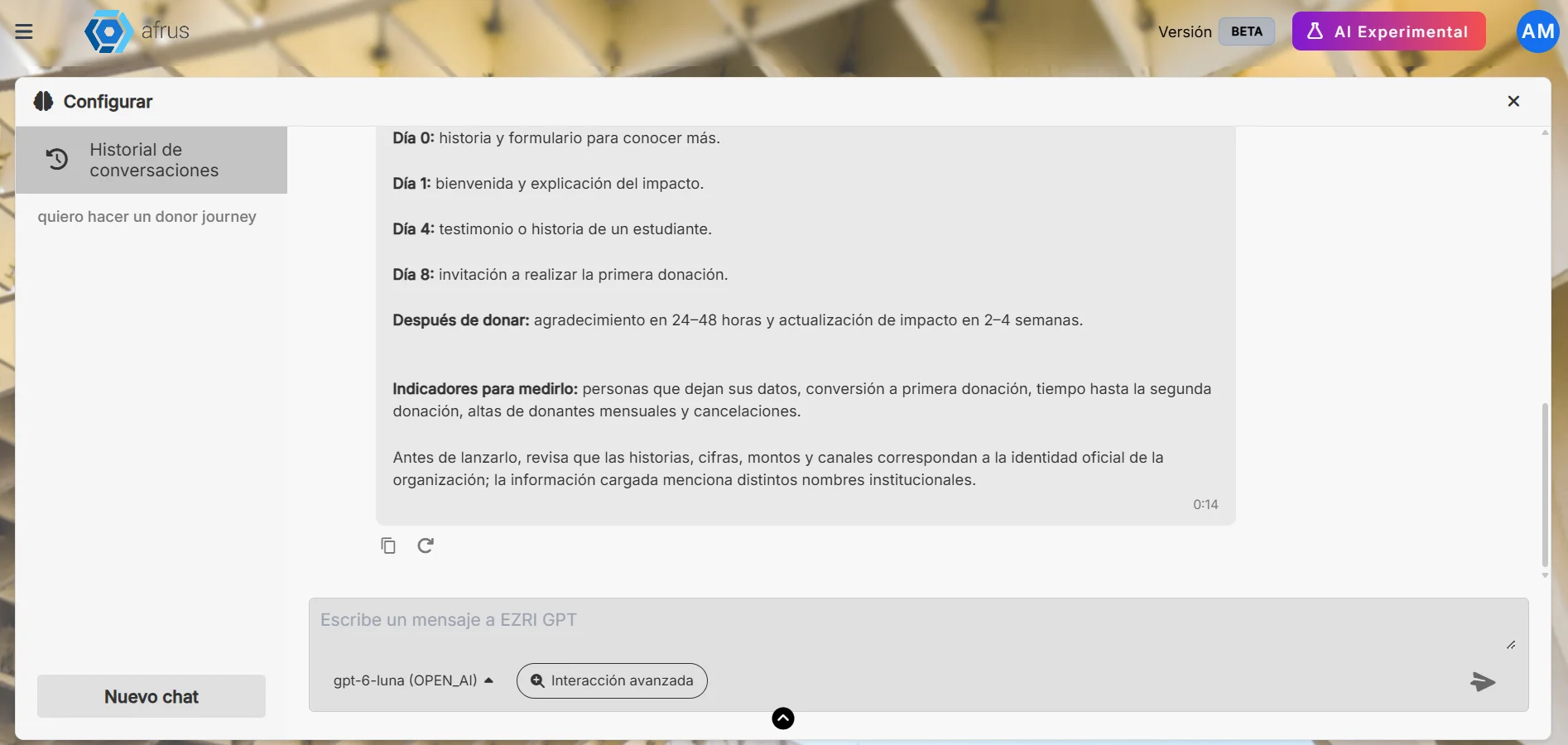
Pick up a conversation. Your conversations are saved on the left, in Historial de conversaciones (Conversation history).
Tip: be specific. "Write a 150-word email asking for donations for our scholarship campaign, in a warm tone" works better than "write an email".
What restrictions it has
- It only knows what you taught it. It uses your documents, web pages and instructions from Entrenamiento [AI RAG]. It doesn't look at your donors', donations' or campaigns' data.
- You can't attach files in the chat. If you want the AI to know a document, upload it in Entrenamiento [AI RAG].
- Each user only sees their own conversations. The history isn't shared with the rest of the team.
- Conversations can't be deleted or renamed.
- Answers can take up to 2 minutes. After that, you'll see "Lo siento, hubo un error al obtener la respuesta." (Sorry, there was an error getting the answer.) Send your message again.
- It searches all topics. Today you can't pick a specific topic or use conversation shortcuts.
- Always review what the AI writes before publishing or sending it.
Frequently asked questions
Does the AI know my donors?
No. It only uses what you uploaded in Entrenamiento [AI RAG].
Can my colleagues see my conversations?
No. Each user sees their own.
Does using the chat cost anything?
Yes, you need to buy tokens. For more information, write to us at billing@afrus.ai.
Last updated: 2026-10-28
Need help? Talk to the afrus team
In this article
✕
Related Tutorials
AI
October 28, 2026
User signatures guide
Complete guide to User signatures: every step with its screenshots and the frequently asked questions.
afrus.ai
AI
October 28, 2026
Website Agents guide (Agentes para la web)
Complete guide to Website Agents guide (Agentes para la web): every step with its screenshots and the frequently asked questions.
afrus.ai
AI
October 28, 2026
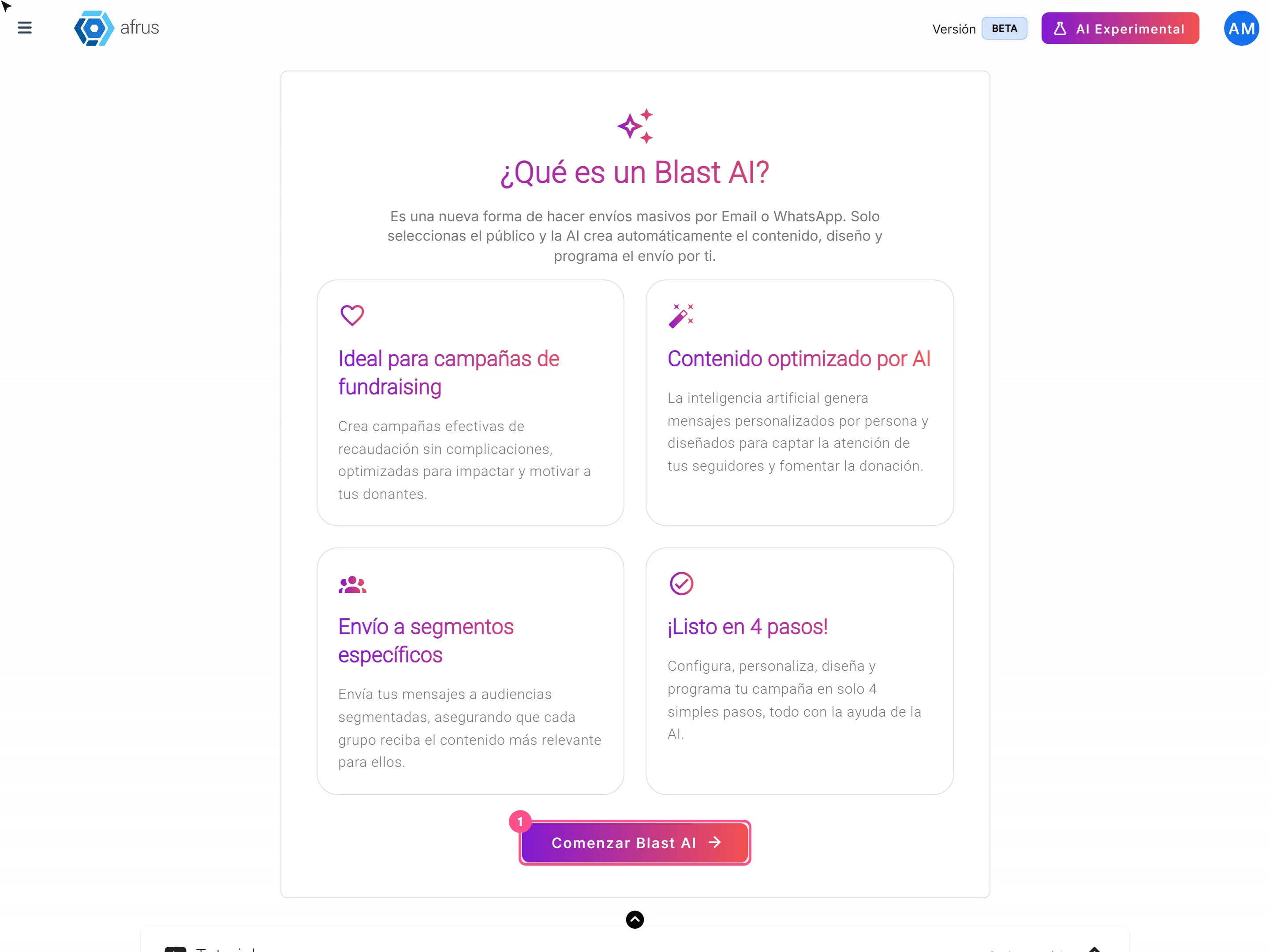
AI Blast guide (Blast de AI)
Complete guide to AI Blast guide (Blast de AI): every step with its screenshots and the frequently asked questions.
afrus.ai
AI
October 28, 2026
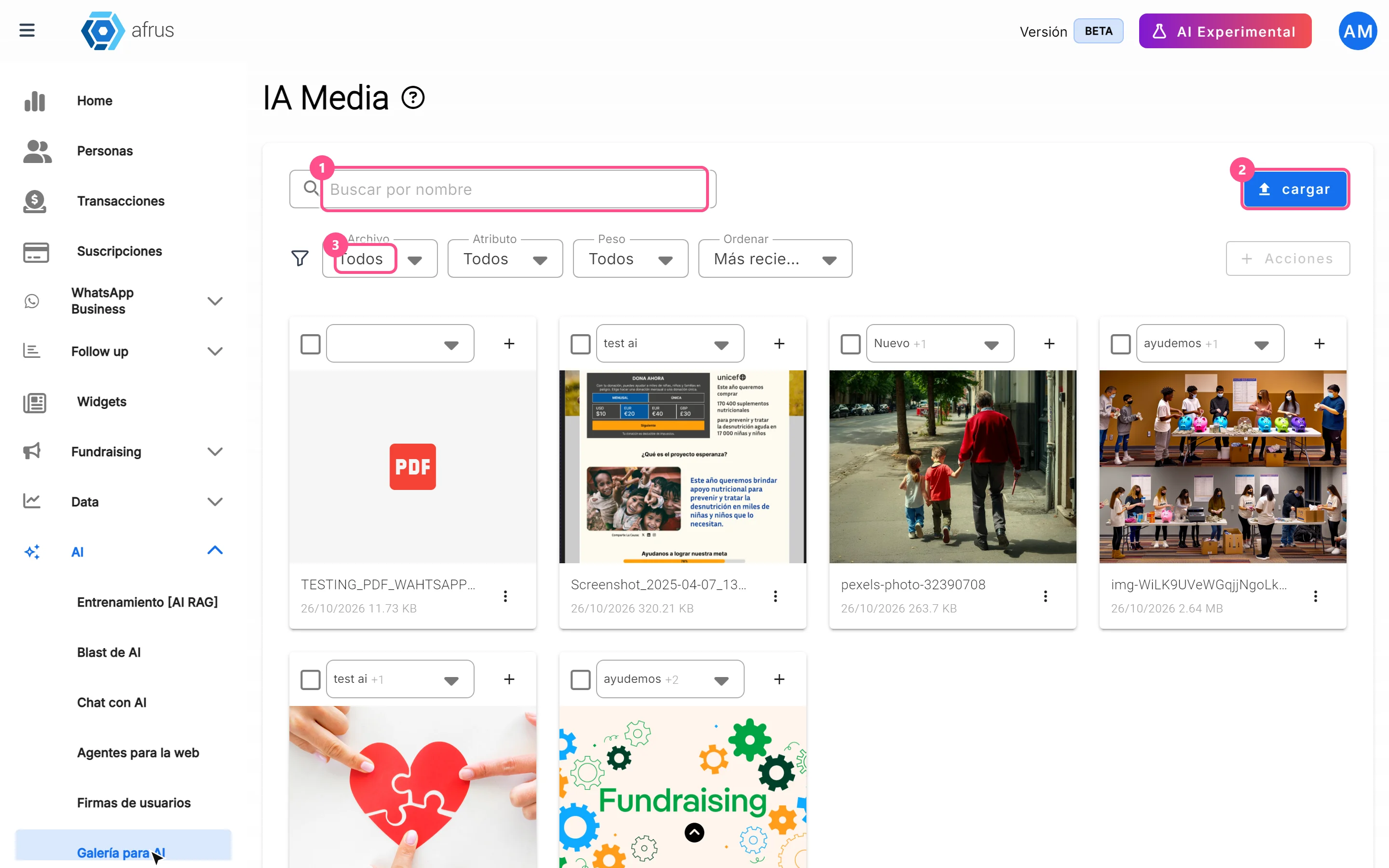
AI gallery guide
Complete guide to AI gallery: every step with its screenshots and the frequently asked questions.
afrus.ai