🡠 Back


User signatures guide
Reading time
3 min
AI
October 28, 2026
afrus.ai
Complete guide to User signatures: every step with its screenshots and the frequently asked questions.
In this article
With this guide you can create a signature for each person on your team, so the emails the AI writes go out with their name, their email and their way of introducing themselves.
Module: AI · Menu: AI > Firmas de usuarios (User signatures) · Audience: communications and fundraising teams
About the labels in this guide: buttons, fields and menus are written exactly as they appear in the Spanish version of the console, with an English explanation where it helps.
What it is
A signature is a user's business card in the emails the AI writes. It brings together:
- the name your contacts will see;
- the email address the messages are sent from;
- the job title;
- the email address where replies arrive;
- a short description of the person, which you can write yourself or ask the AI to write.
Each user can have only one signature.
What it is for
- Choosing who sends the automatic AI emails. In AI autoresponders, you can only choose users with a signature as the sender.
- Sending from the right address. The message goes out from the email you set in the signature.
- Letting the AI write in that person's voice. The AI uses the user description when writing.
Step by step
How to use it
Create or edit a signature
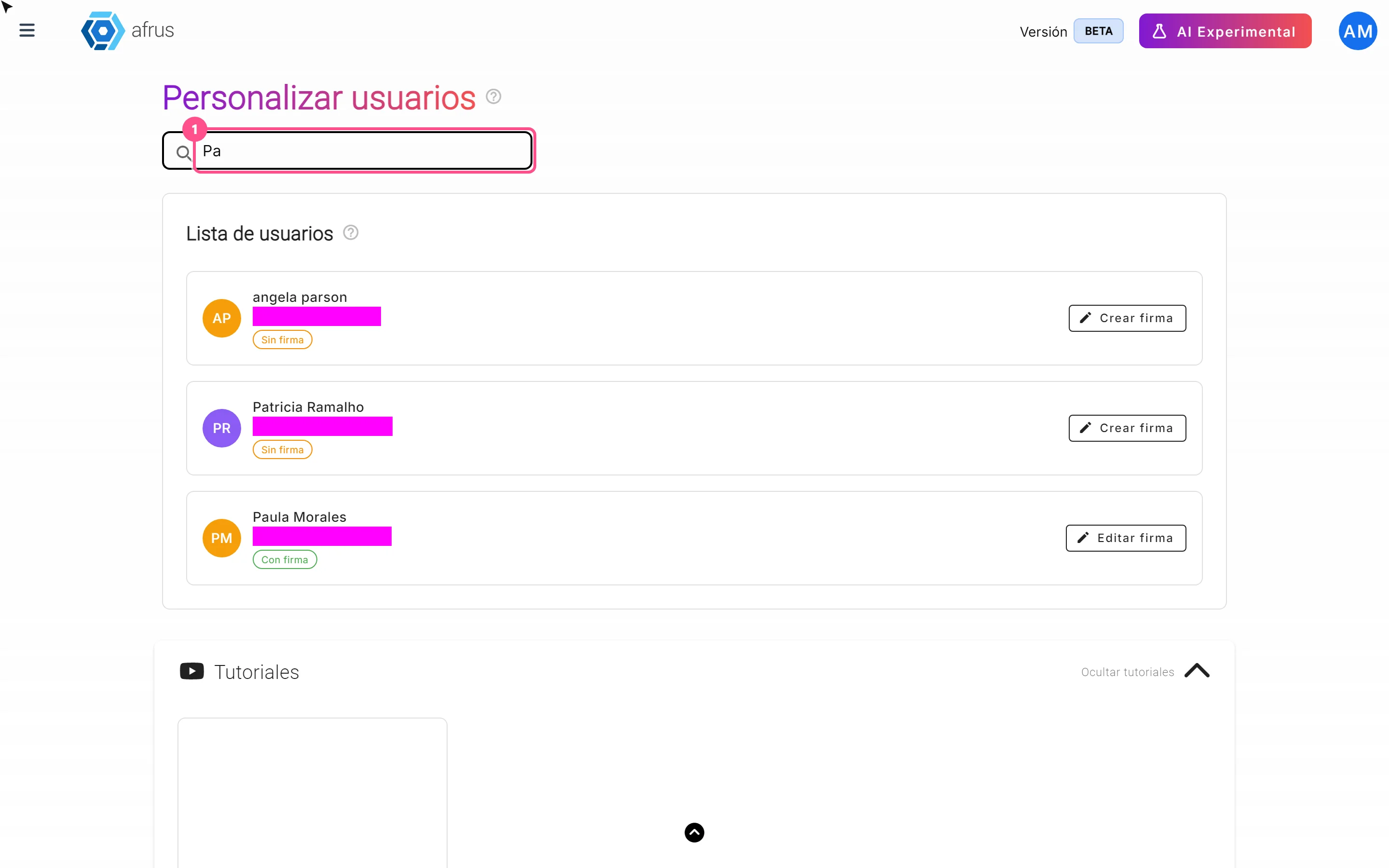
Open signatures. Go to AI > Firmas de usuarios. You will see your organization's users and, next to each one, whether they are Con firma (with signature) or Sin firma (without signature). You can look someone up with "Buscar por nombre" (Search by name).
Open the user's signature. Click "Crear firma" (Create signature), or "Editar firma" (Edit signature) if they already have one.
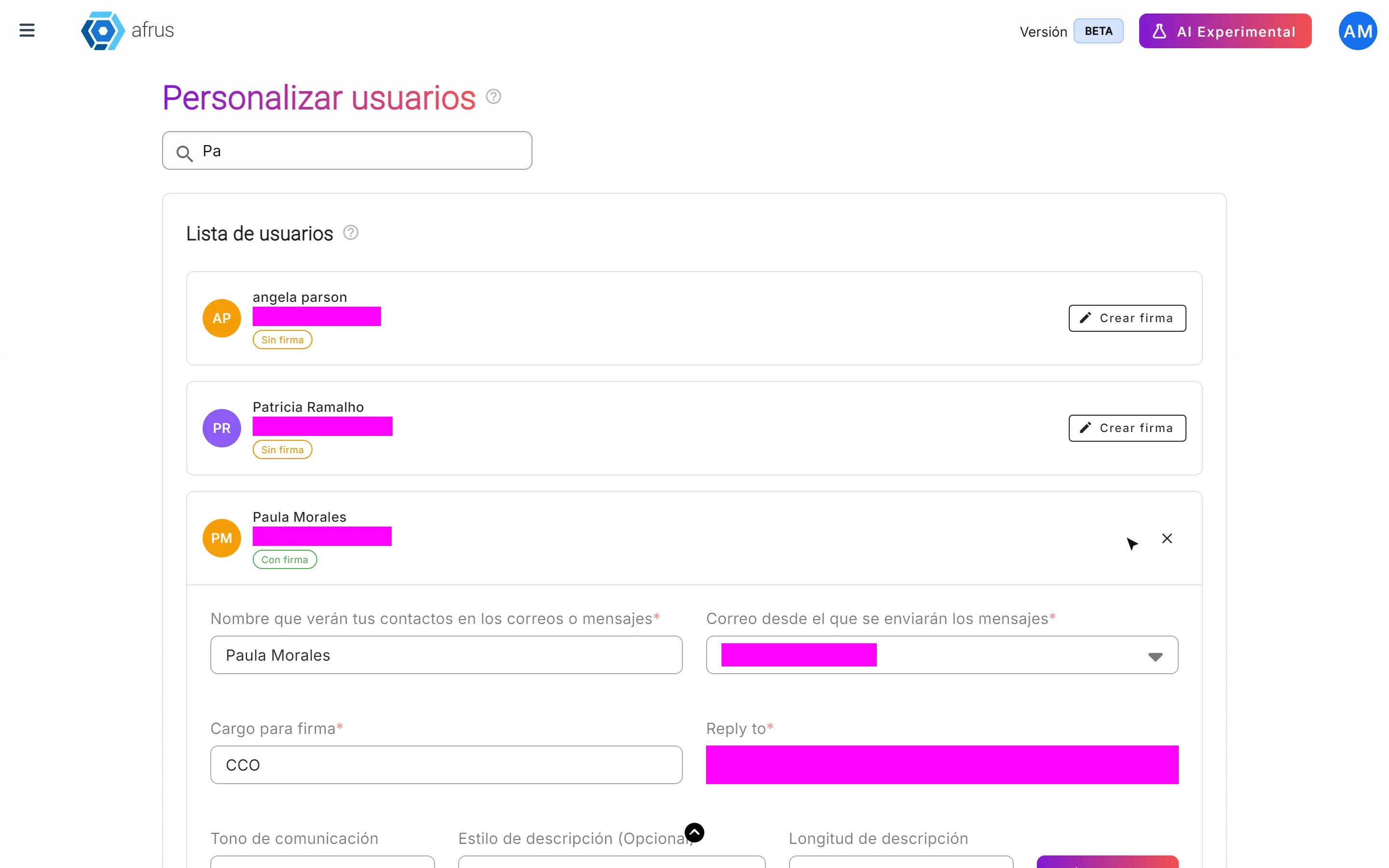
Fill in the basic details. All are required:
- Nombre que verán tus contactos en los correos o mensajes (name your contacts will see).
- Correo desde el que se enviarán los mensajes (sending email): choose one of your organization's sending addresses.
- Cargo para firma (job title).
- Reply to: the email where you want to receive replies.
Write the description, or let the AI write it. The Descripción de usuario (user description) is also required, even though it has no asterisk. To have the AI write it:
- choose the Tono de comunicación (tone), for example Formal, Cercano (friendly) or Inspirador (inspiring);
- if you like, choose an Estilo de descripción (Opcional) (style);
- choose the Longitud de descripción (length): Corta, Mediana or Larga (short, medium or long);
- click "Generar" (Generate).
If you already have a text, "Mejorar" (Improve) rewrites it and "Regenerar" (Regenerate) creates a new version. You can also write it yourself.
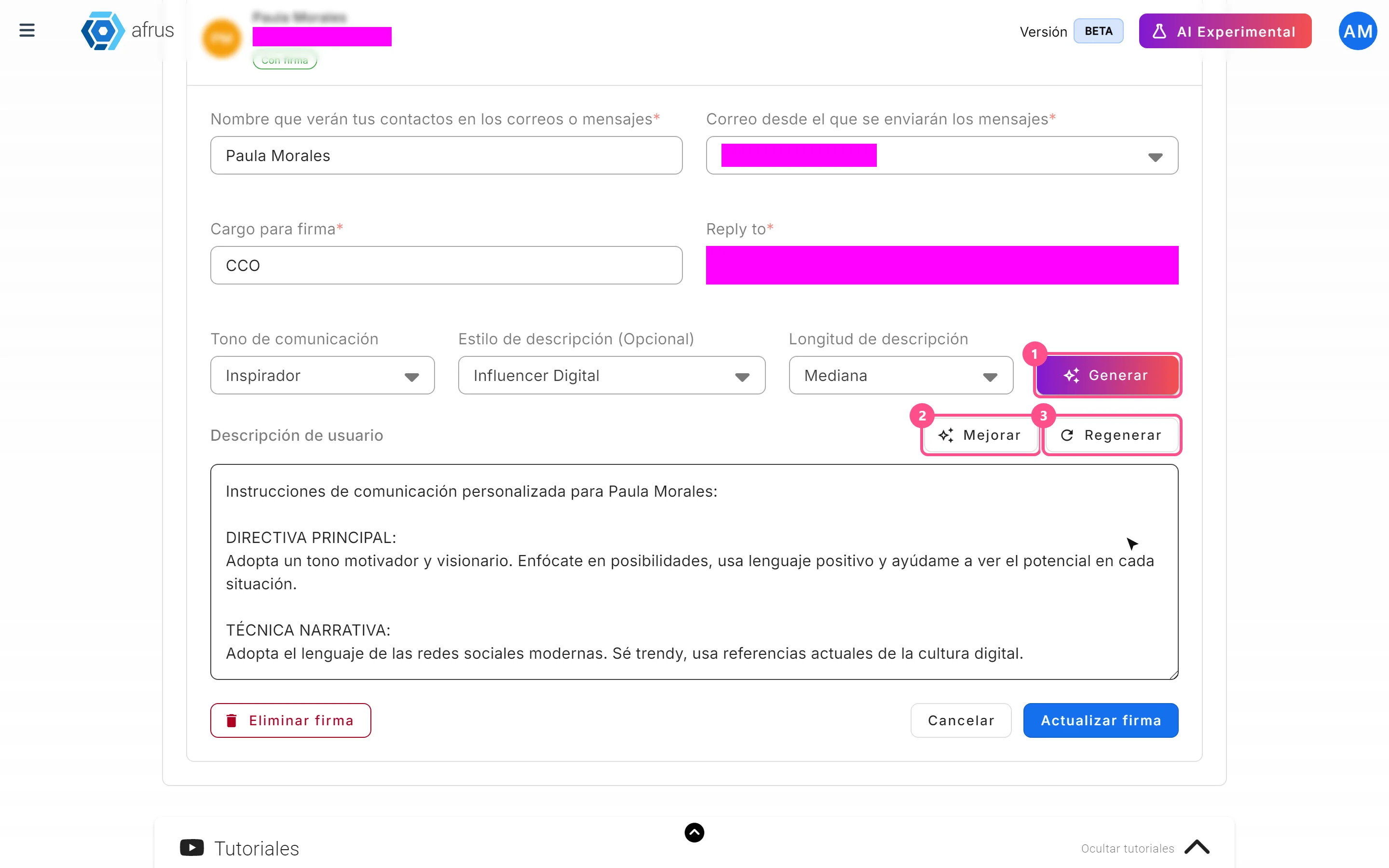
Save. Click "Crear firma" (or "Actualizar firma", Update signature). You will see "Firma creada exitosamente" or "Firma actualizada exitosamente" (signature created / updated successfully).
The save button only becomes active when the name, email, job title, Reply to and description are all filled in.
Use the signature
When you set up an AI autoresponder, choose the Remitente (Sender) in Configuración IA (AI settings). Only users with a signature appear there.
Delete a signature
- Open the user's signature.
- Delete it. Click "Eliminar firma" (Delete signature) and confirm with "Eliminar".
Can it be undone? No. If you delete a signature, you will need to create it again.
Frequently asked questions
Can a user have several signatures?
No. Each user has one signature; if you need to change it, edit it.
Do AI Blast sends use the signature?
Yes. If you don't have a signature, you can't send with AI or set up AI autoresponders.
Last updated: 2026-10-27
Need help? Talk to the afrus team
In this article
✕
Related Tutorials
AI
October 28, 2026
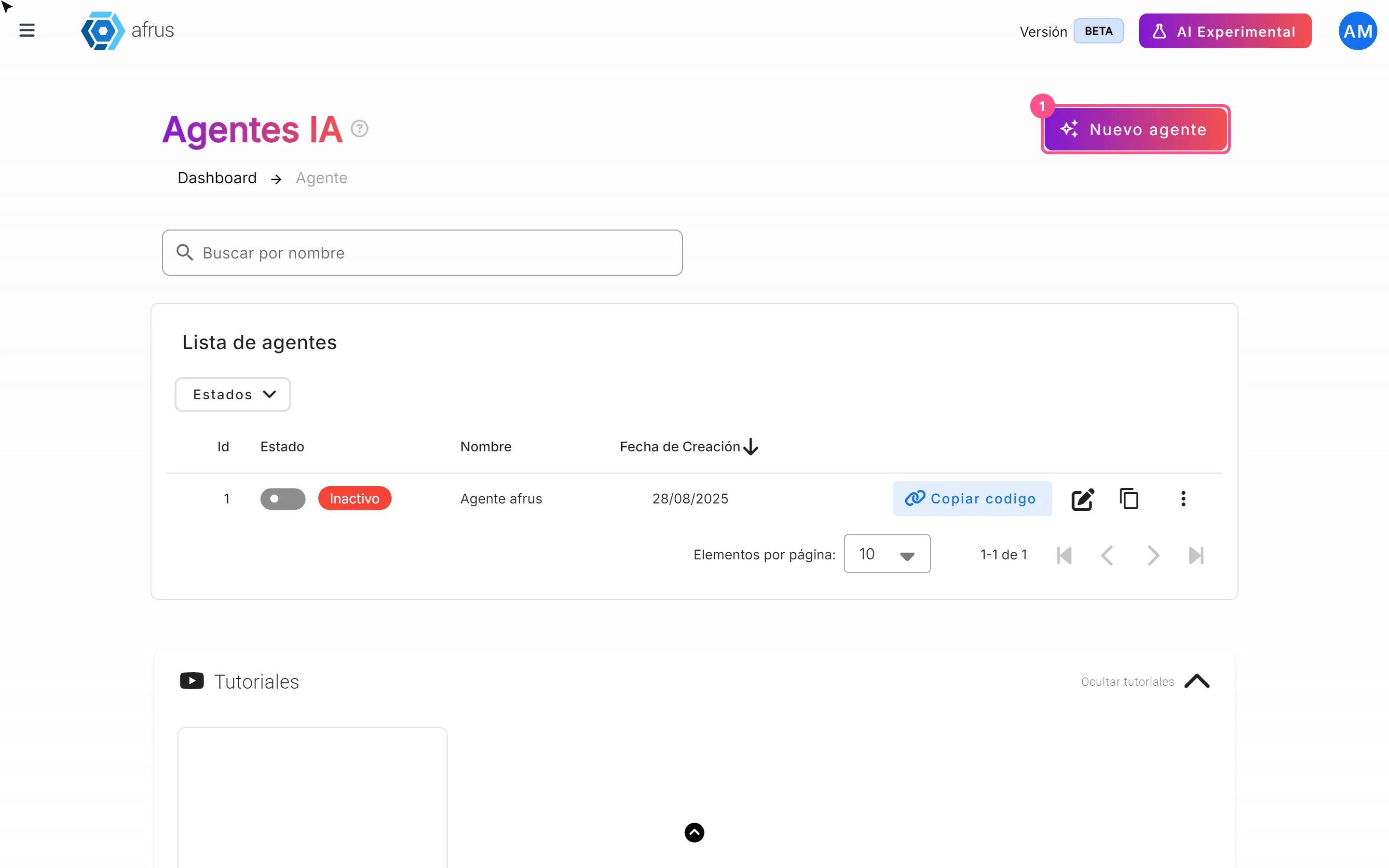
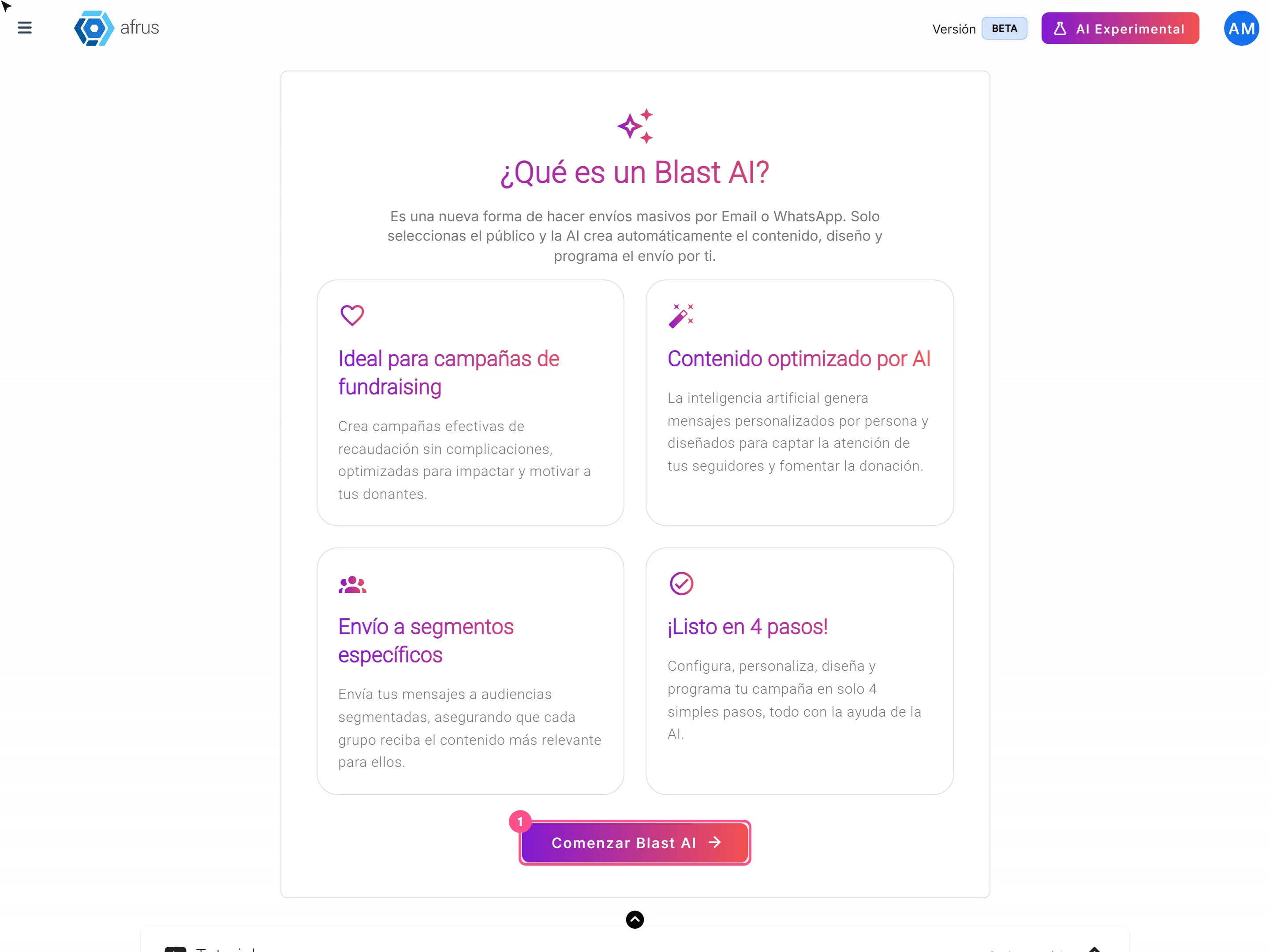
Website Agents guide (Agentes para la web)
Complete guide to Website Agents guide (Agentes para la web): every step with its screenshots and the frequently asked questions.
afrus.ai
AI
October 28, 2026
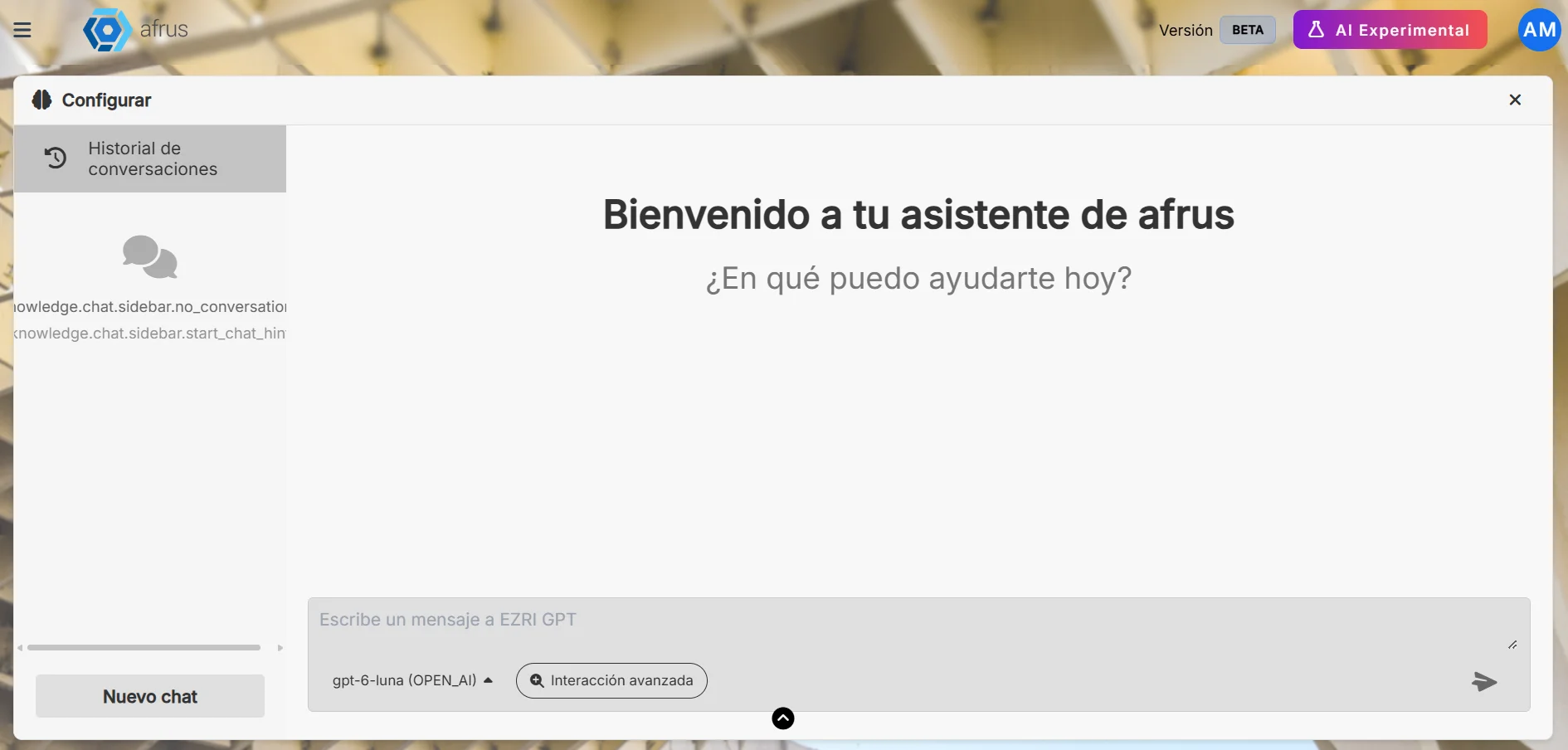
AI Blast guide (Blast de AI)
Complete guide to AI Blast guide (Blast de AI): every step with its screenshots and the frequently asked questions.
afrus.ai
AI
October 28, 2026
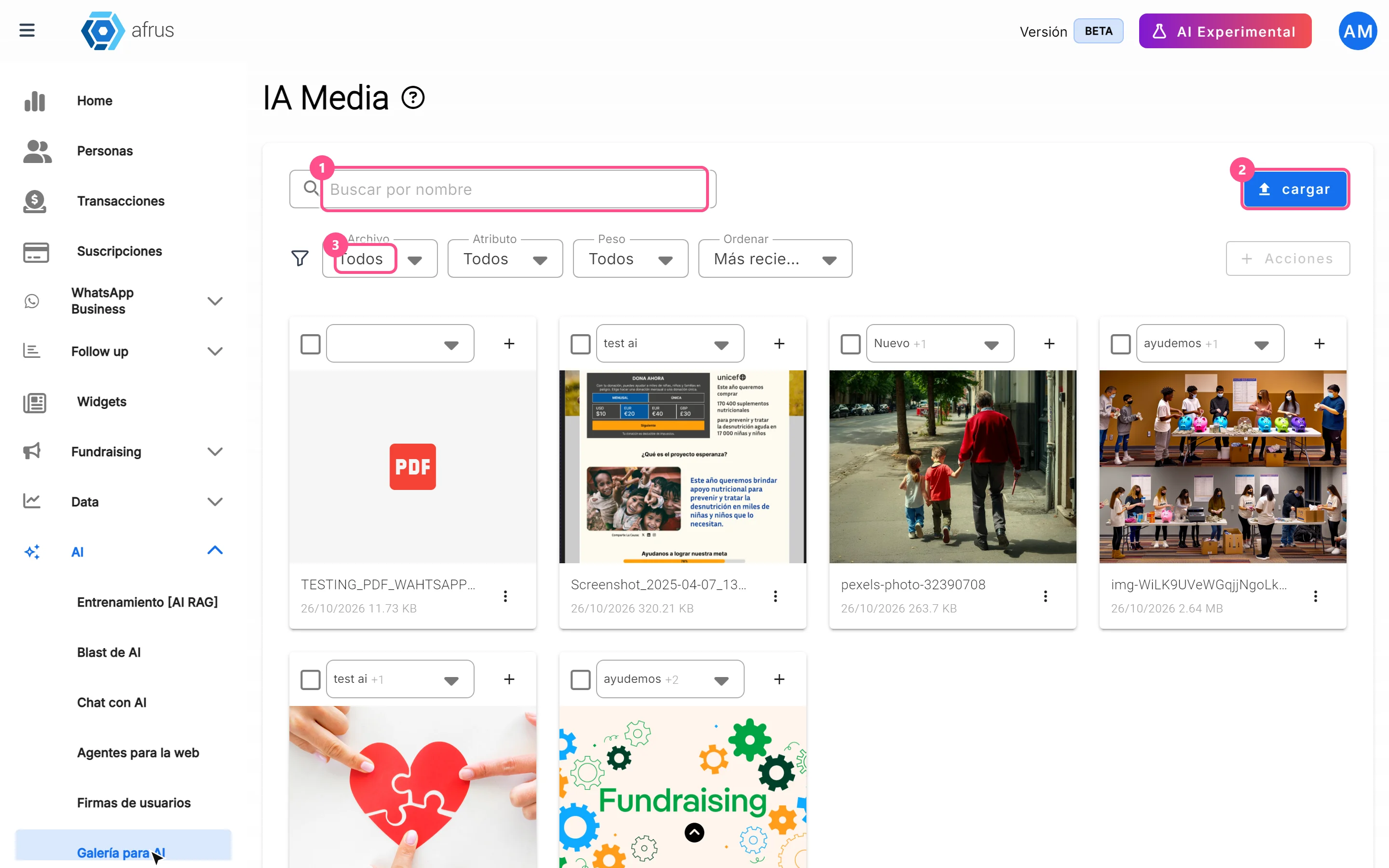
AI Chat guide (Chat con AI)
Complete guide to AI Chat guide (Chat con AI): every step with its screenshots and the frequently asked questions.
afrus.ai
AI
October 28, 2026
AI gallery guide
Complete guide to AI gallery: every step with its screenshots and the frequently asked questions.
afrus.ai