🡠 Back


AI gallery guide
Reading time
3 min
AI
October 28, 2026
afrus.ai
Complete guide to AI gallery: every step with its screenshots and the frequently asked questions.
In this article
With this guide you can keep your organization's images in one place, to use them in your AI emails, landings, email and WhatsApp blasts, autoresponders and workflows.
Module: AI · Menu: AI > Galería para AI (AI gallery; also in the profile menu as AI Media) · Audience: communications and design teams
About the labels in this guide: buttons, fields and menus are written exactly as they appear in the Spanish version of the console, with an English explanation where it helps.
What it is
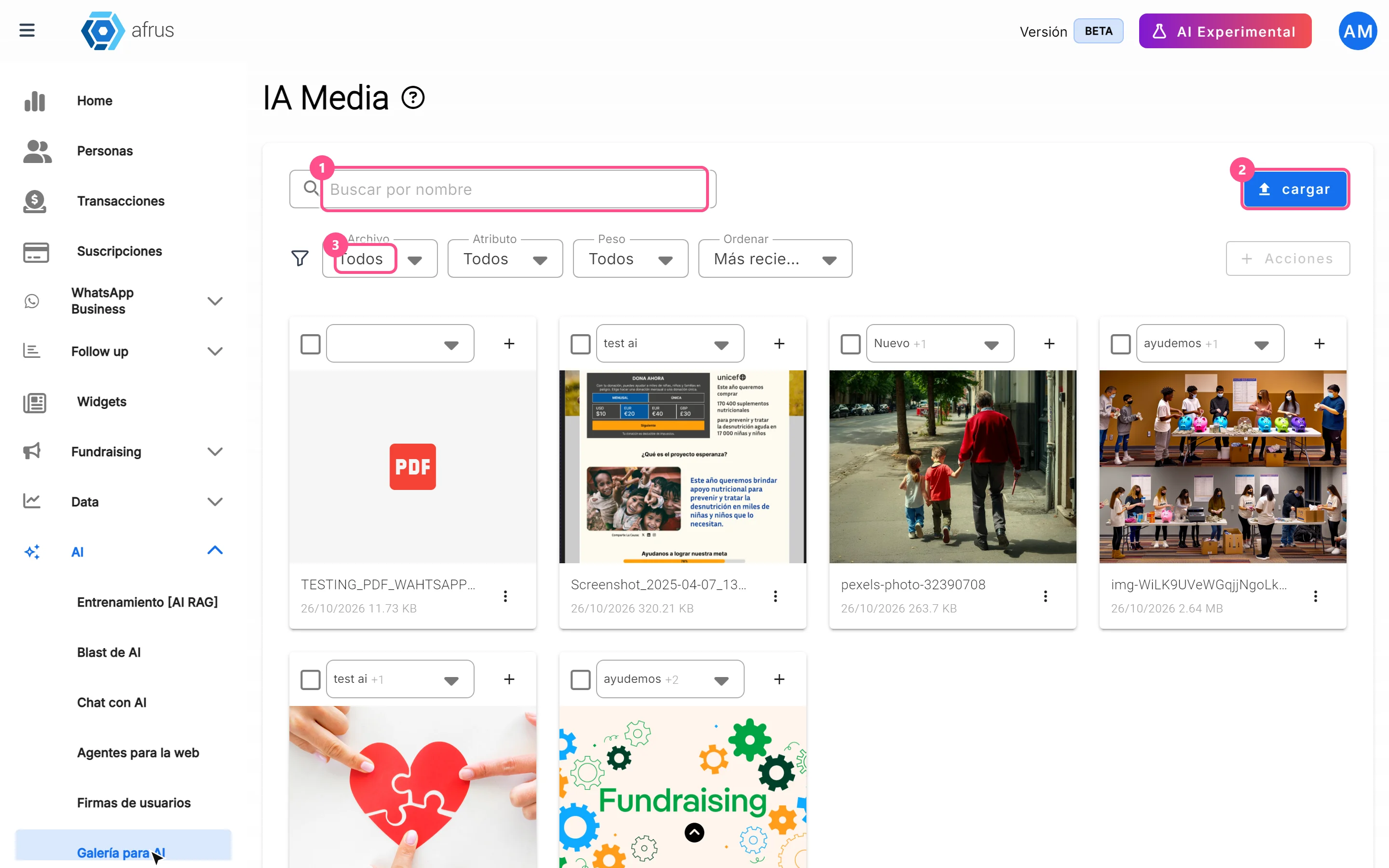
The AI gallery is your organization's image bank. There you upload, organize and keep the photos you want the AI to use. On screen it is called IA Media.
You can add images in three ways: uploading them from your computer, finding them in an image bank, or asking the AI to create one.
What it is for
- Putting your photos in the emails the AI writes. AI emails that use templates (in AI Blast and AI autoresponders) take their main image from here.
- Choosing which kind of image goes in each email. With attributes (labels) you tell the AI which images to use. AFRUS picks one at random among those with the right attribute; if none has it, it uses any image in the gallery.
- Having your images at hand elsewhere. They also appear in the IA Media tab when you choose an image in the template editor and in WhatsApp Business.
Step by step
How to use it
Add images
Open the gallery. Go to AI > Galería para AI.
Open the upload window. Click "cargar" (upload). The Subir recursos (Upload resources) window opens.
Choose how to add it.
- Subir recursos (Upload): first pick the attributes in "Seleccionar atributos" (Select attributes), then click "Subir" (Upload) and choose the file. It uploads as soon as you choose it.
- Banco de Imágenes (Image bank): type what you are looking for (for example, "volunteers"), click "Buscar" (Search) and then click the photo you like.
- Generar Imagen (Generate image): describe the image you want (or use one of the suggested ideas), click "Generar" (Generate) and then click the image to save it.

When you finish you will see "¡Archivo subido con éxito!" or "¡Imagen subida con éxito!" (file / image uploaded successfully).
Accepted formats: JPG, PNG, GIF and WEBP, up to 5 MB.
Add attributes to an image
- Find the image in the gallery.
- Choose its attributes. On the image card, mark one or more. If you need a new one, click "+", type the Nombre del atributo (attribute name) and click "Crear atributo" (Create attribute).

This way the AI knows which images to use in each kind of email.
Download, copy or delete
- On each image you can "Descargar" (Download), "Copiar enlace" (Copy link) or "Borrar" (Delete).
- To do it with several at once, select them and use the Acciones (Actions) menu.
- The screen shows 10 images; to see more, click "Cargar más" (Load more).
Can it be undone? No. A deleted image cannot be recovered.
Frequently asked questions
Is there a limit on the number of images?
No, there is no limit on the number of images.
Where are these images used?
In many places, for example in landings, blasts (both email and WhatsApp), autoresponders and workflows.
Last updated: 2026-10-27
Need help? Talk to the afrus team
In this article
✕
Related Tutorials
AI
October 28, 2026
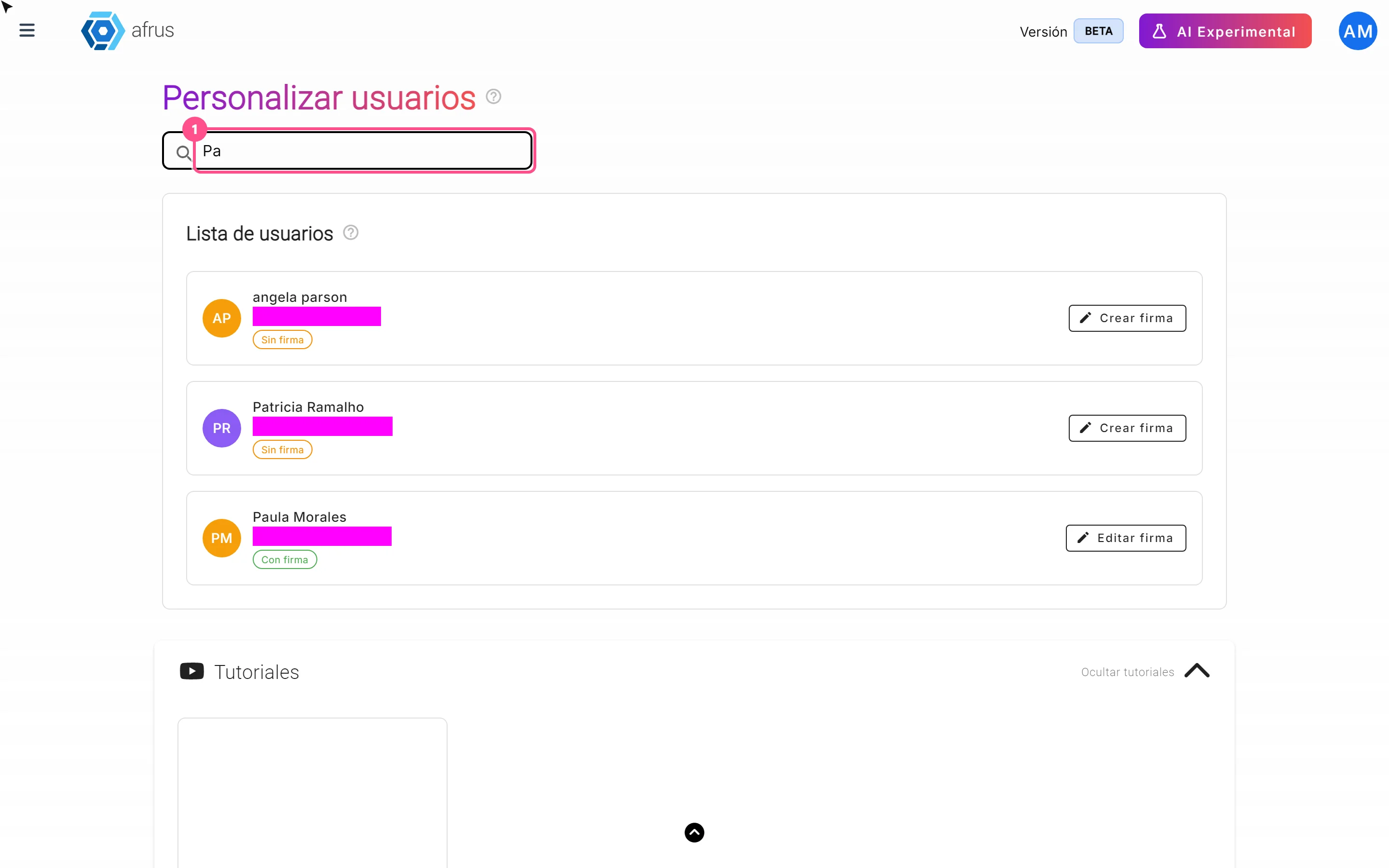
User signatures guide
Complete guide to User signatures: every step with its screenshots and the frequently asked questions.
afrus.ai
AI
October 28, 2026
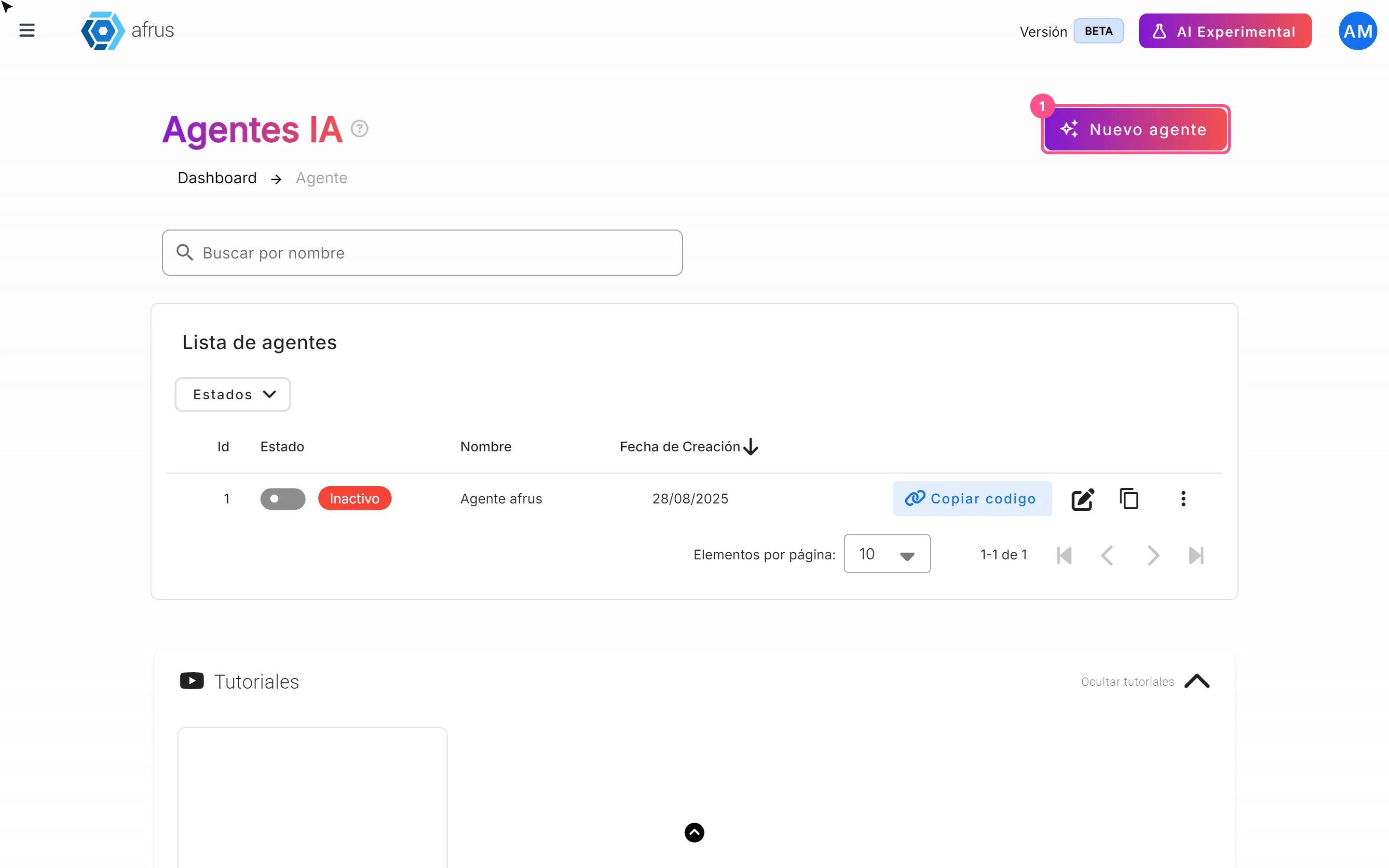
Website Agents guide (Agentes para la web)
Complete guide to Website Agents guide (Agentes para la web): every step with its screenshots and the frequently asked questions.
afrus.ai
AI
October 28, 2026
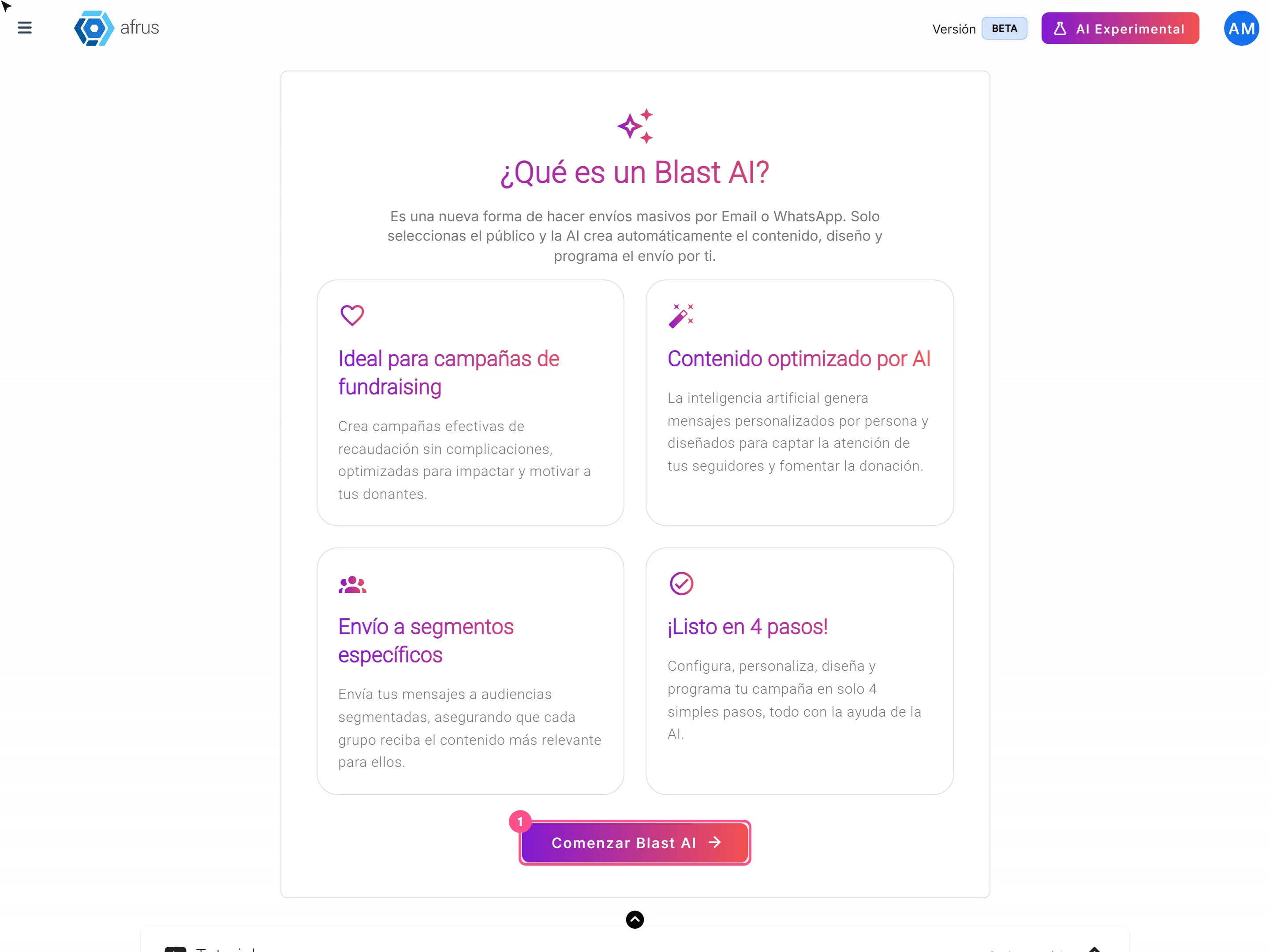
AI Blast guide (Blast de AI)
Complete guide to AI Blast guide (Blast de AI): every step with its screenshots and the frequently asked questions.
afrus.ai
AI
October 28, 2026
AI Chat guide (Chat con AI)
Complete guide to AI Chat guide (Chat con AI): every step with its screenshots and the frequently asked questions.
afrus.ai