🡠 Back


Autoresponders guide
Reading time
8 min
Autoresponders
October 28, 2026
afrus.ai
Complete guide to Autoresponders: every step with its screenshots and the frequently asked questions.
In this article
With this guide you will be able to send automatic emails to your donors and contacts: a thank-you when they donate, a notice when a payment fails and much more, without writing them one by one.
Module: Autoresponders · Menu: Interacciones > Autoresponders · Audience: communications and fundraising teams
About the labels in this guide: buttons, fields and menus are written exactly as they appear in the Spanish version of the console, with an English explanation where it helps.
What an autoresponder is
An autoresponder is an email that AFRUS sends on its own, to one person, when something happens. For example: when someone signs up, when their donation is confirmed or fails, or when their monthly donation is charged.
You write the email once and AFRUS sends it every time that event happens.
What it is for
- Thank every donation right away. The donor gets your message within minutes, with no manual work.
- Let people know when something goes wrong. For example, if a payment fails, stays pending or the person didn't finish donating.
- Talk to each person in their language. You can have the same email in Spanish, English and Portuguese.
- Personalize by campaign or by form. You can have a general message for the whole organization and special messages for a campaign or a donation form.
Before you start
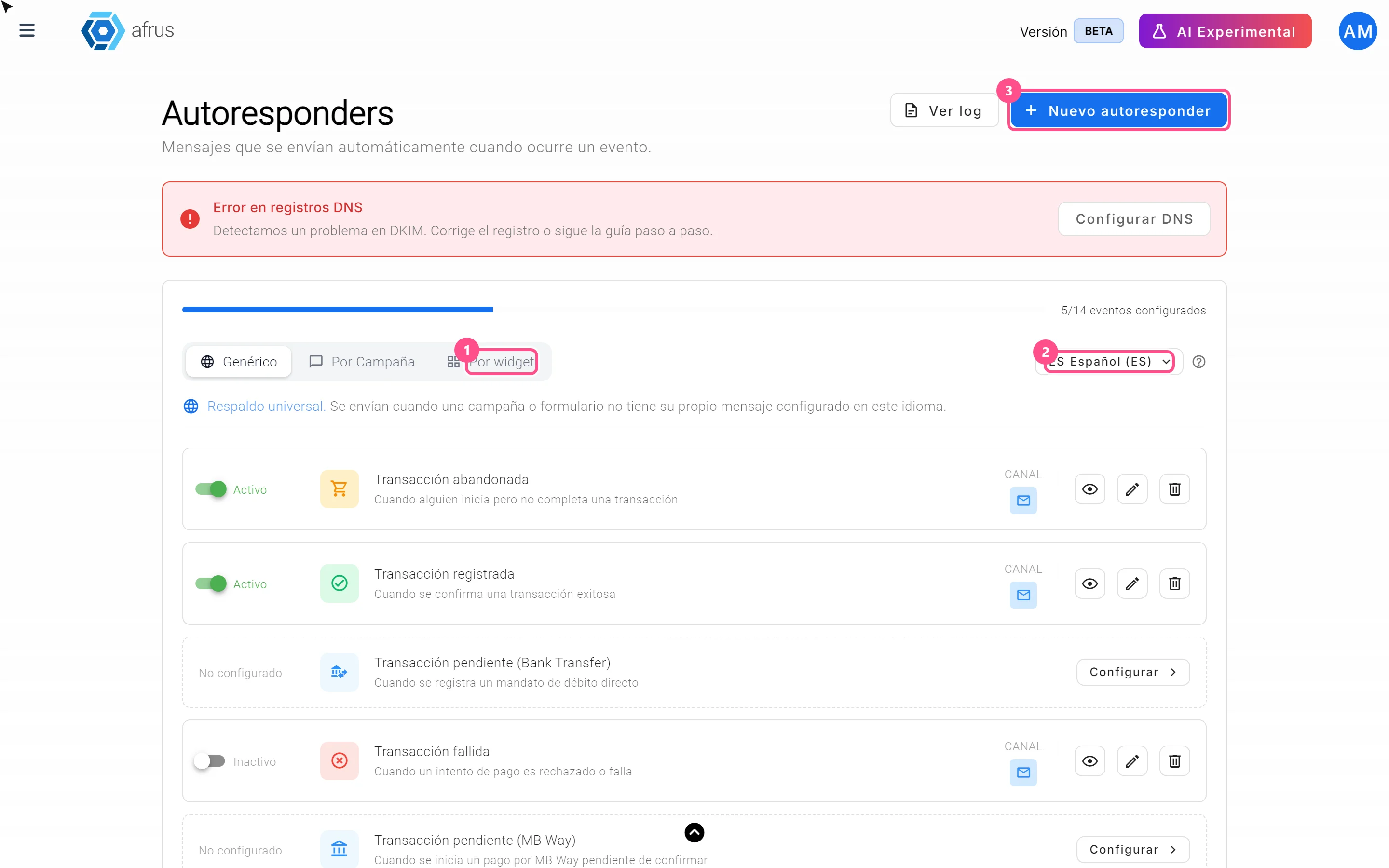
- An email address to send from. You can always use AFRUS's address. If you want to send from your organization's address (for example, donations@yourorg.org), your domain needs to be verified first. You see this on the card above the autoresponder list.
- Know the event. Think about when you want the email to arrive: on donating, on signing up, when a payment fails…
Recommended: verifying your domain helps your emails reach the inbox. The "Configurar DNS" (Set up DNS) button on the card opens the previous version of AFRUS, which is why it looks different. Verification can take up to 48 hours.
Step by step
How to use it
Part 1 — Choose where and when it is sent
Open autoresponders. Go to Interacciones > Autoresponders.
Choose the language. Above the list, choose Español (ES), Inglés (EN) or Portugués (PT). The autoresponder you create will be in that language.
Start a new one. Click "Nuevo autoresponder" (New autoresponder).
Choose where it applies. In Contexto (Context), choose Genérico (Generic, for the whole organization), Por campaña (By campaign, then pick the campaign) or Por formulario (By form, then pick the form). Click "Siguiente" (Next).
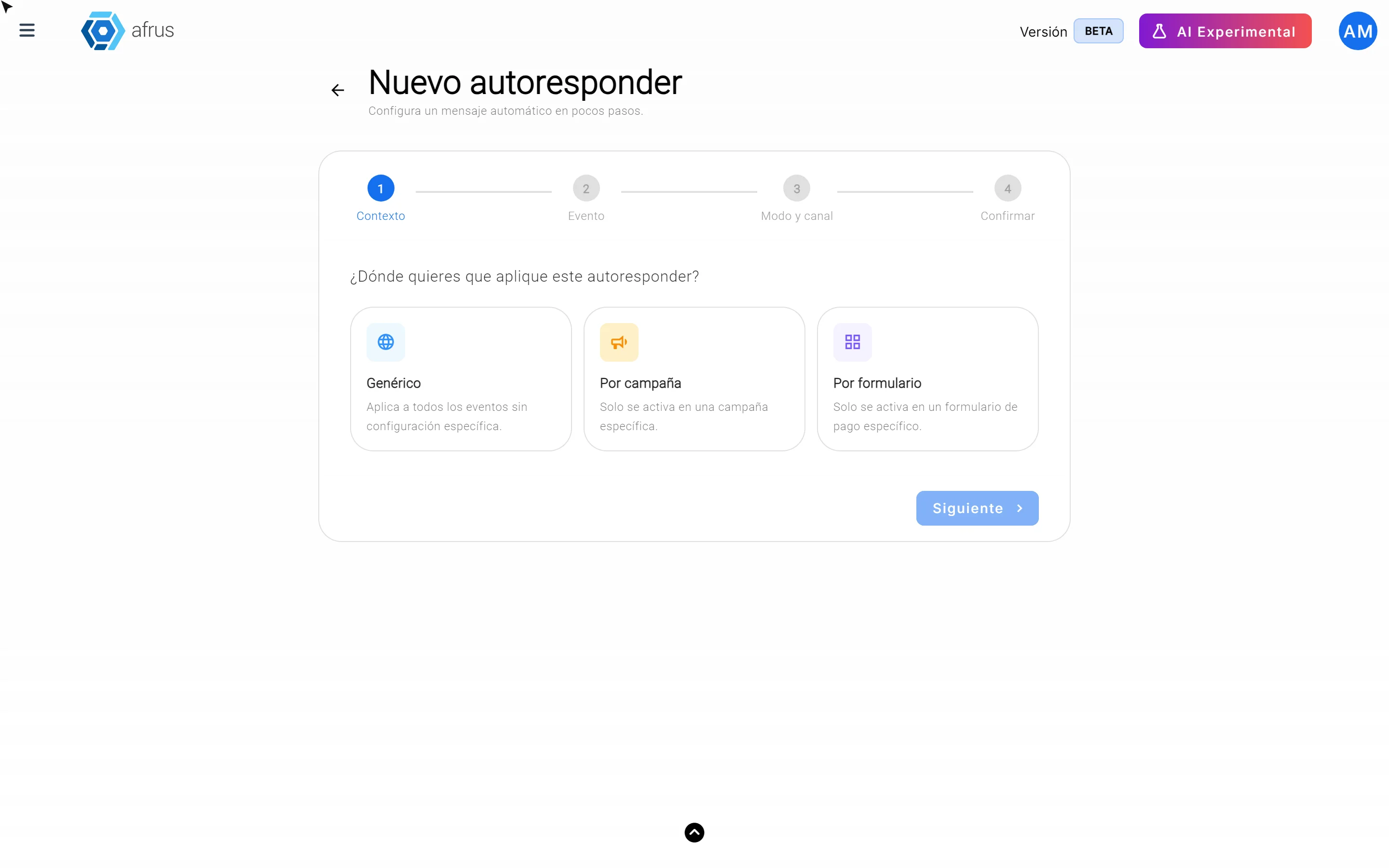
Choose the moment. In Evento (Event), choose when it is sent, for example Transacción registrada (Transaction registered — "when a successful transaction is confirmed"). Only events that don't yet have an email in that language appear.
Choose the mode. In Modo y canal (Mode and channel), choose Manual to design the email yourself. The channel is Email.
Confirm. Review the summary and click "Confirmar e ir al editor" (Confirm and go to the editor).
Part 2 — Fill in the email details
Choose the sender. In Correo de envío (Sending email), choose which address it comes from.
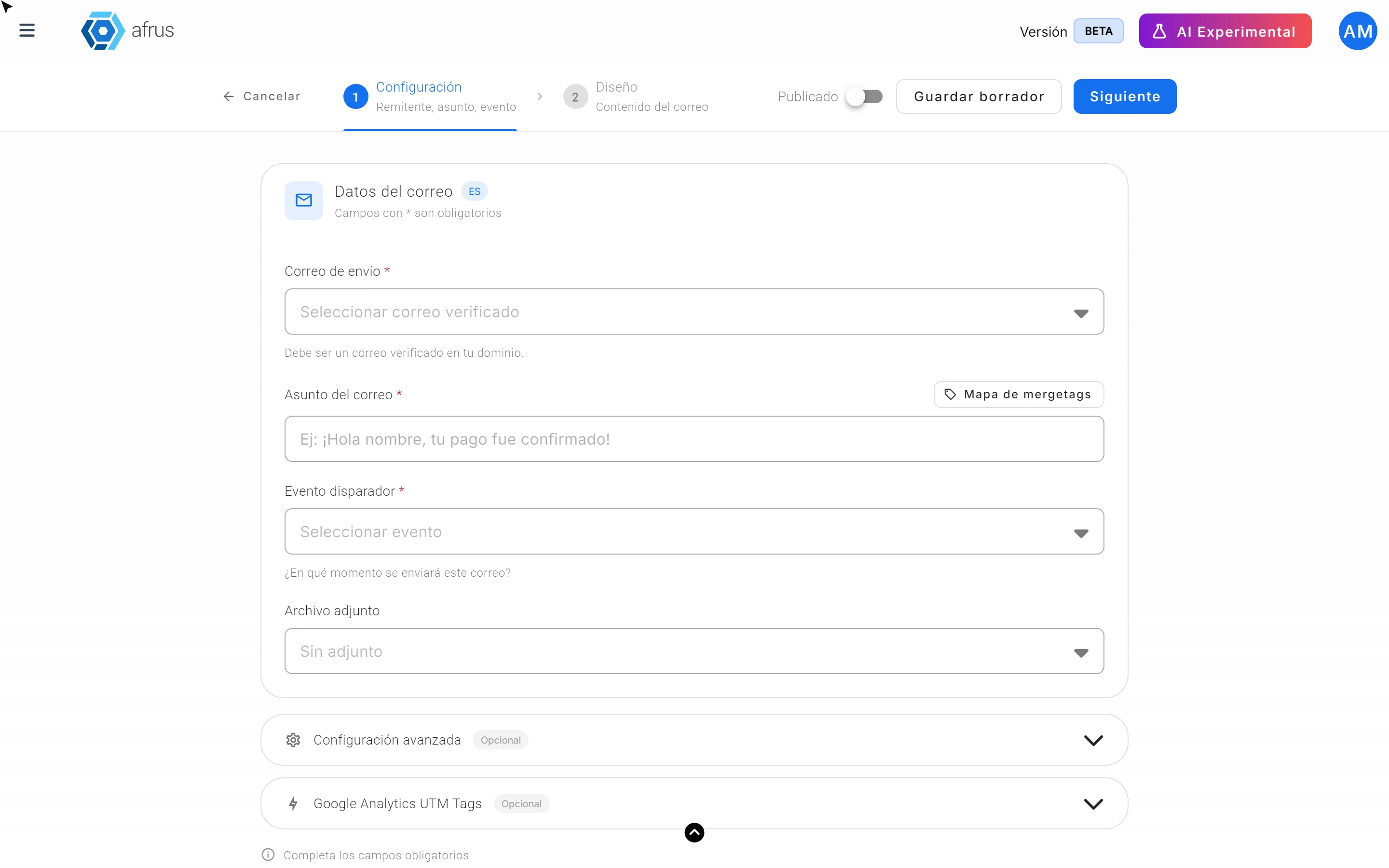
Give it an internal name (optional). In Nombre interno (Internal name), write a name only your team will see.
Write the subject. In Asunto del correo (Email subject), write what the person will see in their inbox. With "Mapa de mergetags" (Merge tag map) you can add the person's details, such as their name, to make the email more personal. Below it is the Evento disparador (Trigger event): it comes filled in from the wizard, so just check that it is the right one.
Attach a file (optional). In Archivo adjunto (Attachment) you can choose one. By default there is none.
Continue. Click "Siguiente". If the content isn't ready yet, use "Guardar borrador" (Save draft).
Part 3 — Design the email and publish it
Choose how to design it. You have four options:
- Diseño en blanco (Blank design): start from scratch with the visual editor.
- Galería de diseños (Design gallery): start from a ready-made template.
- Autoresponders: copy an email you already have.
- Editor con código (Code editor): for people who work with HTML.
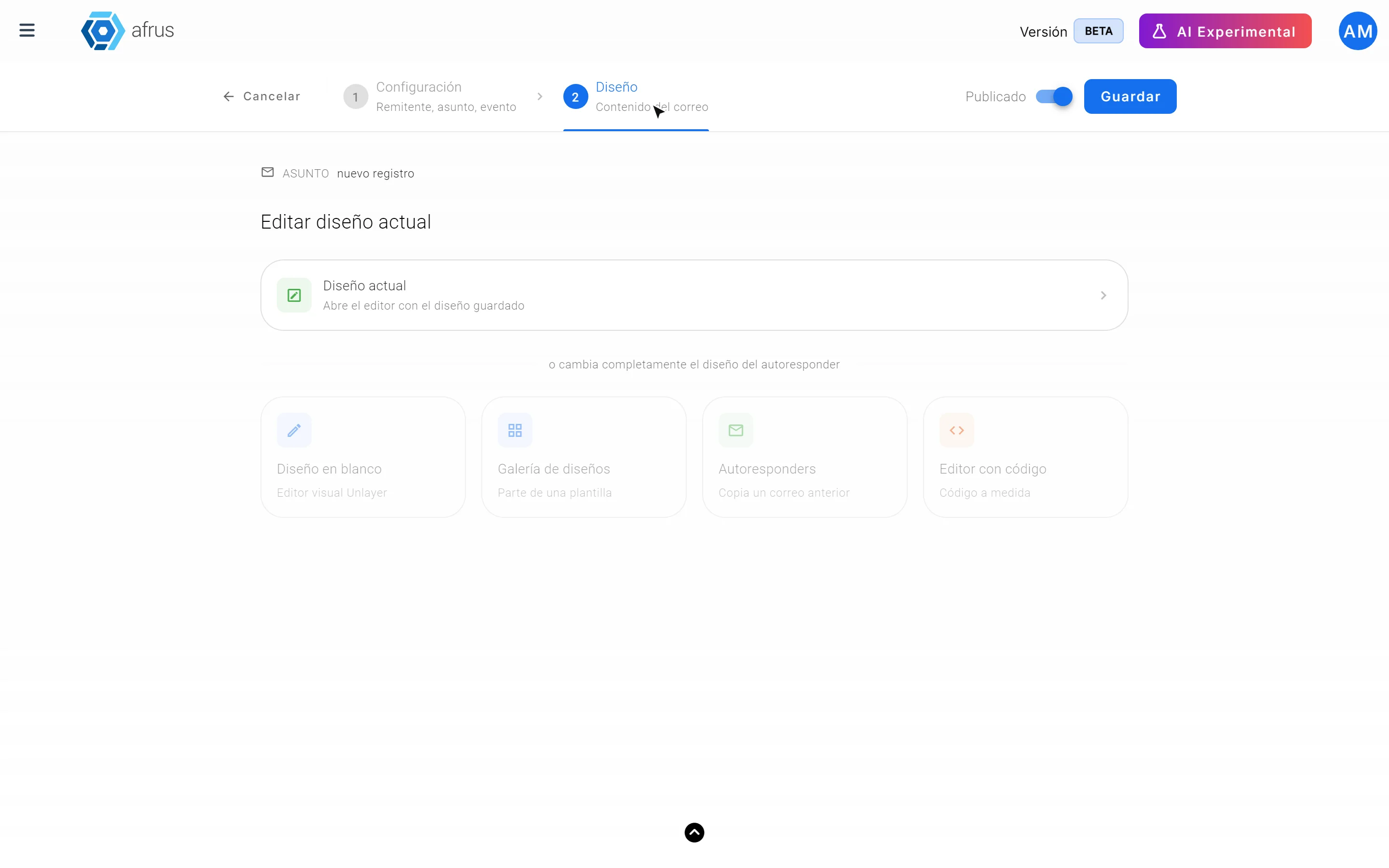
Publish it. At the top right, turn on Publicado (Published).
Save. Click "Guardar" (Save). You will see "Autoresponder creado correctamente" (Autoresponder created successfully).
When you finish, the autoresponder appears in the list as Activo (Active) and is sent every time the event happens.
Important: don't publish an email without content. Always check the design before turning on Publicado.
Create an autoresponder with AI
If you prefer AFRUS to write the email for you:
Important: to set up AI autoresponders, your user needs a signature created in AI > Firmas de usuarios. If you have no user signatures, you can't set up AI autoresponders.
- Find the event. In the Genérico tab, find an event that says No configurado (Not configured) and click "Configurar" (Set up).
- Choose Con IA. In Modo de creación (Creation mode), choose Con IA (With AI).
- Fill in the details. Choose the Remitente (Sender), the Diseño (Design: Plantilla IA with a visual design, or Solo texto plain text) and, in URL call to action, the link for the email's button.
- Save. The autoresponder is created and published.
Important: use the "Configurar" button on the event's row. If you choose Con IA from "Nuevo autoresponder", the manual editor opens anyway. And don't leave the URL call to action empty: if you do, the list keeps showing the event as No configurado, even though the email was published.
Edit, pause or delete an autoresponder
- Edit: on the event's row, use the edit icon, change what you need and click "Guardar".
- Pause: turn off the switch on the row. It becomes Inactivo (Inactive) and is not sent.
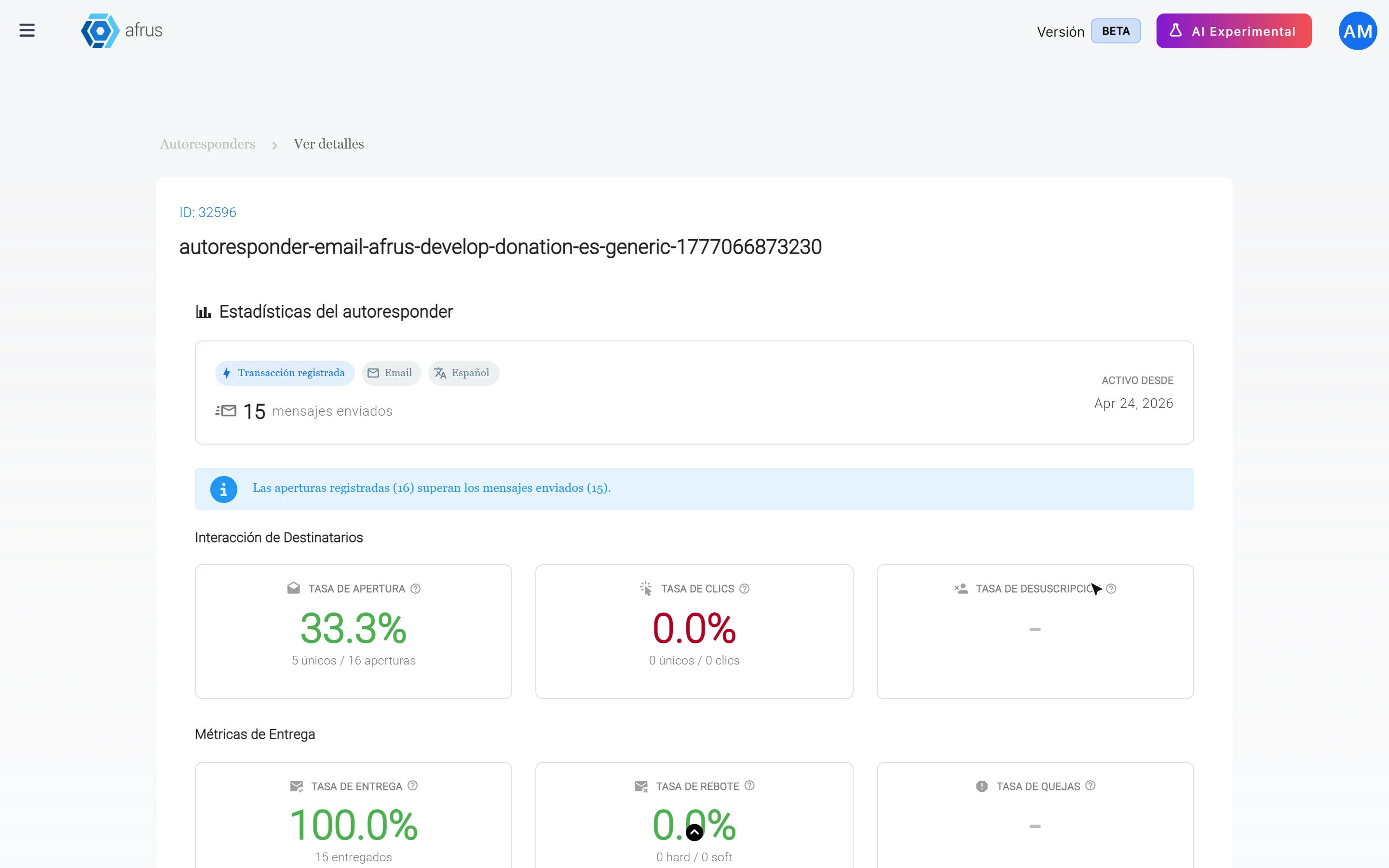
- See results: the view icon opens Ver detalles (View details), with how many emails were sent, opened and clicked, and a preview of the email. "Ver log" (View log) shows each email sent or failed.
- Delete: delete icon on the row.
Can it be undone? No. Deleting an autoresponder removes it instantly, without asking for confirmation. If you only want to stop sending it for a while, turn it off with the switch instead.
What to keep in mind if your form is in several languages
- Each language is a separate email. To have the English version, switch the language selector to Inglés (EN) and create it separately. The same for Portuguese.
- AFRUS picks the person's language. If the person has a language, they get the email in that language.
- If a language is missing, the generic one is used. If you don't have the email in the person's language, AFRUS sends your Genérico autoresponder, even if it's in another language. A thank-you in another language is better than nothing.
- Campaign and form emails are stricter. They are only sent in their exact language. If they don't exist in the person's language, the generic one is sent.
Recommendation: if your form receives donations in several languages, create the autoresponder in each of them, starting with the Genérico one.
When to create a generic, campaign or form autoresponder
| Type | When to use it | Example |
|---|---|---|
| Genérico (Generic) | Always, as a base. It's the email sent when there isn't a more specific one | A general thank-you for any donation |
| Por campaña (By campaign) | When a campaign needs its own message | "Thank you for supporting our Christmas campaign" |
| Por formulario (By form) | When a specific form needs its own message | A special email for people who donate from your emergency page |
How AFRUS chooses which email to send: it looks for the most specific one first and, if there isn't one, the most general. The order is: campaign and form together, then campaign, then form and, finally, Genérico. Only Activo emails count.
Recommendation: create the Genérico email for each important event first. That way nobody goes without a reply, even if a campaign or form doesn't have its own email.
Statuses
| Status | What it means |
|---|---|
| Activo (Active) | Published: sent when the event happens |
| Inactivo (Inactive) | Set up but turned off: not sent |
| Borrador (Draft) | Saved without a design: not sent |
| No configurado (Not configured) | There's no email for that event in the chosen language |
When the email arrives
AFRUS checks for new events every 5 minutes, so the email usually arrives within a few minutes of the event.
Keep in mind
- For now, new autoresponders can only be sent by email (not WhatsApp).
- In Ver detalles, the unsubscribe rate and errors show as "No registrado" (Not recorded): those figures aren't measured for autoresponders.
- If your organization never set up a domain, the card at the top may say Error en registros DNS (DNS record error) instead of "you don't have a verified domain". In both cases, what's missing is setting up your domain.
- If you turn off a campaign or form autoresponder and there's an active Genérico one for that event, the generic one is sent instead.
Frequently asked questions
Which address do my autoresponders come from?
From AFRUS's address, until you verify your domain. After that you can choose the addresses of your organization's users that end in your domain.
Can I include the donor's name in the email?
Yes. Use the "Mapa de mergetags" to copy the detail you want, for example the name, and paste it in the subject or body.
Are autoresponders sent to people who unsubscribed or whose email bounces?
Yes. AFRUS leaves those people out.
Last updated: 2026-10-27
Need help? Talk to the afrus team
In this article
✕
Related Tutorials
Autoresponders
October 27, 2026
What an autoresponder is
Learn what an autoresponder is: the email AFRUS sends on its own to a person when something happens, such as a donation.
afrus.ai
Autoresponders
October 27, 2026
What autoresponders are for
Learn what autoresponders are for: thanking every donation, flagging failed payments and talking to each person in their language.
afrus.ai
Autoresponders
October 28, 2026
How to create and use an autoresponder
Learn how to create an autoresponder step by step: where it applies, when it's sent, how to design it and how to publish it.
afrus.ai
Autoresponders
October 27, 2026
Autoresponders for a form in several languages
Learn what to keep in mind with autoresponders if your donation form receives people in several languages.
afrus.ai