🡠 Back


How to create a payment link
Reading time
2 min
Follow up
October 27, 2026
afrus.ai
Learn how to create and email a payment link so a person can make a one-time or monthly donation.
In this article
Before you start
- Have a default widget in Fundraising > Widgets.
- Have a Business profile with a URL.
Step by step
Labels are shown as they appear in the Spanish version of the console.
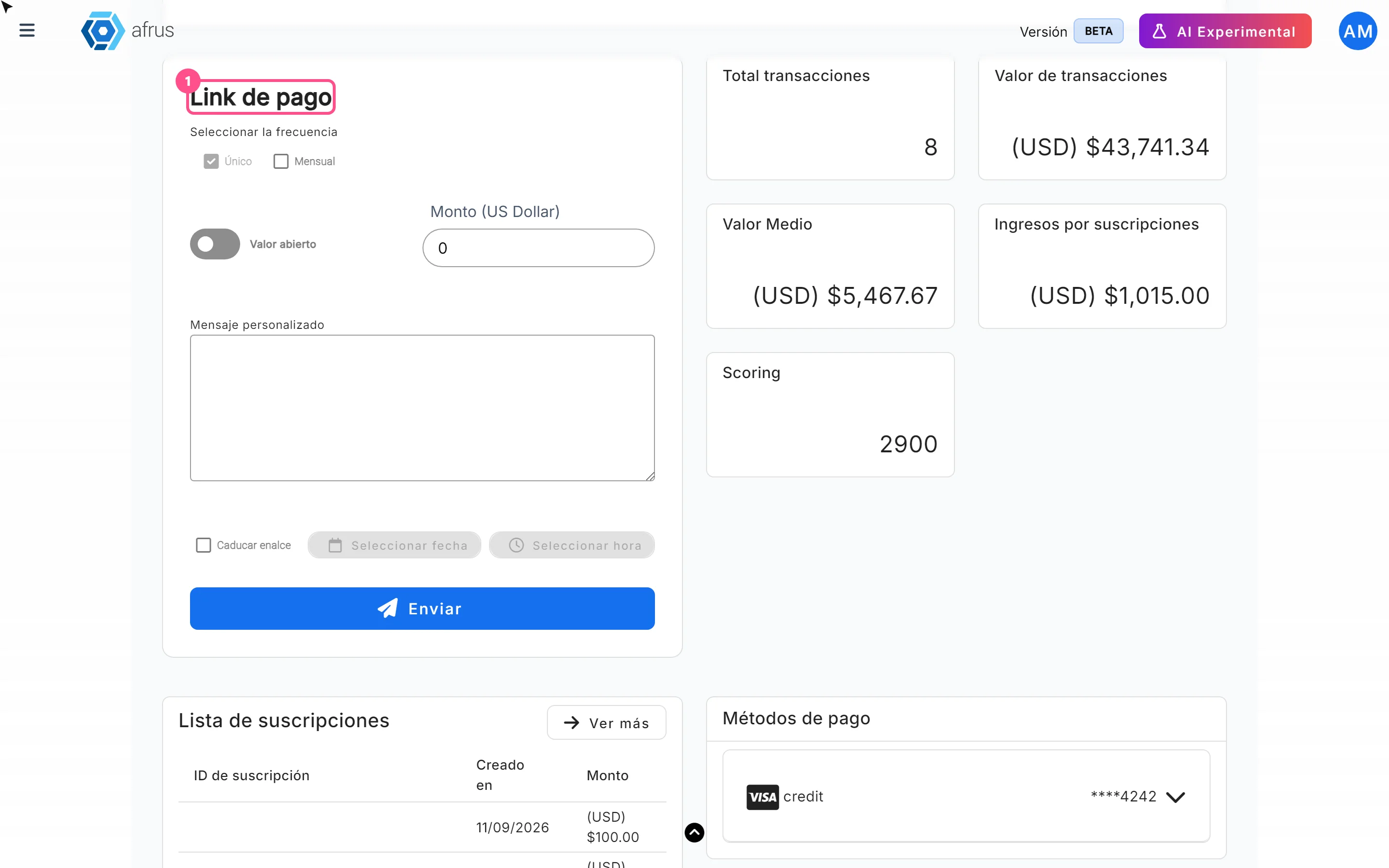
- Open the Link de pago card. On Home, or in the person's profile (Personas, Contacto tab).
- Enter the person's details. From Home, fill in Nombre (first name), Apellido (last name) and Correo electrónico (email, required).
- Check the channel. In Envíar por (Send by), Correo electrónico is selected.
- Add a phone number (optional). In Teléfono.
- Choose the frequency. In Seleccionar la frecuencia, choose Único (One-time) or Mensual (Monthly).
- Set the amount. Type the Monto (Amount, greater than 0) or tick Valor abierto (Open amount).
- Personalize the message (optional). In Mensaje personalizado.
- Set an expiry date (optional). Tick Caducar enalce (Expire link) and choose Seleccionar fecha and Seleccionar hora.
- Send. Click "Enviar" (Send) and then "Confirmar" (Confirm).
You will see "¡Link de pago creado con éxito!" (Payment link created successfully). The person receives the email and the link appears in Follow up > Links de pago with status Creado (Created).
Frequently asked questions
Can it be undone?
No. Once confirmed, the email is sent. If you made a mistake, send a new link with the right details.
Anything to watch with expiry?
Yes. If the link expires in a later month but on a lower day of the month than today, it may be marked Expirado too early. For now the alternative is to send it without an expiry date.
Need help? Talk to the afrus team
In this article
✕
Related Tutorials
Follow up
October 27, 2026
What Boleto Itaú is for
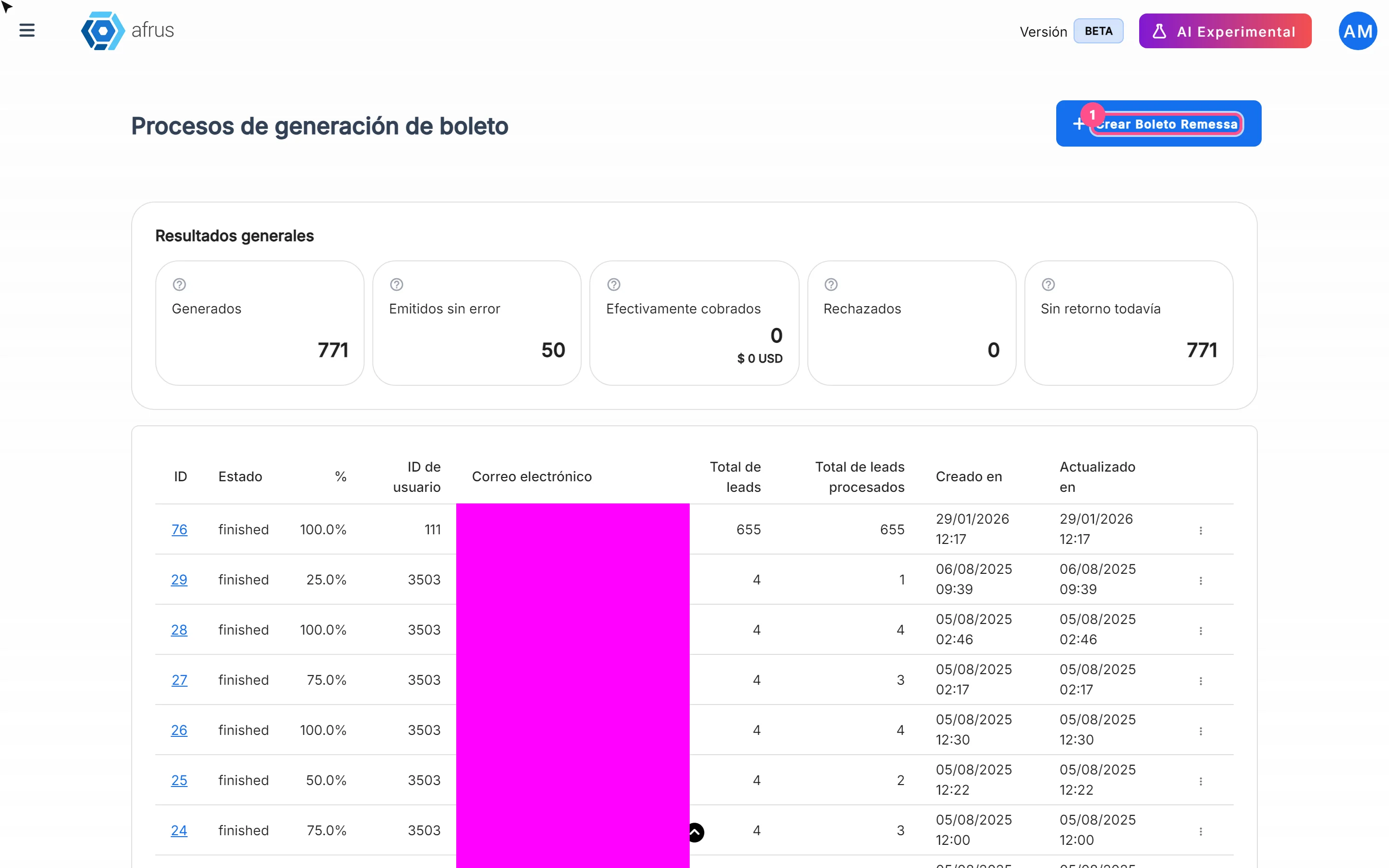
Learn what Boleto Itaú is for: generating boletos in batches, getting the bank file and tracking how many were collected.
afrus.ai
Follow up
October 27, 2026
How often Subscription tasks update
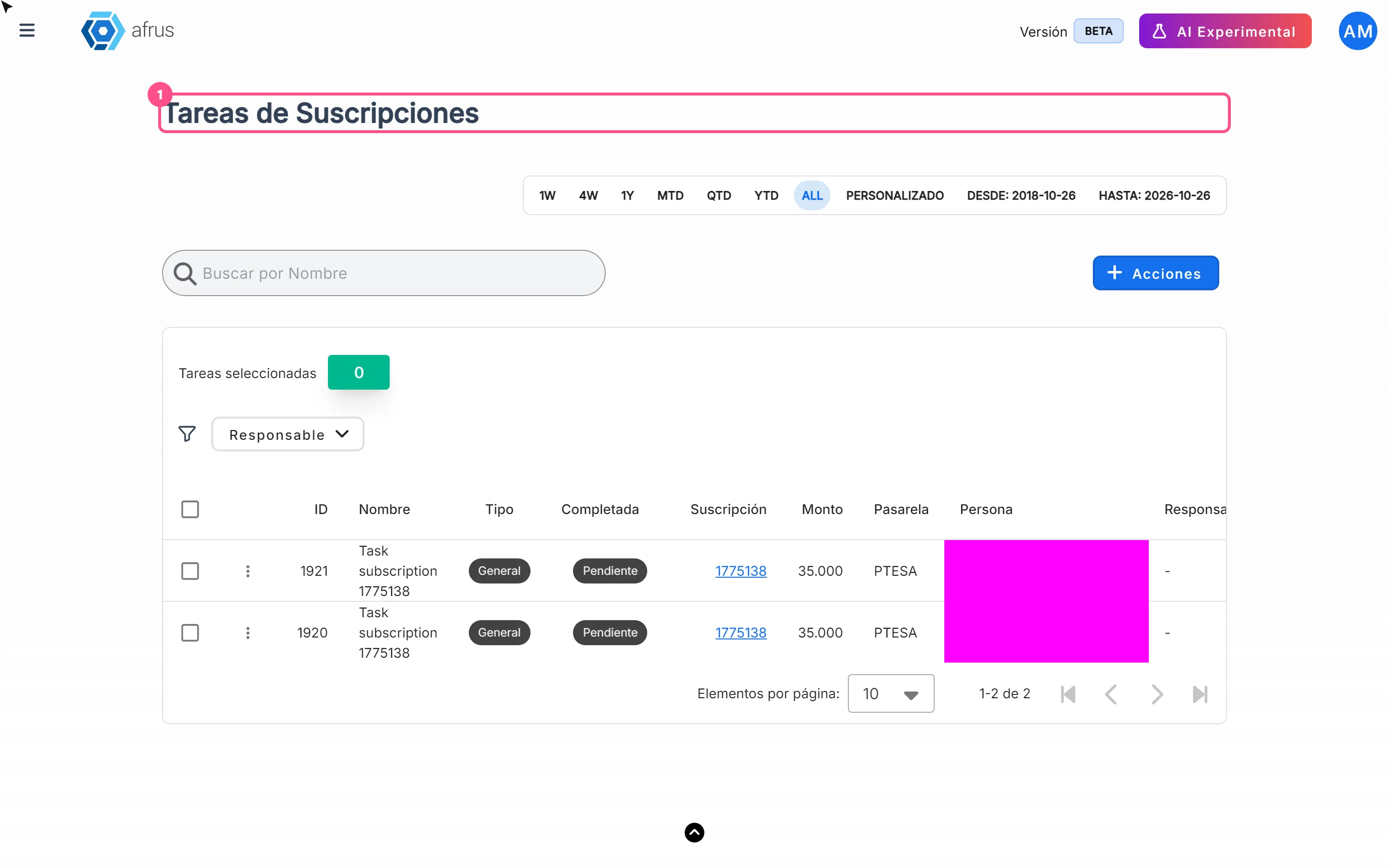
Learn when Subscription tasks are created and reopened, and when the screen updates.
afrus.ai
Follow up
October 27, 2026
Does the task leave the list when the subscription is charged?
Learn what happens to a Subscription task when the subscription is charged successfully again.
afrus.ai
Follow up
October 27, 2026
Subscription task statuses
Learn what the Pending and Completed statuses and the task types mean in Subscription tasks.
afrus.ai