🡠 Back


How to create incentives
Reading time
2 min
Incentives
October 27, 2026
afrus.ai
Learn how to turn on incentives in a campaign, choose the forms that show them and create each gift step by step.
In this article
Labels are shown as they appear in the console in English; when we don't have the English name confirmed, the Spanish label comes with a translation.
Before you start
- A campaign and at least one Transacción (Transaction) widget (with amounts to choose from).
- A photo of each gift: JPG, PNG or WEBP, up to 2 MB and at least 800 × 800 pixels. Without a photo, the gift is not shown.
- Important: gifts appear on your forms as soon as you save; there is no draft.
Step by step
- Open your campaign. Go to Fundraising > Campañas (Campaigns), open the campaign and go to the Incentives tab.
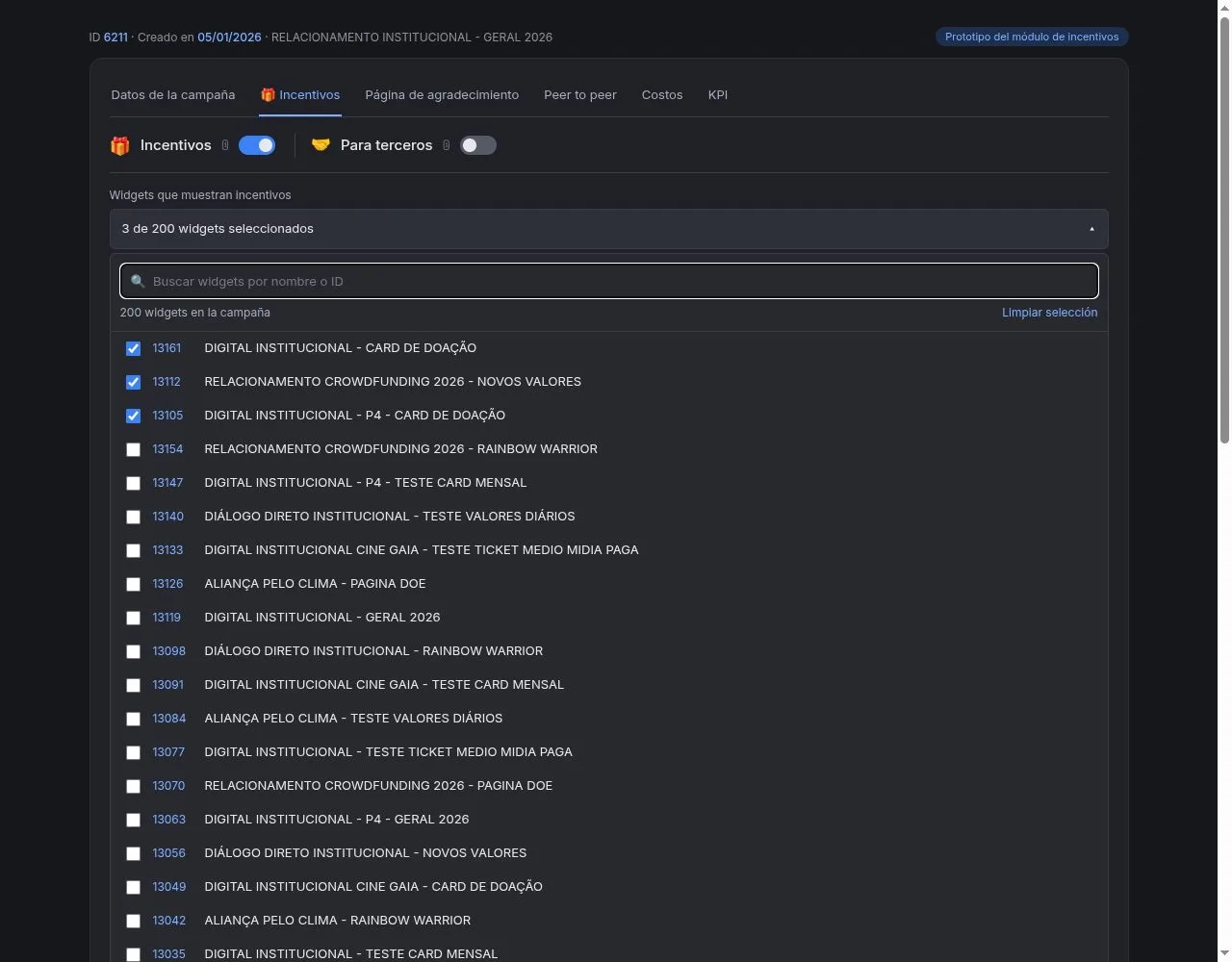
- Turn on incentives. Turn on the Incentives switch.
- Choose the forms. In Widgets that show incentives, click "Seleccionar widgets" (Select widgets), search for your forms by name, check them and click "Save selection". You don't need to edit your forms.
- Create the gift. In Catalog, click "Create incentive".
- Add photo and name. Upload the photo (you can crop it so it's square) and write the name the donor will see (up to 40 characters). You can add a short description and, if you want, your internal code in SKU.
- Choose the type. Physical if you will send it to an address, or Digital if it arrives by email.
- Set the minimum amount. In Minimum donation to receive it, turn on one-time donation, monthly donation or both, and enter the minimum amount for each. A sentence below confirms the rule.
- Enter how many units you have in Available stock. Digital gifts can have Unlimited stock.
- Feature it (optional). With Set as featured, this gift is already selected when the donor opens the form. Only one per campaign.
- Add tags. If the gift is digital, you must mark one as the "Tag de entrega" (Delivery tag).
- Save. Click "Create incentive".
Then check the Incentive map in Catalog: enter an amount and you will see which gifts the donor can choose. It's the best place to check that your amounts make sense.
Frequently asked questions
Can I test before my donors see it?
Yes. Clone your form in Fundraising > Widgets, check only the copy and look at it by changing amounts. Don't complete a donation there: it is charged for real.
Can I delete a gift?
Only if nobody has received it yet, and it can't be undone. If it already has donations, turn it off: it stops appearing and stays in your reports.
Need help? Talk to the afrus team
In this article
✕
Related Tutorials

Incentives
October 27, 2026
What incentive coupons are for
Learn what incentive coupons are for, how to create them and how to share them with a link that already applies them.
afrus.ai
Incentives
October 27, 2026
What incentives are
Learn what incentives are: gifts your organization offers, inside a campaign, to people who donate from a minimum amount.
afrus.ai
Incentives
October 27, 2026
How to set up an incentive for a third party
Learn how to let donors give in someone else's name, so that person receives a card with their message and, when applicable, the gift.
afrus.ai
Incentives
October 27, 2026
What happens when an incentive is out of stock
Learn what donors see when a gift runs out and how to find and restock gifts with no units left.
afrus.ai