🡠 Back


How to create the Business profile
Reading time
2 min
Business profile
October 27, 2026
afrus.ai
Learn how to create your organization's Business profile on AFRUS, step by step, and send its information to the AI.
In this article
The Business profile is created with a 7-step wizard: URL, Contacto (Contact), Redes sociales (Social networks), Comunicación (Communication), Preguntas Frecuentes (FAQs), Logotipo (Logo) and Tema (Theme). Labels are shown as they appear in the Spanish version of the console.
Before you start
- Have your organization's details ready: name, public ID number, phone, address, city, email, social links and logo (jpg, gif, webp or png, under 1 MB).
- Choose your URL carefully: once the profile is created, it cannot be changed.
- Important: nothing is saved until you click "Guardar" (Save) in the last step.
Step by step
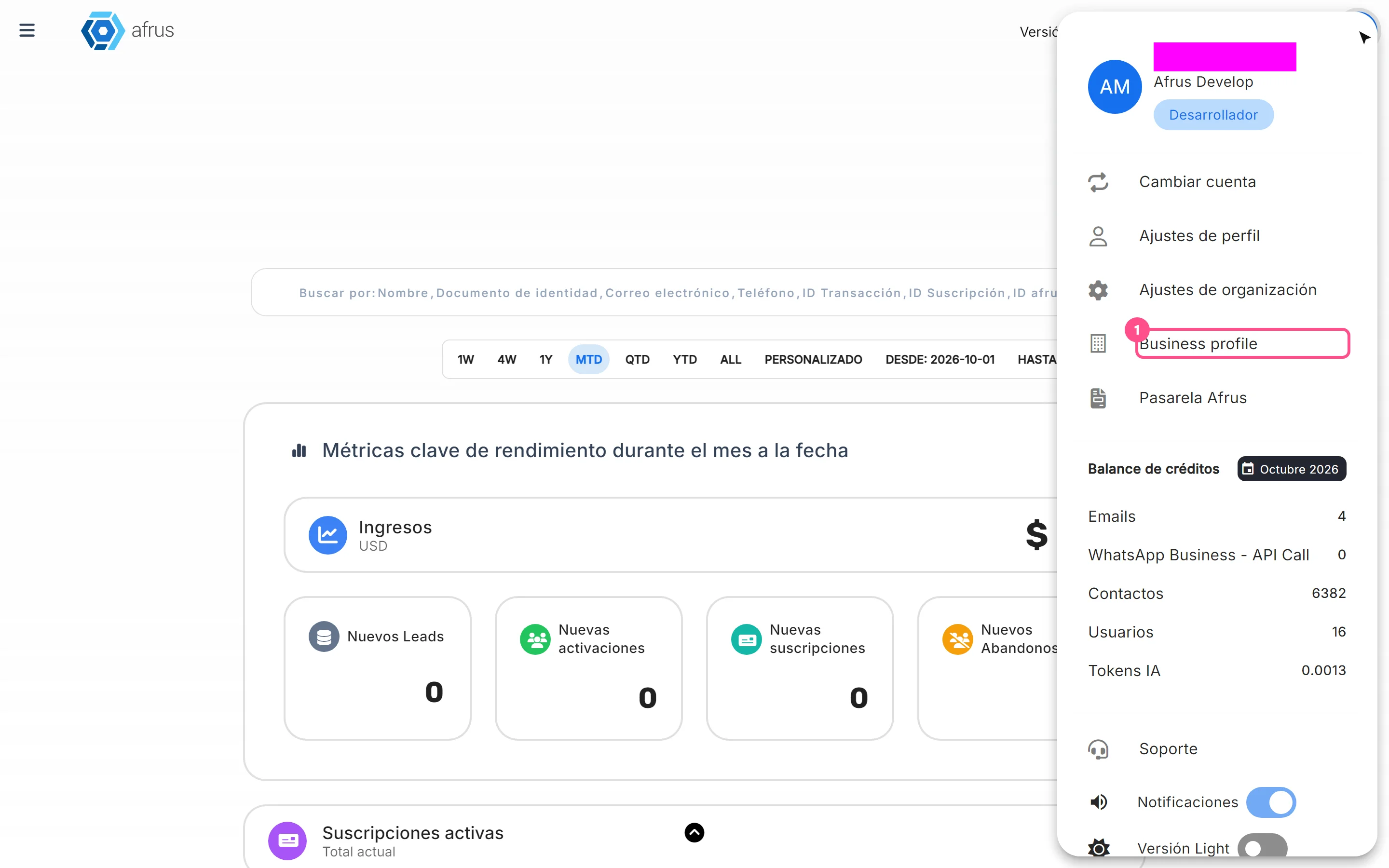
- Open the Business profile. In the profile menu (top corner), choose Business profile.
- Choose your URL. In the URL step, type the last part of the address in URL del negocio (Business URL) and click "Continuar" (Continue). If it is taken, you will see "La URL no está disponible" (The URL is not available) and need to choose another.
- Fill in your contact details. In Contacto, fill in the organization name, Número de identificación pública (public ID number), Teléfono (phone), Dirección (address), Ciudad (city) and Correo electrónico (email) — all required — and click "Continuar".
- Add your social networks. In Redes sociales, turn on the switch for each network you want to show and paste its link.
- Write your texts. In Comunicación, fill in Título (up to 70 characters), Descripción (up to 300), Título leads (up to 70), Descripción leads (up to 255) and Sobre nosotros (About us, up to 300).
- Add FAQs (optional). Click "Agregar pregunta frecuente" (Add FAQ) and write the Pregunta (question) and Respuesta (answer), up to 300 characters each.
- Upload your logo (optional). In Logotipo, click Sube tu foto aquí (Upload your photo here). Recommended: 400 × 400 pixels, under 1 MB.
- Choose a theme and save. In Tema, choose one of the 9 color combinations and click "Guardar".
- Send the information to the AI (recommended). In the same step, click "Enviar AI" (Send to AI). The status changes to Sincronizado con AI (Synced with AI).
When you finish you will see "Perfil de negocio creado correctamente." (Business profile created successfully). To see your public page, click "Ver" (View) in the URL step.
Frequently asked questions
How do I edit the profile later?
Open Business profile, click the tab of the step you want to change, edit the data and click "Continuar". If you change the FAQs, click "Enviar AI" again.
Can I change the URL?
No. Once the profile is created, the URL is locked.
Need help? Talk to the afrus team
In this article
✕
Related Tutorials

Business profile
October 27, 2026
What the Business profile is
Learn what the Business profile is: your organization's public page on AFRUS, with your details, social networks, logo and widgets.
afrus.ai
Business profile
October 27, 2026
What the Business profile is for
Learn what the Business profile is for: receiving donations, sending payment links, showing your QR code and feeding AFRUS AI.
afrus.ai
Business profile
October 27, 2026
How to set up the widgets on the Business profile
Learn how to choose which donation widget and which registration widget appear on your organization's Business profile.
afrus.ai