🡠 Back


How to send a Blast
Reading time
2 min
Blast
October 27, 2026
afrus.ai
Learn how to send a Blast step by step: choose the group, prepare the email, send yourself a test and send or schedule it.
In this article
Labels are shown as they appear in the Spanish version of the console.
Before you start
- Have your recipient group ready: a saved segment or a tag.
- Verify your email domain (recommended), so your emails go out with your organization's address.
Step by step
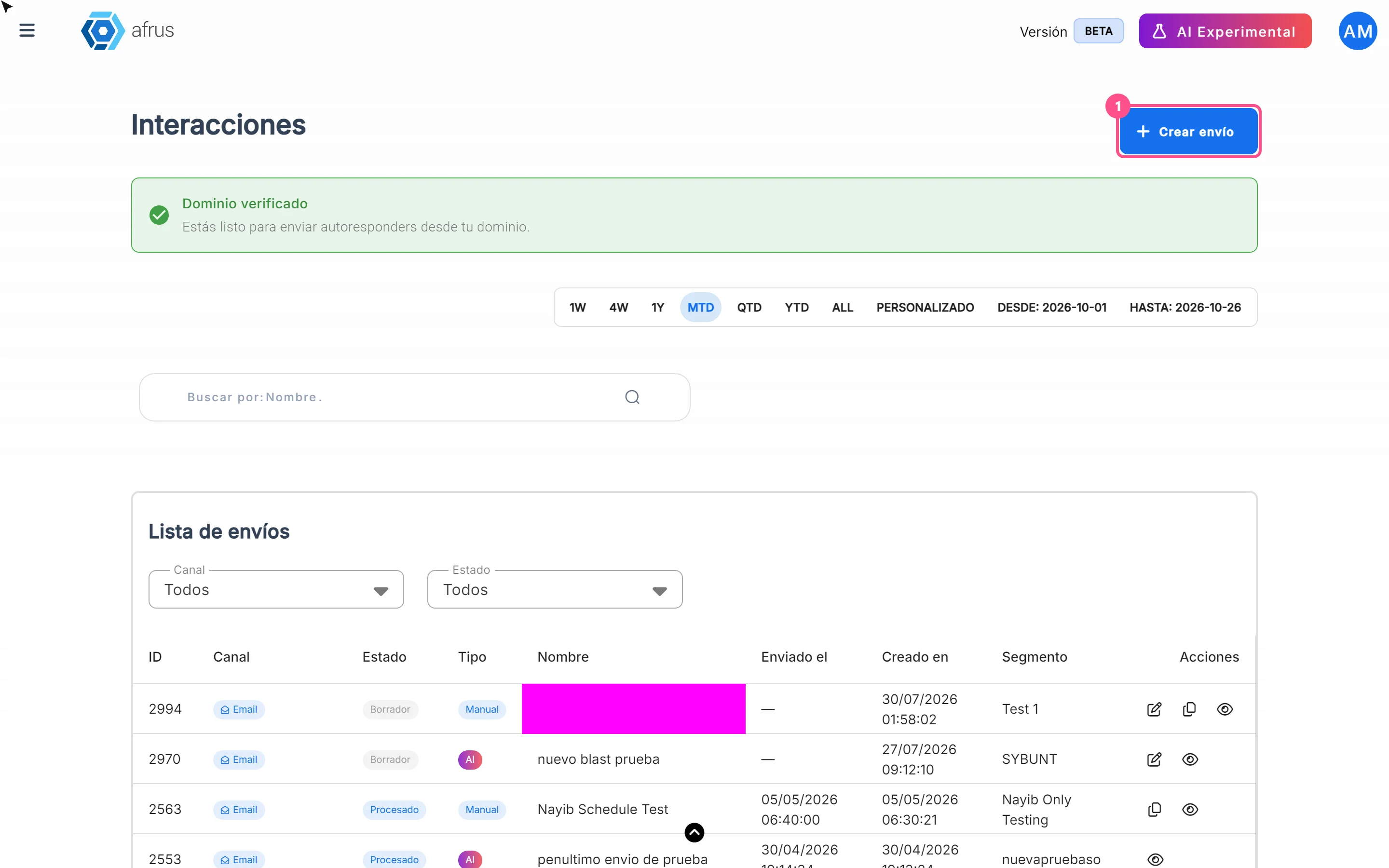
- Create the send. Go to Interacciones > Blast and click "Crear envío" (Create send).
- Give it a name. In Nombre, click "Agregar" (Add) and type the Nombre del envío (send name). Only you see it.
- Choose the recipients. In Destinatario (Recipient), click "Agregar". In Enviar a (Send to), choose your group in Segmentos, Mis segmentos (my segments) or Etiquetas (tags) and click "Aceptar" (Accept). You will see how many people can receive it.
- Choose the channel. Select Correo (Email) and click "Continuar" (Continue).
- Say who is sending. In Remitente (Sender), fill in the name, the sending address and the reply-to address. Click "Guardar" (Save).
- Write the subject and click "Guardar".
- Choose the design. In Contenido (Content), click "Agregar" (Add) and choose a blank design, one of your templates or an email you already sent.
- Send yourself a test. Click "Enviar prueba" (Send test) and check how it looks.
- Send or schedule. Click "Programar" (Schedule) and choose Enviar ahora (Send now) or Programar fecha (Schedule date).
When you finish you will see "¡Envío realizado satisfactoriamente!" (Send completed) or "¡Envío programado con éxito!" (Send scheduled).
Frequently asked questions
Can it be undone?
No. An email that has gone out can't be recalled. Check the group and send yourself a test first.
Can I change a scheduled send?
Yes, while it is in Borrador (Draft) or Programado (Scheduled). To change the date, use "Reprogramar" (Reschedule).
Need help? Talk to the afrus team
In this article
✕
Related Tutorials

Blast
October 27, 2026
What a Blast is
Learn what a Blast is: the email you send in one go to a group of people in your AFRUS database.
afrus.ai
Blast
October 27, 2026
What a Blast is for
Learn what a Blast is for: keeping your community informed, asking for donations, scheduling emails and measuring results.
afrus.ai
Blast
October 27, 2026
How to see a Blast's statistics
Learn how to see how many people opened your Blast, how many clicked and how many emails bounced.
afrus.ai
Blast
October 27, 2026
Why my Blast shows failed
Learn what it means when a Blast is Fallido (failed), how it differs from Alerta and Bloqueado, and how to resend it.
afrus.ai