🡠 Back


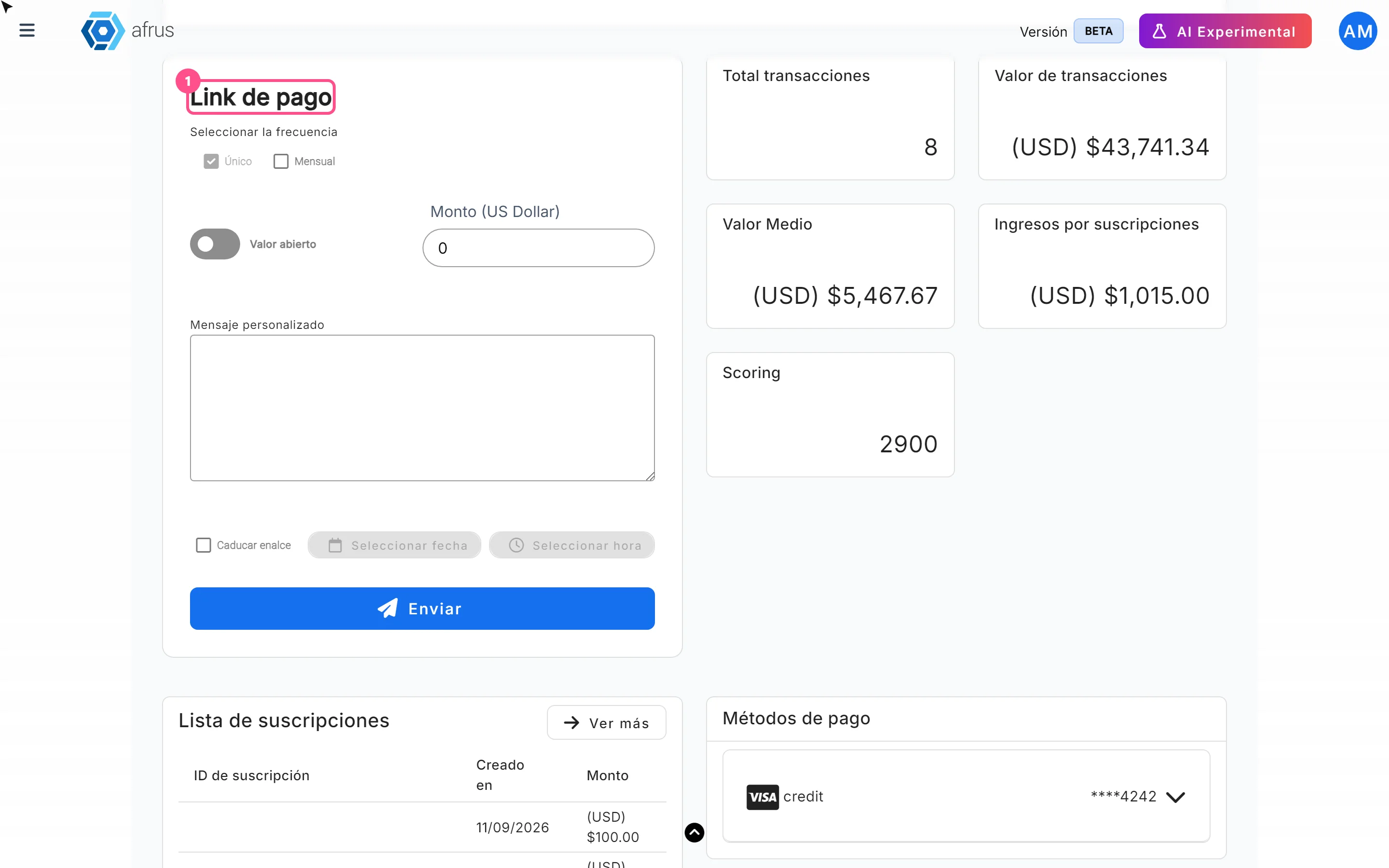
Payment links guide
Reading time
4 min
Follow up
October 28, 2026
afrus.ai
Complete guide to Payment links: every step with its screenshots and the frequently asked questions.
In this article
After reading this guide you will know what a payment link is, what it is for, where it is created and how to send it to a person so they can donate.
Module: Follow up · Menu: Follow up > Links de pago · Audience: fundraising and donor care teams
About the labels in this guide: buttons, fields and menus are written exactly as they appear in the Spanish version of the console, with an English explanation where it helps.
What a payment link is
A payment link is a personalized link you send by email to a person so they can donate a set amount (or one they choose), once or monthly.
The link opens your organization's default widget, already prepared with the person's details and the amount, so they only need to complete the payment.
What it is for
- Asking a specific person for a specific donation, without them having to look for your form.
- Offering a one-time or monthly donation, with a fixed or open amount.
- Tracking each link: whether it was sent, used (Finalizado — Completed) or expired (Expirado — Expired).
- Resending a link from the list, if the person can't find it.
Before you start
- Your organization needs a default widget. The link uses that widget; without one, sending fails. You choose it in Fundraising > Widgets (see the Business profile guide).
- Your Business profile must have a URL. The link is built on that address; without it, the card to create links doesn't appear on Home.
Step by step
Where payment links are created
You can create a payment link from two places:
| Where | When to use it |
|---|---|
| Home, Link de pago (Payment link) card | To send a link to anyone: you type their first name, last name and email. Only appears if your Business profile has a URL |
| A person's profile in Personas (People), Contacto (Contact) tab, Link de pago card | To send a link to someone already in your database: uses their name and email |
The Follow up > Links de pago screen has no create button: it is for viewing, filtering and resending the links you already sent.
How to create a payment link
Open the Link de pago card. On Home, or in the person's profile (Personas, Contacto tab).
Enter the person's details. From Home, fill in Nombre (first name), Apellido (last name) and Correo electrónico (email, required). From a person's profile, these come from their record.
Check the sending channel. In Envíar por (Send by), Correo electrónico (Email) is selected. For now, links are sent by email only.
Add a phone number (optional). In Teléfono (Phone); AFRUS checks the format.
Choose the frequency. In Seleccionar la frecuencia (Select frequency), choose Único (One-time) or Mensual (Monthly).
Set the amount. Type the Monto (Amount, greater than 0) or tick Valor abierto (Open amount) so the person chooses how much to give.
Personalize the message (optional). In Mensaje personalizado (Custom message), write a few words for the person. A warm message helps them give.
Set an expiry date (optional). Tick Caducar enalce (Expire link) and choose Seleccionar fecha (date) and Seleccionar hora (time). Read the expiry limitation below first.
Send. Click "Enviar" (Send) and, in "Desea enviar el link de pago?" (Do you want to send the payment link?), click "Confirmar" (Confirm).
When you finish you will see "¡Link de pago creado con éxito!" (Payment link created successfully) with the destination email. The person is registered (or updated) in the default widget's campaign, receives the email with the link, and the link appears in Follow up > Links de pago with status Creado (Created). If the email fails you will see "¡Hubo un error al crear el link de pago!" (There was an error creating the payment link).
Can it be undone? No. Once confirmed, the email is sent. If you made a mistake, send a new link with the right details.
How to resend a link
- Open the list. Go to Follow up > Links de pago.
- Find the link. Use the search or the Estado (Status) filter.
- Resend. Click "Reenviar" (Resend) in the row (or open it with the eye icon and resend from the detail).
Payment link statuses
| Status | What it means | When it changes |
|---|---|---|
| Creado (Created) | The link was sent and hasn't been used successfully yet | When it is sent |
| Finalizado (Completed) | The person completed a successful donation with the link | As soon as the donation is confirmed |
| Expirado (Expired) | It had an expiry date and that date has passed | In a daily automatic check. Also, if the person opens an expired link, the form tells them |
The list shows ID, email, amount (or "Abierto" — Open — for open amounts), creation date, Enviado (Sent: Si/No), Language Code, Estado and actions.
Frequently asked questions
Can I send the link by WhatsApp?
Not for now. AFRUS sends payment links by email only.
Does the link work for a monthly donation?
Yes. In Seleccionar la frecuencia choose Mensual.
Last updated: 2026-10-27
Need help? Talk to the afrus team
In this article
✕
Related Tutorials
Follow up
October 28, 2026
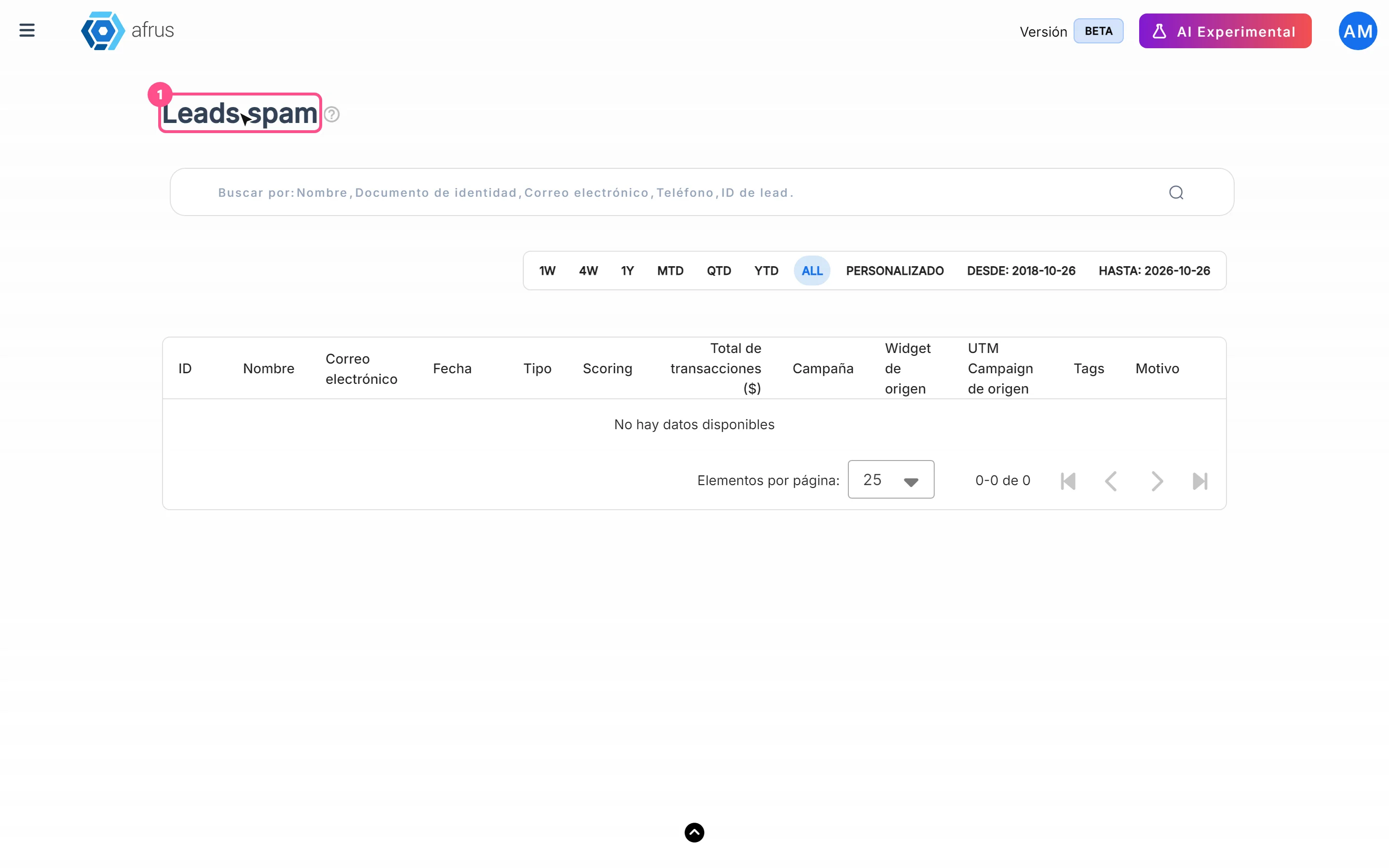
Leads spam guide
Complete guide to Leads spam: every step with its screenshots and the frequently asked questions.
afrus.ai

Follow up
October 28, 2026
Radar - fraud monitor guide
Complete guide to Radar - fraud monitor: every step with its screenshots and the frequently asked questions.
afrus.ai
Follow up
October 28, 2026
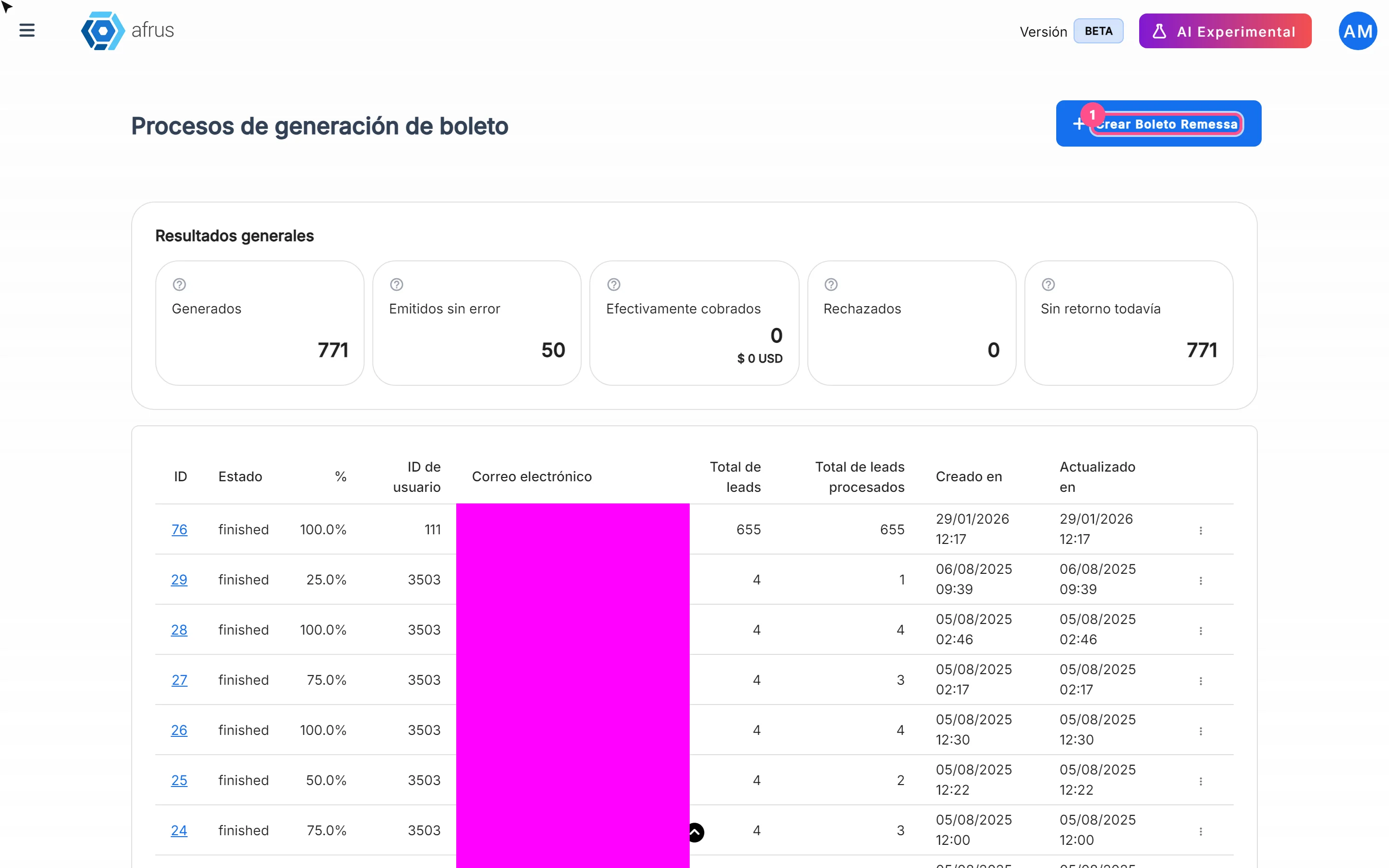
Boleto Itaú guide
Complete guide to Boleto Itaú: every step with its screenshots and the frequently asked questions.
afrus.ai
Follow up
October 28, 2026
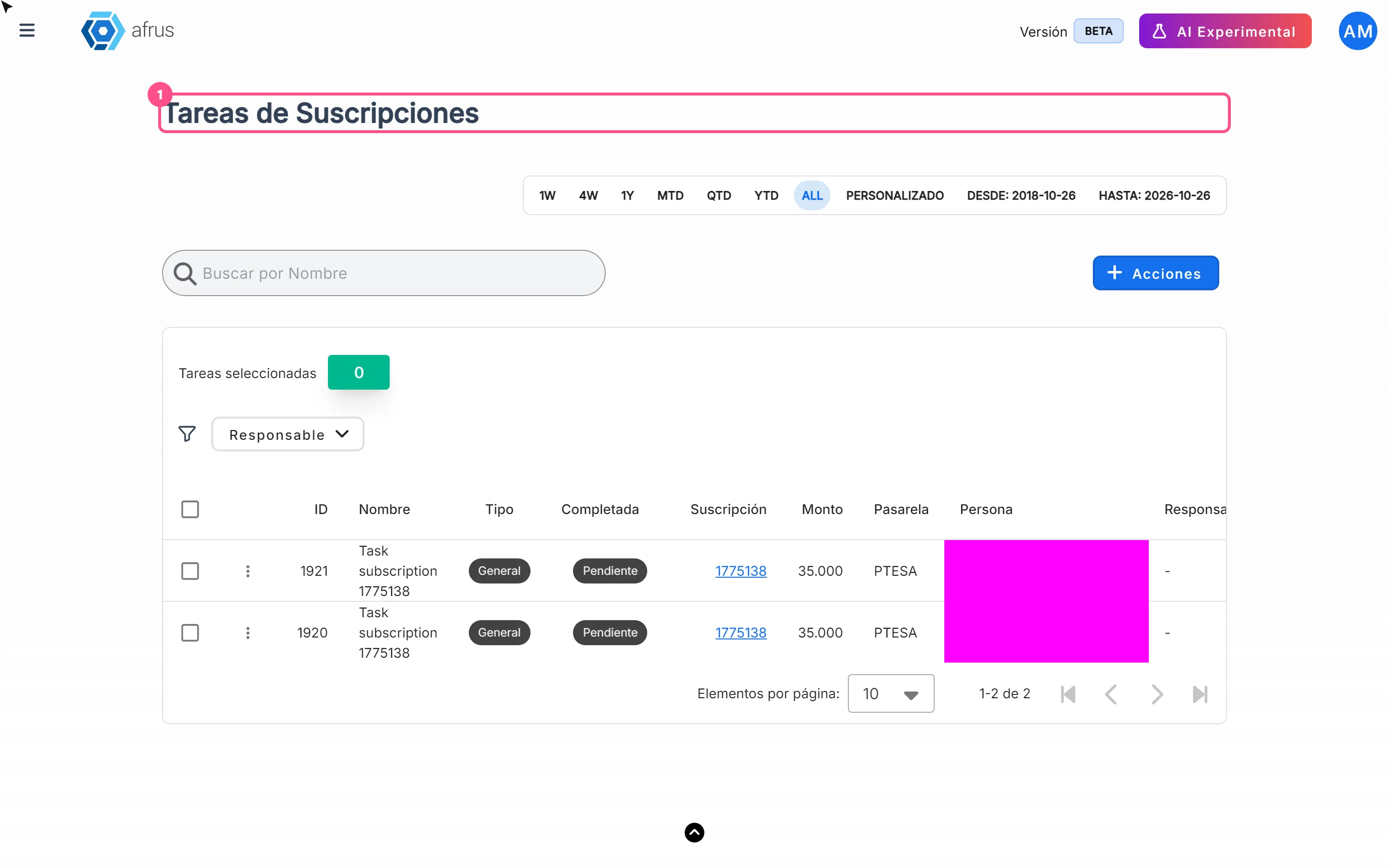
Subscription tasks guide
Complete guide to Subscription tasks: every step with its screenshots and the frequently asked questions.
afrus.ai