🡠 Back


Tags guide
Reading time
5 min
Data
October 28, 2026
afrus.ai
Complete guide to Tags: every step with its screenshots and the frequently asked questions.
In this article
With this guide you will be able to create tags to group your contacts, change or delete them, and see how many people each one has.
Module: Data · Menu: Data > Tags · Audience: fundraising, communications and data teams
About the labels in this guide: buttons and fields are written as they appear in the Spanish version of the console, with an English explanation.
What tags are
A tag is a mark you give a person to group them with others. For example: "EVENT_2026", "VOLUNTEER" or "INTEREST_EDUCATION".
A person can have several tags. On the Data > Tags screen you create, change and delete your tags, and see how many people each one has.
What tags are for
- Organizing your contact base. You group people by source, interest or event.
- Finding people fast. In Personas (People) you can filter by tag.
- Sending messages to a group. You can use a tag to choose who gets a mass email (Blast) or to build a segment.
- Getting to know a group better. You see how many people in the tag have a phone number, how many have already donated and how many donate monthly.
Step by step
How to create a new tag
Open your tags. Go to Data > Tags. You will see the Tags tab with the list of your tags.
Create a new one. Click "Nuevo tag" (New tag). The Crear tag (Create tag) window opens.
Fill in the details. Write the Nombre (Name, required). If you want, add a Descripción (opcional) (Description, optional) of up to 200 characters so your team knows what it is for. Choose a Color to recognize it easily.
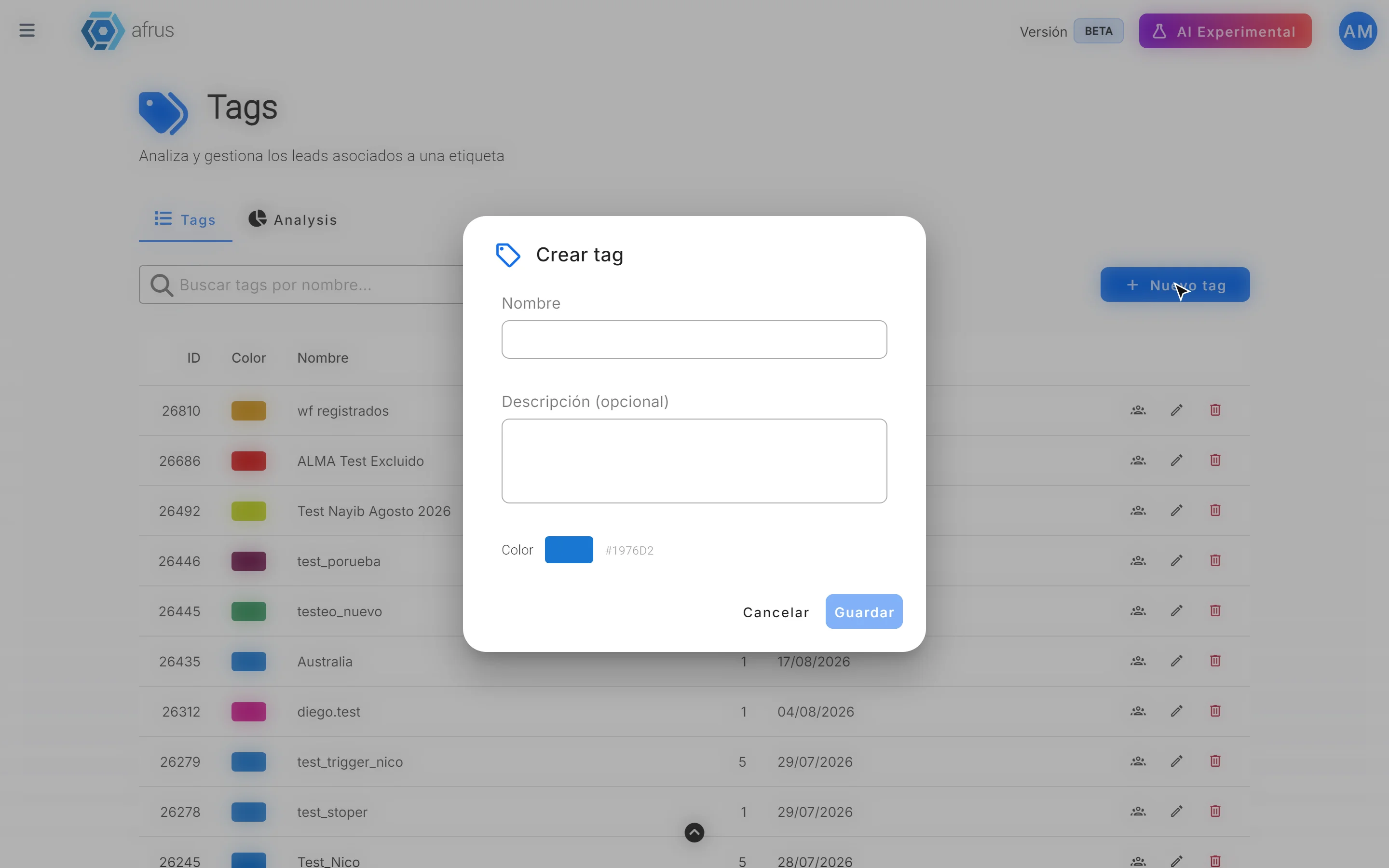
Save. You will see "Tag creado correctamente." (Tag created successfully).
The tag now appears in the list and you can add it to your contacts.
Another way: you can also create a tag at the moment you give it to someone. When you choose Asignar etiqueta (Assign tag) in Personas, in a person's profile or in a segment, use "Crear etiqueta" (Create tag).
What the 3 icons of each tag do
Each row of the tag list has three icons:
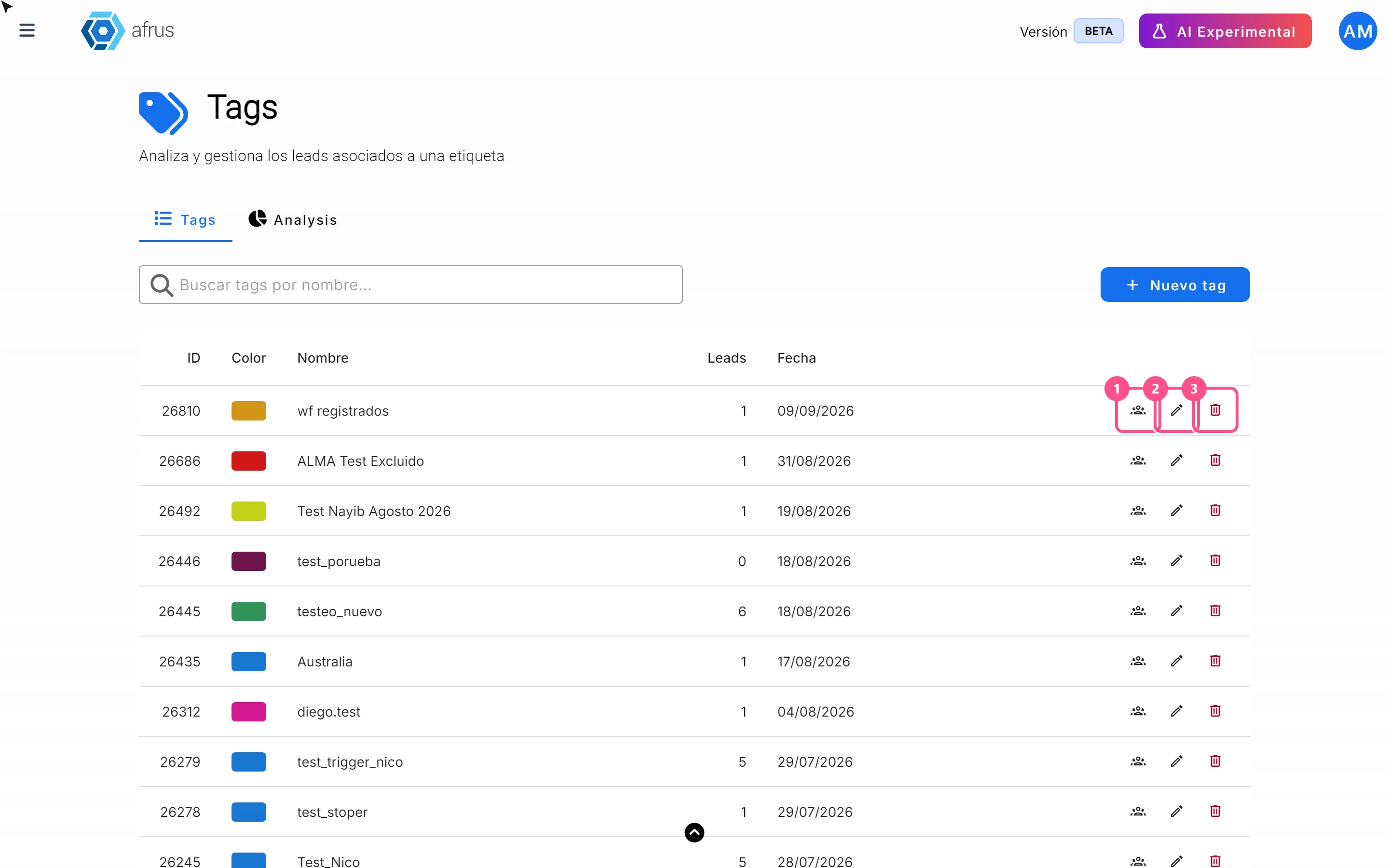
| Icon | What it does |
|---|---|
| Ver personas (See people) | Opens Personas showing only the people with that tag |
| Pencil (edit) | Opens Editar tag (Edit tag) to change the name, description or color |
| Trash can (delete) | Deletes the tag |
To edit a tag:
- Click the pencil in the row.
- Change what you need and save. You will see "Tag actualizado correctamente." (Tag updated successfully).
The new name shows on everyone who has that tag.
To delete a tag:
- Click the trash can in the row.
- Confirm. The screen asks "¿Estás seguro de que quieres eliminar el tag…? Esta acción no se puede deshacer." (Are you sure you want to delete the tag…? This action cannot be undone.) Click "Eliminar" (Delete). You will see "Tag eliminado correctamente." (Tag deleted successfully).
Can it be undone? No. Once you delete a tag, you cannot get it back.
Important: a tag that is being used elsewhere in AFRUS (for example in a sequence, a newsletter or an automatic tag) cannot be deleted. In that case an error appears that does not explain why. If this happens, check where you use that tag and remove it from there first.
Tag statistics
There are two places to see your tag numbers. Both show live data.
1. In the list (Tags tab)
The Leads column tells you how many people each tag has. You can search for a tag by name.
2. In the Analysis tab
- Open the tab. In Data > Tags, go to Analysis.
- Choose a tag. You will see these numbers:
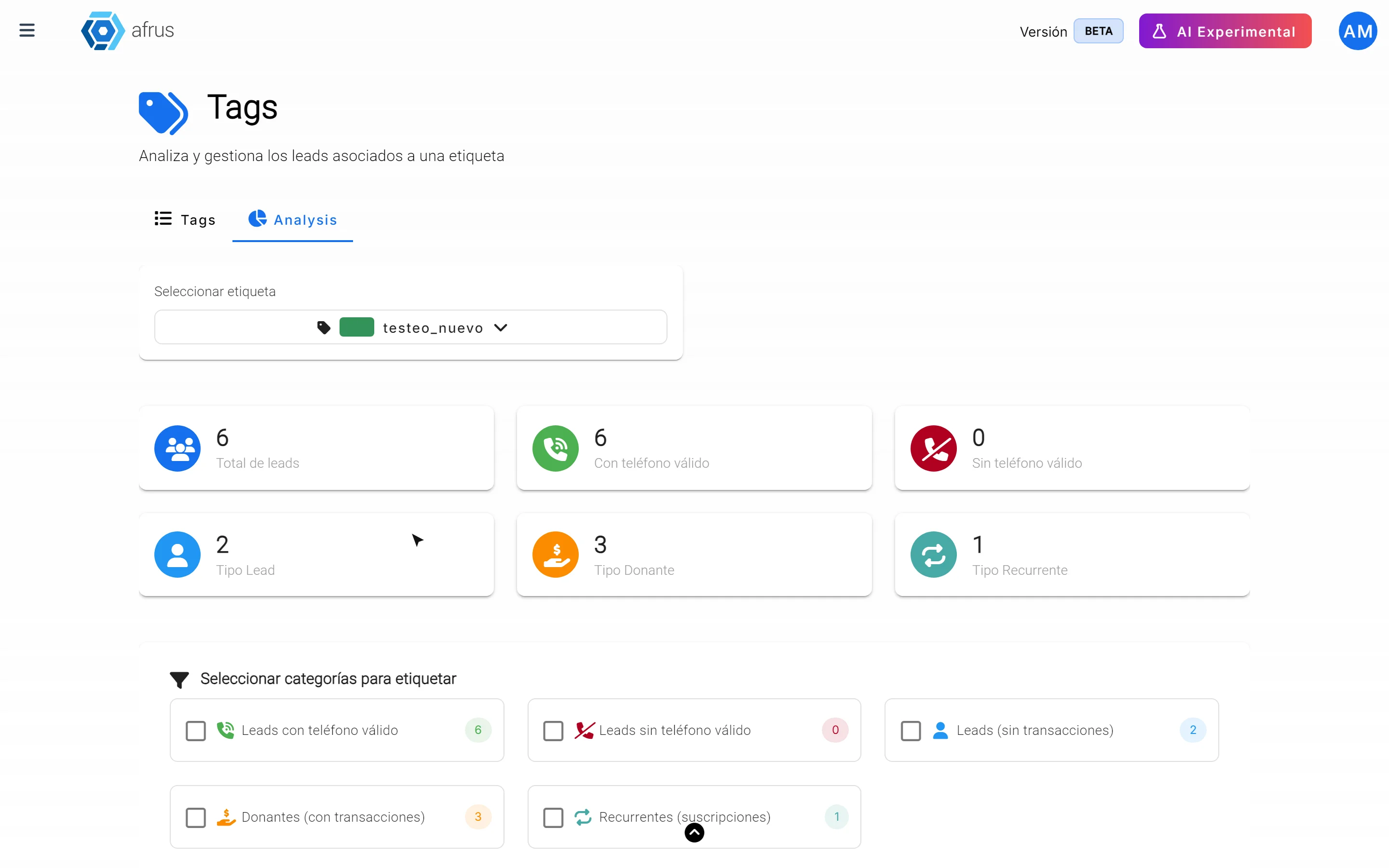
| Number | What it tells you |
|---|---|
| Total de leads (Total leads) | How many people have the tag |
| Con teléfono válido (With valid phone) | How many have a phone number that can be used |
| Sin teléfono válido (Without valid phone) | How many don't have a usable phone number |
| Tipo Lead (Lead type) | How many haven't donated yet |
| Tipo Donante (Donor type) | How many have donated |
| Tipo Recurrente (Recurring type) | How many donate monthly |
Tag part of the group. From Analysis you can mark a subgroup with another tag. For example, the donors in that tag:
- Check the categories under "Seleccionar categorías para etiquetar" (Select categories to tag): Leads con teléfono válido, Leads sin teléfono válido, Leads (sin transacciones), Donantes (con transacciones) or Recurrentes (suscripciones).
- Choose the tag you want to give them and click "Aplicar etiqueta" (Apply tag).
If you check several categories, the tag goes to anyone who meets any of them, not all at once. The process takes a little while; you can follow it in "Ver procesos" (See processes).
Good to know
- The number in the list can be a bit higher than in Analysis. The list also counts people marked as spam; Analysis does not.
- If no one matches the categories you chose, the message appears in English: "No leads match the selected categories".
- When you tag many people, you don't get an email when it finishes. Check progress in "Ver procesos".
- To remove a tag from a person, go to their profile and, under Etiquetas (Tags), click the x on the tag. For now you can't remove a tag from many people at once from Personas.
Frequently asked questions
Can I have two tags with the same name?
Yes.
Where do I see a person's tags?
In their profile, under Etiquetas, and in the Tags column of Personas.
Last updated: 2026-10-27
Need help? Talk to the afrus team
In this article
✕
Related Tutorials
Data
October 28, 2026
Imports guide
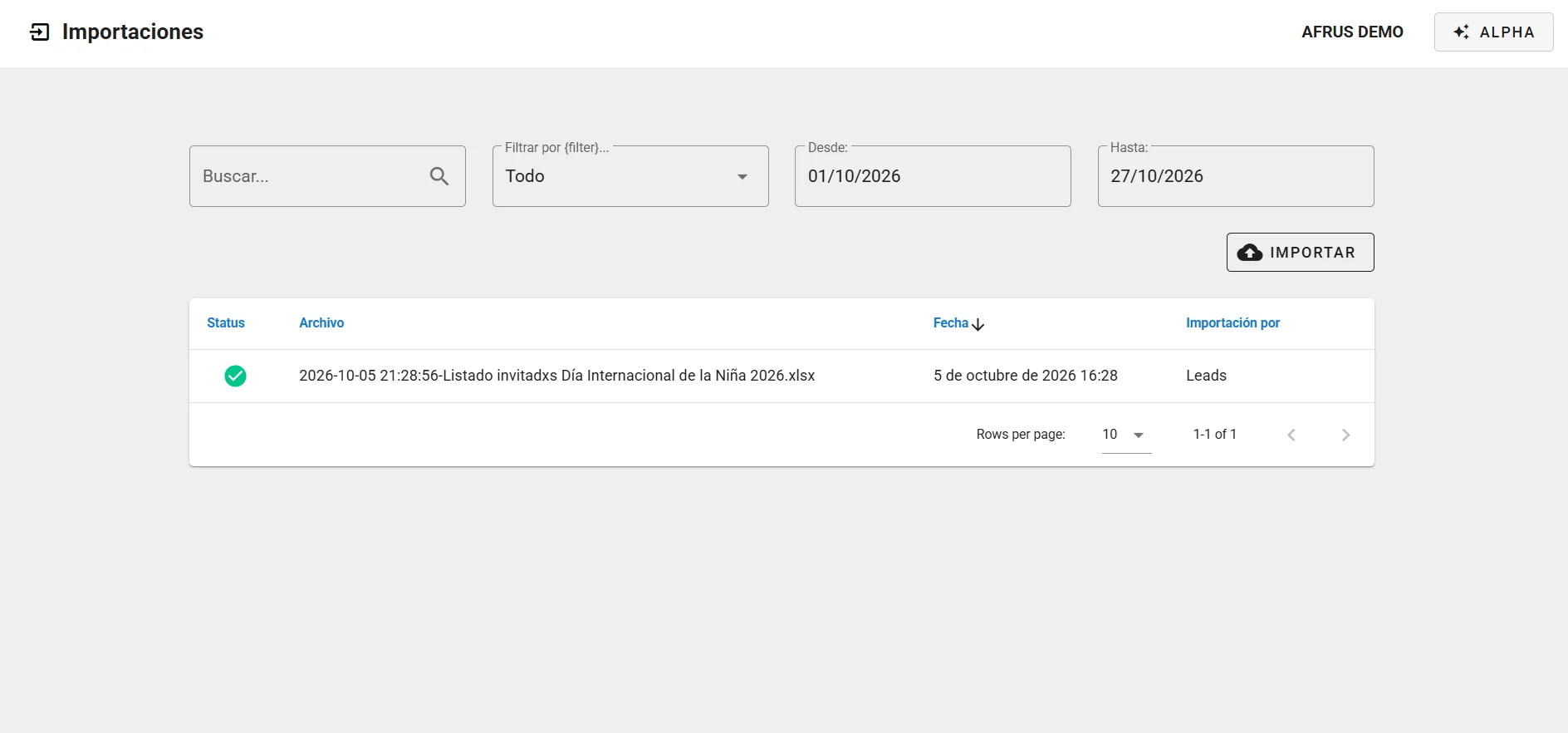
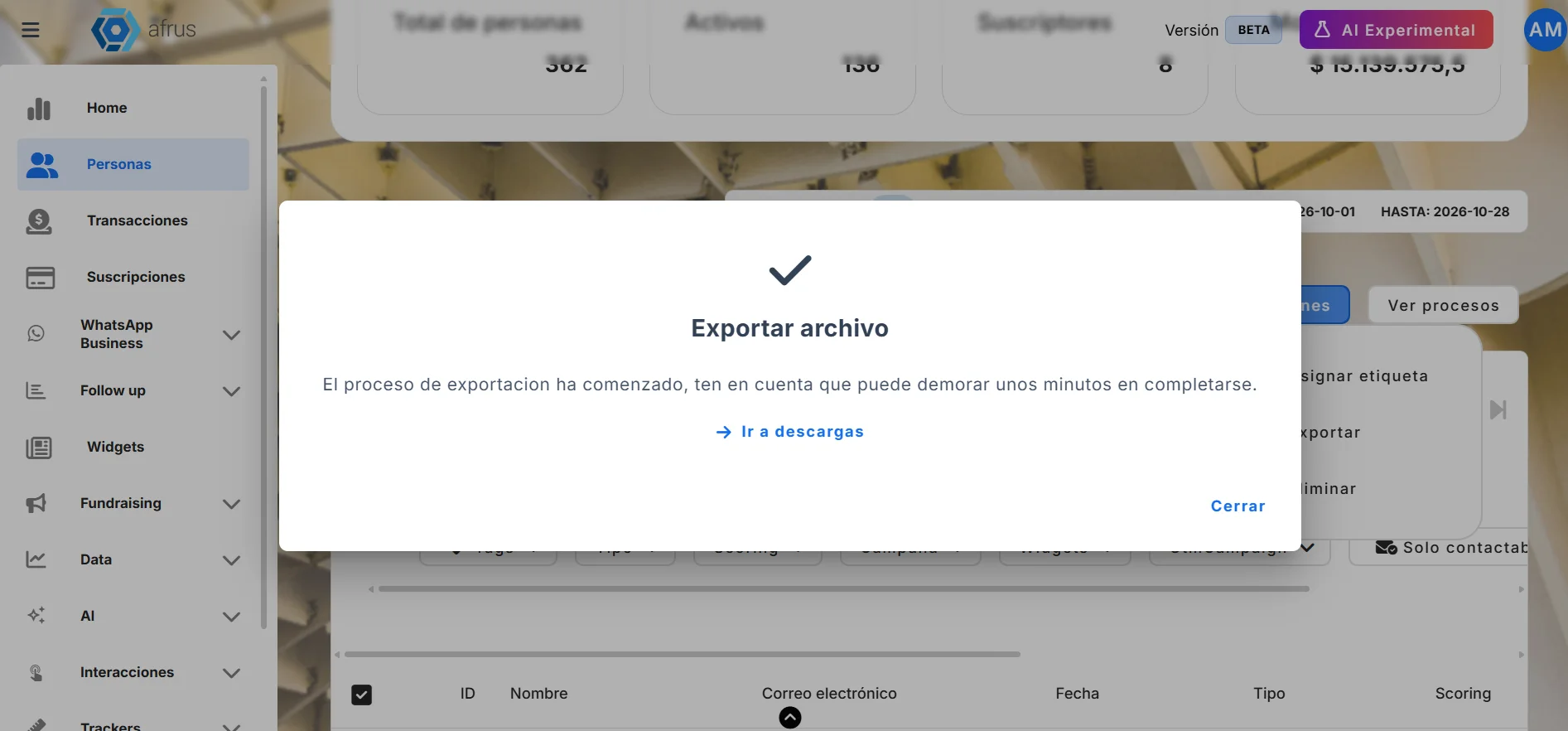
Complete guide to Imports: every step with its screenshots and the frequently asked questions.
afrus.ai
Data
October 28, 2026
Downloads guide
Complete guide to Downloads: every step with its screenshots and the frequently asked questions.
afrus.ai
Data
October 28, 2026
Reporte general (General report) guide
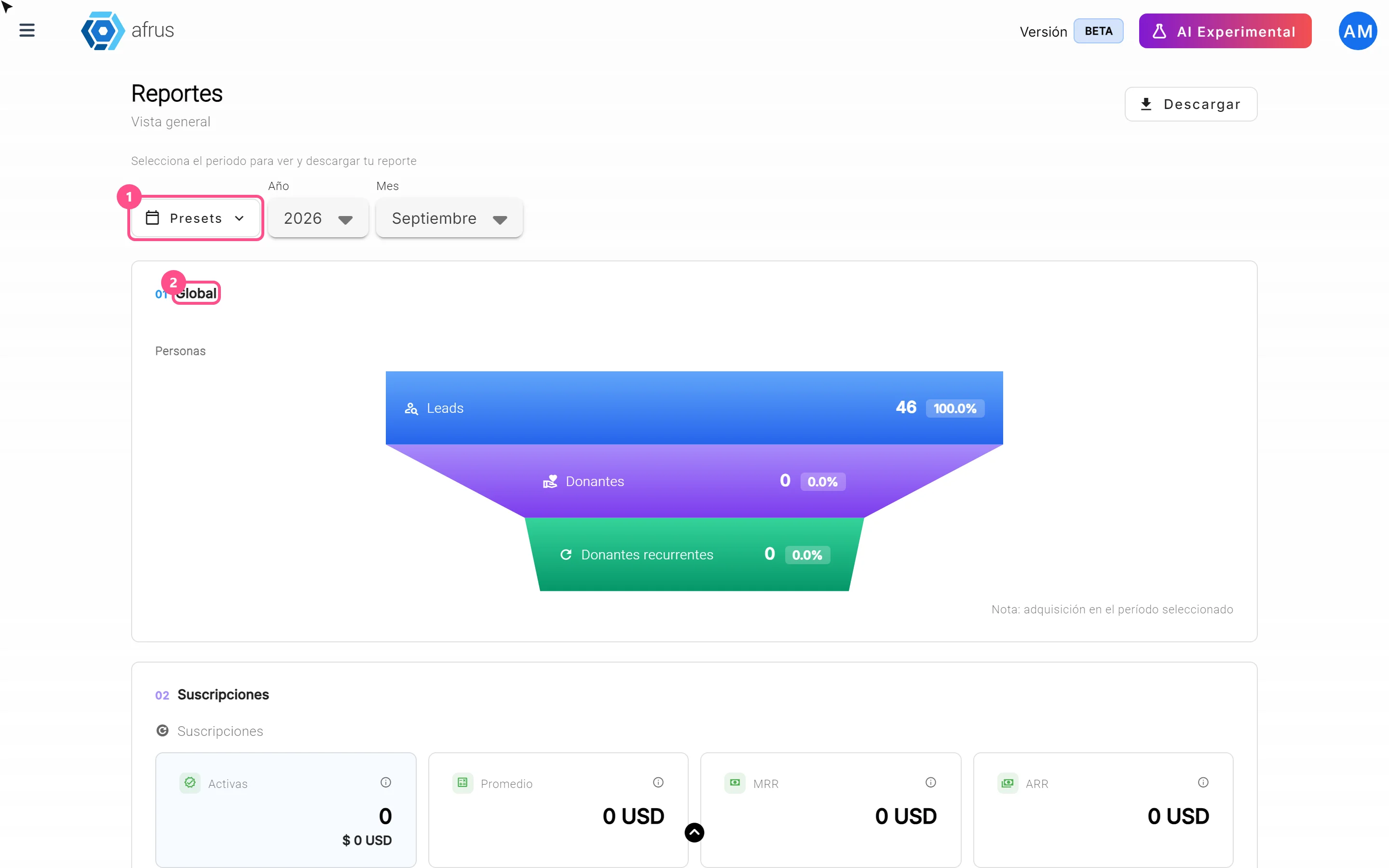
Complete guide to Reporte general (General report): every step with its screenshots and the frequently asked questions.
afrus.ai

Data
October 28, 2026
What the Presets, Año and Mes filters of the General report are for
Learn how to choose the period of the Reporte general with the Presets, Año (Year) and Mes (Month) filters.
afrus.ai