🡠 Back


Imports guide
Reading time
6 min
Data
October 28, 2026
afrus.ai
Complete guide to Imports: every step with its screenshots and the frequently asked questions.
In this article
With this guide you will be able to upload to AFRUS, all at once, a list of contacts or donations you have in Excel or in another system.
Module: Data · Menu: Data > Importaciones · Audience: data, fundraising and admin teams
About the labels in this guide: buttons and fields are written as they appear in the Spanish version of the console, with an English explanation.
What imports are
Importing means uploading a lot of data to AFRUS at once from a file, instead of entering it one by one.
In Data > Importaciones (Imports) you can upload two kinds of lists:
- Leads: your contacts (people).
- Transacciones (Transactions): donations you received earlier or outside AFRUS.
If your organization is in Brazil and you want to upload the bank's file of paid boletos, that is done on another screen. See the Importaciones - itaú guide.
What imports are for
- Bringing your contacts from another system without typing them in.
- Loading your donation history, so AFRUS has each donor's full information.
- Updating people you already have. If a person in the file already exists in AFRUS, they are updated with the new data.
- Grouping what you import. You can give everyone in the file a tag to find them later.
Before you start
- Your file in Excel or CSV (
.xlsx,.xlsor.csv), up to 20 MB. - To import donations: your organization needs the "Simple AFRUS" gateway active in the currency of those donations. If you don't have it, contact us.
- Check your file against the "What to check before importing" list in this guide. It will save you errors.
Step by step
How to import a file
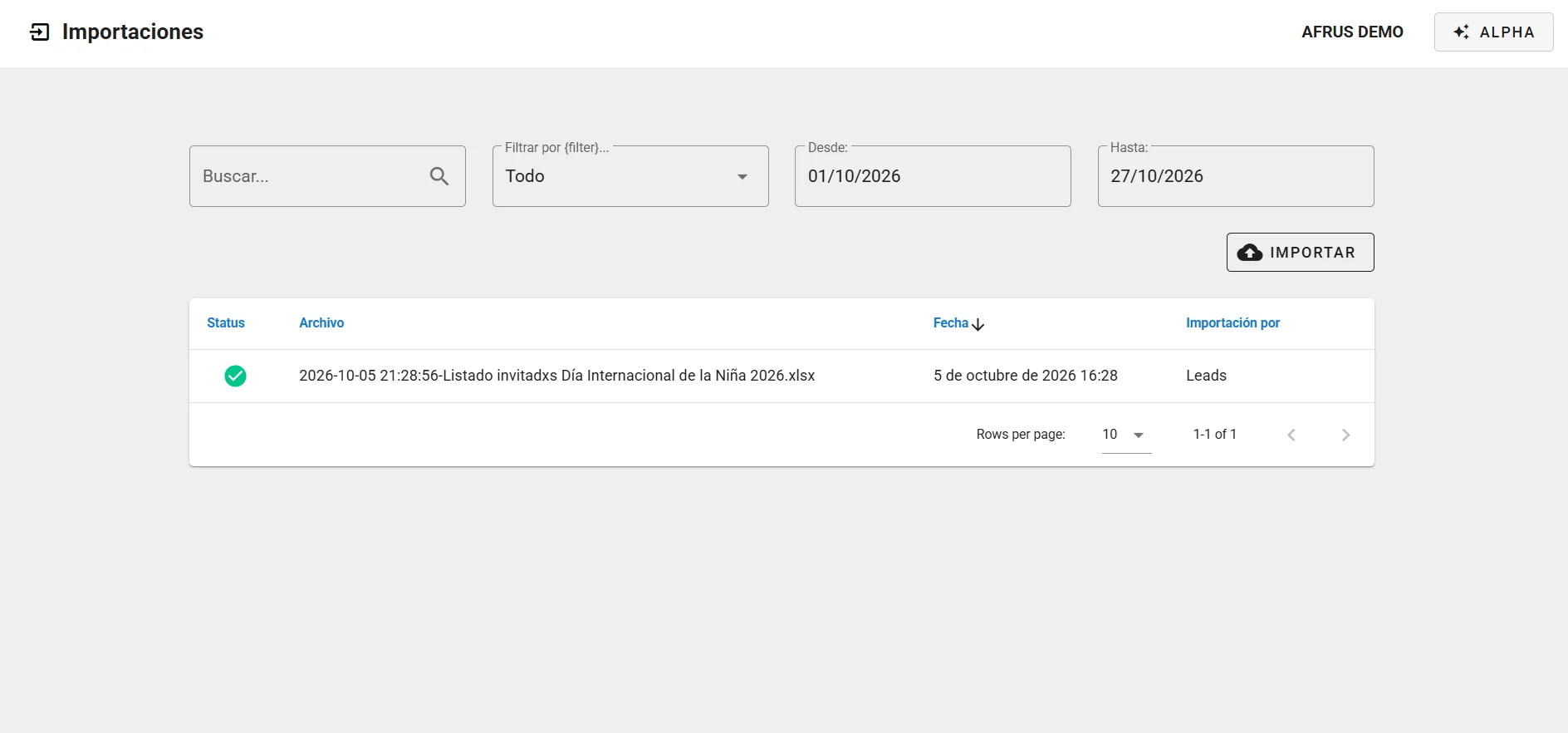
Open imports. Go to Data > Importaciones and click "Importar" (Import).
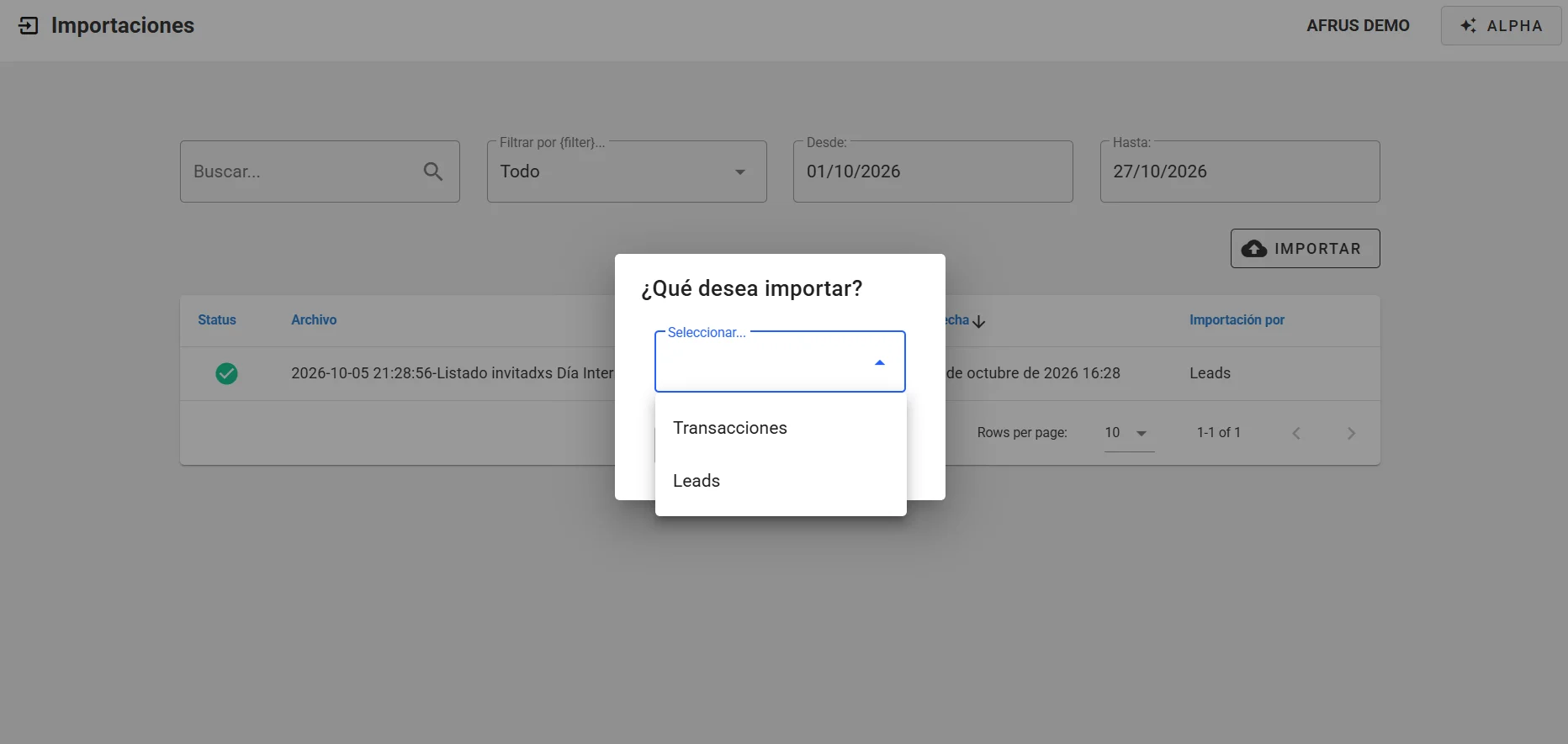
Choose what you will import. Under "¿Qué desea importar?" (What do you want to import?) choose Leads (contacts) or Transacciones (donations) and click "Continuar" (Continue).
Upload your file. Click "Añadir archivos" (Add files) or drag the file in. You can upload several at once.
Confirm your contacts' permission (Leads only). Check the box "Certifico que cuento con el consentimiento de las personas incluidas en este archivo para importar sus datos y enviarles comunicaciones multicanal (email, WhatsApp, SMS)." (I certify that I have the consent of the people in this file to import their data and send them multichannel communications) and click "Importar".
Match each column to its AFRUS field. For each column in your file ("Datos archivos importados", imported file data), choose which AFRUS data it matches ("Campos de AFRUS", AFRUS fields). For example: your "Mail" column goes with email. This way AFRUS knows where to save each piece of data.
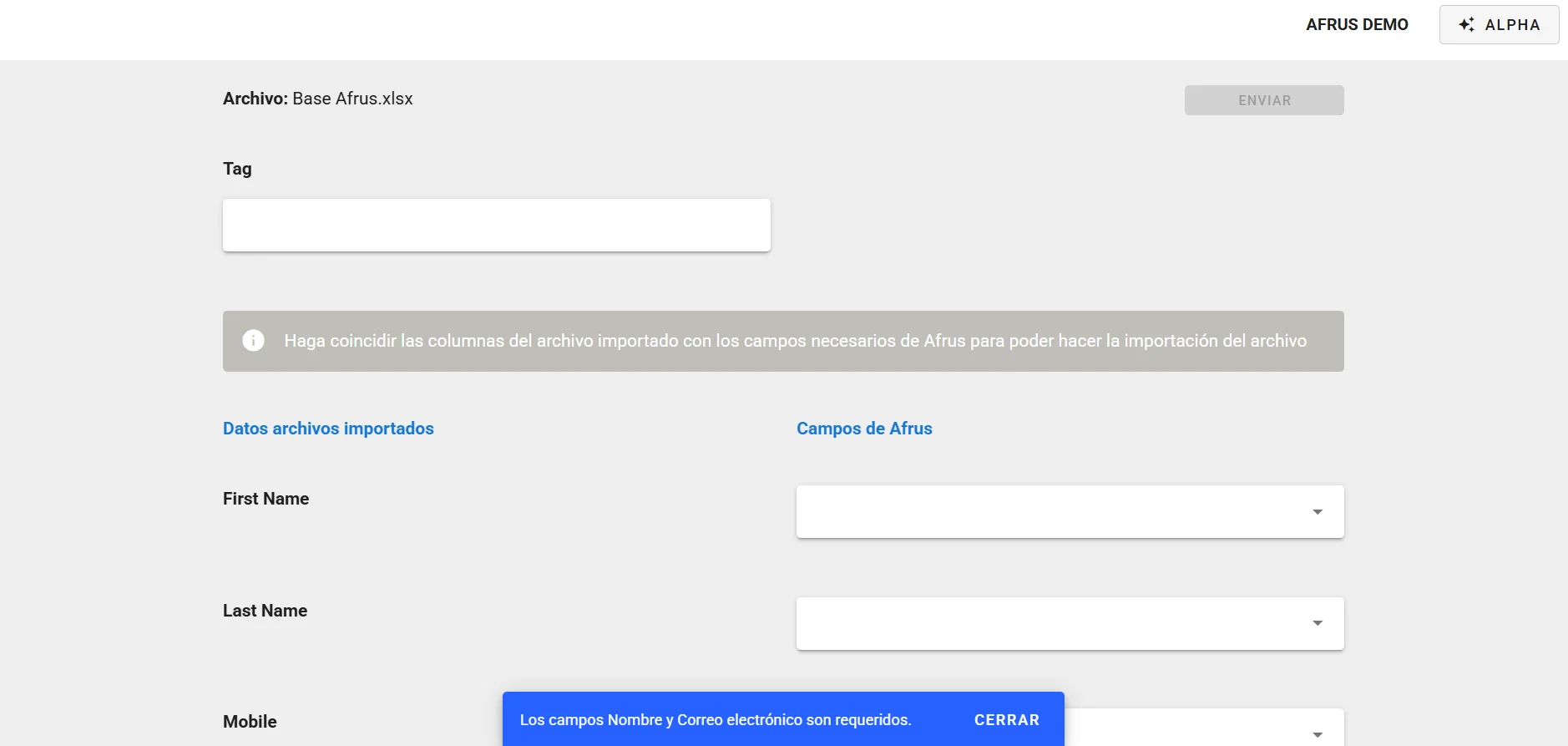
Add a tag (optional). In Tag you can write a tag for everyone in the file, for example the name of the event where you met them.
For donations only, fill in: the currency (Selección de moneda), the donations' status (Estatus de la transacción: Exitosa/Successful, Pendiente/Pending, Fallida/Failed or Reembolsado/Refunded) and the Campaña (Campaign) they belong to. The Disparar eventos (Trigger events) box comes checked; leave it that way if you want those donations shared with the systems you have connected to AFRUS.
Send. Click "Siguiente" (Next) and then "Enviar" (Send). You will see "¡Listo!" (Done!); click "Aceptar" (OK).
When you finish, your import appears in the list. First it says En cola (Queued) or Procesando (Processing) and, when done, Finalizado (Finished) or Finalizado con errores (Finished with errors). Inside the console you will see the notice "Importación finalizada" (Import finished).
Can it be undone? There is no button to undo an import. If you import donations twice, they are duplicated. Check the file carefully before sending it.
What to check before importing
About the file:
- Use only the first sheet. If your Excel file has several sheets, AFRUS only reads the first one.
- The first row must have the column titles (Name, Email, Amount…).
- Write dates as day/month/year, for example 25/10/2026.
Required data:
| If you import… | Your file must have |
|---|---|
| Leads (contacts) | Email and name |
| Transacciones (donations) | Amount (numbers only), email and name |
If the email is missing, the screen lets you continue, but every row fails. Make sure you matched it to its field.
About names, phones and documents:
- First and last name: you can use one column with the full name or separate columns for first and last name. AFRUS accepts both. For the information to be stored correctly in AFRUS, it is always best to upload first and last name in separate columns.
- Phones: they must include the country code and the "+" sign.
- Document type: write the number that matches each type:
- National Identification Document: 4
- CPF: 8 (Brazil)
- CNPJ: 9
- NIE: 13 (Spain)
- NIF: 14 (Spain)
- Passport: 1
- Cédula de ciudadanía: 16
- Cédula de extranjería: 17
- RUC: 18
Repeated people:
- AFRUS recognizes each person by their email. If they already exist, they are updated with the file's non-empty data. If not, they are created.
Repeated donations:
- Each row creates a new donation. If you upload the same file twice, the donations are duplicated.
Important, contact permissions: when importing, AFRUS marks each person in the file as accepting communications on all channels, even if they had unsubscribed before. So include only people who gave you their permission, and remove from the file anyone who asked not to receive messages.
What AFRUS adds automatically:
- Each imported person gets an automatic tag with the import's date and time (it starts with "import-"). That way you always know which import they came from.
- Imported donations don't send notifications to your team.
Import results
In the Data > Importaciones list you see all your imports with their Status, Archivo (File), Fecha (Date) and who did it (Importación por, Imported by). By default the current month is shown; you can search and change the dates.
| Status | What it means |
|---|---|
| En cola (Queued) | Waiting its turn |
| Procesando (Processing) | AFRUS is loading it |
| Finalizado (Finished) | Finished without errors |
| Finalizado con errores (Finished with errors) | Some rows (or all) couldn't be loaded |
If it says "Finalizado con errores":
- Open the errors. Click the pencil on that import. You will see the rows that failed.
- Fix the file. For now, fixing the rows on that screen and resending them doesn't work. The safest way is to fix those rows in your file and import only those rows again.
Important: "Finalizado con errores" appears whether a few rows failed or all of them. Always check the detail.
Each user only sees the imports they did. If you can't find one, ask the person on your team who uploaded it.
Frequently asked questions
How many rows can I upload?
The file can be up to 20 MB. There is no row limit.
Do I get an email when the import finishes?
No. The "Importación finalizada" notice appears inside the console.
Last updated: 2026-10-28
Need help? Talk to the afrus team
In this article
✕
Related Tutorials
Data
October 28, 2026
Downloads guide
Complete guide to Downloads: every step with its screenshots and the frequently asked questions.
afrus.ai
Data
October 28, 2026
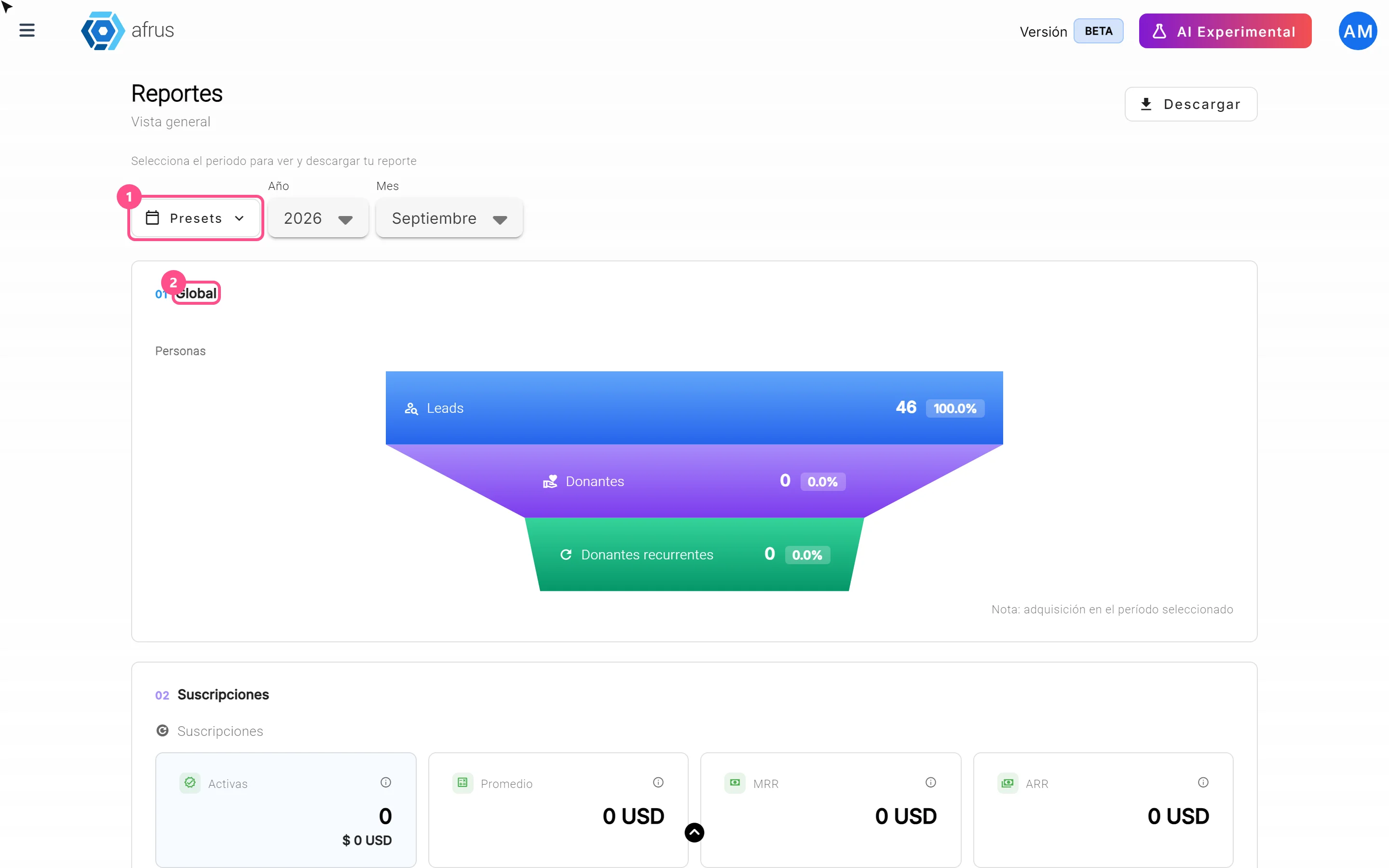
Reporte general (General report) guide
Complete guide to Reporte general (General report): every step with its screenshots and the frequently asked questions.
afrus.ai

Data
October 28, 2026
Tags guide
Complete guide to Tags: every step with its screenshots and the frequently asked questions.
afrus.ai

Data
October 28, 2026
What the Presets, Año and Mes filters of the General report are for
Learn how to choose the period of the Reporte general with the Presets, Año (Year) and Mes (Month) filters.
afrus.ai