🡠 Back


Downloads guide
Reading time
4 min
Data
October 28, 2026
afrus.ai
Complete guide to Downloads: every step with its screenshots and the frequently asked questions.
In this article
With this guide you will know where to find the files you export in AFRUS and what each icon in the list means.
Module: Data · Menu: Data > Descargas (Downloads) · Audience: fundraising, data and admin teams
About the labels in this guide: buttons, fields and menus are written exactly as they appear in the Spanish version of the console, with an English explanation where it helps.
What Downloads is
Descargas (Downloads) is the list of every file your organization exports in AFRUS.
When you ask to export data (for example, your people or your transactions), AFRUS prepares the file while you keep working. When it's ready, you download it from here.
You can also find it in Trackers > Descargas: it's the same screen.
What it is for
- Getting your exported files. Everything you export arrives in this list.
- Knowing if a file is ready. You see whether it's being prepared, ready to download or failed.
- Keeping your exports in one place, no matter which screen you exported from.
Where can you export from?
- Personas (People), with "Acciones" (Actions) and then "Exportar" (Export).
- Transacciones (Transactions), Suscripciones (Subscriptions) and Radar - monitor de fraude (Fraud radar).
- Segmentos (Segments), basic and advanced.
- Tareas de suscripciones (Subscription tasks) and Transacciones abandonadas (Abandoned transactions).
- The results list of a mass email send (Blast) and a widget's dashboard.
The Reporte general (General report) is the exception: its "Descargar" (Download) button saves the file straight to your computer, without going through this list.
Step by step
How to download a file
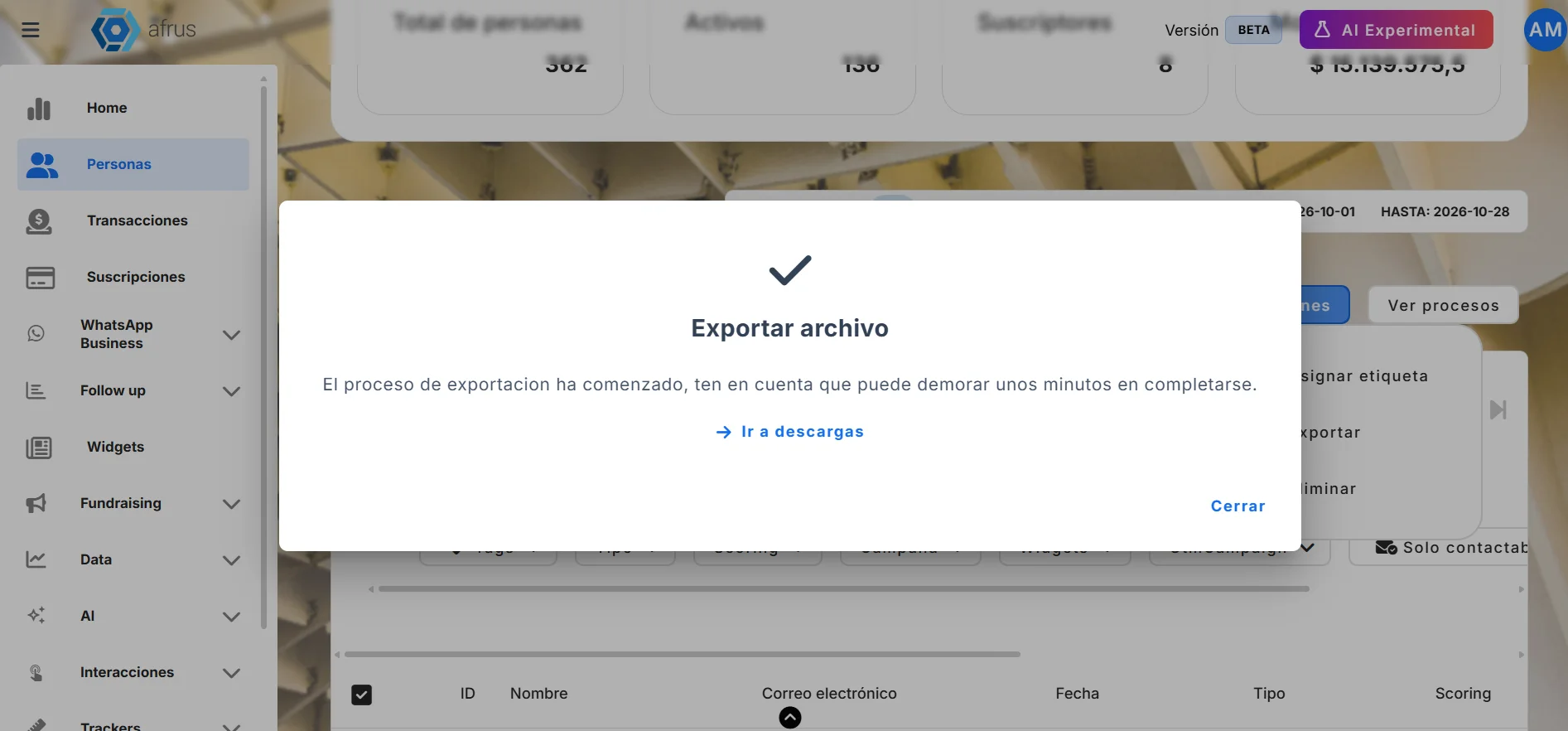
Request the export. On the screen you want (for example, Personas), use the export option. You will see "El proceso de exportacion ha comenzado, ten en cuenta que puede demorar unos minutos en completarse." (The export has started; it may take a few minutes.)
Open Downloads. Go to Data > Descargas. In Personas you can also use the "Ir a descargas" (Go to downloads) link in the message.
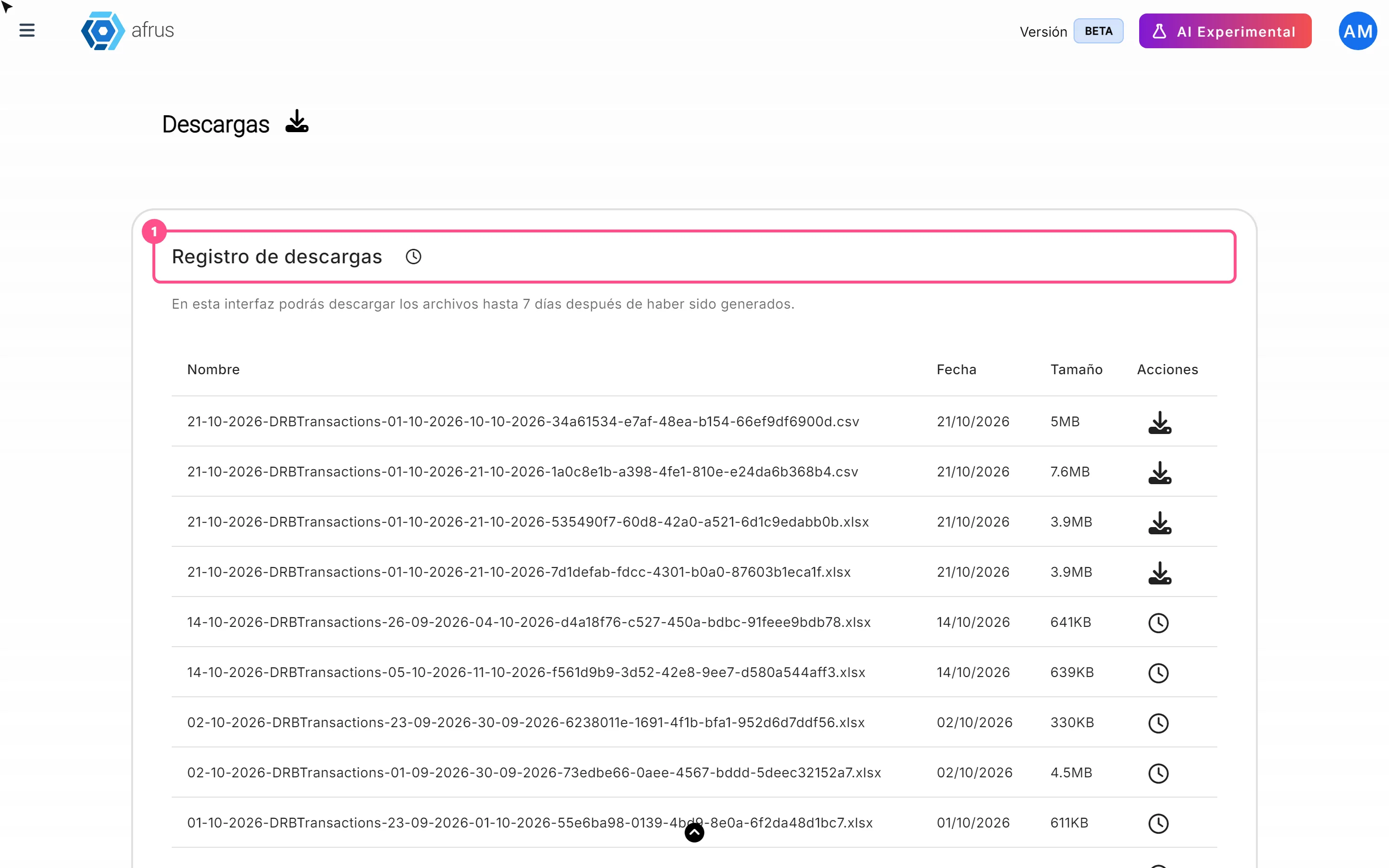
Wait until it's ready. The list updates by itself when the file is done. It may take a few minutes.
Download it. Click the download button in the row. You will see "¡Archivo descargado con éxito!" (File downloaded successfully!).
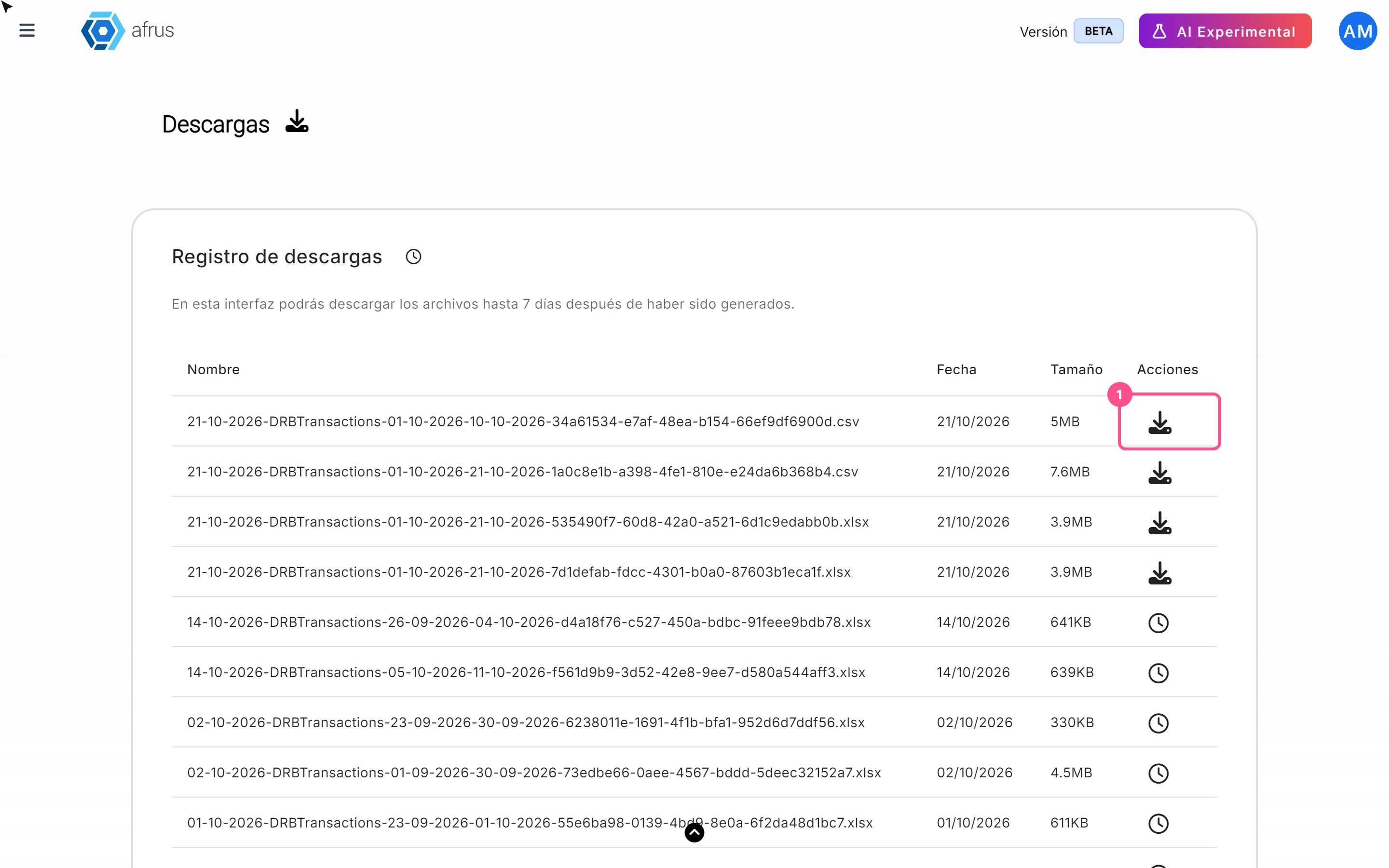
Files come in Excel format (.xlsx).
What types of actions there are
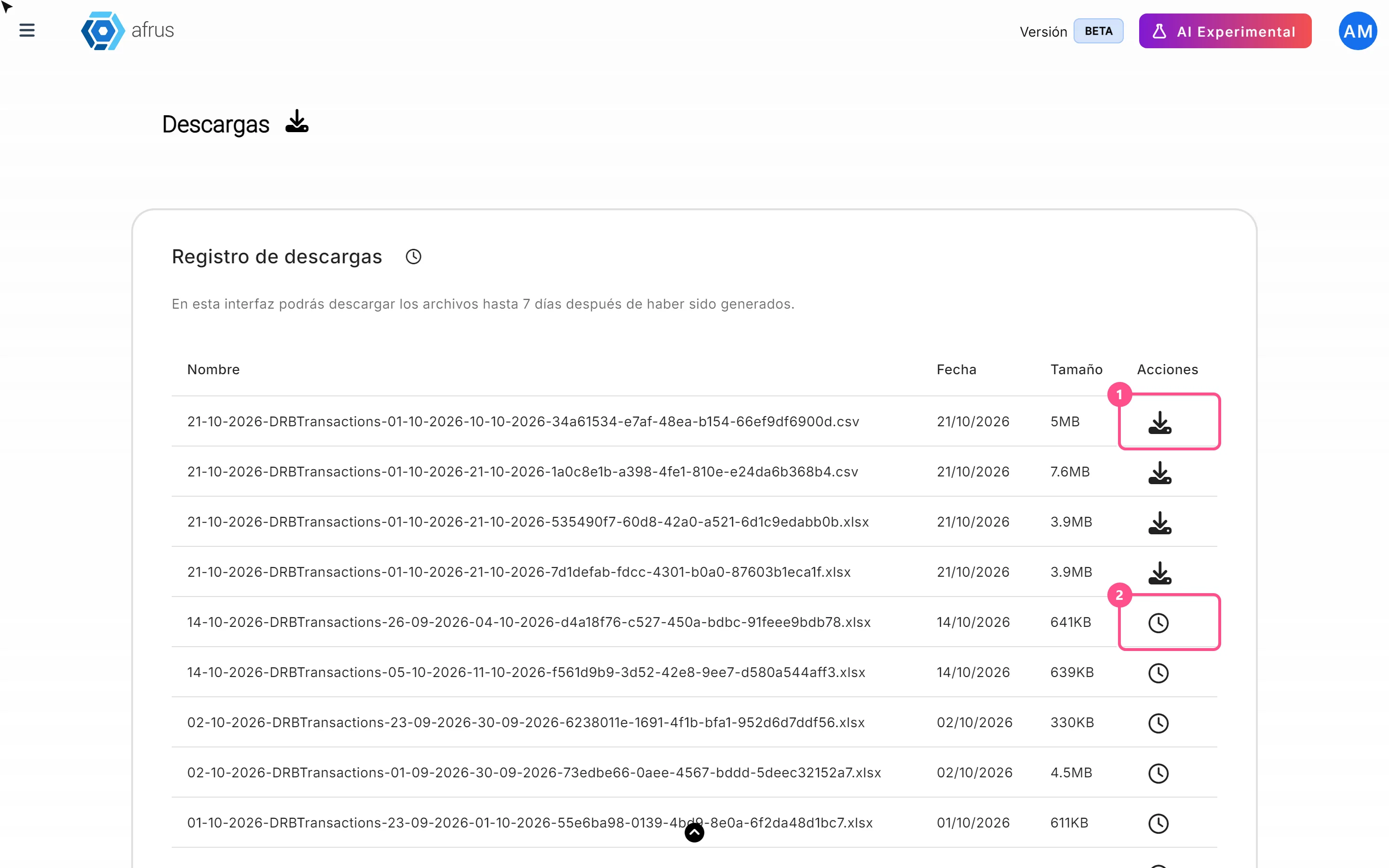
In the Acciones (Actions) column of each row you see an icon that tells you the file's status:
| What you see | What it means | What you can do |
|---|---|---|
| Download button | The file is ready | Click it to download |
| Spinning circle | AFRUS is preparing the file | Wait a few minutes |
| Exclamation mark | Something went wrong preparing the file | Hover over it to see the detail, and request the export again |
| Clock | More than 7 days have passed | It can no longer be downloaded here; export it again |
| No icon | The file is waiting in line | Wait: it hasn't started yet |
The newest files are shown first. Each row has the file's Nombre (Name), Fecha (Date) and Tamaño (Size). You can show 5, 10, 15 or 20 rows per page.
Important: you can download each file up to 7 days after it was created. If you'll need it later, save it on your computer.
Good to know
- If you choose CSV, you still get an Excel file (.xlsx). You can open it in Excel or Google Sheets and save it as CSV from there if you need to.
- If an export fails, the list doesn't update by itself. Reload the page to see the error icon.
- After downloading, the button may keep spinning. The file is already downloaded; reload the page.
- Files waiting in line show no icon. It's not an error: wait a little and reload.
- You don't get an email when the file is ready. Check this list.
- If you request the same export twice while the first is being prepared, the second isn't created, even if you see the start message.
Frequently asked questions
Does AFRUS retry an export that failed?
No. Request it again from the screen where you made it.
Are files deleted after 7 days?
After 7 days you can no longer download them from this screen.
Is the People data up to date?
When you export People you choose the source: Base de datos en tiempo real (Real-time database) brings current data, and Datos analizados (Analyzed data) is updated every 24 hours.
Last updated: 2026-10-28
Need help? Talk to the afrus team
In this article
✕
Related Tutorials
Data
October 28, 2026
Imports guide
Complete guide to Imports: every step with its screenshots and the frequently asked questions.
afrus.ai
Data
October 28, 2026
Reporte general (General report) guide
Complete guide to Reporte general (General report): every step with its screenshots and the frequently asked questions.
afrus.ai

Data
October 28, 2026
Tags guide
Complete guide to Tags: every step with its screenshots and the frequently asked questions.
afrus.ai

Data
October 28, 2026
What the Presets, Año and Mes filters of the General report are for
Learn how to choose the period of the Reporte general with the Presets, Año (Year) and Mes (Month) filters.
afrus.ai