🡠 Back


AI Training guide (Entrenamiento [AI RAG])
Reading time
5 min
AI
October 28, 2026
afrus.ai
Complete guide to AI Training guide (Entrenamiento [AI RAG]): every step with its screenshots and the frequently asked questions.
In this article
With this guide you will be able to teach AFRUS AI about your organization: upload documents, add web pages and write instructions for it.
Module: AI · Menu: AI > Entrenamiento [AI RAG] · Audience: communications and fundraising teams
About the labels in this guide: buttons, fields and menus are written as they appear in the Spanish version of the console, with an English explanation where it helps.
What AI Training is
It is where you give AFRUS AI your organization's information. Here you upload documents, add web pages and write instructions.
The AI uses all of it to answer in Chat con AI (AI chat) and in the Agentes para la web (the chat you can put on your website). The better the information you give it, the better its answers.
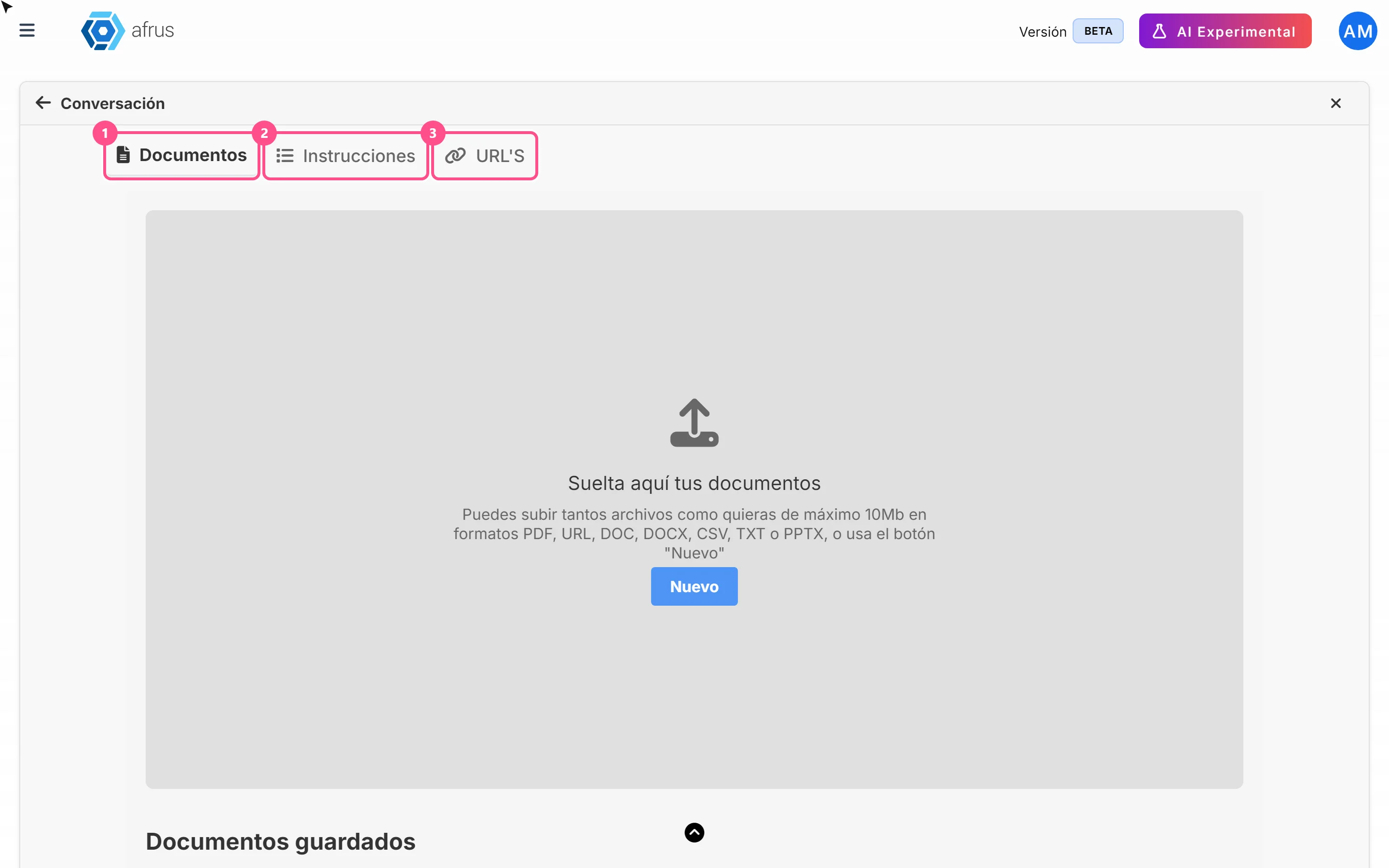
The screen has three tabs: Documentos (Documents), Instrucciones (Instructions) and URL'S.
What it is for
- Making the AI know your organization. Your cause, your impact, your campaigns and your institutional details.
- Getting answers based on your information, not generic data. The chat and your website agent look first at what you uploaded here.
- Giving it guidelines on tone and content. You can tell it how to talk about each topic.
Before you start
- Turn on AFRUS AI. It is turned on from the Business profile (profile menu, top corner): create your profile and, in the last step, click "Enviar AI" (Send to AI). If you haven't, you will see the notice "¡Ups! Parece que no tienes un Business Profile" (Oops! It looks like you don't have a Business Profile) with the "Crear Business Profile" (Create Business Profile) button.
Step by step
What you upload in Documents and which file types are accepted
In Documentos you upload the files that describe your organization: impact reports, institutional presentations, FAQs, descriptions of your programs or campaigns.
Accepted file types: PDF, DOC, DOCX, CSV, TXT and PPTX. The screen shows a maximum of 10 MB per file.
Open the Documents tab. Go to AI > Entrenamiento [AI RAG] and choose Documentos.
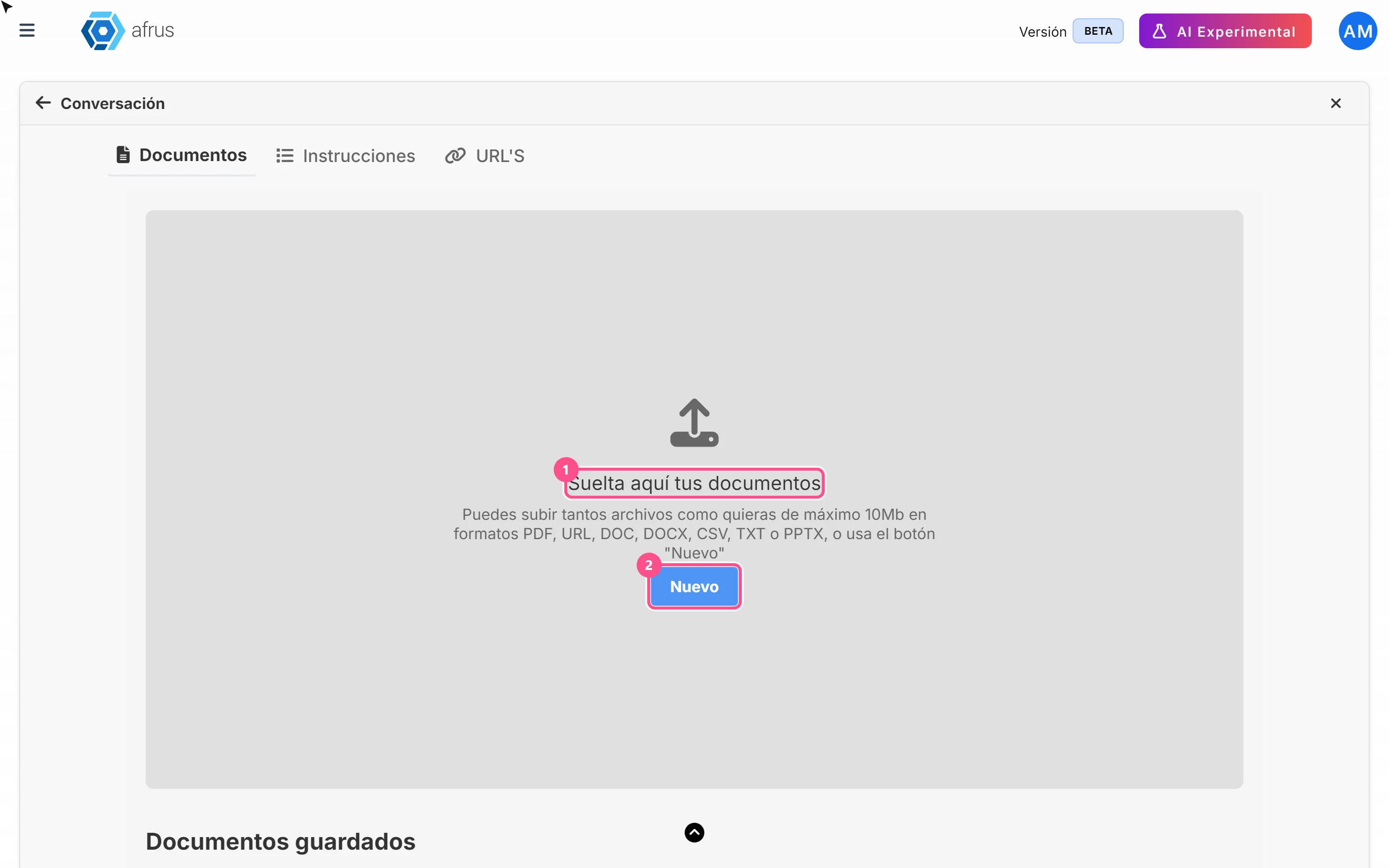
Choose your files. Drag them onto Suelta aquí tus documentos (Drop your documents here) or click "Nuevo" (New). You can choose several at once.
Classify them (recommended). In the Archivos cargados con éxito (Files uploaded successfully) window, choose one or more Atributos (the document's topic) for each file and type a Etiqueta (label; type it and press Enter). If you're not sure, you can do it later.
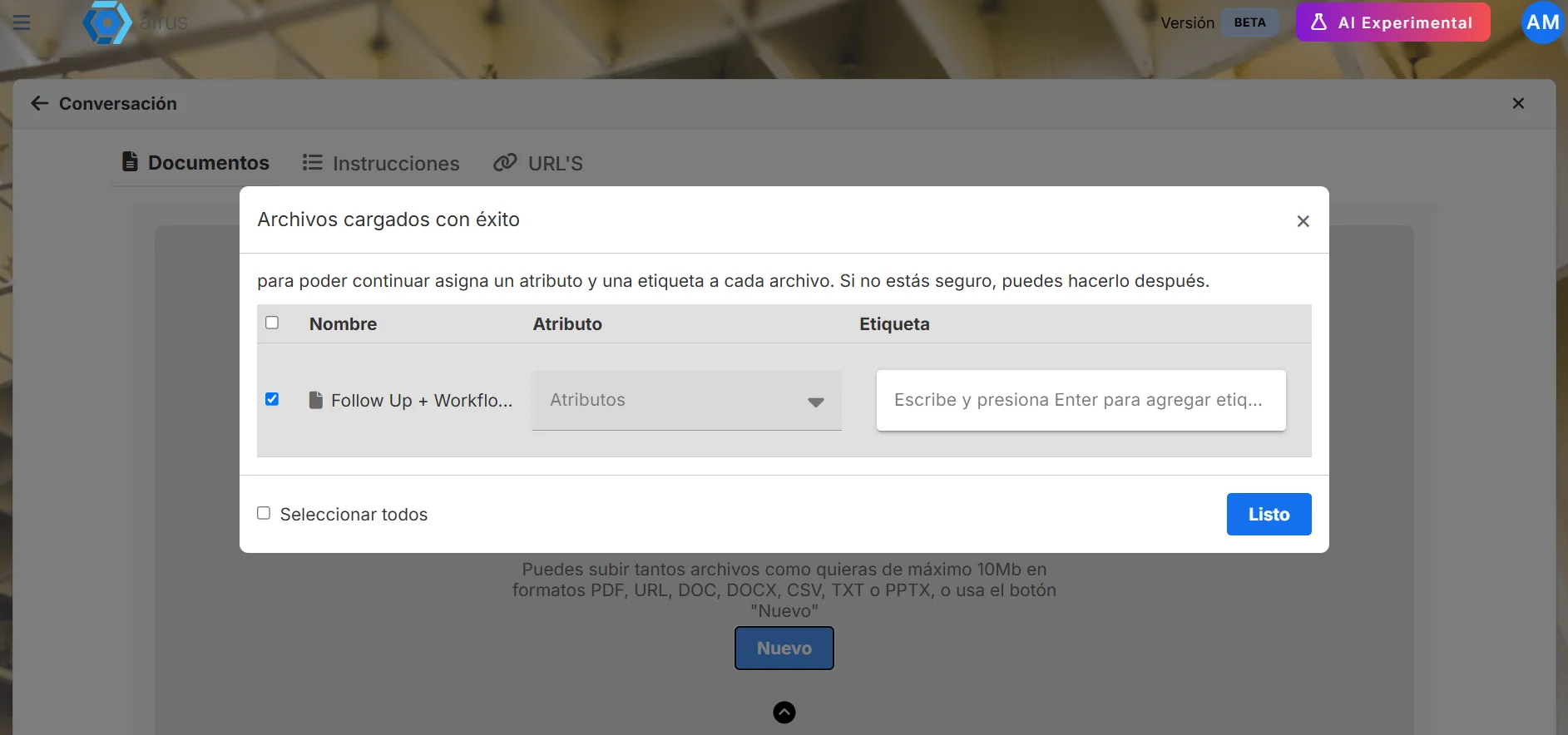
Upload them. Keep the files you want to upload checked (or use "Seleccionar todos", Select all) and click "Listo" (Done).
When you finish you will see "Documento guardado exitosamente" (Document saved successfully) and your files will appear in Documentos guardados (Saved documents). The AI reads each document and makes a summary. Once the upload finishes, it can use it.
Keep in mind:
- If you don't choose a topic, the document is used for all topics.
- You can't upload two files with the same name.
- If a document takes more than 5 minutes to process, the upload fails.
What you upload in Instructions
In Instrucciones you tell the AI, in your own words, what it should know and how it should talk. The screen explains it like this: "Aquí describe el conocimiento de la AI. Escribe información clave, contexto, tono, y temas principales que debes manejar." (Describe the AI's knowledge here: key information, context, tone and main topics.)
For example: "We are a foundation that protects forests in Colombia. Speak in a warm, optimistic way. Don't promise figures that aren't in our reports."
Open the Instructions tab. In AI > Entrenamiento [AI RAG], choose Instrucciones.
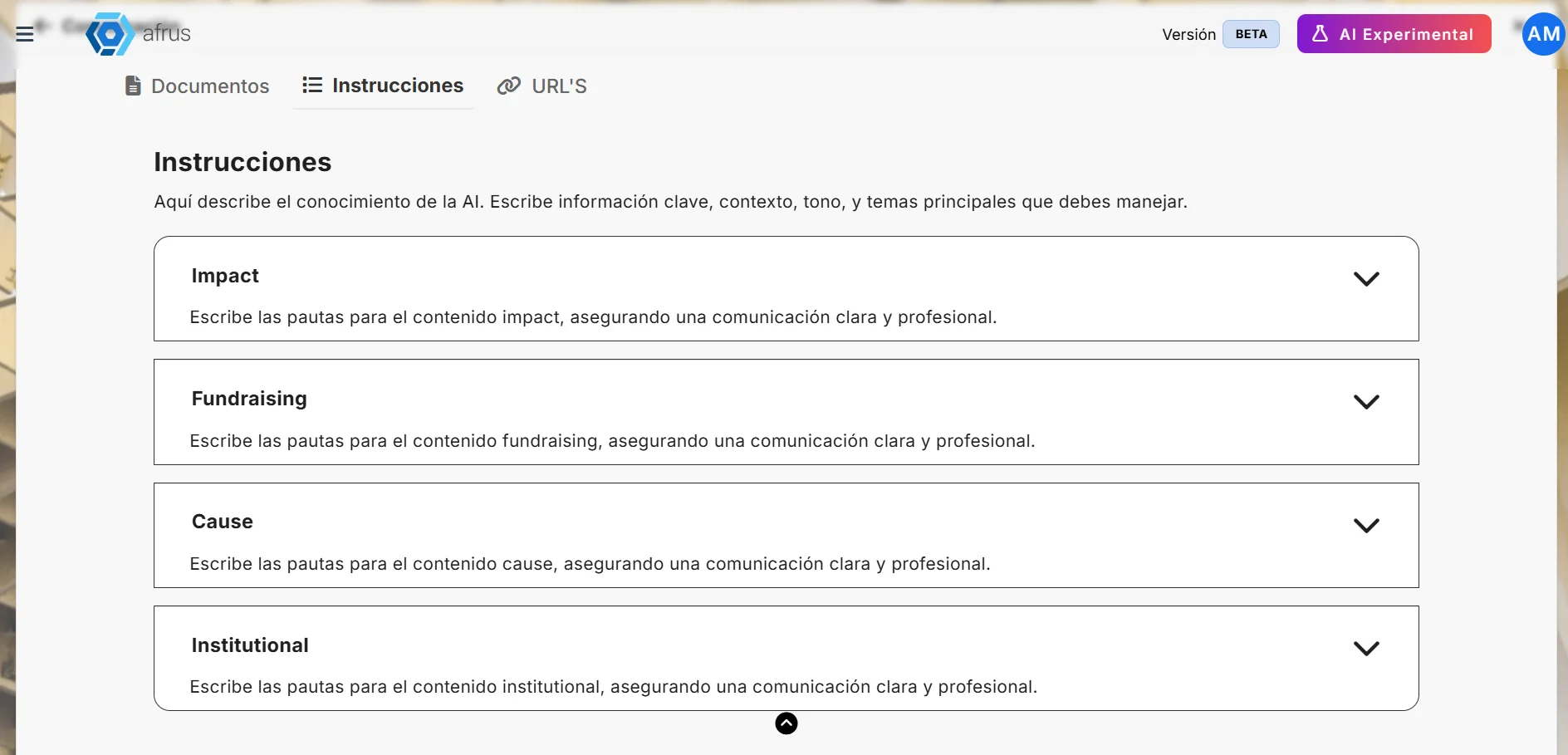
Choose the topic. There is one panel per attribute (topic). Open the one you want to fill in.
Write your instructions. Type them in Escribe aquí tus instrucciones... (Write your instructions here).
Save. Click that topic's "Guardar instrucciones" (Save instructions) button. You will see "¡Instrucciones guardadas con éxito!" (Instructions saved successfully!)
Instructions apply to your whole organization, and the AI uses them together with that topic's documents.
Keep in mind: topics (attributes) are defined by AFRUS; you can't create new ones here.
Conversation shortcuts: on this same tab you'll see Atajos de conversación (Conversation shortcuts), to save common questions as chat buttons. Today those buttons don't appear in Chat con AI, so for now you don't need to set them up.
What you upload in URLs
In URL'S you add your organization's web pages for the AI to read: for example your "About us" page, your programs page or a campaign page.
Open the URL'S tab. In AI > Entrenamiento [AI RAG], choose URL'S (section Fuentes Web, Web sources).
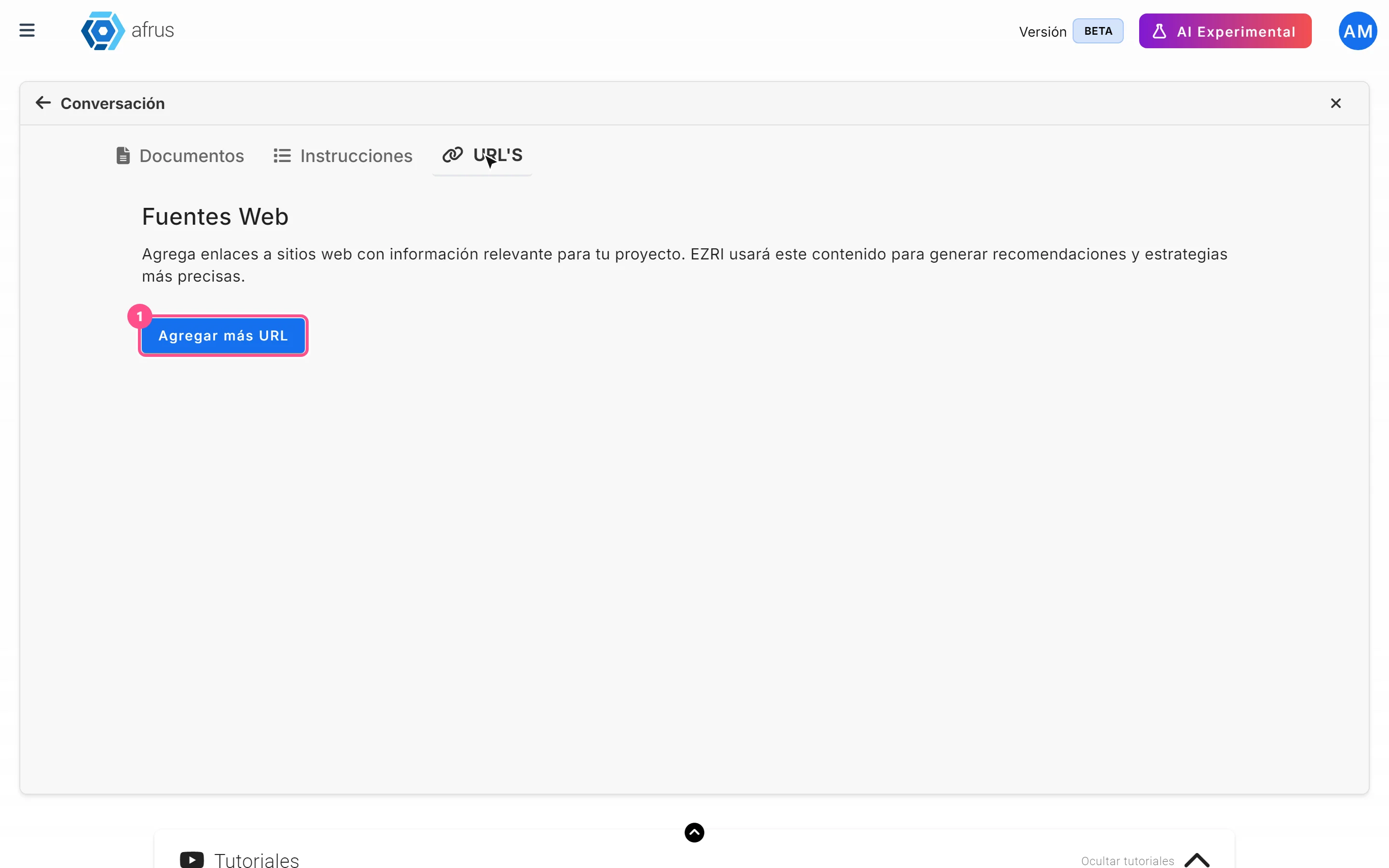
Add an address. Click "Agregar más URL" (Add more URLs) and click the new row to open it.
Fill in the details. Type the address in URL: (required). If you want, choose Atributos and type labels in Escribe tu Tag (Write your tag).
Save. Click "Guardar cambios" (Save changes). You will see "¡URL guardada con éxito!" (URL saved successfully!)
Keep in mind: if you click "Guardar cambios" without changing anything, a notice with technical text may appear. Nothing is wrong: your information was already saved.
How to see what you uploaded
- Documents: on the Documentos tab, the Documentos guardados list shows Nombre del archivo (file name), Tipo (type), Atributo, Tags and Fecha de carga (upload date). The eye icon downloads the file so you can check it.
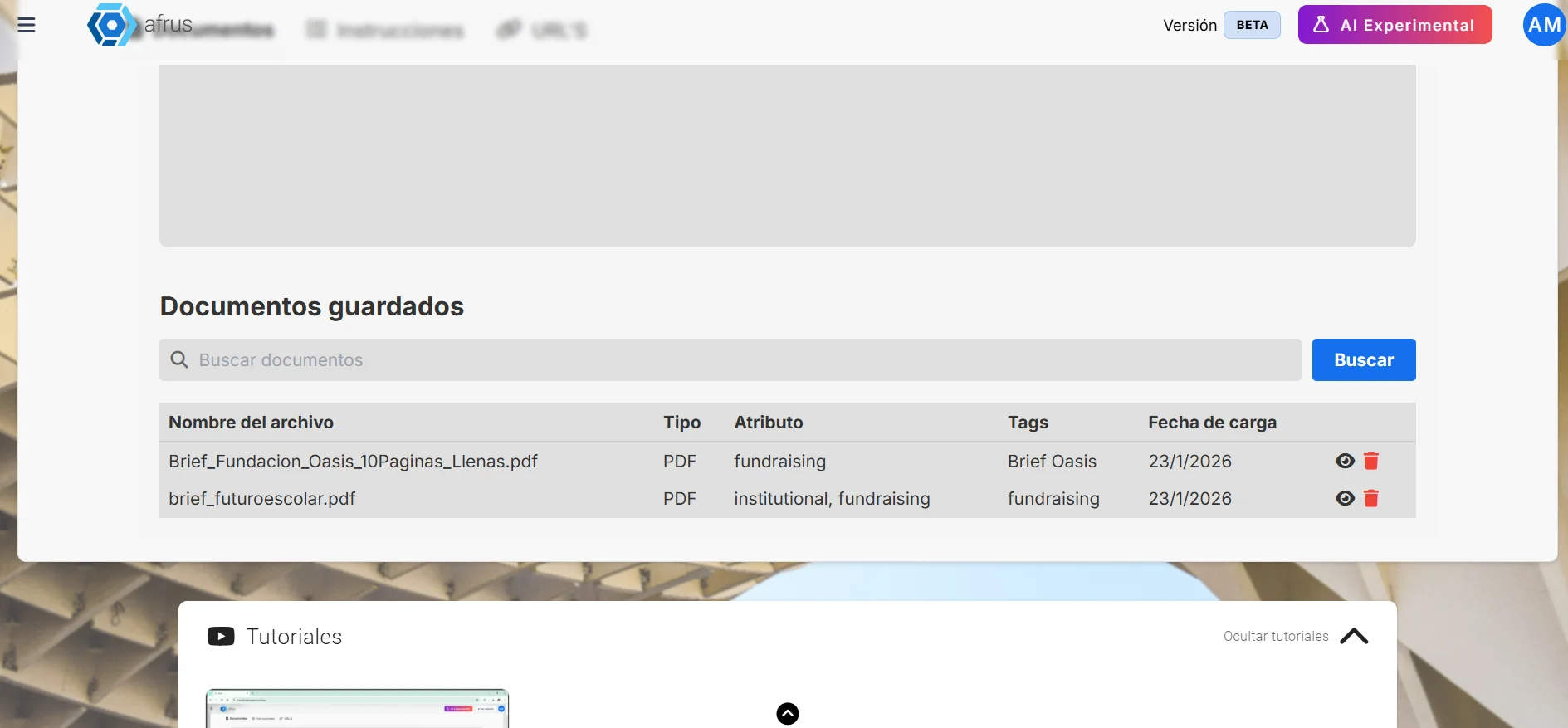
- Instructions: on the Instrucciones tab, open each topic's panel to read what you wrote.
- Web pages: on the URL'S tab you see each saved address.
To delete something, use the trash icon on its row.
Can it be undone? No. Clicking a document's trash icon deletes it immediately, without asking for confirmation. If you make a mistake, you'll need to upload it again.
Keep in mind: the "Buscar" (Search) button in Documentos guardados doesn't filter the list today. To find a document, look through the list by name or date.
Frequently asked questions
How long until the AI uses a new document?
It can use it as soon as the upload finishes.
What if I upload a document without choosing a topic?
It is used for all topics.
Last updated: 2026-10-28
Need help? Talk to the afrus team
In this article
✕
Related Tutorials
AI
October 28, 2026
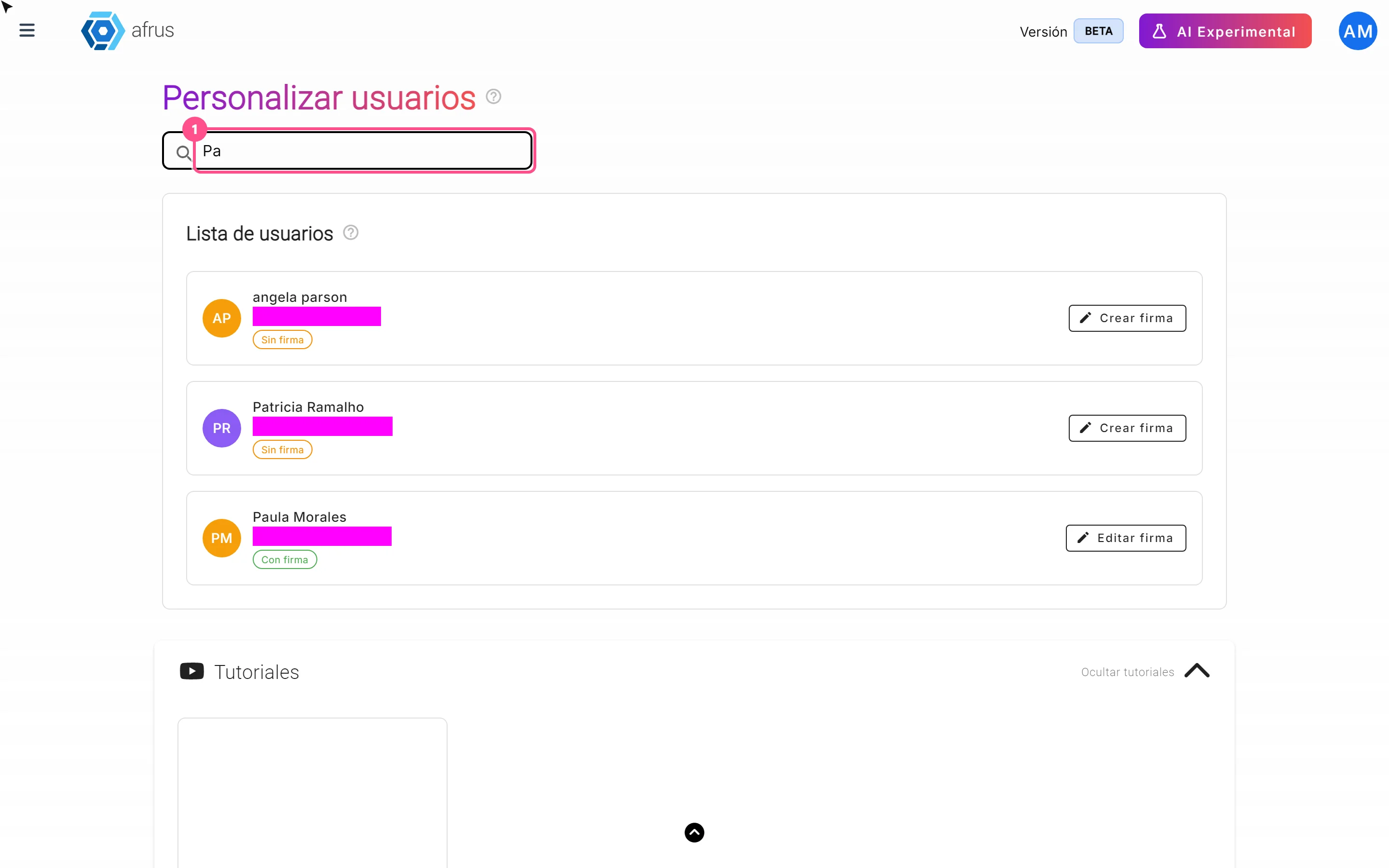
User signatures guide
Complete guide to User signatures: every step with its screenshots and the frequently asked questions.
afrus.ai
AI
October 28, 2026
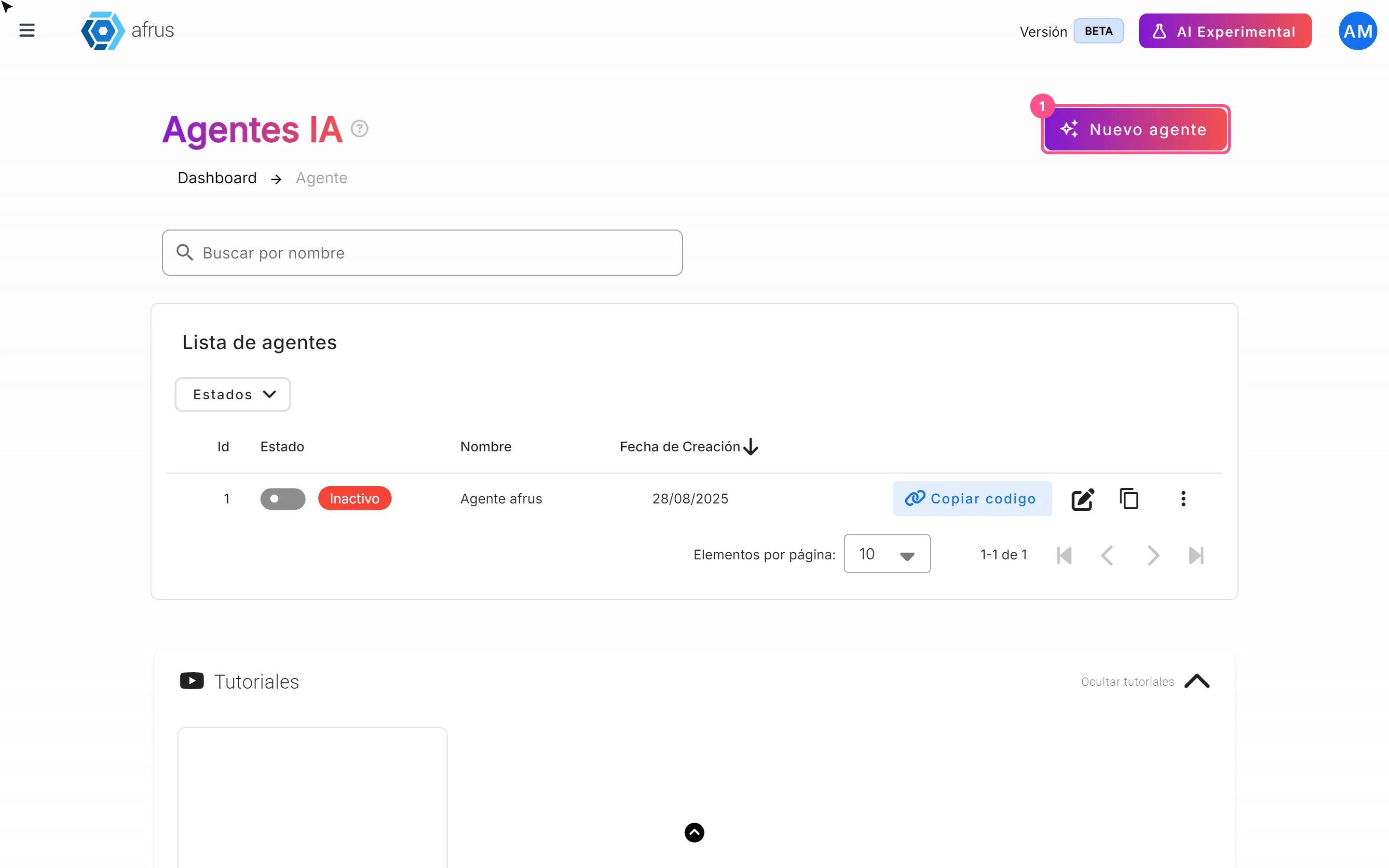
Website Agents guide (Agentes para la web)
Complete guide to Website Agents guide (Agentes para la web): every step with its screenshots and the frequently asked questions.
afrus.ai
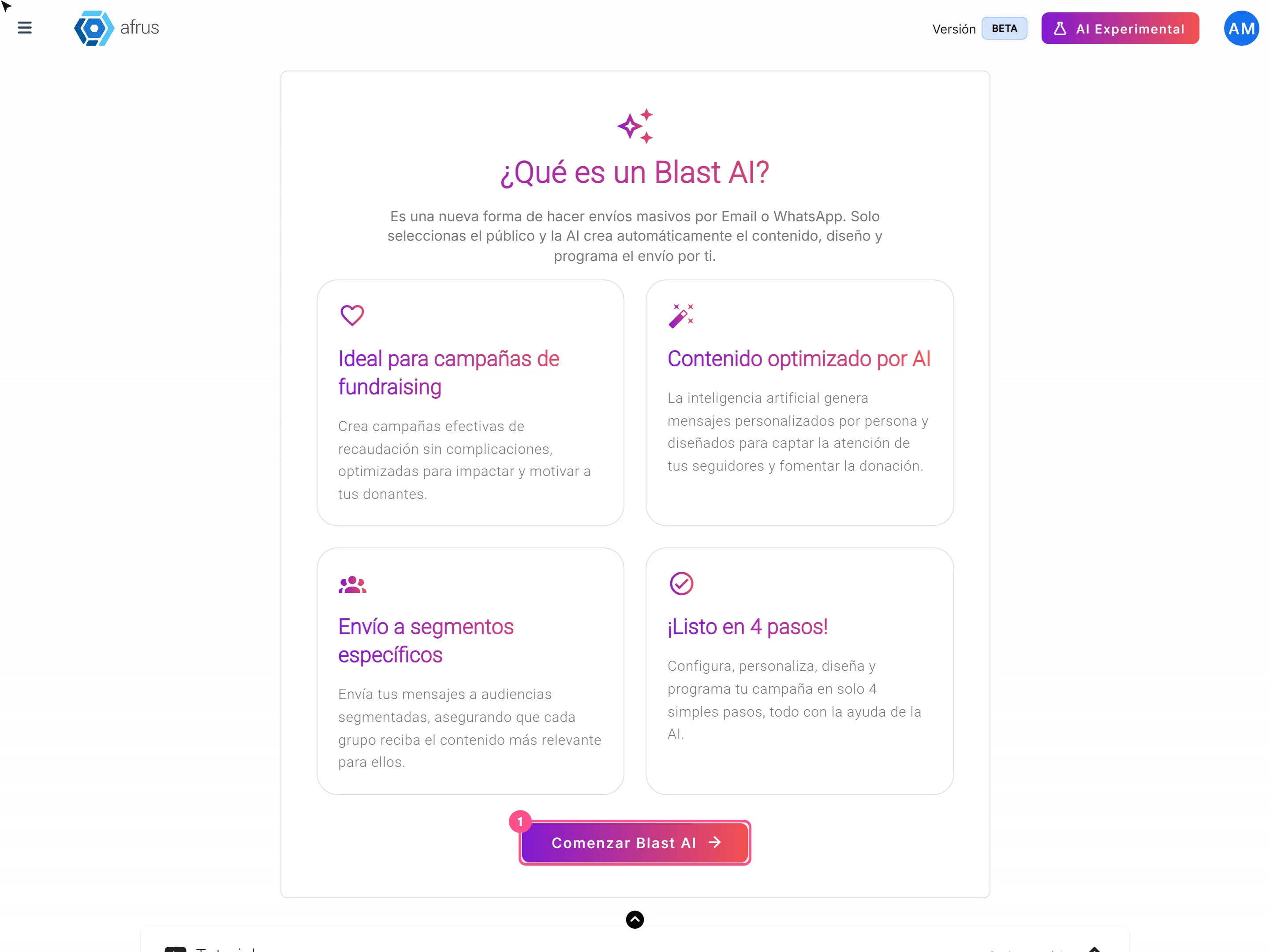
AI
October 28, 2026
AI Blast guide (Blast de AI)
Complete guide to AI Blast guide (Blast de AI): every step with its screenshots and the frequently asked questions.
afrus.ai
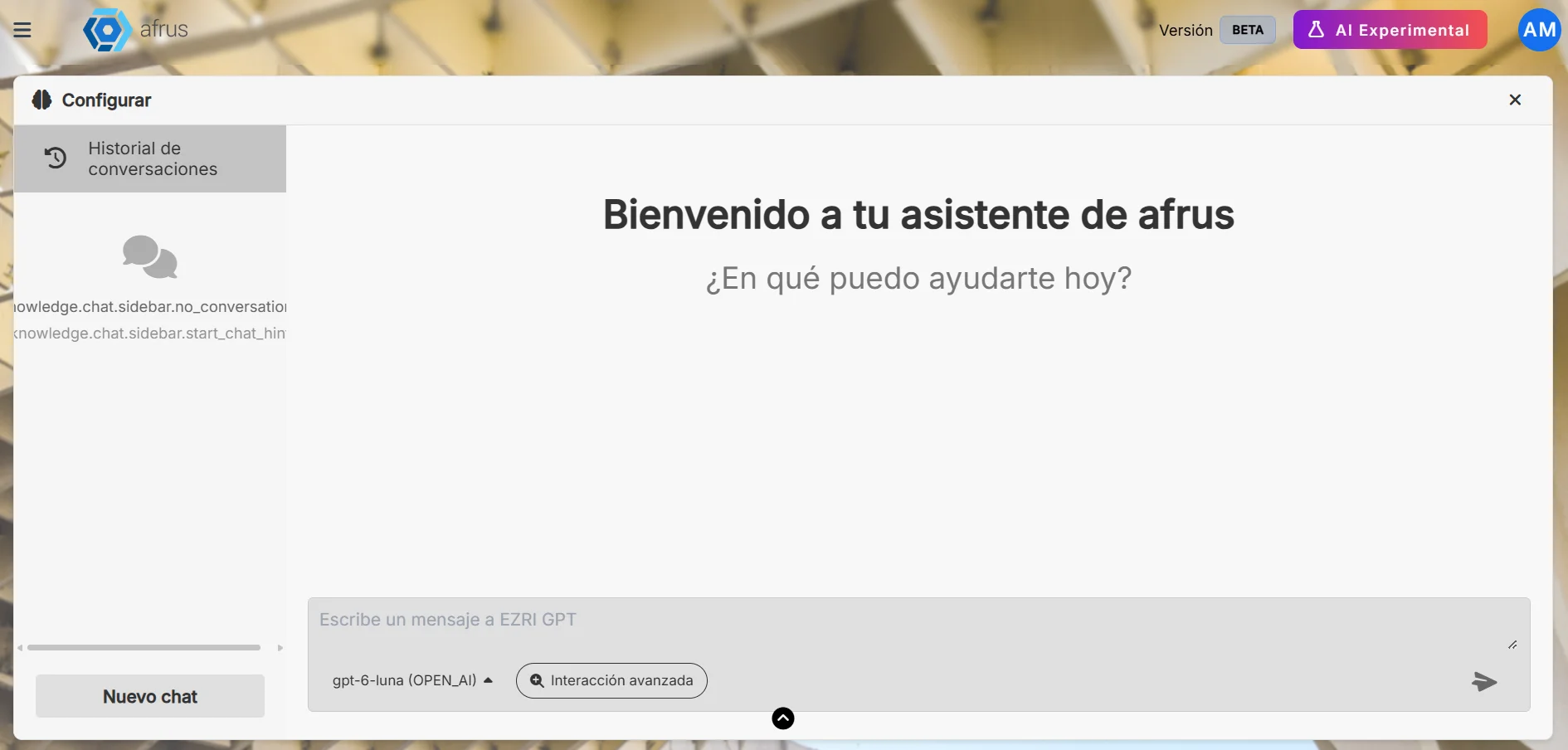
AI
October 28, 2026
AI Chat guide (Chat con AI)
Complete guide to AI Chat guide (Chat con AI): every step with its screenshots and the frequently asked questions.
afrus.ai