🡠 Back


Incentives guide
Reading time
16 min
Incentives
October 28, 2026
afrus.ai
Complete guide to Incentives: every step with its screenshots and the frequently asked questions.
In this article
This guide shows you how to give a gift to people who donate from a certain amount, create coupons, let your donors give a gift to someone else and see who is still waiting for their gift.
Module: Incentives · Menu: Fundraising > Incentivos (Incentives) · Audience: fundraising, communications and logistics teams
About the labels in this guide: buttons and menus appear with the names the console shows in English. When we don't have the English name confirmed, we write the Spanish label with a translation in brackets.
What incentives are
An incentive is a gift your organization offers to people who donate from a minimum amount. For example: a book, a calendar or a digital certificate.
Incentives are set up inside a campaign and appear on your Transacción (Transaction) widgets. In AFRUS you will also see them called gift or reward: they are all the same thing.
There are two types:
- Physical: something you send to an address, like a book or a T-shirt.
- Digital: something that arrives by email, like a certificate or a download.
What they are for
- Encourage bigger donations. Donors see which gift they get with each amount and how much more they need for the next one.
- Get more monthly donors. You can ask for a different amount for one-time donors and for monthly donors.
- Deliver digital gifts with no manual work. AFRUS sends them by email on its own.
- Organize the shipping of physical gifts. You get a list of who should receive each gift, at which address, and whether you already sent it.
- Let donors give to someone else. A donor can donate in someone's name (for a birthday or a tribute, for example) and that person receives a card.
- Run promotions with coupons. A coupon makes the gift easier to get.
How it works, in 5 steps
- You set up the gifts inside the campaign and choose which forms show them.
- The donor chooses an amount and a gift on the form.
- The payment is confirmed.
- AFRUS assigns the gift, takes one unit off the stock and adds it to the delivery list.
- You deliver the physical gift (digital gifts arrive on their own) and mark each shipment.
The gift is assigned only when the payment is confirmed. If the payment fails, nothing is taken off the stock and there is nothing to deliver.
Before you start
- A campaign created in Fundraising > Campañas (Campaigns).
- At least one Transacción (Transaction) widget (a widget with amounts to choose from).
- A photo of each gift: JPG, PNG or WEBP, up to 2 MB and at least 800 × 800 pixels. Without a photo, the gift is not shown.
- If you will offer digital gifts or gifts for someone else: a delivery workflow. We explain how in "Why create a workflow for incentives".
Important: gifts appear on your forms as soon as you save; there is no draft. If you prefer to test first, follow "How to test incentives before showing them".
Step by step
How to create incentives
Part 1 — Turn on incentives and choose the forms
Open your campaign. Go to Fundraising > Campañas (Campaigns), open the campaign and go to the Incentives tab.
Turn on incentives. Turn on the Incentives switch.
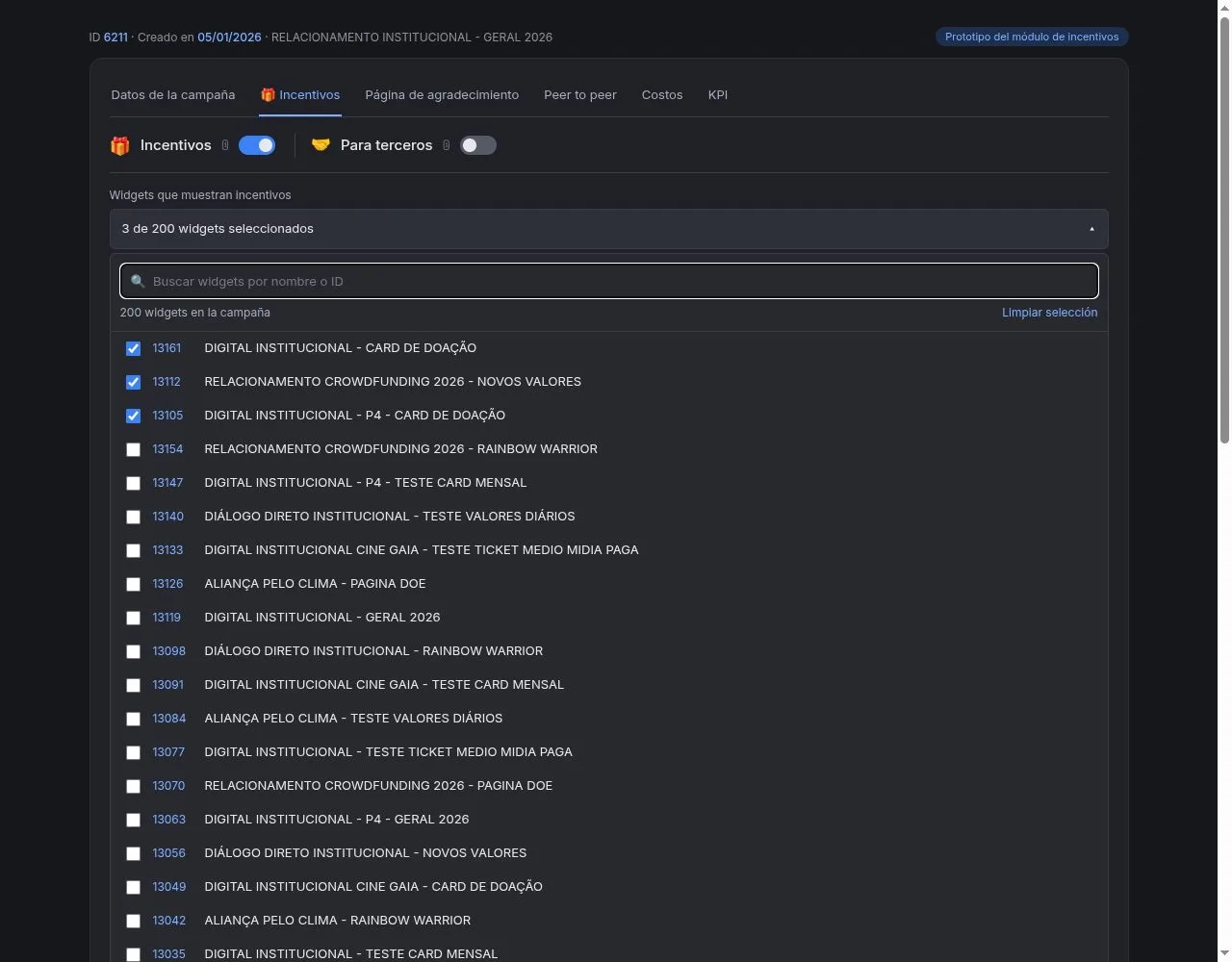
Choose the forms. In Widgets that show incentives, click "Seleccionar widgets" (Select widgets), search for your forms by name and check them.
Reference image with sample data: your screen may look slightly different.
Save. Click "Save selection".
You don't need to edit your forms: the gifts are added on their own, right below the amounts.
Part 2 — Create the gift
Open the gift form. In Catalog, click "Create incentive".
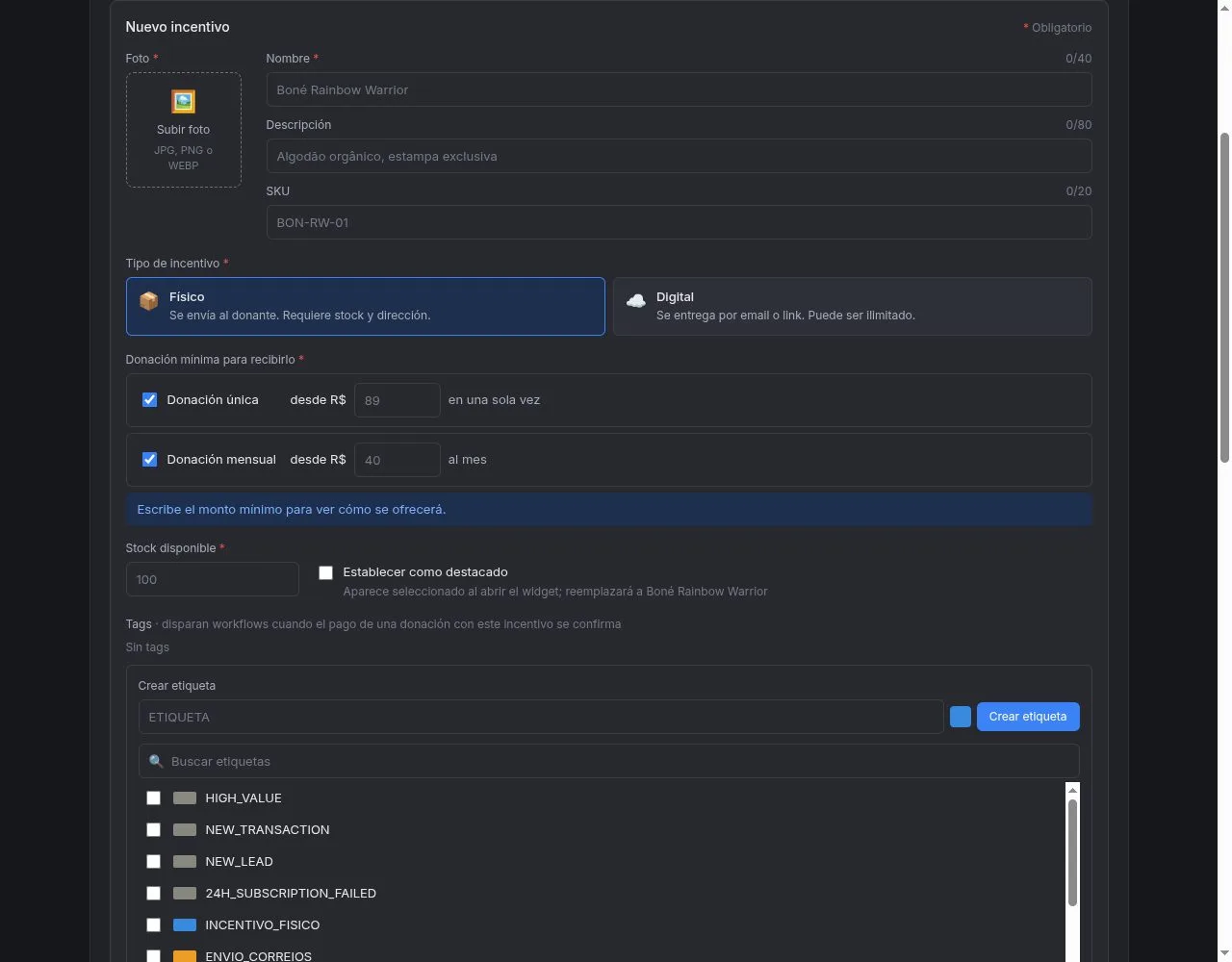
Reference image with sample data: your screen may look slightly different.
In the image, the text next to Tags says tags "trigger workflows". In fact, tags only group people: the gift is sent by the workflow.
Upload the photo. Click "Subir foto" (Upload photo) or drag the image in. You can crop it so it's square.
Give it a name. In Nombre (Name), write what the donor will see (up to 40 characters). In Descripción (Description) you can add a short detail, like the material or the edition (up to 80 characters).
Add your internal code (optional). In SKU you can enter the code your team uses for the gift. It helps you recognize it on the delivery list.
Choose the type. Choose Physical if you will send it to an address, or Digital if it arrives by email.
Set the minimum amount. In Minimum donation to receive it, turn on Donación única (One-time donation), Donación mensual (Monthly donation) or both, and enter the minimum amount for each. Below you will see a sentence that confirms the rule, for example: "Recibe este incentivo quien done 89 o más en una sola donación, o 40 o más al mes." ("Anyone who donates 89 or more in a single donation, or 40 or more per month, receives this incentive.")
Enter how many units you have. Write it in Available stock. If the gift is digital, you can check Unlimited stock.
Feature it (optional). If you check Set as featured, this gift is already selected when the donor opens the form. There can only be one featured gift per campaign.
Add tags. In Tags you can choose tags to group the people who receive this gift. If the gift is digital, you must mark one as the "Tag de entrega" (Delivery tag).
Save. Click "Create incentive". You will see "Incentivo creado" (Incentive created).
Part 3 — Check which gift each donor gets
Use the Incentive map. The Incentive map is in Catalog. Enter an amount in Si alguien dona (If someone donates) and you will see which gifts the donor can choose and how much more they need for the others. Switch between Donación única and Donación mensual to check both cases.
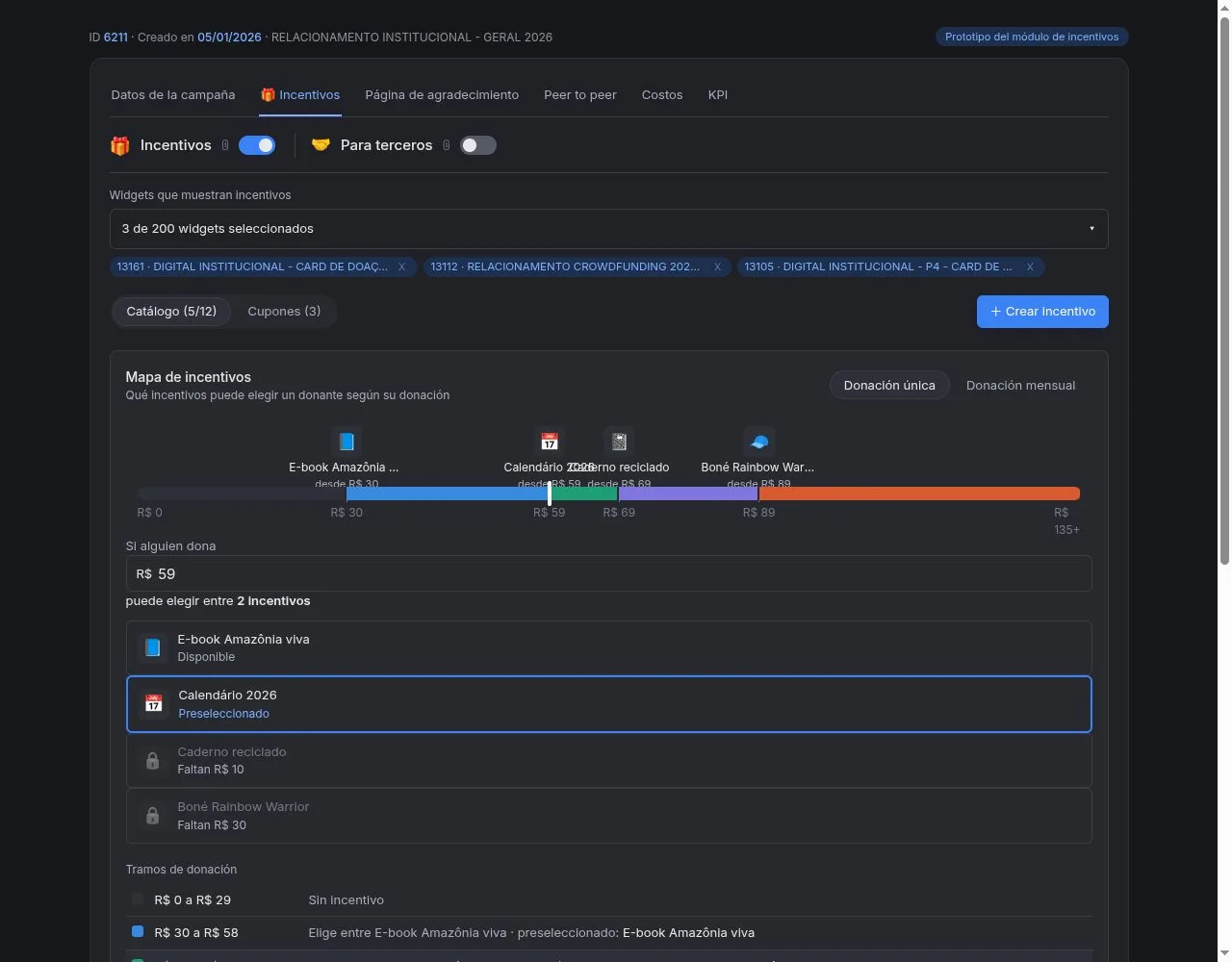
Reference image with sample data: your screen may look slightly different.
It's the best place to check that your amounts make sense before you publish.
To change a gift later: in its row menu you can edit it, feature it or delete it. With "Subir" (Move up) and "Bajar" (Move down) you change the order in which gifts appear on the form, and with the switch you turn it on or off. Changes apply only to new donations.
Can it be undone? Deleting a gift can't be undone, and you can only do it if nobody has received it yet. If it already has donations, turn it off instead: it stops appearing on the forms and still shows in your reports. Turning off the Incentives switch of the campaign can be reversed: your gifts, coupons and chosen forms are kept.
How to test incentives before showing them
Since gifts appear as soon as you save, the safest way is to test them with a copy of the form:
- Copy your form. In Fundraising > Widgets, use "Clonar" (Clone) on the form you will use. The copy is turned off and doesn't appear on your pages.
- Choose only the copy. In the Incentives tab, leave only the copy checked and click "Save selection".
- See how it looks. Open the copy's page and change amounts and frequency to check the gifts, the photos and the coupon.
- Move to your real forms. When you like it, go back to Widgets that show incentives, remove the copy, check your real forms and save.
Important: the test page is real. If you complete a donation there, it is charged. To check the design, just look and change amounts.
Gifts not showing? Check that the Incentives switch is on, that the form is checked and saved, that it's a Transacción (Transaction) widget, and that there is at least one active gift with a photo and units available.
What coupons are for
A coupon makes the gift easier to get: it lowers the minimum amount needed to receive it. It doesn't change what the donor is charged.
For example: if a gift is received from 100 and the coupon is 20%, with the coupon it is received from 80. The donor donates the amount they choose.
Coupons are useful to reward a group (your volunteers or the people at an event) or to run a promotion by email or on social media. A coupon works on every form in the campaign that has gifts.
How to create a coupon
Open coupons. In the campaign's Incentives tab, go to Coupons and click "Create coupon".
Write the code. Between 3 and 15 letters or numbers, for example CHRISTMAS20.
Choose the discount. Between 1% and 90%.
Set the expiry date and how many times it can be used in total.
Choose which gifts it applies to. If you don't check any, it works for all of them. Also choose whether it works for one-time donations, monthly donations or both.
Save. Click "Create coupon".
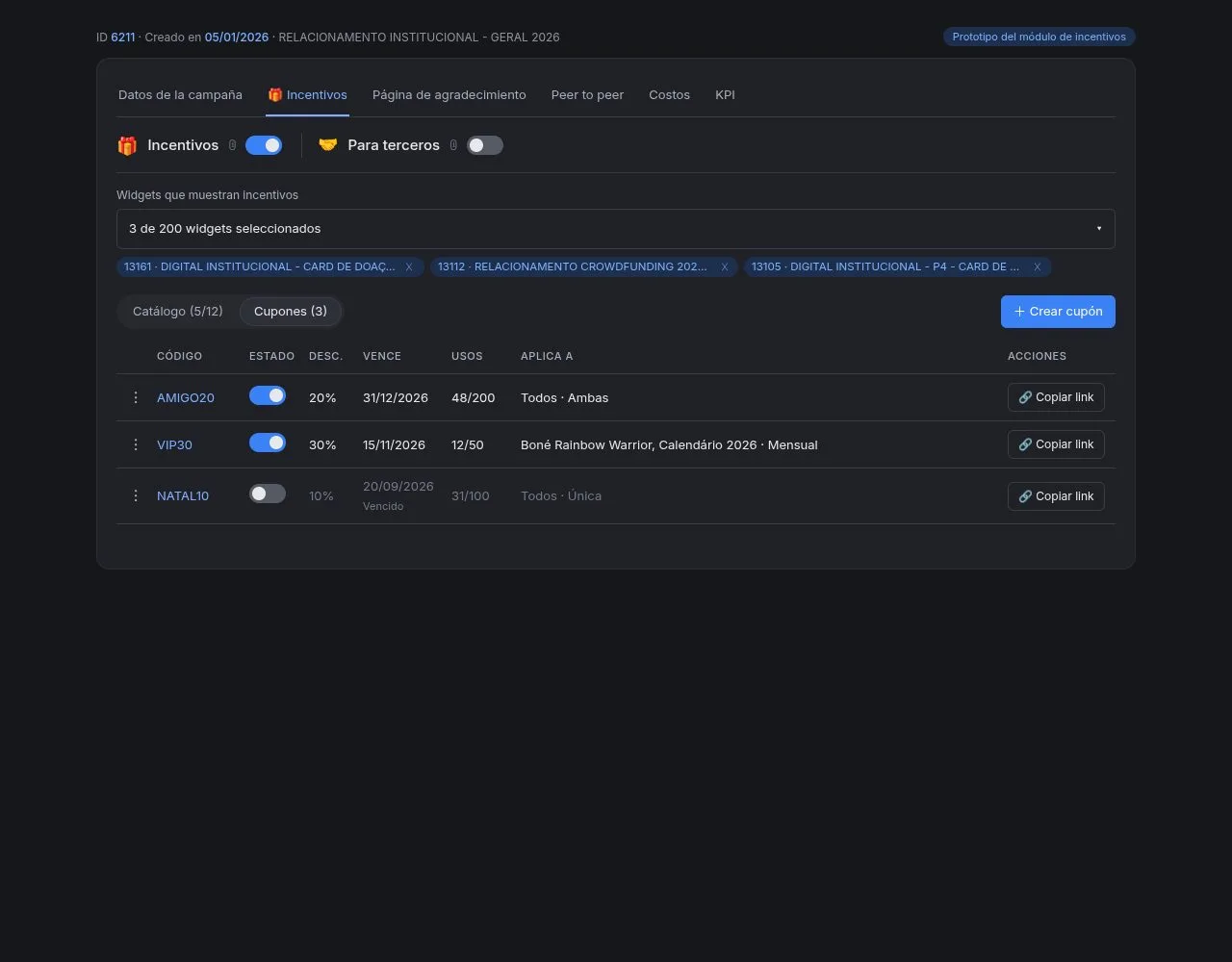
Reference image with sample data: your screen may look slightly different.
How to share the coupon
In the coupon's row, click "Copy link". That link opens the form with the coupon already applied: paste it as is in your email or post.
Keep in mind:
- Each person can use a coupon only once.
- When the date passes, the coupon becomes Vencido (Expired); when its uses run out, Agotado (Used up). To use it again, change the date or the number of uses.
- If a donor enters an expired, used-up or already used coupon, they will see "Cupón inválido o vencido" (Invalid or expired coupon).
How to set up an incentive for a third party
With this option, the donor donates in someone else's name, for example for a birthday or a tribute. That person receives a card with the donor's message and, when applicable, the gift.
- Prepare the card delivery. The card is sent by a workflow. Create it first, as explained in "Why create a workflow for incentives".
- Turn on the option. In the campaign's Incentives tab, turn on the For third parties switch.
- Choose a tag. Select the Tag de segmentación para terceros (Third-party segmentation tag). It's required; if you don't have one, create it there. AFRUS adds it to each person who receives a gift, so you can find them later.
When you finish, your forms will show the option Donar a nombre de otra persona (Donate in someone else's name). If you don't choose the tag, the option doesn't appear.
What the donor fills in: the occasion, the person's name and email, their message, how they want to sign, and when to send the card (as soon as the donation is confirmed or on a date they choose). If the gift is physical, they also choose whether it goes to the other person's address or to their own, to hand it over themselves. Before donating, they see how the other person will receive it.
The donation receipt goes to the donor; the card and the gift go to the honoree.
Can it be undone? Yes. If you turn off For third parties, the option disappears from the forms.
Third-party occasions for donating an incentive
The donor chooses one of these occasions:
- Cumpleaños (Birthday)
- Homenaje (Tribute)
- Condolencias (Condolences)
- Grado (Graduation)
- Boda (Wedding)
- Nacimiento (Birth)
- Otra (Other)
Each occasion comes with a suggested message that the donor can change.
They can also schedule the card for a special day: from tomorrow up to one year ahead. On that day it is sent at 8:00 a.m. (your organization's time).
Which widgets can have incentives
- Only Transacción (Transaction) widgets, that is, forms with amounts to choose from. Product, peer to peer and other form types don't appear in the list.
- Each form can be in only one campaign with gifts. If you already use it in another one, it shows as "En uso en la campaña…" (In use in the campaign…) and you can't choose it.
- Gifts are offered in your organization's currency. If the form accepts other currencies, people who donate in another currency make a regular donation, without a gift.
How many incentives can I set up
Up to 12 gifts per campaign. The screen shows how many you have left.
If you reach 12 and want to add another, you can delete one that nobody has received yet or edit one of the ones you have.
Only one can be the campaign's featured gift.
Why create a workflow for incentives
The workflow is what sends digital gifts and cards for someone else. Without it, those gifts don't arrive.
You create it once and it works on its own: every time a donation with a gift is confirmed, AFRUS sends the email. You can attach, for example, a PDF certificate.
To create it:
- Create a new workflow. Go to Interacciones > Flujos de trabajo (Interactions > Workflows).
- Choose when it starts. As the trigger, choose Reward assigned. If you want, you can limit it to one campaign or one gift.
- Turn on "Permitir reinscripción" (Allow re-enrollment). It's required, so the same person can receive more than one gift.
- Add a single step. Choose Enviar correo (Send email), write your message and attach the file if you need it. It works best with a single step.
- Turn on the workflow before you publish your gifts.
Important: if there is no active workflow, the delivery shows as Con problema (With a problem). AFRUS tries again several times over the following hours, so if you create it in time, the gift arrives.
Which incentives require a workflow
| Gift | Does it need a workflow? | How it is delivered |
|---|---|---|
| Digital for the donor | Yes | It arrives by email on its own when the payment is confirmed |
| For someone else (physical or digital) | Yes | The card arrives by email to that person, on the day the donor chose |
| Physical for the donor | No | You send it and mark it on the delivery list |
What happens when an incentive is out of stock
- It stops appearing on the form. Donors can choose another gift or donate without a gift.
- Stock goes down when the payment is confirmed, not when the donor chooses the gift. While they pay, the gift is held for them for 60 minutes.
- If it runs out while someone is donating, the donor sees "Este obsequio ya no está disponible. Elige otro obsequio o continúa sin obsequio." ("This gift is no longer available. Choose another gift or continue without a gift.")
- If the payment was already made when it ran out, the gift is still assigned and the donation is marked as Sobreventa (Oversold), so your team can decide how to handle it.
- To restock it, edit the gift and increase the Available stock.
- To see which ones are running low, in Fundraising > Incentivos (Incentives) filter by Stock bajo (Low stock) or Agotado (Out of stock).
How to track donated incentives
Open the dashboard. Go to Fundraising > Incentivos (Incentives). At the top you'll see how many gifts were assigned, how much you raised with incentives, how many were for someone else and how many are still to deliver. All your campaigns are there.
Check each gift. In the table, each gift shows how many times it was assigned, how much it raised, the average per donation, the stock and how many are still to be delivered. You can filter by campaign, type, stock and pending deliveries.
Open the delivery list. Click a gift to see People who must receive it: who receives it, who paid for it, whether it was for someone else (and the occasion), the delivery address or email, the date and the Estado (Status).

Reference image with sample data: your screen may look slightly different.
Mark your shipments. Select the people and, in "+ Acciones" (Actions), choose Marcar como enviado (Mark as sent) or Marcar como entregado (Mark as delivered). This way your team knows what still needs to go out. From there you can also tag them or download the list in Excel or CSV.
Check the donations. In Transacciones (Transactions), filter Origin type by Incentivo (Incentive) to see only donations with a gift. The Incentivo (Incentive) and Cupón (Coupon) columns tell you which gift and which coupon were used.
Important: only physical gifts are marked by hand. Digital ones change status on their own.
What the donor sees
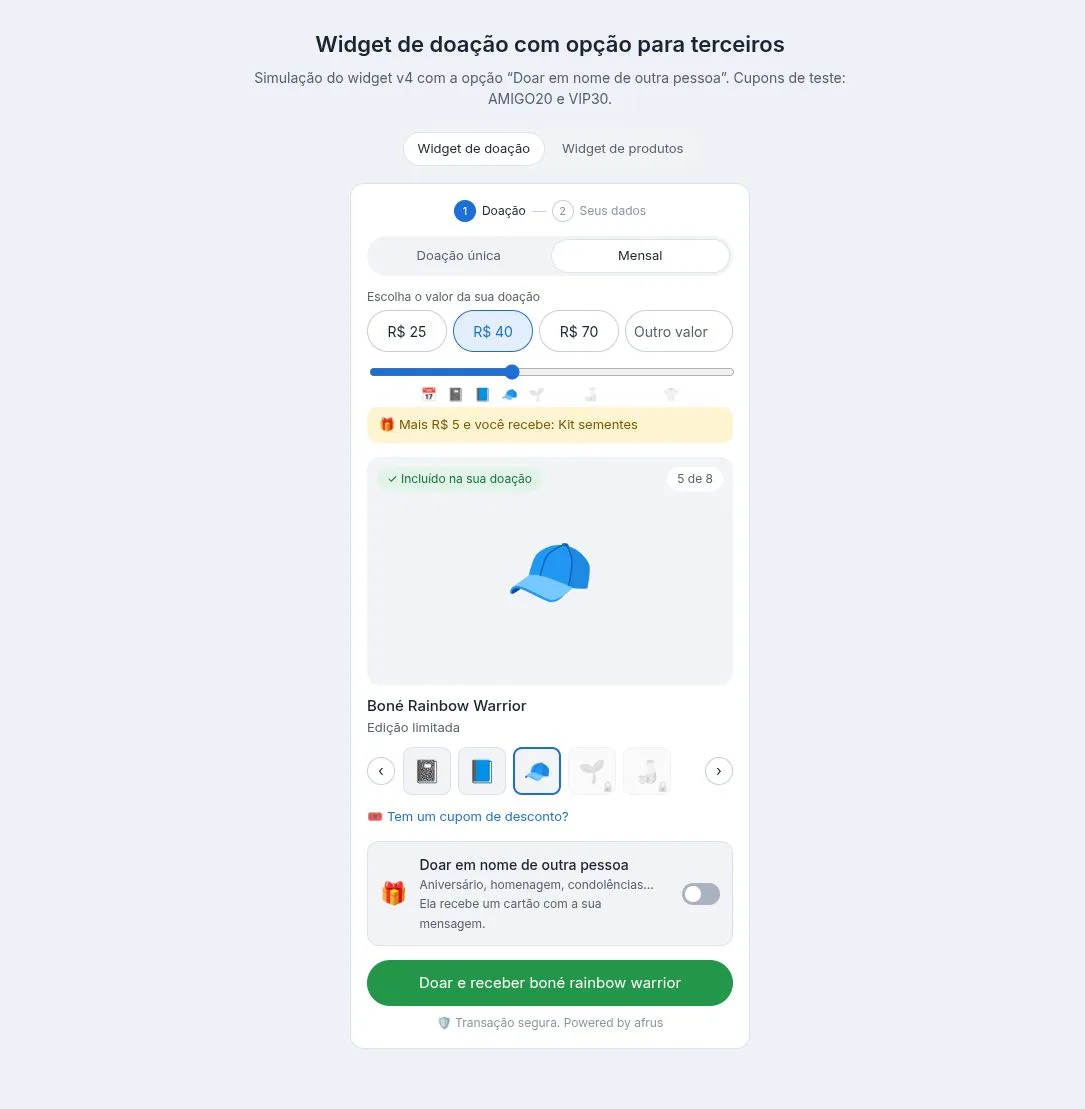
Reference image with sample data: your screen may look slightly different.
- Below the amounts they see a bar with the gifts and the amount from which each one is earned. The ones they haven't reached yet have a lock.
- A message tells them how much more they need for the next gift.
- If they choose a gift they haven't reached yet, the amount goes up on its own to that gift's minimum.
- They can always choose Sin obsequio (No gift), so their whole donation goes to the cause.
- If the gift is physical, we ask for their address.
- They can enter a coupon in "¿Tienes un cupón de descuento?" (Do you have a discount coupon?).
Delivery statuses
| Status | What it means | What you can do |
|---|---|---|
| Pendiente (Pending) | It still needs to be delivered | If it's physical, send it and mark it as sent |
| Programado (Scheduled) | It's for someone else and has a future date | Nothing: it is sent on that day |
| Enviado (Sent) | It has gone out | If it's physical, mark it as delivered when it arrives |
| Entregado (Delivered) | It has arrived | Nothing |
| Con problema (With a problem) | It couldn't be delivered | Check the reason shown in the list |
Good to know
- Monthly donations: the gift is delivered only once, with the first charge.
- Payments that take time to confirm (like boleto or Pix): the gift is assigned when the confirmation arrives.
- Refunds: the donation is marked as reversed, but the stock doesn't come back on its own and the gift isn't recovered automatically. Your team decides what to do.
- Payments confirmed much later: for privacy, the address is deleted after some time. If the payment arrives after that, the gift shows Con problema (With a problem) and has to be handled by hand.
- If you change a gift (amount, stock or tags), the change applies to new donations. Gifts already assigned don't change.
- If a gift has already been assigned, it can't switch from physical to digital or the other way around. Create a new one.
Frequently asked questions
Does the coupon change what the donor is charged?
No. It only lowers the minimum amount to receive the gift.
For a monthly donation, is the gift delivered every month?
No. It is delivered only once, with the first charge.
What happens if the payment fails?
Nothing is taken off the stock and there is nothing to deliver.
Can I use the same coupon on several forms?
Yes. It works on every form in the campaign that has gifts. When you copy the link, you choose which form you want it for.
How do I turn off gifts without losing my setup?
Turn off the campaign's Incentives switch. Your forms look like before, and your gifts, coupons and chosen forms are kept.
What happens if the donor takes more than 60 minutes to pay?
The gift is held for 60 minutes.
Does it work with every payment method?
Yes.
Last updated: 2026-10-27
Need help? Talk to the afrus team
In this article
✕
Related Tutorials

Incentives
October 27, 2026
What incentive coupons are for
Learn what incentive coupons are for, how to create them and how to share them with a link that already applies them.
afrus.ai
Incentives
October 27, 2026
What incentives are
Learn what incentives are: gifts your organization offers, inside a campaign, to people who donate from a minimum amount.
afrus.ai
Incentives
October 27, 2026
How to set up an incentive for a third party
Learn how to let donors give in someone else's name, so that person receives a card with their message and, when applicable, the gift.
afrus.ai
Incentives
October 27, 2026
What happens when an incentive is out of stock
Learn what donors see when a gift runs out and how to find and restock gifts with no units left.
afrus.ai