🡠 Back


People (Personas) guide
Reading time
15 min
People
October 28, 2026
afrus.ai
Complete guide to People (Personas): every step with its screenshots and the frequently asked questions.
In this article
After reading this guide you will know what Personas is, what it does for you, and how to create, filter, download, manage and delete your contacts, plus how to use everything in each person's profile.
Module: Personas (People) · Menu: Personas · Audience: fundraising, donor care and communications teams
About the labels in this guide: buttons, fields and menus are written exactly as they appear in the Spanish version of the console, with an English explanation where it helps.
What Personas is
Personas is your organization's contact database on AFRUS. It holds everyone who registered, donated or was created by hand by your team, with their details, tags, communication consents (opt-in), transactions, subscriptions, notes, reminders and the history of what they have done.
When you open it you will see the Indicadores globales (Global indicators: Total de personas, Activos, Suscriptores and Monto total — total people, active, subscribers and total amount), a search box, a date bar, the "Crear persona" (Create person), "Acciones" (Actions) and "Ver procesos" (View processes) buttons, and the people table. Clicking a person's ID opens their profile, with the tabs Contacto (Contact), Transacciones (Transactions), Subscripciones (Subscriptions), Recordatorios (Reminders), Notas (Notes) and Eventos (Events).
What it is for
- Find your contacts. Search and filter by tag, type, scoring, campaign, widget, UTM, whether they are contactable, and dates.
- Know each person. See their full profile and the history of everything they have done.
- Record and charge donations. Record manual donations, charge a saved card or create subscriptions from their profile.
- Respect their preferences. Manage communication consent (opt-in) per channel.
- Contact them directly. Send them a personalized payment link or an email.
- Work with groups. Export, tag or delete groups of people.
Before you start
- Permissions. To delete people, your user needs permission to edit people.
Step by step
How to create a person
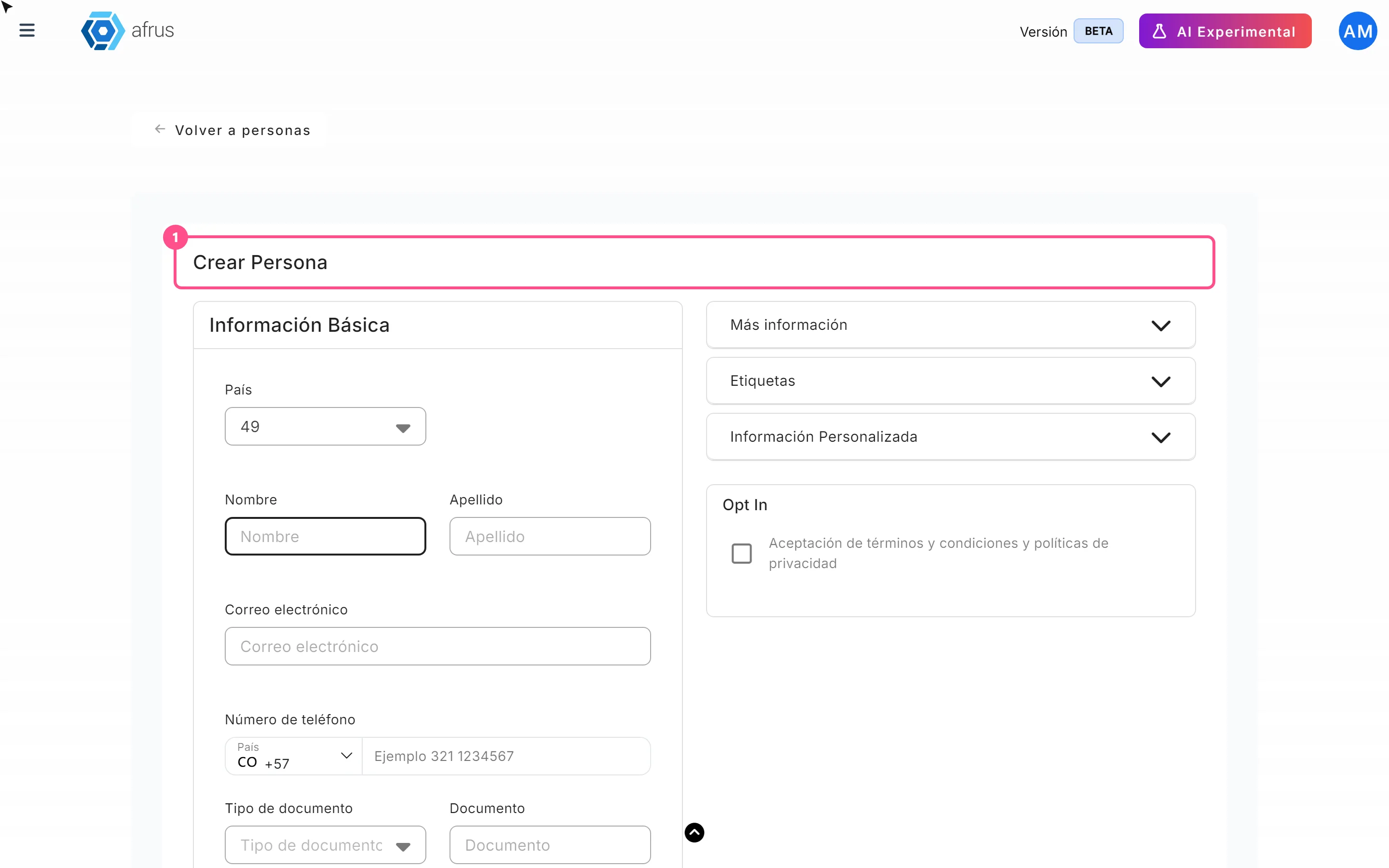
Open the form. In Personas, click "Crear persona" (Create person).
Fill in the details. Correo electrónico (email) is required and must be a valid format; Nombre (first name) and Apellido (last name) only accept letters. You can also fill in Número de teléfono (phone), Tipo de documento (ID type), Documento (ID number), Campaña (campaign), Widget, date of birth, country, state, city, postal code, time zone, address, company and Etiquetas (tags). The more you fill in, the better you can segment later.
Fill in the custom fields. The Información Personalizada (Custom information) section shows your organization's own fields.
Record consent, if given. Check Aceptación de términos y condiciones y políticas de privacidad (acceptance of terms, conditions and privacy policies) only if the person agreed to receive communications. This box accepts all communication channels at once.
Save. Click "Guardar" (Save) to return to the list, or "Guardar y crear otro" (Save and create another) to clear the form and create another person.
When you finish you will see "Lead creado con éxito" (Lead created successfully) and the person appears in the list.
Important: you cannot create a person with an email that already exists in your organization. If you try, the error may appear as the technical text
already_exists_email: it means that email is already registered. Search for it in the list and edit that person instead.
How to filter a group of people
Use the filter bar. Above the table you have Tags, Tipo (Type: Lead, Activo — active — or Recurrente — recurring), Scoring (a range), Campaña (campaign), Widgets, UtmCampaign and the "Solo contactables" (Only contactable) button.
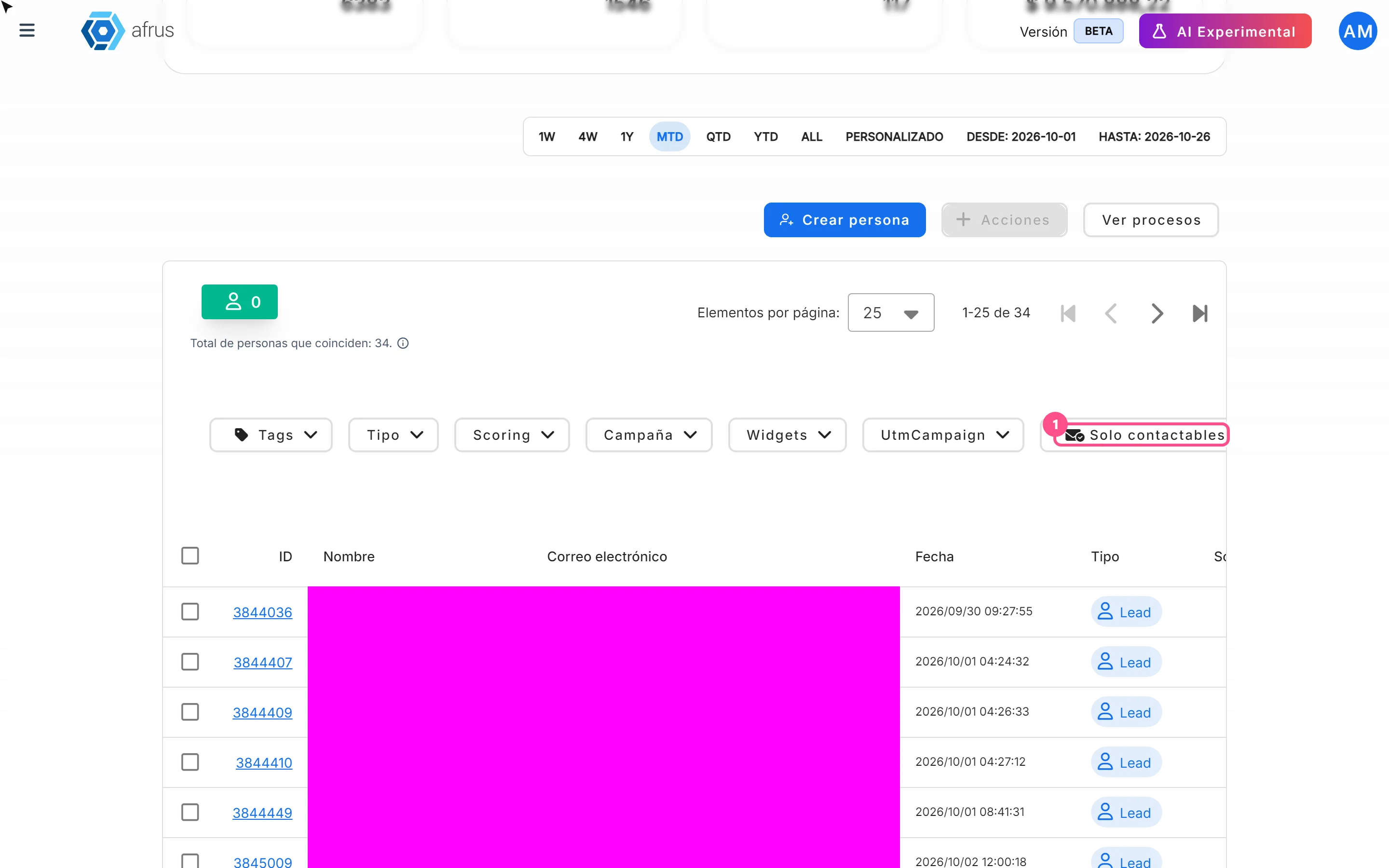
Search for someone specific. In the search box, choose to search by Nombre (name), Documento de identidad (ID document), Correo electrónico (email), Teléfono (phone) or ID de Lead (lead ID).
Adjust the dates. The date bar filters by the date the person was created.
Review or clear filters. Each active filter appears as a tag you can remove with the X. To clear everything, click "Restablecer" (Reset).
When you finish, the table and the text "Total de personas que coinciden: N." (Total matching people: N.) update.
Important: when you open the list, the date range is the current month. As soon as you apply a filter or a search, the range changes to ALL (all dates).
- Widget de origen (origin widget) and UTM Campaign de origen (origin UTM campaign) show the person's first sign-up. If you filter by another widget or UTM and they appear, it is because they also belong to that one, even though they first signed up through the one shown.
- Solo contactables leaves out hard bounces, unsubscribes and disabled emails. That is why totals may be lower than in Segments.
How to download a group of people
Filter the list. Apply the filters, search and dates you need.
Choose which rows to export (optional). Check the rows you want. If you check the whole page, the link Seleccionar las N personas de la base. (Select all N people in the database) appears.
Open the export. Click "Acciones" (Actions) and choose "Exportar" (Export).

Choose the data source. In Fuente de datos (Data source), choose Base de datos en tiempo real (real-time database: current data) or Datos analizados (analyzed data: "Estos datos se actualizan cada 24 horas" — this data is updated every 24 hours).
Choose the format and confirm. In Tipo de archivo (File type) choose xlsx or csv and click "Confirmar" (Confirm).
When you finish you will see "El proceso de exportacion ha comenzado, ten en cuenta que puede demorar unos minutos en completarse." (The export has started; it may take a few minutes) with the Ir a descargas (Go to downloads) link. The file is saved in Data > Descargas and you can download it for up to 7 days after it is generated.
- If you checked rows (without selecting the whole database), only those rows are exported. If you checked nothing or chose the whole database, the people matching the filters, search and dates are exported.
- The real-time export includes one column per custom field.
- People marked as spam are not exported.
- If nobody matches, you will see "No se encontraron personas que coincidan con los filtros seleccionados. Ajusta los criterios e intenta nuevamente." (No people match the selected filters. Adjust the criteria and try again.)
Important: the "Solo contactables" filter is not applied to the export: the file may include non-contactable people even when the filter is on. For now there is no alternative on this screen; review the file before using it for a send.
How to see the events a person has done
Open the profile. In Personas, click the person's ID.
Go to the Eventos tab. At the top you will see the Estado opt-in / opt-out (opt-in / opt-out status) per channel ("Activo desde …" — active since… — or "No registrado" — not registered).
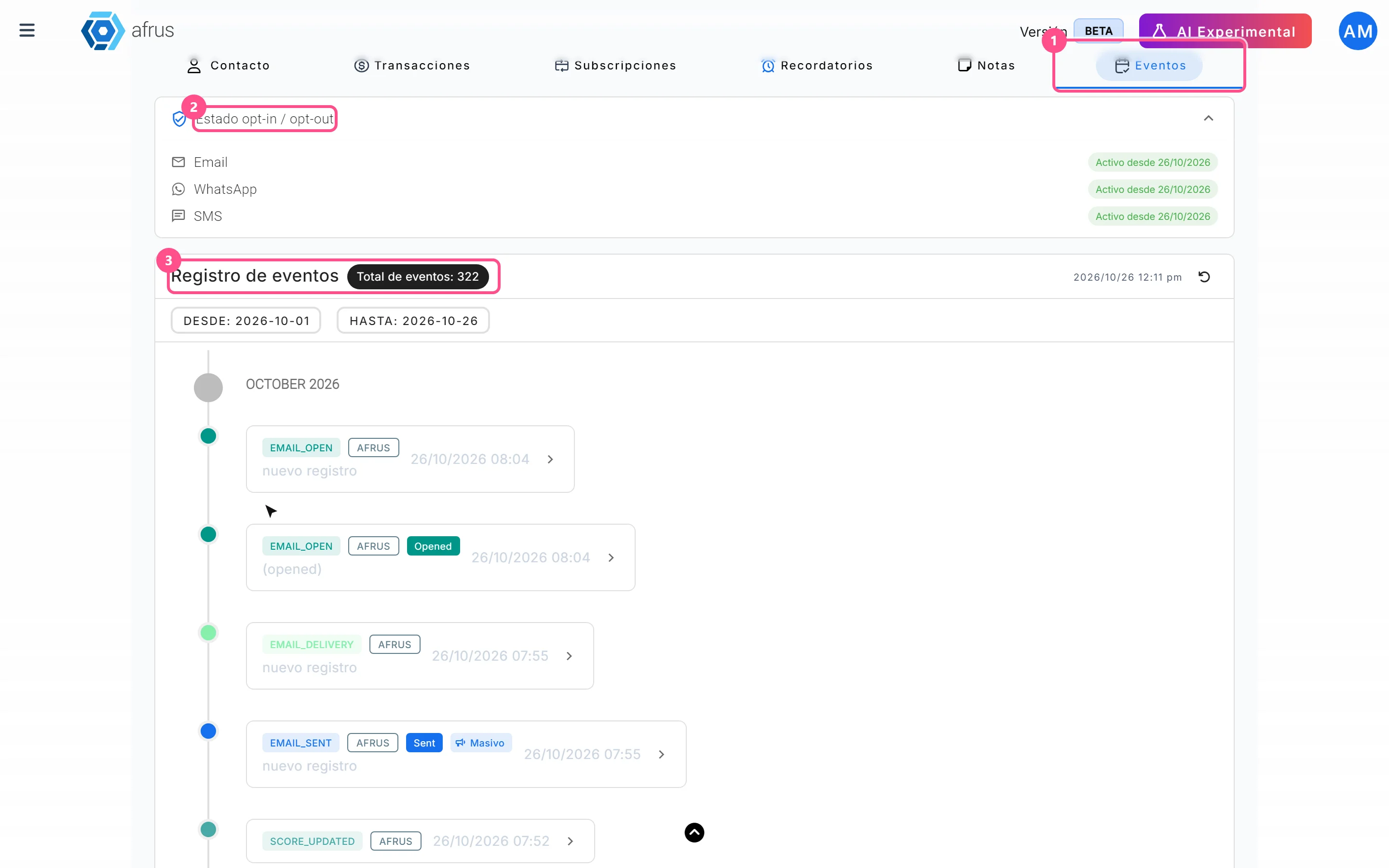
Browse the history. In Registro de eventos (Event log) you will see the Total de eventos (total events), grouped by month. 10 events load and more appear as you scroll. You can filter by dates.
Open an event. Click it to see its detail: ID del evento (event ID), Monto (amount), Score and, for messages, the template, sender and recipient, among other data.
Refresh the list if needed. The button showing the last-update time reloads the events.
How to turn opt-in on or off
Open the opt-in window. In the person's profile, click "Editar Opt In" (Edit opt-in).
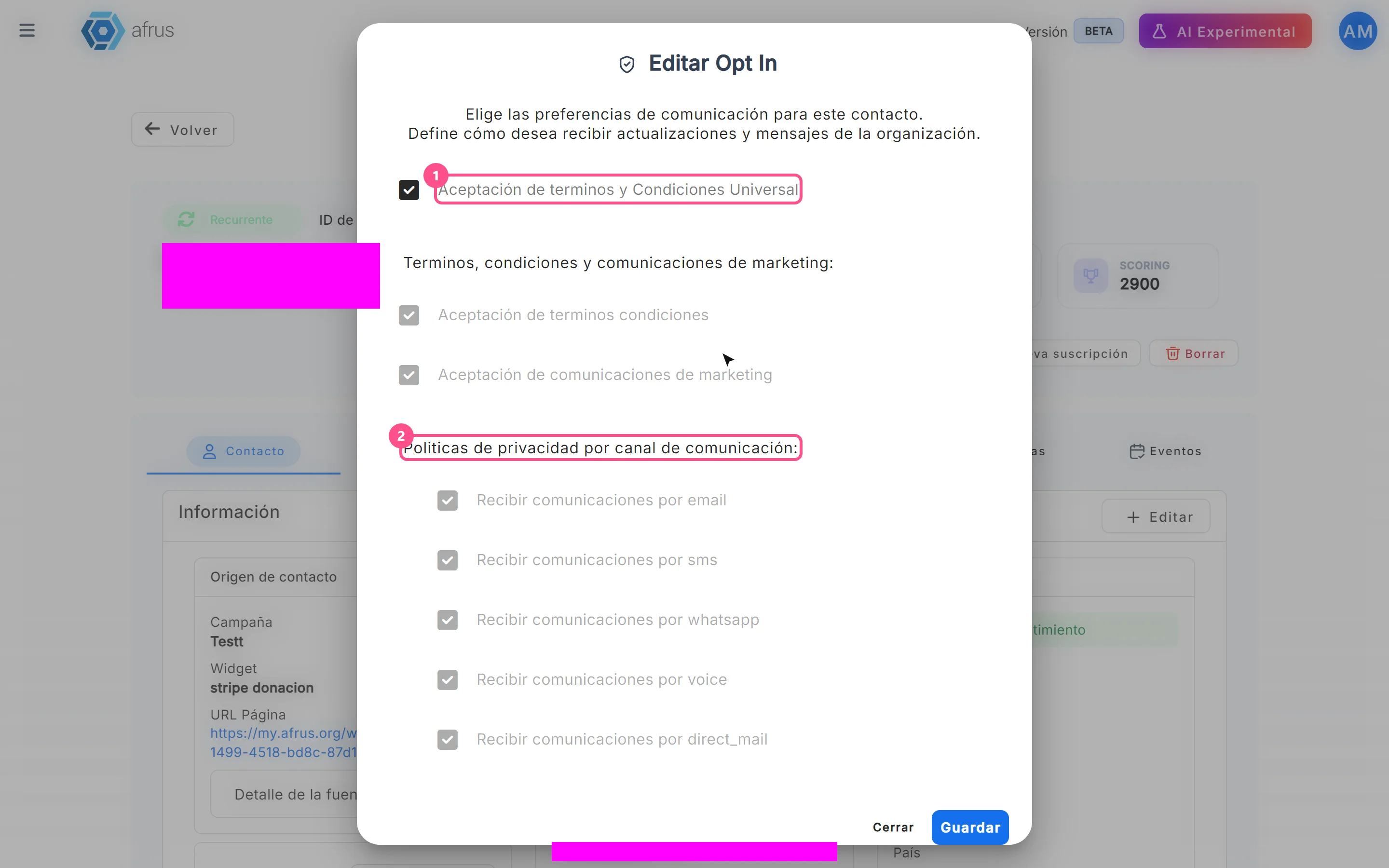
Check or uncheck the consents.
- Aceptación de terminos y Condiciones Universal (universal terms acceptance): checks everything and locks the other options.
- Aceptación de terminos condiciones (terms acceptance).
- Aceptación de comunicaciones de marketing (marketing communications acceptance): checks or unchecks all channels at once.
- Recibir comunicaciones por (receive communications by), channel by channel: email, sms, whatsapp, voice and direct_mail (postal mail).
Save. Click "Guardar" (Save). This way your sends respect what the person agreed to.
When you finish you will see "El Opt In se ha cambiado correctamente" (Opt-in changed successfully). The profile's Opt in card shows Sí (Yes) if there is consent on at least one channel (hover to see which), and the Contacto tab shows Opt In WhatsApp, Opt In Email and Opt In SMS.
Important: while Aceptación de terminos y Condiciones Universal is checked, the other options are locked. To remove a channel, uncheck it first.
Can it be undone? Yes. Open "Editar Opt In" again and change the boxes.
How to delete a person
One person, from their profile:
- Open the profile and click "Borrar" (Delete).
- Confirm. In the "Eliminar persona" / "¿Estás seguro que deseas eliminar esta persona?" (Delete person / Are you sure you want to delete this person?) window, confirm.
You will see "La persona se ha eliminado correctamente" (Person deleted successfully) and return to Personas. If the person had subscriptions with Débito Recurrente Bancario or Recurrent Payments, they are cancelled immediately in that payment gateway.
Several people, from the list:
- Check the rows. Check at least one row, or select the whole database.
- Choose Delete. Click "Acciones" (Actions) and choose "Eliminar" (Delete). Confirm "¿Estás seguro de que deseas eliminar a las personas seleccionadas?" (Are you sure you want to delete the selected people?).
- If you chose the whole database, confirm in writing. "[CUIDADO] Zona de peligro" ([CAUTION] Danger zone) appears and you must type
borrar_toda_la_baseto confirm.
You will see "El proceso de borrado de leads ha comenzado, ten en cuenta que puede demorar unos minutos en completarse." (Deletion has started; it may take a few minutes.)
Can it be undone? No. "Esta acción es irreversible. Eliminará permanentemente a la persona, junto con todas sus acciones, eventos, transacciones y suscripciones asociadas." (This action is irreversible. It will permanently delete the person, with all their actions, events, transactions and subscriptions.) If you only want to stop contacting them, turn off their opt-in instead.
Important: avoid deleting people who have or have had transactions or subscriptions: deleting them also deletes all their transactions and subscriptions, and you lose their history.
How to see a person's transactions and subscriptions
Open the profile. In Personas, click the person's ID.
Check the summary. The Contacto tab shows the cards Total transacciones (total transactions), Valor de transacciones (transaction value), Valor Medio (average value), Ingresos por suscripciones (subscription revenue) and Scoring.
Open the Transacciones tab. You will see each payment with ID, Fecha (date), Tipo de frecuencia (frequency type), Estado (status), Valor (value), Pasarela de pago (payment gateway), Metodo de pago (payment method), Email, Widget, Campaña, URL, Campaign Code and UTM campaign. In each row's menu, Detalles (Details) opens the transaction in a new tab, and Reembolsar (Refund) appears only on successful transactions in gateways that allow refunds.

Open the Subscripciones tab. In "Lista de Subscripciones" (Subscription list) you will see ID de subscripción (subscription ID), Monto (amount), Estado (status) and Fecha de creación (creation date).
What reminders and notes are for and how to use them
Reminders: so you don't forget a follow-up. You schedule an alert about the person and, on the date, AFRUS sends an email to you (the user who created it) with the person's name, email and phone and your message.
- Create the reminder. In the profile, Recordatorios tab, click "Crear recordatorio" (Create reminder).
- Fill it in. Write Nombre (name) and Mensaje (message), choose the date in Seleccionar Fecha (Select date) and the time, and save.
You will see "El recordatorio se ha creado correctamente" (Reminder created successfully). "Lista de recordatorios" (Reminder list) shows ID, Nombre, creation date and Estado (status), with filters by Estado (Creado — created, Completado — completed, Programado — scheduled, Todos — all) and by dates. Each row can be edited or deleted. AFRUS checks reminders every 10 minutes, so the email may arrive up to about 10 minutes after the chosen time; once sent, the status changes to Completado.
Notes: to record what already happened. They let you log an interaction that already took place with the person, so your whole team has the context.
- Create the note. In the profile, Notas tab, click "Crear nota" (Create note).
- Fill it in. Choose the Categoría (category: General, Correo — email, Teléfono — phone, or Reunión — meeting) and Fecha (date), and write the Descripción (description, up to 500 characters).
- Save. Click "Crear nota".
You will see "La nota se ha creado correctamente" (Note created successfully). "Lista de notas" (Note list) shows Responsable (who created it), Fecha, Categoría and Nota; you can filter by category, update and delete notes.
Where to see custom field information
- In the profile: Contacto tab, Más información (More information) card, Información Personalizada (Custom information) section. Each field appears with its value, or "-" if empty. The section only appears if the person has any custom field.
- When creating or editing: they are filled in the Información Personalizada section of "Crear persona" or "Editar" (Edit, in the Contacto tab).
- In the export: they come out as columns when downloading with Base de datos en tiempo real.
- Where they are defined: in Ajustes de Organización > Campos personalizados.
How to send personalized links to a person
Before you start: your organization needs a Business profile with a URL and a default donation widget.
Open the payment link box. In the person's profile, Contacto tab, find the Link de pago (payment link) box. The person's name and email are already filled in.
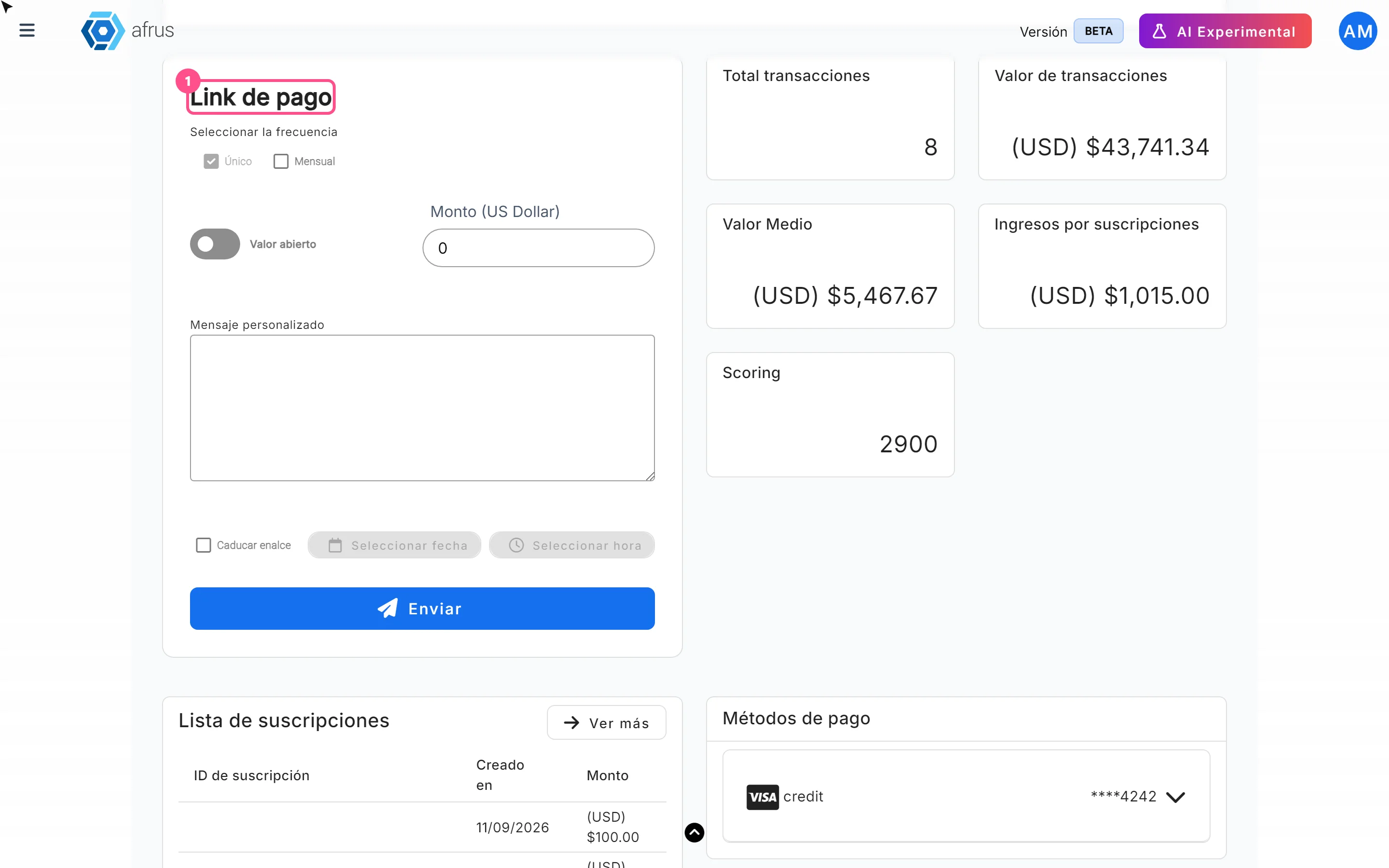
Choose the frequency. In Seleccionar la frecuencia (Select frequency), choose Único (one-time) or Mensual (monthly).
Set the amount. Type the Monto (amount, greater than 0) or turn on Valor abierto (open amount) so the person chooses how much to give.
Personalize the message. Write the Mensaje personalizado (personalized message). A warm message makes a donation more likely.
Set an expiry date (optional). Check Caducar enalce (expire link) and choose the date and time.
Send. Click "Enviar" (Send) and confirm "Desea enviar el link de pago?" (Do you want to send the payment link?).
When you finish you will see "¡Link de pago creado con éxito!" (Payment link created successfully!) and "Link de pago enviado exitosamente al siguiente correo: …" (Payment link sent to the following email: …). The link leads to your Business profile page.
- From the profile, the link is sent only by email, to the person's email address.
- Sending the link registers the person in the default widget.
- Another option: the profile's "Enviar Mensaje" (Send message) button sends a free-form email to the person, with sender, Asunto (subject) and Mensaje (message).
How to create a new transaction and a new subscription from a person's profile
New transaction
Open the window. In the profile, click "Nueva transacción" (New transaction).
Choose the type and click "Continuar" (Continue).
- Electrónica (Electronic — "Pagos con tarjeta, Paypal u otros medios digitales": card, PayPal or other digital payments): charges a saved card of the person or another configured method.
- Manual ("Pagos en efectivo, consignación, billetera o cheque": cash, deposit, wallet or check): records a payment you already received outside AFRUS.
Fill in the details.
- For Electrónica: Método de pago (payment method — the most recently used card appears first, marked Usado recientemente, recently used), Monto (amount), Moneda (currency), Campaña and Widget.
- For Manual: Método de pago (Efectivo — cash, Cheque — check, Transferencia — transfer, or Billetera digital — digital wallet), Monto, Moneda, Referencia (Opcional) (reference, optional), Fecha de transacción (transaction date), Fecha de registro en afrus (date recorded in AFRUS), Campaña and Widget. If the widget is a product widget, you choose products and quantities and the amount is calculated automatically.
- The Widget is chosen after the Campaña.
Create the transaction. Click "Crear transacción" (Create transaction).
You will see "La transacción se ha creado correctamente" (Transaction created successfully).
Important: the Electrónica option is only available if the person already has a successful card transaction in a gateway that allows manual charges. Otherwise you will see "No hay pasarelas de pago configuradas" (No payment gateways configured); in that case you can record a payment already received with Manual.
New subscription
Open the window. In the profile, click "Nueva suscripción" (New subscription); the "Nueva subscripcion" window opens.
Choose the payment method and amount. In Metodo de pago choose a saved card of the person or another configured method, and type the Monto (required, greater than 0).
Choose the charge day, if shown. If the card uses AFRUS's recurring engine, choose Fecha automática (recomendada) (automatic date, recommended), Fecha de creación de la suscripción (subscription creation date) or Fecha de cobro (charge date: a day from 1 to 28).
Link the campaign and widget. Choose Campaña and then Widget, so the subscription counts in their results.
Create the subscription. Click "Crear subscripcion" (Create subscription).
You will see "La subscripción se ha creado correctamente" (Subscription created successfully) and it appears in the Subscripciones tab.
Important: in this window, the Modo enhanced (enhanced mode) and Modo de reintentos (retry mode) options are not saved: the subscription is created without them. For now there is no alternative in this window.
Data and statuses
| Data | Values |
|---|---|
| Tipo (Type) | Lead, Activo (Active), Recurrente (Recurring) |
| Email status | No verificado (Not verified), Verificado (Verified), Soft Bounce, Hard Bounce, Opt Out, Deshabilitado (Disabled) |
| List columns | ID, Nombre, Correo electrónico, Fecha, Tipo, Scoring, Total de transacciones ($), Campaña, Widget de origen, UTM Campaign de origen, Tags |
What each type means: Lead is a person with no transactions; Activo (Active) is a person with at least one transaction; and Recurrente (Recurring) is a person with a subscription.
If the email bounced, the profile shows "Tiene Hard Bounce" or "Tiene Soft Bounce". If the person was marked as spam, the profile shows "Esta persona fue marcada como spam y está oculta de listas, segmentos, exportaciones y envíos." (This person was marked as spam and is hidden from lists, segments, exports and sends.) with the "No es spam" (Not spam) button.
Frequencies and timing
| What | When |
|---|---|
| People list | Updates when you open it or change a filter; the initial range is the current month |
| Download with Datos analizados | Every 24 hours |
| Files in Data > Descargas | Available for 7 days |
| Export and bulk delete | In the background; may take a few minutes |
| Reminders | AFRUS checks them every 10 minutes |
Frequently asked questions
Why does the list show fewer people than I expected?
When you open it, the date range is the current month. Apply any filter or search (the range changes to ALL) or adjust the date bar.
Why don't totals match with and without "Solo contactables"?
Because that filter leaves out hard bounces, unsubscribes and disabled emails.
Can I send the payment link by WhatsApp from the profile?
No. From the profile, the link is sent only by email, to the person's email address.
Can I recover a person I deleted?
No. Deleting is permanent and includes their events, transactions and subscriptions.
Last updated: 2026-10-27
Need help? Talk to the afrus team
In this article
✕
Related Tutorials

People
October 27, 2026
What the People (Personas) module is for
Learn what Personas is for: finding your contacts, knowing their history, recording donations and managing consent.
afrus.ai
People
October 28, 2026
How to create a person
Learn how to create a person by hand on AFRUS, with their details, tags, custom fields and consent.
afrus.ai
People
October 28, 2026
How to download a group of people
Learn how to export a filtered group of people from AFRUS to Excel or CSV and find the file in Downloads.
afrus.ai
People
October 28, 2026
How to filter a group of people
Learn how to search and filter people on AFRUS by tag, type, scoring, campaign, widget, UTM, contactability and dates.
afrus.ai