🡠 Back


AI email templates guide
Reading time
3 min
AI
October 28, 2026
afrus.ai
Complete guide to AI email templates: every step with its screenshots and the frequently asked questions.
In this article
With this guide you can choose the design of the emails the AI writes and create your own designs.
Module: AI · Menu: AI > Plantillas AI Email (AI email templates) · Audience: communications and design teams
About the labels in this guide: buttons, fields and menus are written exactly as they appear in the Spanish version of the console, with an English explanation where it helps.
What it is
AI email templates are the designs the AI uses to build your automatic emails. The AI writes the texts and the template defines how they look.
There are two kinds:
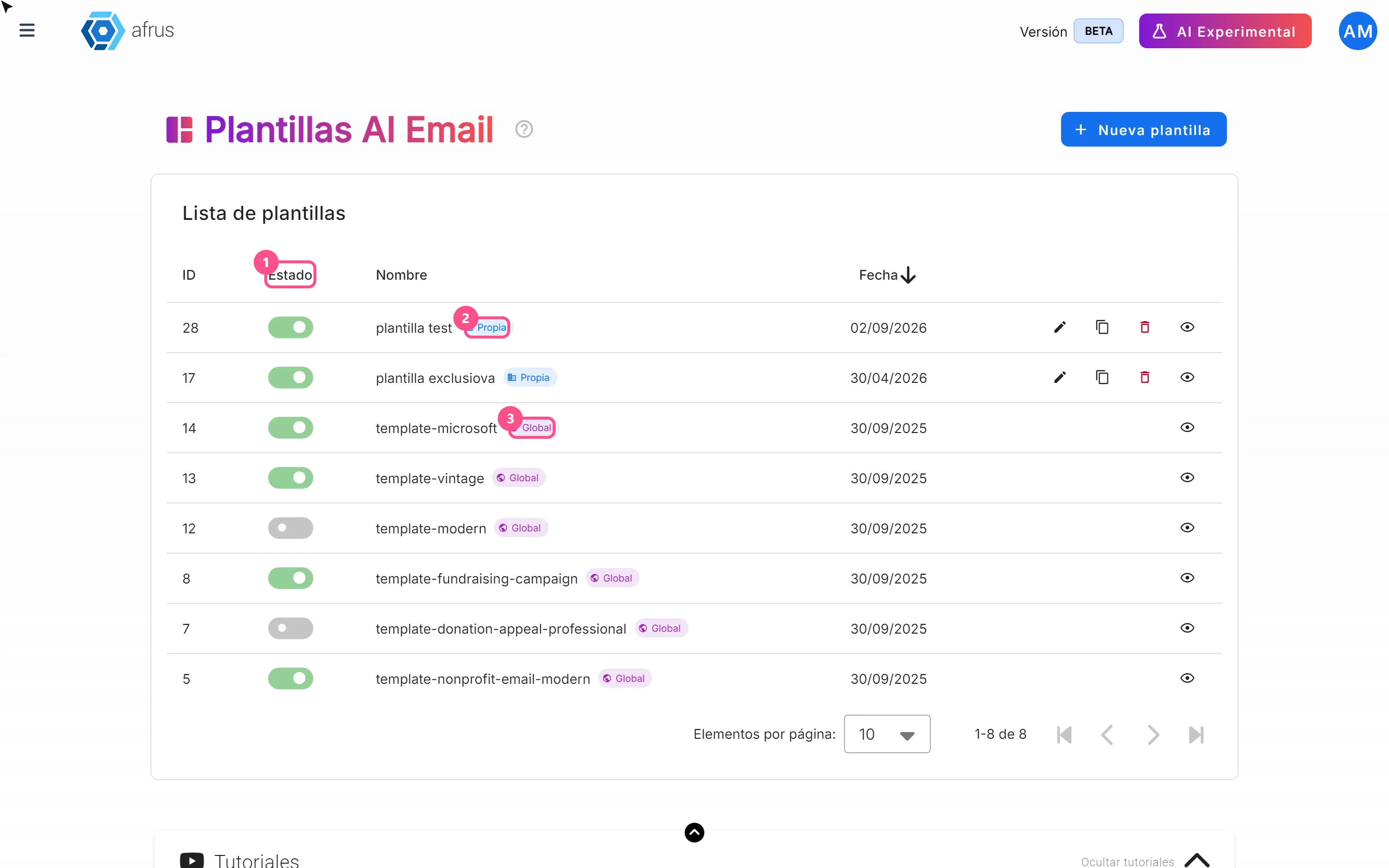
- Global: templates prepared by AFRUS. You can turn them on or off.
- Propia (Own): templates your organization creates. You can edit, duplicate or delete them.
What it is for
- Giving the AI emails your style. When an AI email uses a template design (in AI Blast and AI autoresponders), AFRUS picks one of your active templates at random and the AI fills in the texts.
- Deciding which designs are used. Only active templates are used: your templates set to Habilitado (Enabled) and the AFRUS ones you haven't turned off.
- Never running out of a design. If none is active, AFRUS uses a standard design.
Step by step
How to use it
Turn a template on or off
Open templates. Go to AI > Plantillas AI Email. You will see the list with Estado (Status), Nombre (Name), Fecha (Date) and whether it is Propia or Global.
Use the switch. In the Estado column, turn it on so the AI can use that template, or off so it doesn't. You will see "Plantilla activada correctamente" or "Plantilla desactivada correctamente" (template turned on / off).
For AFRUS templates (Global), turning them on or off is the only thing you can do, and the change only affects your organization.
Create your own template
Start a new template. Click "Nueva plantilla" (New template).
Name it. In Información general (General information), type the Nombre (required) and, if you like, a Descripción (description). In Estado, choose Habilitado if you want it used right away, or Borrador (Draft) if you are still working on it.

Design the email. In Diseño del email (Email design), click "Abrir editor visual" (Open visual editor) and build your design.
Add the spaces the AI fills in. Click the Merge tags button: the Merge Tags de Email window opens. Click the one you need to copy it, then paste it into your design. These are the spaces where the AI will put the title, paragraphs, button, main image, your logo or your social networks. Four are required: the title, the button text, the button link and the unsubscribe link. If any is missing, you will see "Tu plantilla debe incluir los siguientes merge tags obligatorios:" (Your template must include these required merge tags) with the list of the missing ones.

Save the design in the editor.
Save the template. Click "Guardar" (Save).
Important: save the design in the editor first, then the template. If you click "Guardar" without having saved the design, the template is not created and no message appears. If you don't see it in the list, open the editor again, save the design and save again.
To see how it looks: use "Previsualizar" (Preview). It opens in a new tab, in mobile or desktop view.
Other actions on your templates
On Propia templates you can:
- Editar diseño (Edit design).
- Duplicar plantilla (Duplicate template): creates a copy with the same name plus the word "copy".
- Eliminar plantilla (Delete template).
Can it be undone? No. A deleted template cannot be recovered. If you only want the AI to stop using it, turn off its Estado switch.
Frequently asked questions
Do I need the AI turned on to use this screen?
Yes.
Is there a limit on how many templates I can create?
No.
Last updated: 2026-10-27
Need help? Talk to the afrus team
In this article
✕
Related Tutorials
AI
October 28, 2026
User signatures guide
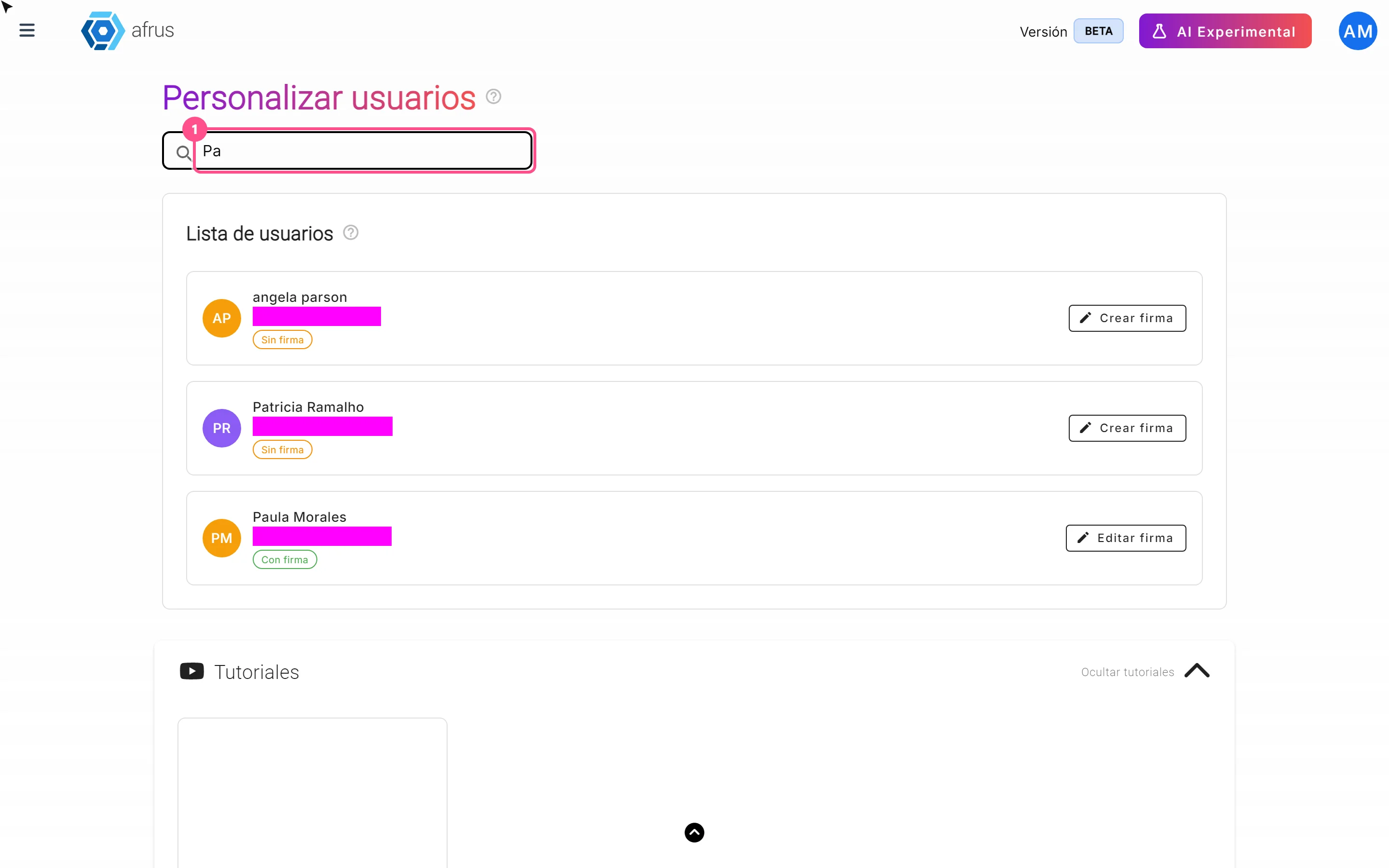
Complete guide to User signatures: every step with its screenshots and the frequently asked questions.
afrus.ai
AI
October 28, 2026
Website Agents guide (Agentes para la web)
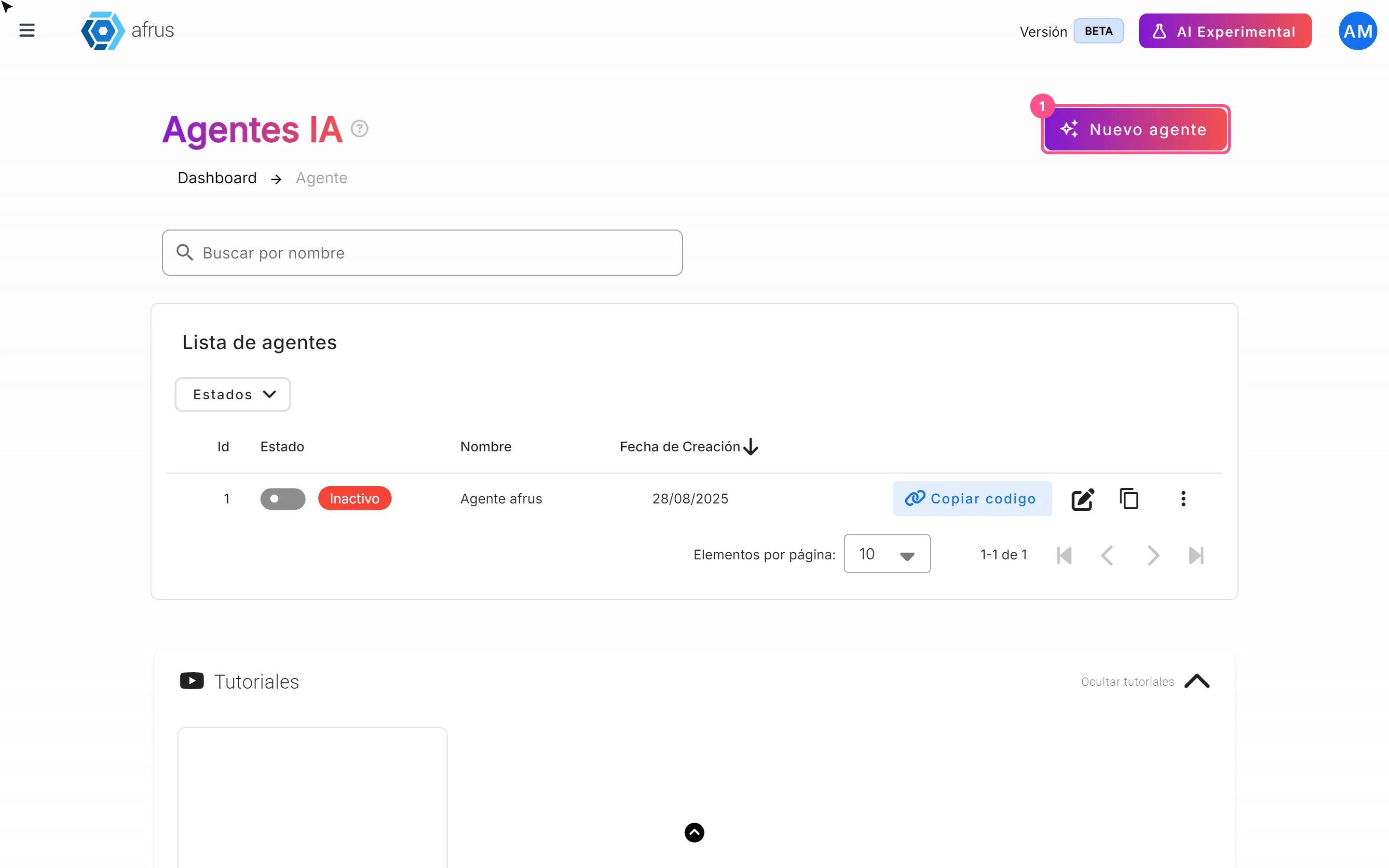
Complete guide to Website Agents guide (Agentes para la web): every step with its screenshots and the frequently asked questions.
afrus.ai
AI
October 28, 2026
AI Blast guide (Blast de AI)
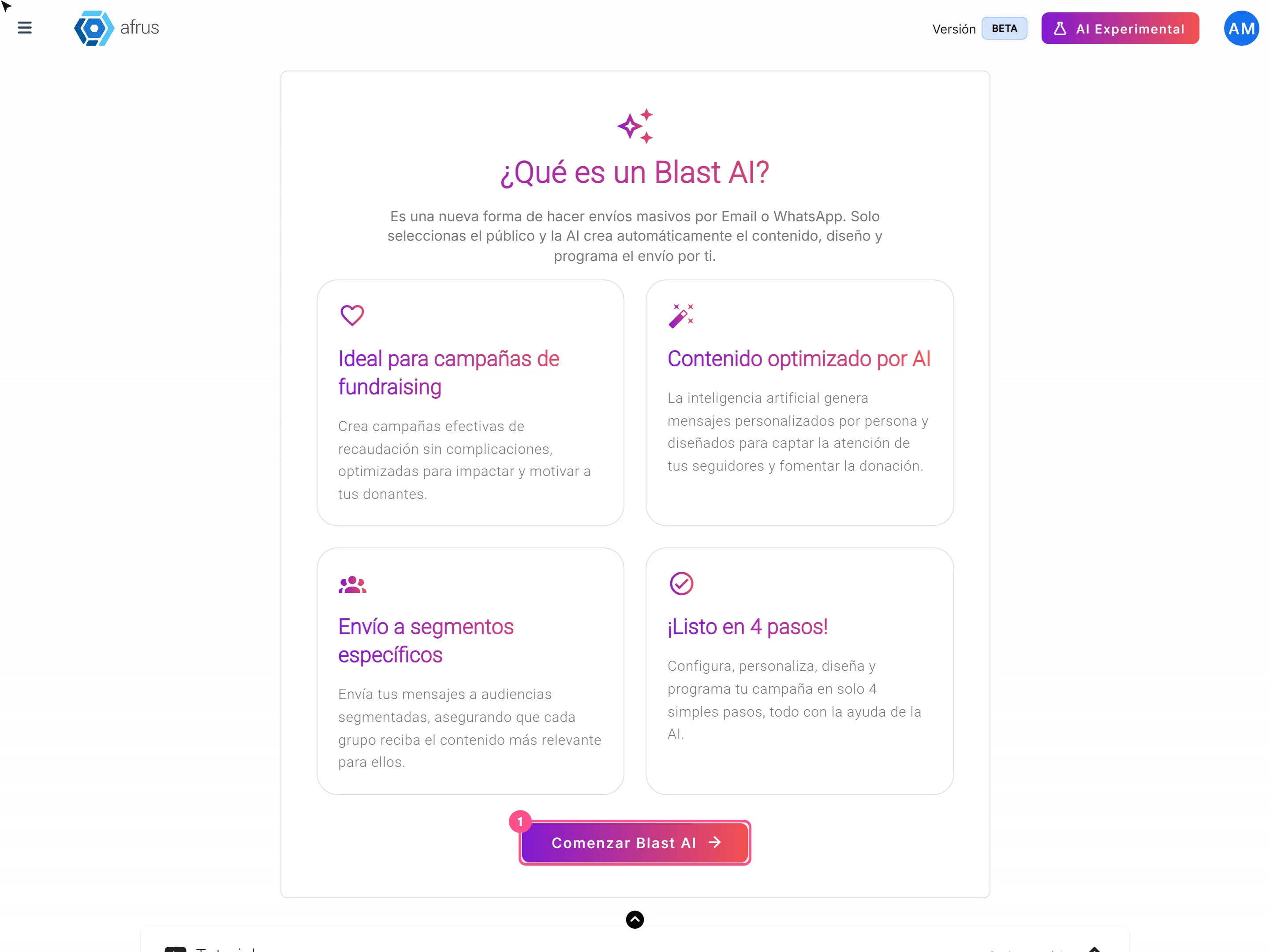
Complete guide to AI Blast guide (Blast de AI): every step with its screenshots and the frequently asked questions.
afrus.ai
AI
October 28, 2026
AI Chat guide (Chat con AI)
Complete guide to AI Chat guide (Chat con AI): every step with its screenshots and the frequently asked questions.
afrus.ai