🡠 Back


Procesos en ejecucion guide
Reading time
4 min
Trackers
October 28, 2026
afrus.ai
Complete guide to Procesos en ejecucion: every step with its screenshots and the frequently asked questions.
In this article
With this guide you will know whether an action you ran on many people at once (for example, tagging them or deleting them) has finished.
Module: Trackers · Menu: Trackers > Procesos en ejecucion (Running processes) · Audience: fundraising, data and communications teams
About the labels in this guide: buttons, fields and menus are written exactly as they appear in the Spanish version of the console, with an English explanation where it helps.
What Procesos en ejecucion is
It is a list of the actions you ran on a large group of people, with the progress of each one.
When you do something to many people at once, AFRUS doesn't do it all in one second: it goes person by person, in the background, while you keep working. This screen shows how far along each of those actions is.
Four actions appear here:
- Adding a tag to a group of people.
- Deleting a group of people.
- Changing the communication permission (opt-in) of a group.
- Enrolling a group of people in a workflow.
Imports, downloads and email sends do not appear here.
What it is for
- Knowing whether an action has finished. For example, before emailing the people you just tagged.
- Seeing how much is left. You compare how many people the group had with how many have been processed.
- Knowing who ran each action and when. Useful when several people on your team work with the same database.
Step by step
What information you find there and how to read it
Open the screen. Go to Trackers > Procesos en ejecucion. You can also get there with the "Ver procesos" (View processes) button in Personas, Transacciones, Suscripciones, Segmentos and Data > Tags.
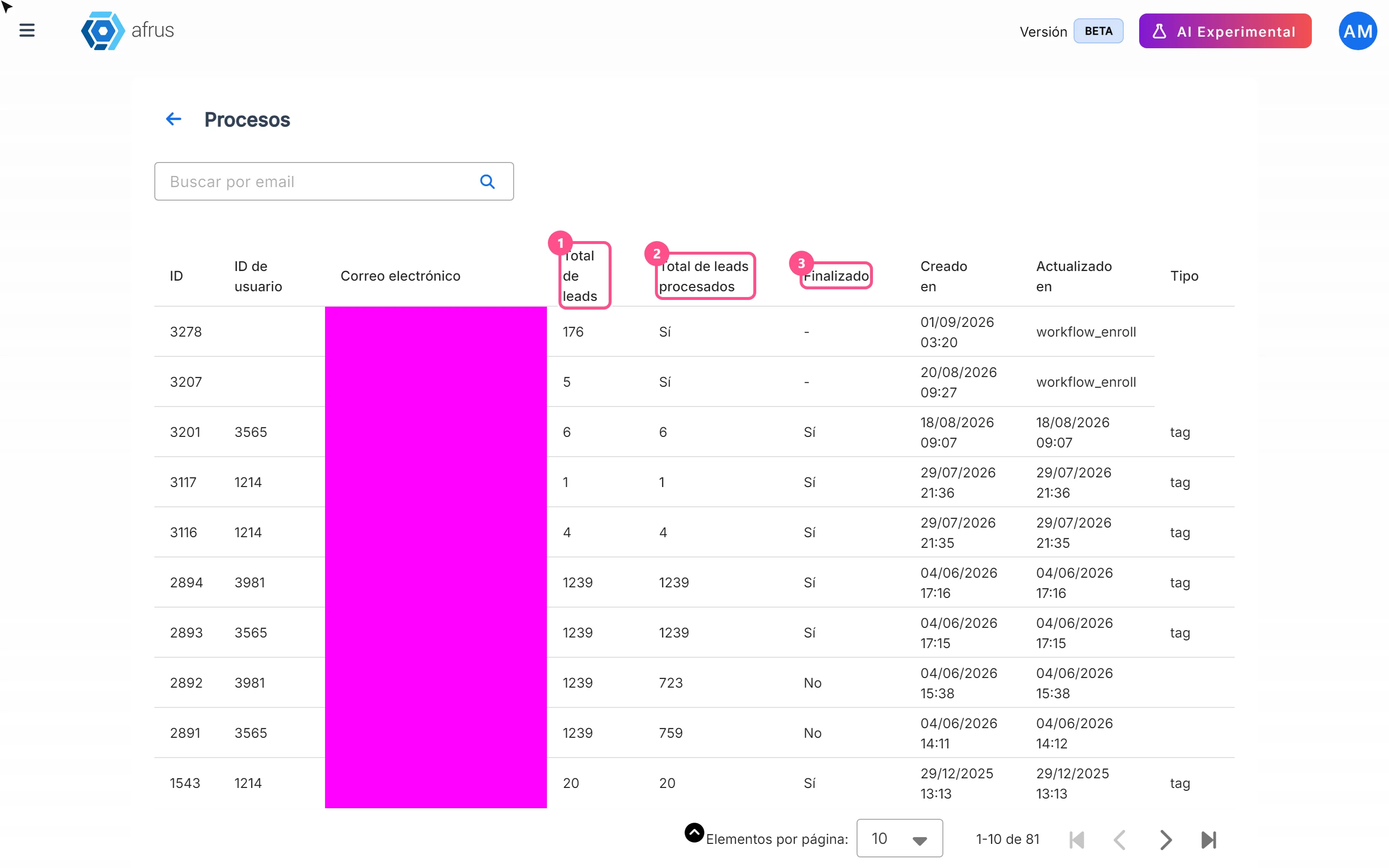
Find your process. To see only the processes run by someone on your team, type their email in Buscar por email (Search by email) and press Enter or the magnifying glass.
See the newest first. The list starts with the oldest processes. Click the ID or Creado en (Created on) column title to see the newest first.
Check the progress. Compare Total de leads (how many people the group had) with Total de leads procesados (how many have been done). When it's done, the Finalizado (Finished) column says "Sí" (Yes); until then it says "No".
Reload to see changes. The screen does not refresh by itself. Reload the page to see the progress.
The table columns:
| Column | What it tells you |
|---|---|
| ID | The process number. Write it down if you need to contact support |
| ID de usuario and Correo electrónico (user ID and email) | Who on your team ran the action |
| Total de leads | How many people the group had |
| Total de leads procesados | How many people have been processed |
| Finalizado | "Sí" if it finished, "No" if it's still running |
| Creado en | When it was started |
| Actualizado en (Updated on) | The last time it moved forward |
| Tipo (Type) | Which action it is (see the table below) |
The Tipo column shows an English name:
| Tipo | Which action |
|---|---|
tag |
Adding a tag to a group |
delete |
Deleting a group of people |
opt-in |
Changing a group's communication permission |
workflow_enroll |
Enrolling a group in a workflow |
Tip: if the Actualizado en time doesn't change for a long time, the process has stopped.
When a tagging action finishes, AFRUS also leaves a notice in your notifications: "Tag Leads Process for tag: '…' finished".
What to do if a process doesn't finish
If, after reloading, Finalizado still says "No" and Total de leads procesados isn't moving, the process has stopped. This screen has no retry button.
- If it was a tag: add it again to the same group. People who already have the tag won't get it twice.
- If it was a deletion, a permission change or a workflow enrollment: write down the process ID and contact AFRUS support.
Frequently asked questions
Does the screen refresh by itself?
No. Reload it to see the progress.
Why don't I see my import here?
Because imports are not shown on this screen. This list only shows tags, deletions, permission changes and workflow enrollments.
Last updated: 2026-10-27
Need help? Talk to the afrus team
In this article
✕
Related Tutorials
Trackers
October 28, 2026
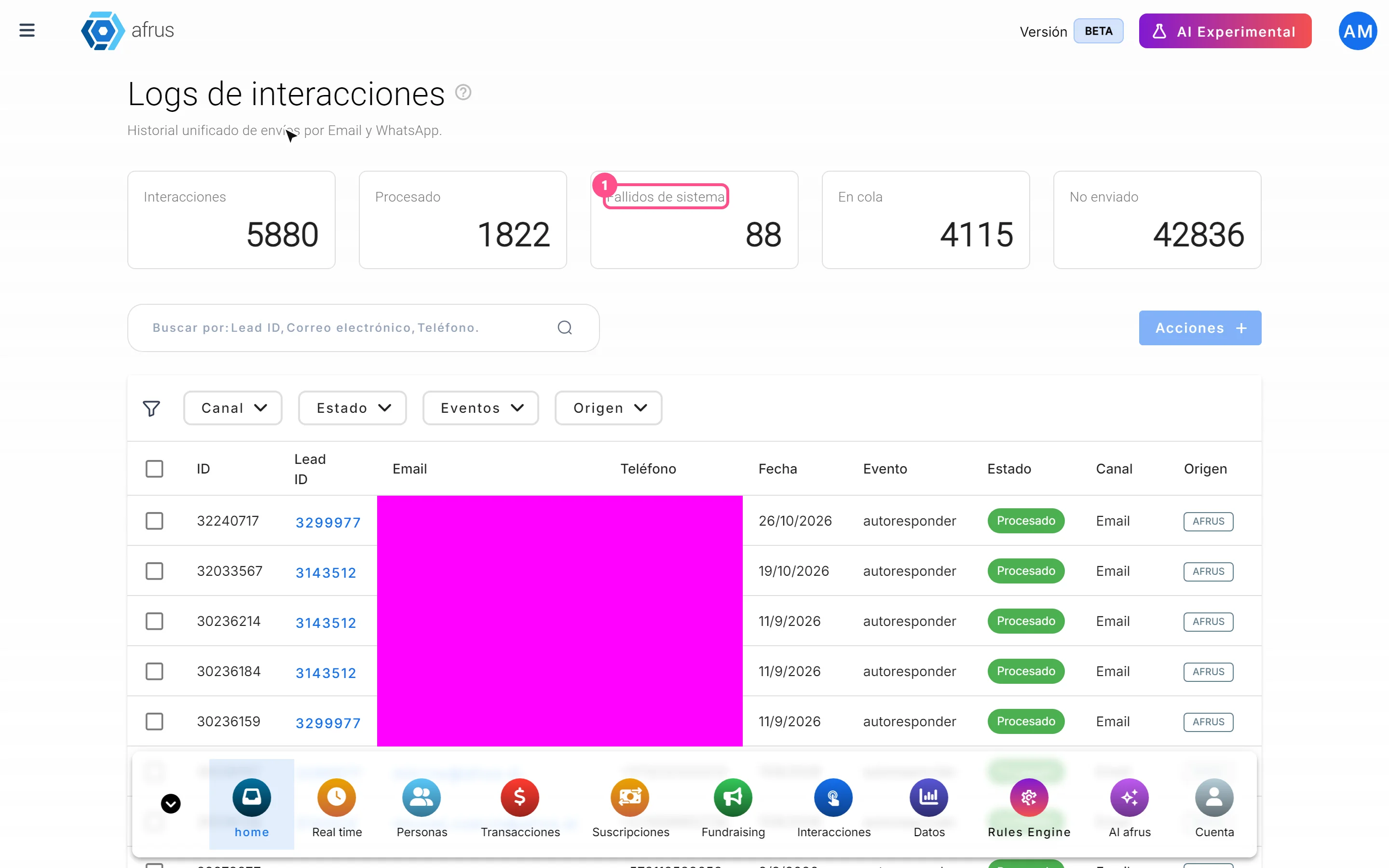
Logs de interacciones guide
Complete guide to Logs de interacciones: every step with its screenshots and the frequently asked questions.
afrus.ai
Trackers
October 28, 2026
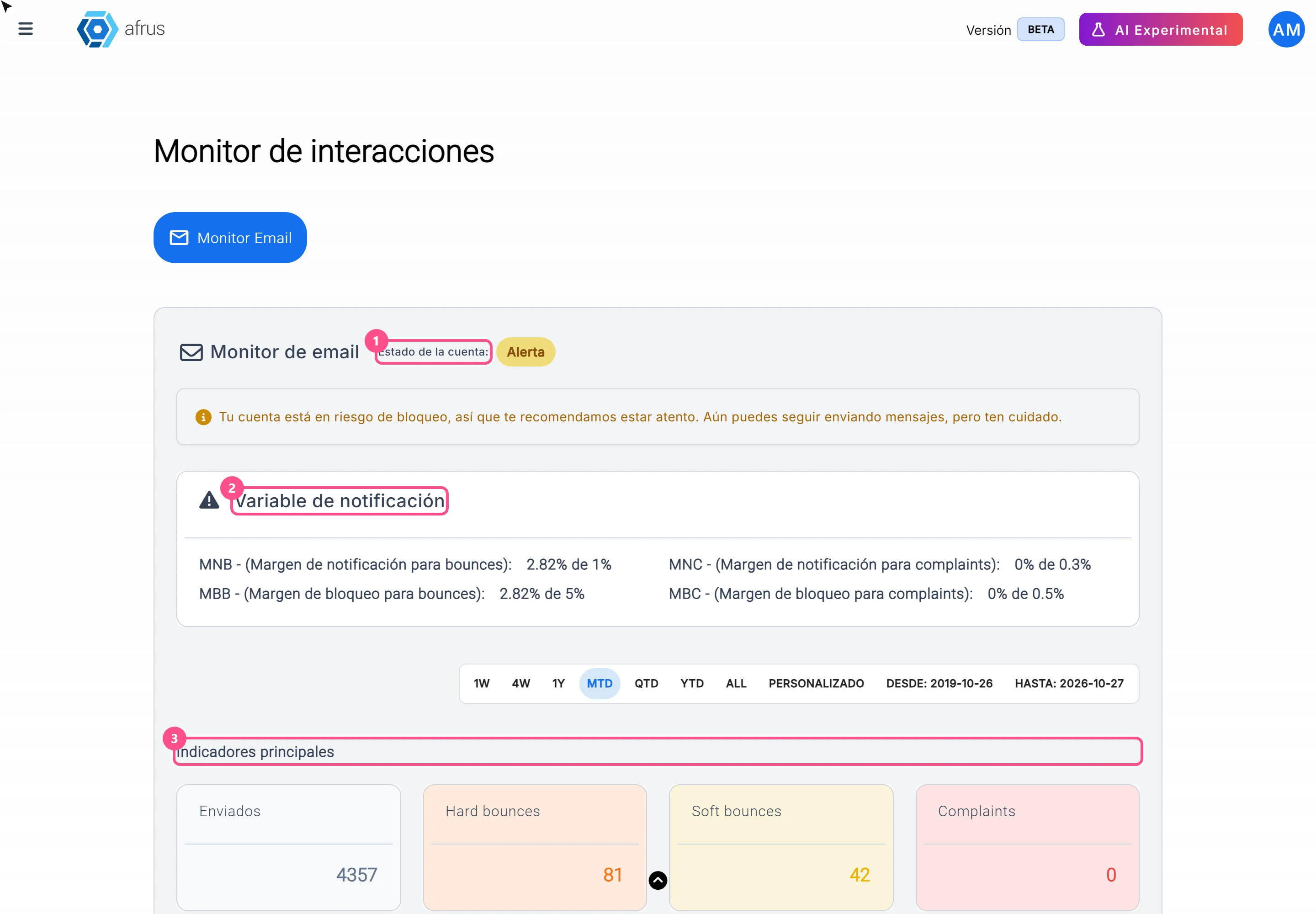
Monitor de interacciones guide
Complete guide to Monitor de interacciones: every step with its screenshots and the frequently asked questions.
afrus.ai
Trackers
October 28, 2026
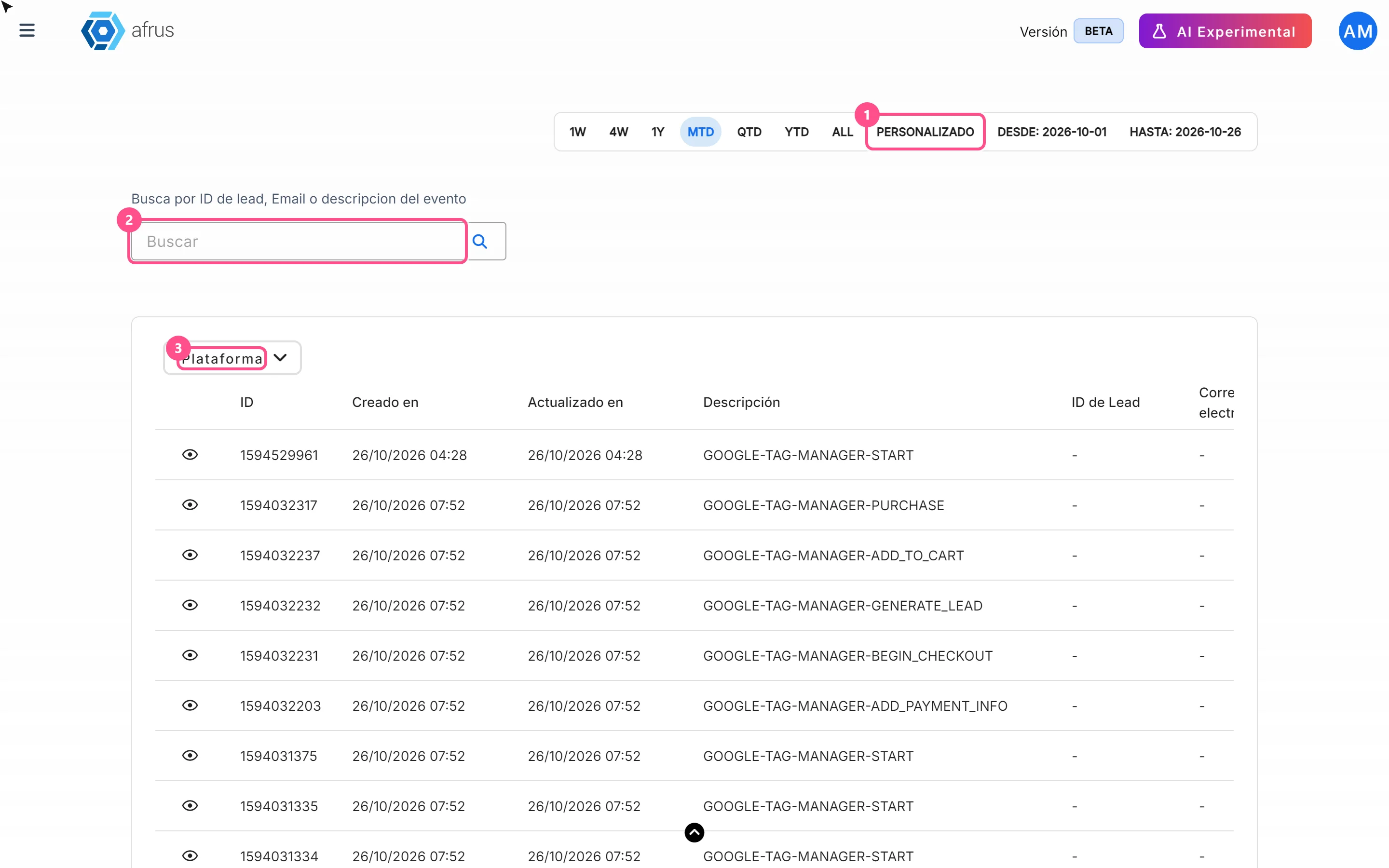
Logs de analytics guide
Complete guide to Logs de analytics: every step with its screenshots and the frequently asked questions.
afrus.ai
Trackers
October 27, 2026
What Logs de interacciones is
Learn what Logs de interacciones is: the history of every email and WhatsApp message AFRUS prepared for a person.
afrus.ai