🡠 Back


Subscriptions guide
Reading time
11 min
Subscriptions
October 28, 2026
afrus.ai
Complete guide to Subscriptions: every step with its screenshots and the frequently asked questions.
In this article
After reading this guide you will know what the Suscripciones (Subscriptions) module is, what it is for, and how to filter, download, modify, cancel or mark as fraud your organization's recurring donations.
Module: Suscripciones · Menu: Suscripciones · Audience: fundraising, donor care and admin teams
About the labels in this guide: buttons, fields and menus are written exactly as they appear in the Spanish version of the console, with an English explanation where it helps.
What Subscriptions is
Suscripciones is the list of your organization's recurring donations. Each row is one subscription, not each monthly charge: the charges for each month appear in Transacciones (Transactions) and in the history of the subscription's detail.
From here you can search and filter subscriptions, export them, mark them as fraud and open their detail to modify or cancel them.
What it is for
- Knowing how many subscriptions you have and their status. The Estado (Status) column shows, for example, whether they are active, failed or cancelled.
- Finding a donor's subscription. Search by name, ID document, email, phone or ID.
- Downloading a group of subscriptions. Export the subscriptions you filtered to Excel to analyze or share them.
- Changing the amount or the charge date. Handle your donors' requests without them having to donate again.
- Cancelling a subscription. When the donor asks for it.
- Marking fraudulent subscriptions. To remove them from your lists and reports.
Before you start
- Permissions. To cancel or modify subscriptions you need permission to view and operate subscriptions. If you don't see the options, ask your organization's administrator for access.
- The list updates when you open it or change a filter. It does not refresh on its own while open.
Step by step
How to filter a group of subscriptions
Open the module. Go to Suscripciones.
Choose the date range. Use the date bar: 1W, 4W, 1Y, MTD, QTD, YTD, ALL or PERSONALIZADO (Custom, with DESDE (From) and HASTA (To)). By default you see the current month (MTD).
Important: the range filters by the subscription's creation date, not by the charge date. If you are looking for an older subscription, widen the range (for example, ALL).
Search for a donor (optional). Click Buscar por (Search by), choose Nombre (Name), Documento de identidad (ID document), Correo electrónico (Email), Teléfono (Phone) or ID de subscripcion (Subscription ID), type the value and click "Buscar" (Search). The search runs within the chosen date range.
Apply the table filters. In the row with the funnel icon, choose a filter, select what you need and click "Aplicar" (Apply), or "Restablecer" (Reset) to clear it:
- Valor (Amount): compares the amount, converted to your organization's currency, with Mayor que (Greater than), Igual que (Equal to) or Menor que (Less than).
- Estados (Statuses)
- Pasarela de pago (Payment gateway)
- Metodo de pago (Payment method)
- Campaña (Campaign)
- Widgets
- Lapsed: a toggle button; shows only subscriptions marked as lapsed.
- Reset: clears all filters at once.
Set how many rows you see. In the pagination you can show 10, 25, 50 or 100 rows per page.
When you finish you will see the table and counter updated. The filters are saved in the page address, so you can copy it and share it with your team.
Important: the list never shows subscriptions with the status Fraude (Fraud), Reintentando (Retrying) or Expirada (Expired). If you choose Reintentando or Expirada in the Estados filter, the result will be empty.
How to download a group of subscriptions
Filter the subscriptions. Set the dates and filters as explained in "How to filter a group of subscriptions".
Choose what to export. "Exportar" (Export) is disabled until you select at least one row.
- To export only some, tick their boxes.
- To export everything filtered, tick the header box (selects the page) and then click Seleccionar las N subscripciones de la base. (Select the N subscriptions in the database). You will see "Las N subscripciones de tu base estan seleccionadas" (The N subscriptions in your database are selected).
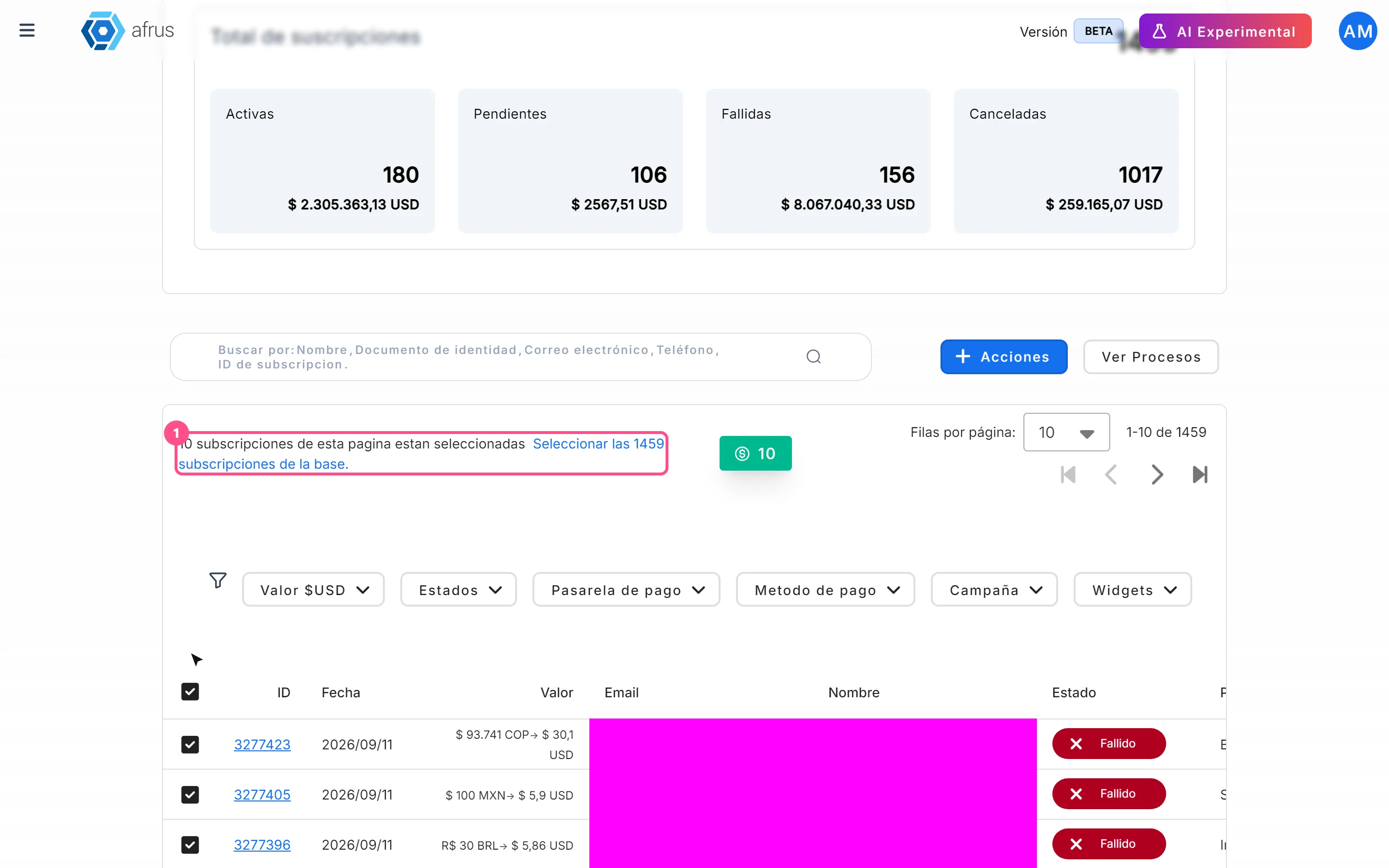
Export. Click "Acciones" (Actions) and choose Exportar.
Confirm. In the Descargas (Downloads) window, choose the Tipo de archivo (File type) and click "Confirmar" (Confirm). You will see "El proceso de exportacion ha comenzado, ten en cuenta que puede demorar unos minutos en completarse." (The export has started; it may take a few minutes to complete.)
Download the file. When it is ready, download it from Data > Descargas. Files can be downloaded for up to 7 days after they are generated.
When you finish you will have an Excel (.xlsx) file with one row per subscription. Monthly charges are not included in this file; for those, download from Transacciones.
Keep in mind:
- The file is always Excel (.xlsx), even if you choose CSV.
- If you selected individual rows, only those rows are exported, without applying dates or filters.
- If you export the whole database, the dates and the Valor, Estados, Pasarela de pago, Metodo de pago, Campaña and Widgets filters are applied. Lapsed and the search box are not; if you used the search box, the export may fail. For a reliable result, clear the search box before exporting the whole database.
- If you don't choose any status, the file total may not match the table. To make them match, choose the statuses you want to export in Estados.
How to change a subscription's charge date
Open the subscription. In Suscripciones, click the row's ID.
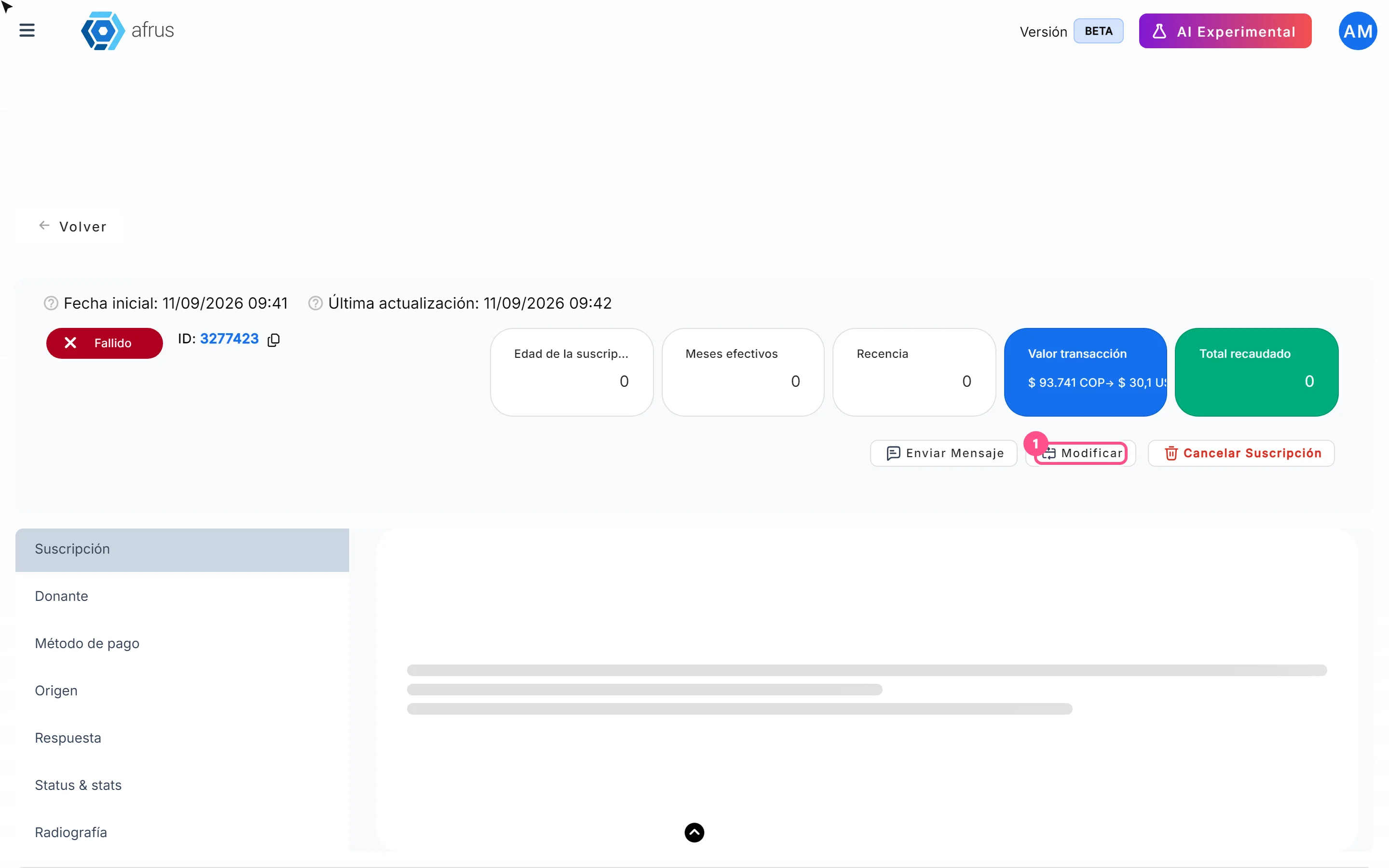
Click "Modificar" (Modify). Depending on how the subscription's payment gateway is connected, one of these three windows opens:
If the window is called "Modificar fecha" (Change date) — subscriptions charged by the AFRUS engine:
- Choose an option:
- Fecha automática (recomendada) (Automatic date, recommended): keeps the date AFRUS calculates.
- Fecha de creación de la suscripción (Subscription creation date): charges on the same day of the month it was created (if that day is after the 28th, it uses the 28th).
- Fecha manual (Manual date): in Fecha de cobro (Charge date), choose a day from 1 to 28.
- If the chosen day is after today, the next charge is on that day this month; if it is today or earlier, on that day next month.
- You can also change the amount.
If the window is called "Modificar Suscripción" (Modify subscription) and shows "Fecha actual de cobro:" (Current charge date):
- In Fecha (Date), choose the new charge date (it must be after today) and, if you want, change the Monto (Amount).
If the window is called "Modificar Suscripción" without "Fecha actual de cobro:":
- In Fecha, choose the new charge date (from tomorrow on) and, if you want, change the Monto (greater than 0).
- Choose an option:
Save and confirm. Click "Guardar" (Save) and then confirm ("Confirmar", "Confirmar modificación" or "Actualizar Suscripción", depending on the window).
When you finish you will see "Suscripción actualizada correctamente." or "Suscripción actualizada exitosamente" (Subscription updated successfully). If the subscription was Activa (Active), it stays Activa.
Keep in mind:
- In the Modificar fecha window, the confirmation message appears in English ("Update subscription"); this is expected.
- Some gateways don't allow changes from AFRUS. In that case you will see "Este gateway actualmente no soporta la actualización de suscripciones." (This gateway does not currently support updating subscriptions.)
- Subscriptions waiting for the payer's acceptance cannot be modified: you will see "Acción no disponible" (Action not available).
- With the Recurrent Payments gateway there is no date field. The screen says: "Los pagos recurrentes se realizan el primer día hábil de cada mes. Si el pago falla, se reintenta semanalmente hasta que sea exitoso." (Recurring payments are made on the first business day of each month. If the payment fails, it is retried weekly until it succeeds.) In practice, the charge day depends on the day the donor paid and moves earlier over time, possibly until it reaches the first day of the month.
Can it be undone? Yes. Click "Modificar" again and set the previous date or amount.
How to cancel a subscription
Before you start: only subscriptions with the status Activa or Fallido (Failed) can be cancelled (with some gateways, also Pendiente (Pending) and Revisión pendiente (Pending review)). The button appears in any status, but in the others the cancellation gives an error.
Open the subscription. In Suscripciones, click the row's ID.
Click "Cancelar Suscripción" (Cancel subscription). It is the red text in the detail.
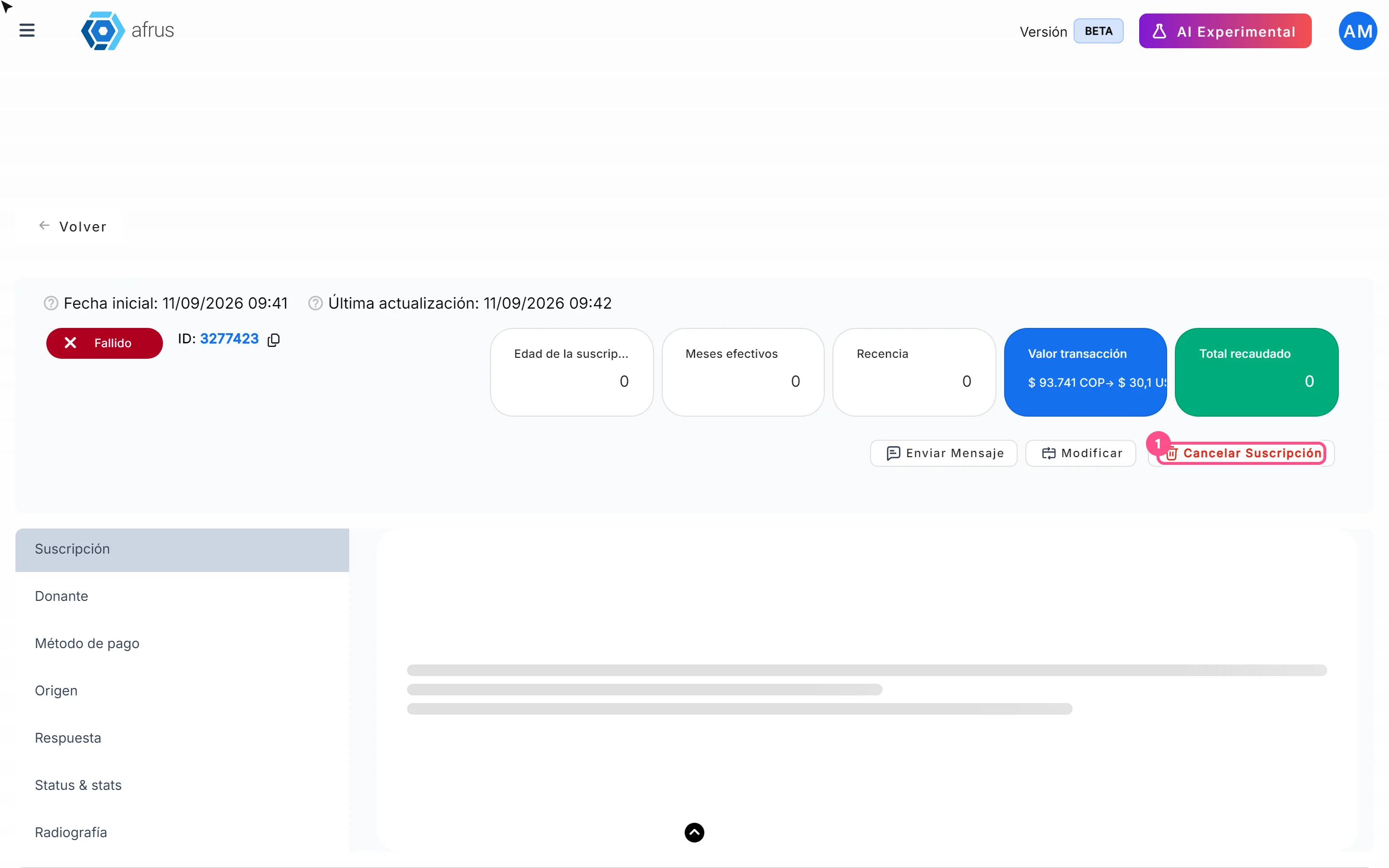
Confirm. In the window "¿Estás seguro de que deseas cancelar tu suscripción?" (Are you sure you want to cancel your subscription?), click "Confirmar" (or "Cerrar" (Close) to leave without cancelling).
When you finish you will see "La suscripción se ha cancelado correctamente" (The subscription was cancelled successfully). The subscription changes to Cancelada (Cancelled) and the pending charges AFRUS had scheduled are deleted. Cancellation is immediate; there is no option to cancel at the end of the period.
Can it be undone? No. There is no button to reactivate the subscription: as the window warns, it "no podrá ser reactivada automáticamente" (cannot be reactivated automatically). If the donor wants to come back, they will need to create a new recurring donation.
If something goes wrong:
- If you see "Error al cancelar la suscripción" (Error cancelling the subscription), check the status. Depending on how your organization is connected, some gateways also don't allow cancelling from AFRUS.
- If nothing happens when you click "Confirmar" and no message appears, the subscription was not cancelled.
In both cases, contact AFRUS support with the subscription ID.
Keep in mind: although the window says the donor will be notified, the notice depends on the donor's issuing bank, which is the one that can inform them of the reversal. That's why it's best for your organization to let the donor know.
How to mark a subscription as fraud
Important: marking as fraud does three things at once: the subscription changes to Fraude, disappears from the Suscripciones list and the associated donor is deleted from your Personas (People) database. It cannot be undone.
Before you start: marking as fraud only changes the status inside AFRUS; it cancels nothing at the payment gateway. If the gateway charges on its own (for example Stripe), cancel the subscription first (see "How to cancel a subscription") so charges stop.
Select the subscriptions. In Suscripciones, tick the box of each one. With none selected, the "Acciones" options are disabled.
Choose the action. Click "Acciones" and choose Marcar como Fraude (Mark as fraud).

Confirm. In the Marcar como fraude window, click "Confirmar". The window mentions "transacción(es)" (transactions): this is expected, it applies to the subscriptions you selected.
When you finish you will see "Transacciones marcadas como fraude" (Transactions marked as fraud) and the table reloads without those subscriptions.
Can it be undone? No. The screen warns about it and there is no button to revert it.
Keep in mind: if you used Seleccionar las N subscripciones de la base, only the rows on the current page are marked, even if the message mentions more. Mark subscriptions page by page.
How often recurring donations are charged
It depends on each subscription's payment gateway:
| Case | Who decides the date | What we know |
|---|---|---|
| Gateways that charge on their own (Stripe, PayU, Pagar.me) | The gateway | The gateway decides when to charge, not AFRUS |
| Recurrent Payments | The gateway | The charge day depends on the day the donor paid and moves earlier over time, possibly until it reaches the first day of the month |
| Subscriptions charged by the AFRUS engine | AFRUS | You can choose the charge day with "Modificar" (see "How to change a subscription's charge date") |
In addition, in Ajustes de Organización > Servicio de recurrencia (Organization settings > Recurrence service; screen Configuración del Motor de Recurrencia) your organization can choose Modo mejorado (Enhanced mode: Standard or Charities), Periodicidad (Frequency: Mensual, Trimestral, Semestral or Anual — monthly, quarterly, semi-annual or annual) and Modo de reintento (Retry mode: Standard retries, Charities retries or Custom). The screen says: "Los cambios se aplicarán a los próximos ciclos de cobro." (Changes will apply to the next billing cycles.)
Retries and cancellation:
- Recurrent Payments: 7 to 10 charge attempts are made each month, and the donation is charged monthly, with no limit, until your organization cancels the subscription.
- Credit cards: by default, 3 retries are made over 12 consecutive months before the subscription is cancelled. You can adjust the retries in Ajustes de Organización > Servicio de recurrencia (Organization settings > Recurrence service).
Subscription statuses
| Status (Estado column) | Note | Shown in the list? |
|---|---|---|
| Activa (Active) | Yes | |
| Pendiente (Pending) | Any status the screen doesn't recognize is also shown this way | Yes |
| Fallido (Failed) | Yes | |
| Cancelada (Cancelled) | Yes | |
| PRENOTIFICATION_OK (in the filter, Prenotificada) | Waiting for the payer's acceptance; cannot be modified | Yes |
| Pendiente de confirmación (Pending confirmation) | Yes | |
| Rechazada (Rejected) | Yes | |
| Revisión pendiente (Pending review) | Payer details need correcting (see below) | Yes |
| TRIALING (in the filter, Reintentando) | No | |
| LAPSED (in the filter, Expirada) | Expired or lapsed | No |
| Fraude (Fraud) | Marked as fraud | No |
Revisión pendiente: a pencil appears next to the status. Click it, fill in Número de documento (Document number), Tipo de documento (Document type), Número de cuenta (Account number), Banco (Bank), Tipo de cuenta (Account type) and Monto (Amount) in Editar datos del pagador (Edit payer details), and click "Guardar y reenviar" (Save and resend). You will see "Datos del pagador actualizados y reenvío iniciado" (Payer details updated and resend started).
Frequently asked questions
Why can't I find a subscription I know exists?
Check the date range: it filters by the subscription's creation date. Try ALL. Also remember that subscriptions in Fraude, Reintentando or Expirada don't appear in the list.
Where do I see each month's charges?
In Transacciones, or in the history of the subscription's detail.
Can I cancel at the end of the period?
No. Cancelling from AFRUS is always immediate.
Can I reactivate a cancelled subscription?
No. The donor will need to create a new recurring donation.
Last updated: 2026-10-27
Need help? Talk to the afrus team
In this article
✕
Related Tutorials

Subscriptions
October 27, 2026
What Subscriptions is
Learn what the AFRUS Suscripciones (Subscriptions) module is: the list of your organization's recurring donations.
afrus.ai
Subscriptions
October 28, 2026
How to cancel a subscription
Learn how to cancel a recurring donation from the subscription detail in AFRUS, and what happens next.
afrus.ai
Subscriptions
October 28, 2026
How to mark a subscription as fraud
Learn how to mark one or more subscriptions as fraud in AFRUS, and what this action does.
afrus.ai
Subscriptions
October 28, 2026
How to download a group of subscriptions
Learn how to export a filtered group of subscriptions to Excel in AFRUS and download the file.
afrus.ai