🡠 Back


How to mark a subscription as fraud
Reading time
1 min
Subscriptions
October 27, 2026
afrus.ai
Learn how to mark one or more subscriptions as fraud in AFRUS, and what this action does.
In this article
If you detect a fraudulent subscription, you can mark it as fraud to remove it from your lists. Labels are shown as they appear in the Spanish version of the console.
Before you start
- It is permanent: the subscription changes to Fraude (Fraud), disappears from the list and the associated donor is deleted from your Personas (People) database. It cannot be undone.
- Cancel first if the gateway charges on its own (for example Stripe): marking as fraud only changes the status in AFRUS and cancels nothing at the gateway.
Step by step
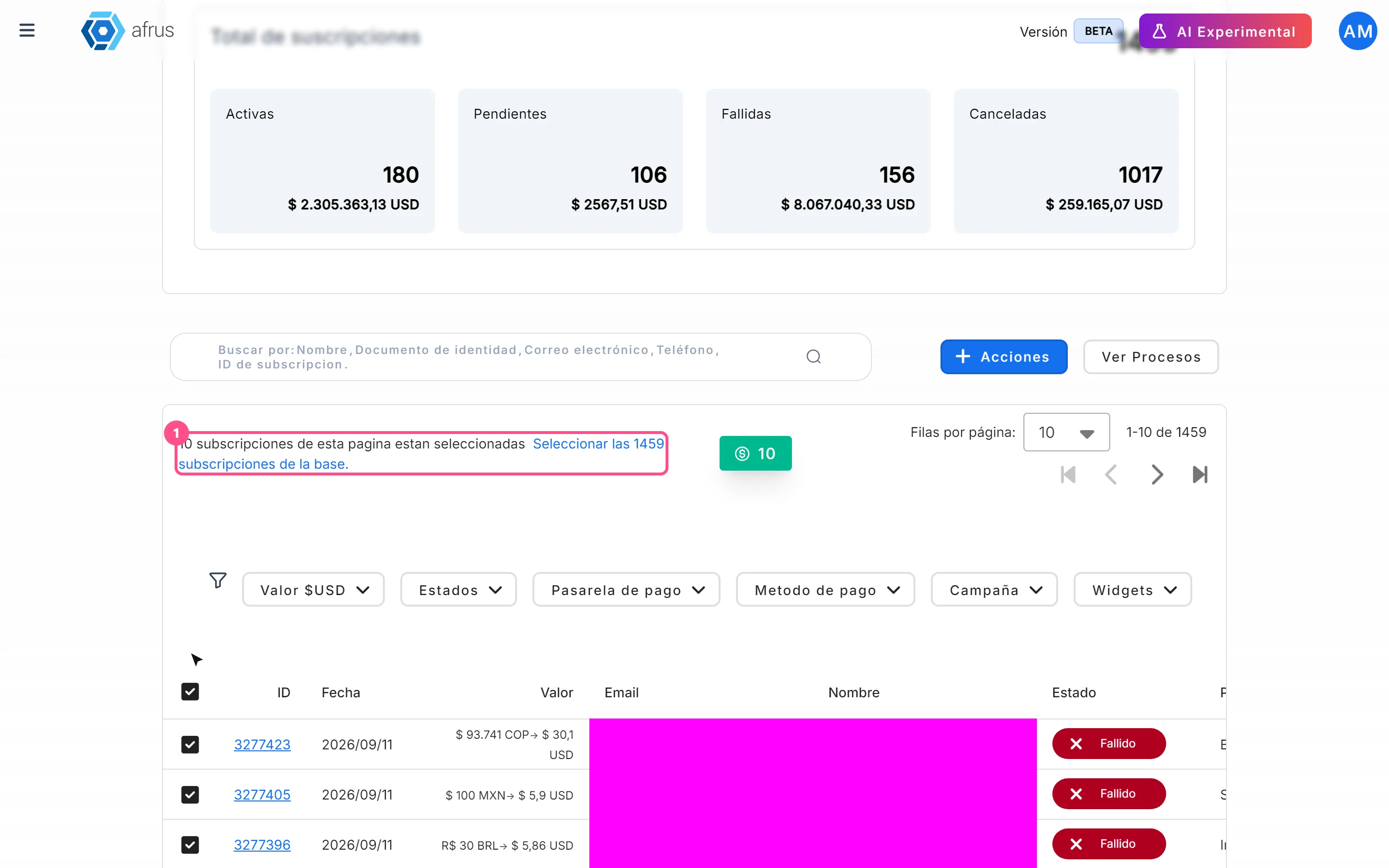
- Select the subscriptions. In Suscripciones, tick the box of each one.
- Choose the action. Click "Acciones" (Actions) and choose Marcar como Fraude (Mark as fraud).
- Confirm. In the Marcar como fraude window, click "Confirmar". The window mentions "transacción(es)" (transactions): it applies to the subscriptions you selected.
You will see "Transacciones marcadas como fraude" (Transactions marked as fraud) and the table reloads without those subscriptions.
Frequently asked questions
Can I mark the whole database at once?
Not reliably: with Seleccionar las N subscripciones de la base (Select the N subscriptions in the database) only the rows on the current page are marked. Do it page by page.
Need help? Talk to the afrus team
In this article
✕
Related Tutorials

Subscriptions
October 27, 2026
What Subscriptions is
Learn what the AFRUS Suscripciones (Subscriptions) module is: the list of your organization's recurring donations.
afrus.ai
Subscriptions
October 27, 2026
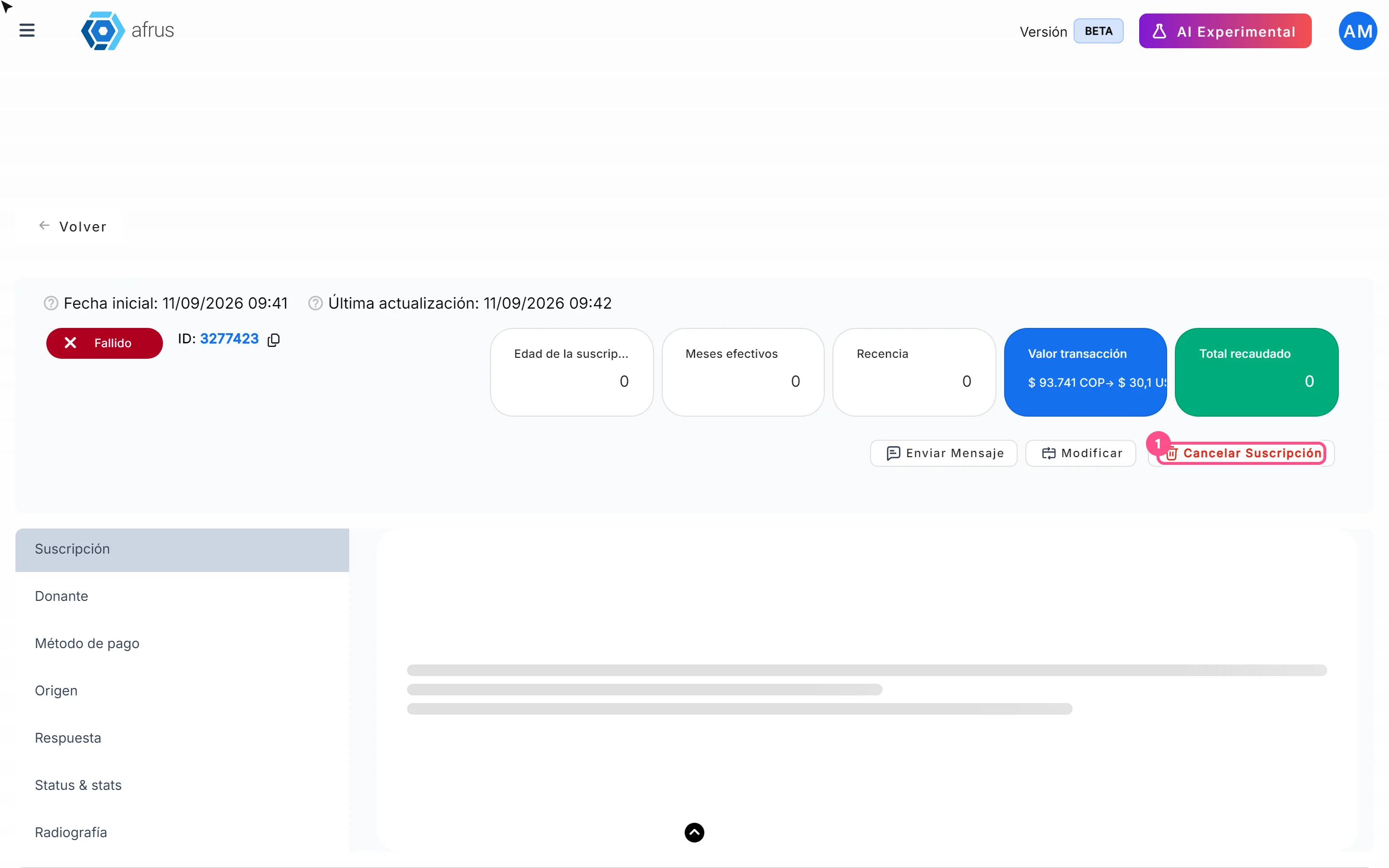
How to cancel a subscription
Learn how to cancel a recurring donation from the subscription detail in AFRUS, and what happens next.
afrus.ai
Subscriptions
October 27, 2026
How to download a group of subscriptions
Learn how to export a filtered group of subscriptions to Excel in AFRUS and download the file.
afrus.ai

Subscriptions
October 27, 2026
How to filter a group of subscriptions
Learn how to use the dates, search box and filters in the Subscriptions list to find what you need.
afrus.ai