🡠 Back


How to mark a transaction as fraud
Reading time
1 min
Transactions
October 27, 2026
afrus.ai
Learn how to mark transactions as fraud and what happens to them and to the linked donors.
In this article
Labels are shown as they appear in the Spanish version of the console.
Important: when you mark a transaction as fraud, the linked people are deleted from your database, even if they have other legitimate donations. Check carefully before confirming.
Step by step
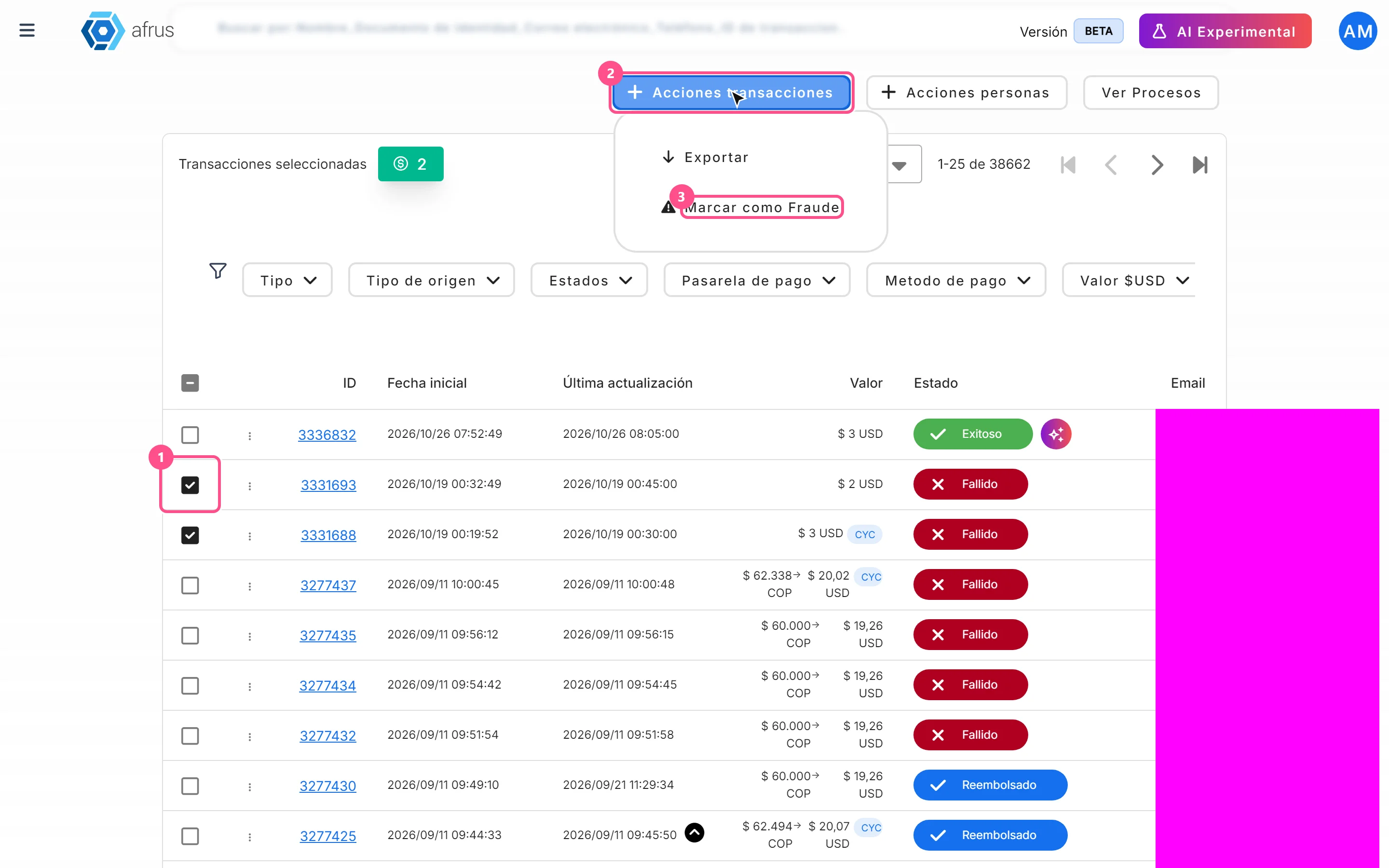
- Select the transactions. In Transacciones, tick one or more rows on the page.
- Choose the action. Click "Acciones transacciones" (Transaction actions) and choose Marcar como Fraude (Mark as fraud).
- Confirm. Read the warning and click "Confirmar" (Confirm).
The transactions change to Fraude, disappear from the list and appear in Follow up > Radar - monitor de fraude.
Frequently asked questions
Does it return the money or cancel the subscription?
No. It only changes the status in AFRUS. If you need to return the payment, refund it first.
Can I mark the whole database at once?
No. Only the rows selected on the current page are marked.
Can it be undone?
No. There is no option to reverse it.
Need help? Talk to the afrus team
In this article
✕
Related Tutorials

Transactions
October 27, 2026
What Transactions are in AFRUS
Learn what the Transactions module is: the list of every payment your organization receives, one-time and recurring.
afrus.ai
Transactions
October 27, 2026
What Transactions are for
Learn what the Transactions module is for: finding payments, refunding, cleaning up fraud, exporting and AI thank-yous.
afrus.ai

Transactions
October 27, 2026
How to create an AI thank-you from Transactions
Learn how to send a donor a thank-you email written with AI from a successful transaction.
afrus.ai
Transactions
October 27, 2026
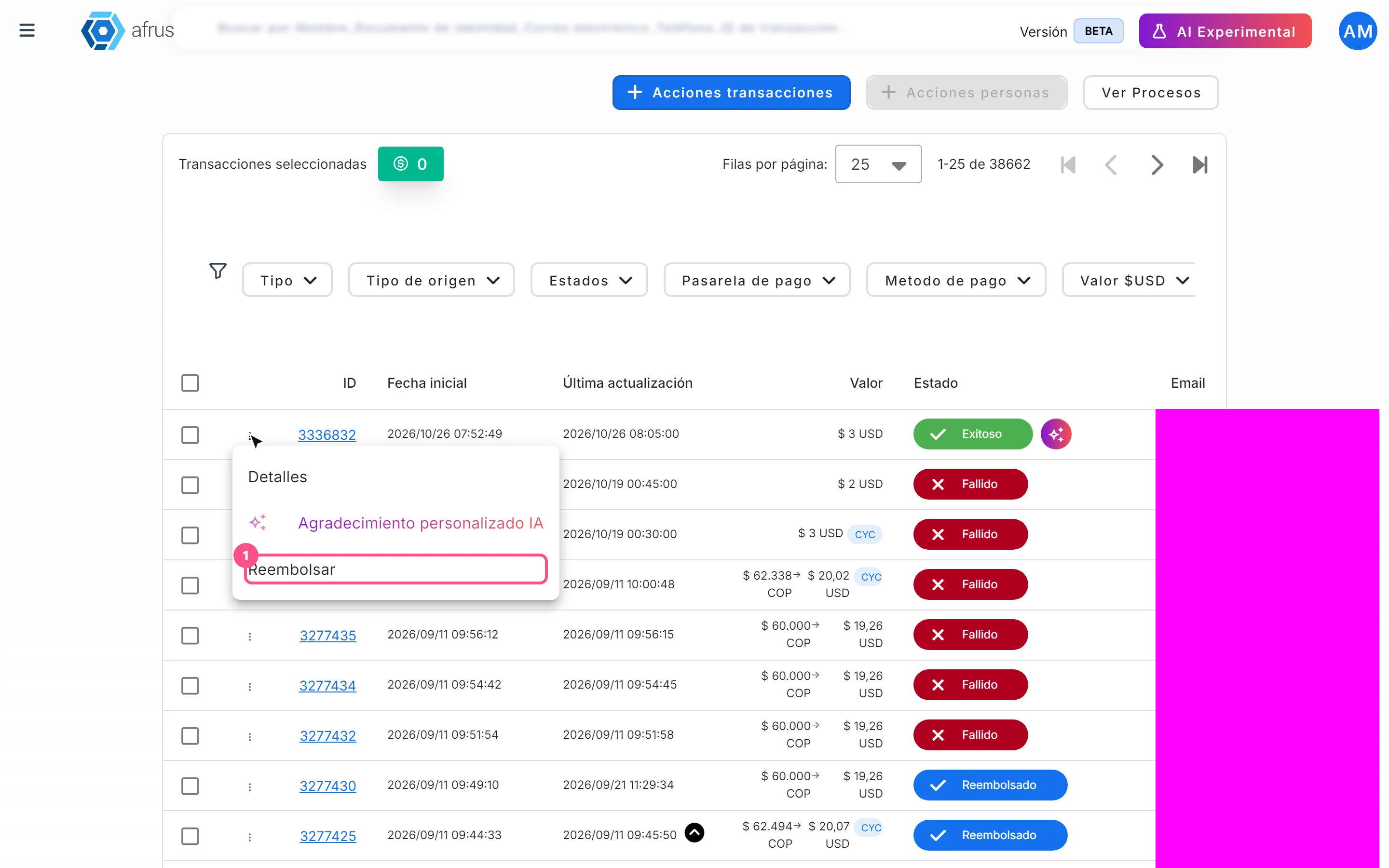
How to refund a donation
Learn how to refund a successful donation from Transactions and what happens next.
afrus.ai