🡠 Back


Payment gateways guide
Reading time
4 min
Settings
October 28, 2026
afrus.ai
Complete guide to Payment gateways: every step with its screenshots and the frequently asked questions.
In this article
This guide explains what payment gateways are in AFRUS, why you need them, and how to turn on Cover Your Cost so donors can cover the fee.
Module: Settings · Menu: Ajustes de Organización > Pasarelas de pago (Organization settings > Payment gateways) · Audience: admin and fundraising teams
About the labels in this guide: buttons, fields and menus are written as they appear in the Spanish version of the console, with an English explanation where it helps.
What payment gateways are
A payment gateway is the service that charges your organization's donations. It processes the card, Pix, boleto or other payment method the donor uses.
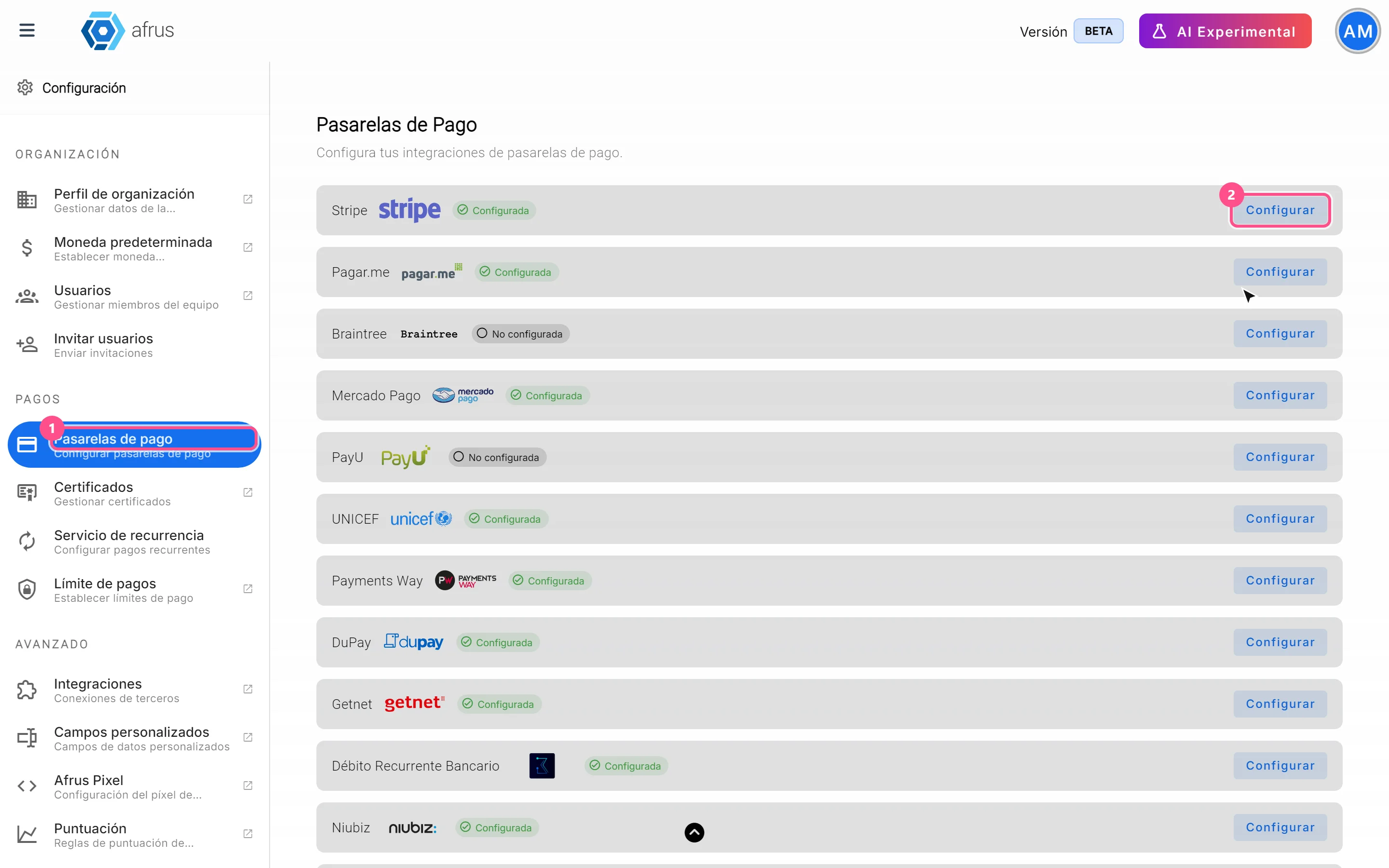
Gateways are set up once for your whole organization, in Ajustes de Organización > Pasarelas de pago. You find Ajustes de Organización in the profile menu (top corner).
What they are for
- Charging the donations from your forms. A donation form (widget) can only offer the gateways your organization has connected.
- Deciding which payment methods donors see. What the donor sees depends on the gateways you turned on and on what you choose in each form.
- Offering payments by country and currency. In each country of a form, only the connected gateways that accept that country's currency appear.
- Letting the donor cover the fee (Cover Your Cost). It is set up in each gateway.
Good to know about payment methods:
- Pix, boleto and cash are payment methods for Brazil and are only offered for one-time donations. The exception is Pix with InfoPago, which also allows monthly donations.
- Some payment methods stay pending until the gateway or the bank confirms the payment. That is why a donation can first appear as pending and change later.
Once a gateway is connected, you choose it in each form, in the Medio de pago (Payment method) block of the editor. The Widgets guide explains how.
Step by step
How to turn Cover Your Cost on or off
With Cover Your Cost, the donor can pay a little more to cover the gateway fee. This way your organization receives the full donation amount.
Before you start: AFRUS has to turn on Cover Your Cost for your organization. If you don't see the Cover Your Cost section when you open a gateway, write to us to activate it.
Open the gateway. Go to Ajustes de Organización > Pasarelas de pago and open the gateway where you want to offer it.
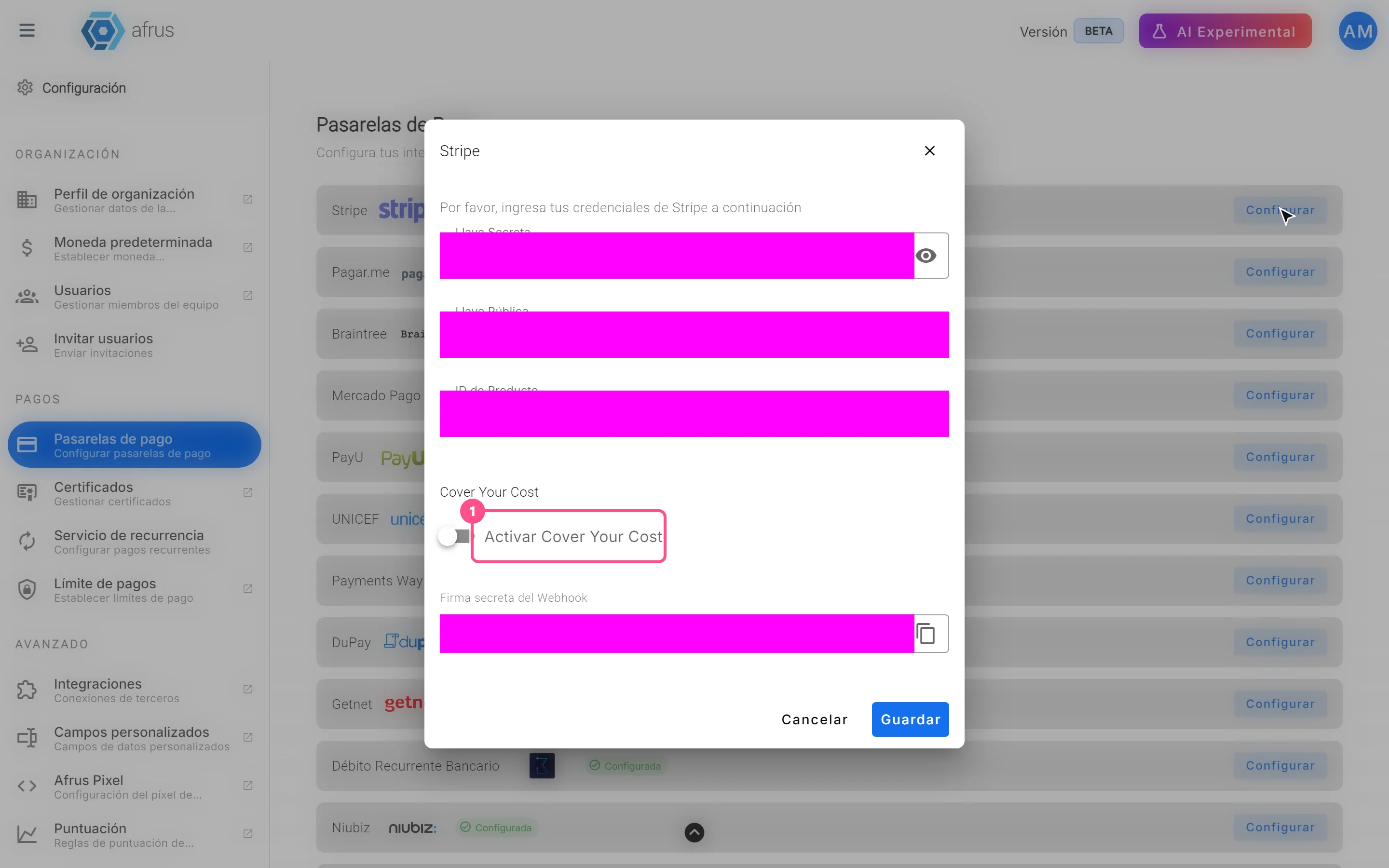
Turn it on. In the Cover Your Cost section, turn on Activar Cover Your Cost (Turn on Cover Your Cost).
Enter the gateway fee. In Comisión de pasarela (%) (Gateway fee %), enter the percentage that gateway charges you (minimum 0.01). The Comisión AFRUS (%) (AFRUS fee %) is shown for reference only; you can't change it.
Choose how the donor sees it. With Preseleccionar la opción para el donante (Preselect the option for the donor) on, the donor sees it already turned on and can remove it. Off, they see it turned off and can turn it on.
Save. Save the gateway. Repeat in each gateway where you want to offer it.
When you finish, when a donor pays with that gateway, the last step of the form shows the card "Cubrir el 100% los costos de donación" (Cover 100% of the donation costs), with the Donación base (Base donation), Costo aproximado de transacción (Approximate transaction cost) and Total. The total is calculated so that, after the fees, your organization receives at least the donation amount. That is why the donor pays a little more than the simple sum of the percentages.
To turn it off: open the gateway, turn off Activar Cover Your Cost and save.
Can it be undone? Yes. You can turn it on and off whenever you want.
Keep in mind:
- It is set up per gateway, not per form.
- The gateway fee plus the AFRUS fee must add up to less than 80%.
- If you see "No se pudo cargar la comisión de AFRUS. Inténtalo de nuevo." (The AFRUS fee could not be loaded. Try again.), the gateway can't be saved at that moment. Try again.
Connecting a gateway
To activate a payment gateway, write to support@afrus.ai. The AFRUS team will help you activate it and guide you through the setup.
Frequently asked questions
Why doesn't my gateway appear in the form?
In each country of the form, only the connected gateways that accept that country's currency appear. Check that the gateway is connected and accepts that currency.
Can I offer Pix for monthly donations?
Only with InfoPago. With the other gateways, Pix is for one-time donations only.
Is Cover Your Cost turned on in the form?
No. It is turned on in each gateway, in Ajustes de Organización > Pasarelas de pago.
Last updated: 2026-10-27
Need help? Talk to the afrus team
In this article
✕
Related Tutorials
Settings
October 28, 2026
Custom fields guide
Complete guide to Custom fields: every step with its screenshots and the frequently asked questions.
afrus.ai
Settings
October 28, 2026
Recurrence service guide
Complete guide to Recurrence service: every step with its screenshots and the frequently asked questions.
afrus.ai
Settings
October 28, 2026
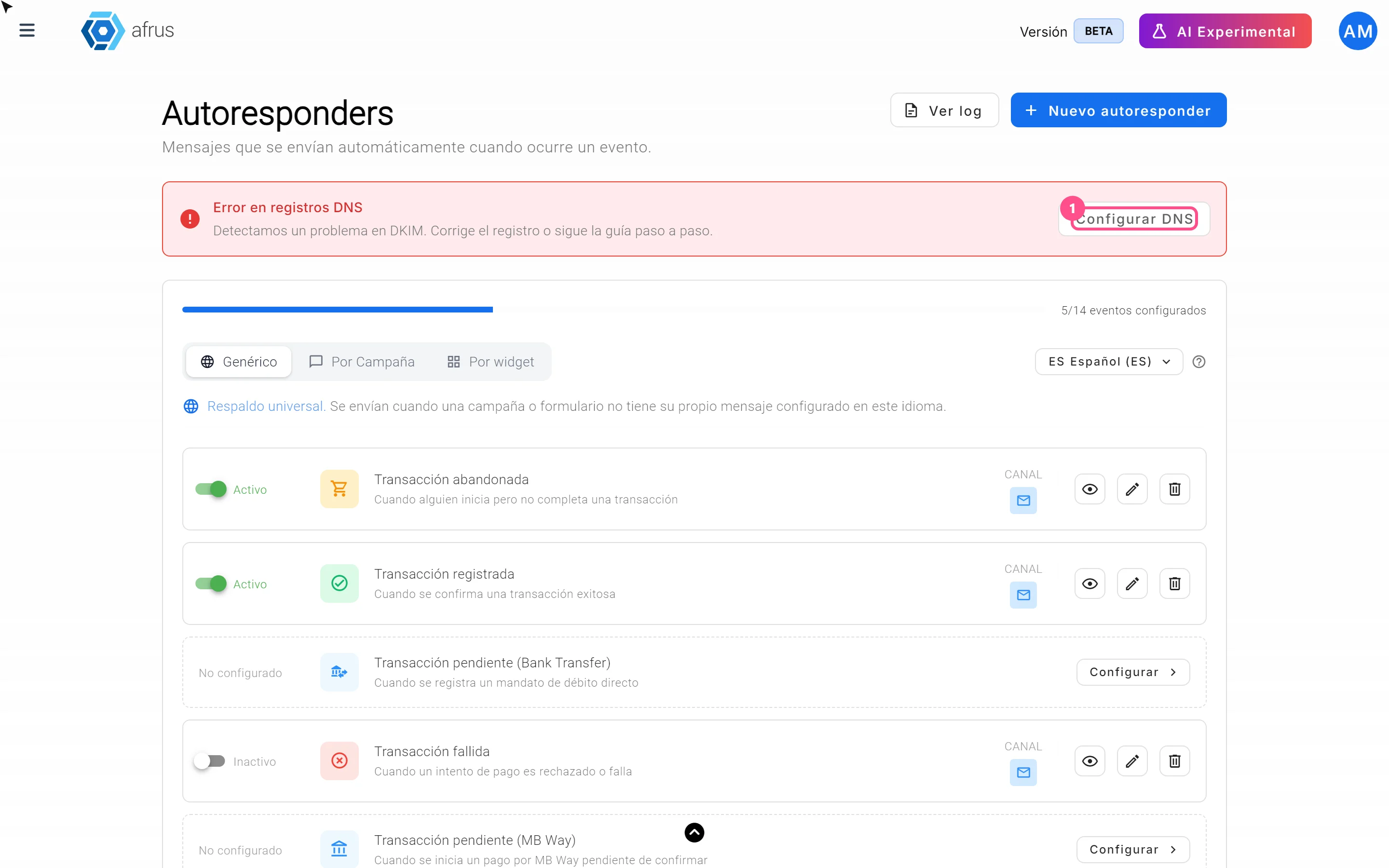
Onboarding automation guide: your email domain
Complete guide to Onboarding automation guide: your email domain: every step with its screenshots and the frequently asked questions.
afrus.ai
Settings
October 28, 2026
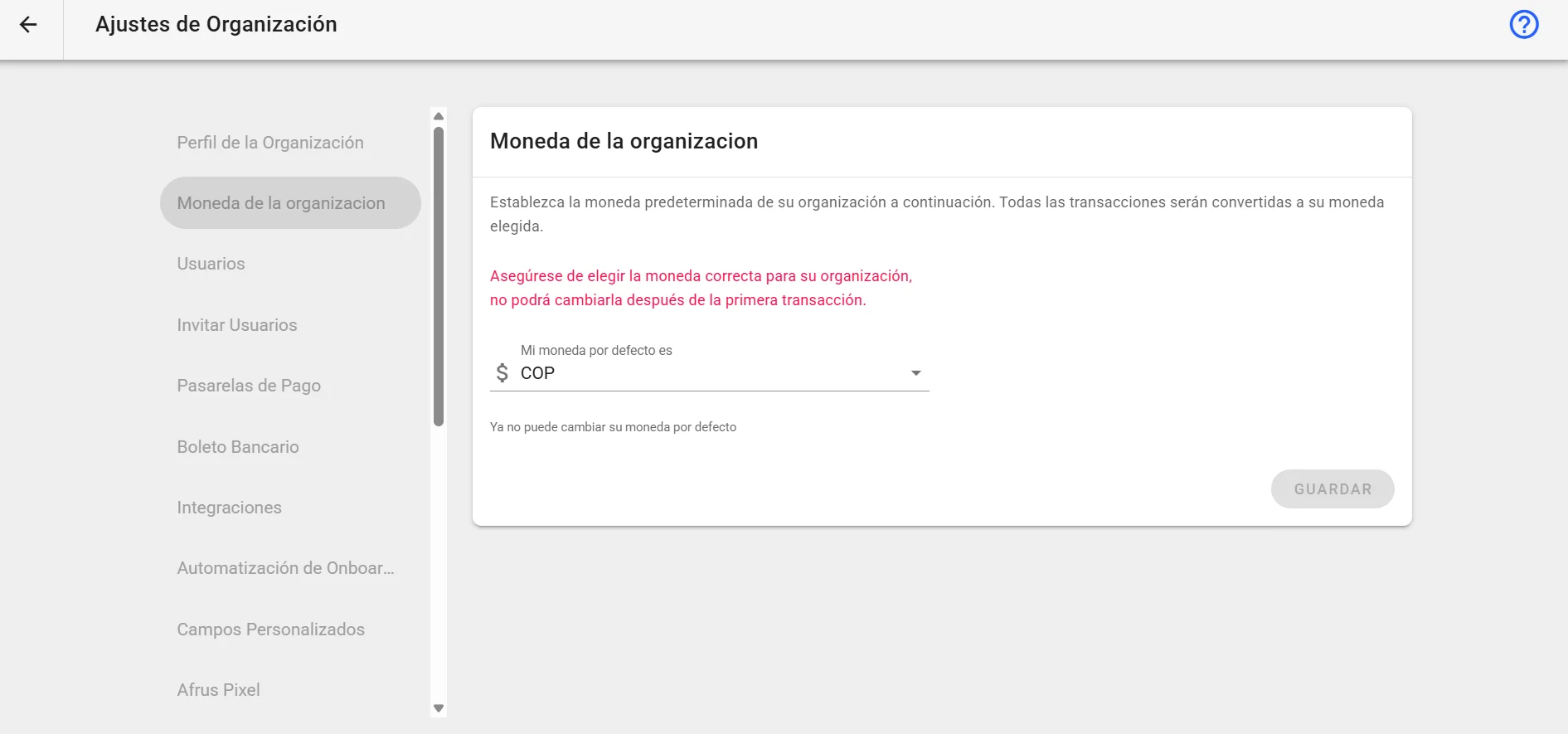
Organization currency guide
Complete guide to Organization currency: every step with its screenshots and the frequently asked questions.
afrus.ai